
Choose the AI models Mida uses
Let Mida pick the best model for each task, or choose the model it uses for text, images, audio, video and 3D.
Mida picks a suitable AI model for each request by default. If you prefer a particular model, for example a faster one for quick brainstorms or a more capable one for detailed plans, you can choose the model Mida uses for each type of content.
Open Model Settings
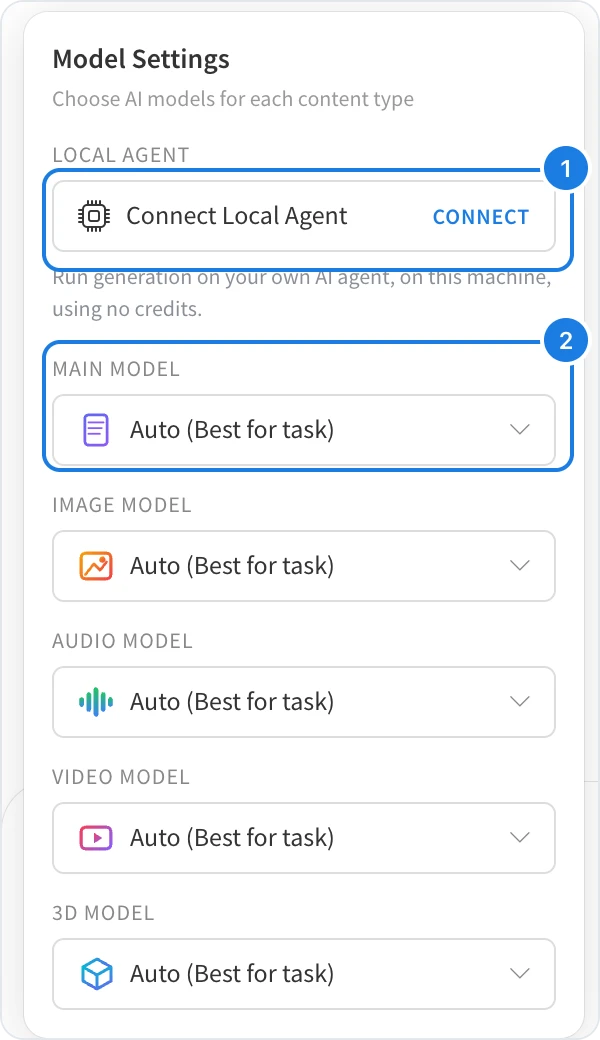
Open Mida and click the gear icon (Model Settings) below the prompt field. Each row sets the model for one type of content:
Main Model (2) for boards, diagrams, plans and answers
Image Model, Audio Model, Video Model and 3D Model for generated media
Every row starts on Auto (Best for task), which lets Mida choose.
Pick a model
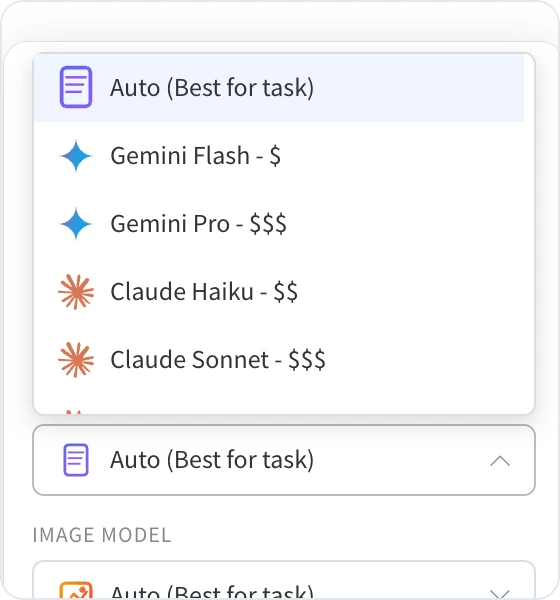
Open a row and choose a model, such as Gemini, Claude or GPT models. The $ signs show how many AI credits a model uses compared with the others: more signs mean more credits per request. Your choice applies to your requests while the board is open. When you open the board again, the models are back on Auto (Best for task).
See AI credits for how credits work.
Use your own AI agent instead
At the top of Model Settings, Connect Local Agent (1) lets your own AI agent, such as Claude Code, answer and draw on the board on your computer, using no MockFlow AI credits. See What is Bring your own AI.
What is not available on the Basic and Plus plans
Choosing models is part of the Max plan. On other plans, Mida uses Auto (Best for task), and the higher-cost models are marked PRO. See MockFlow pricing for details.