
Manage your subscription
Change your plan, switch between monthly and yearly billing, or change the number of users on your MockFlow subscription.
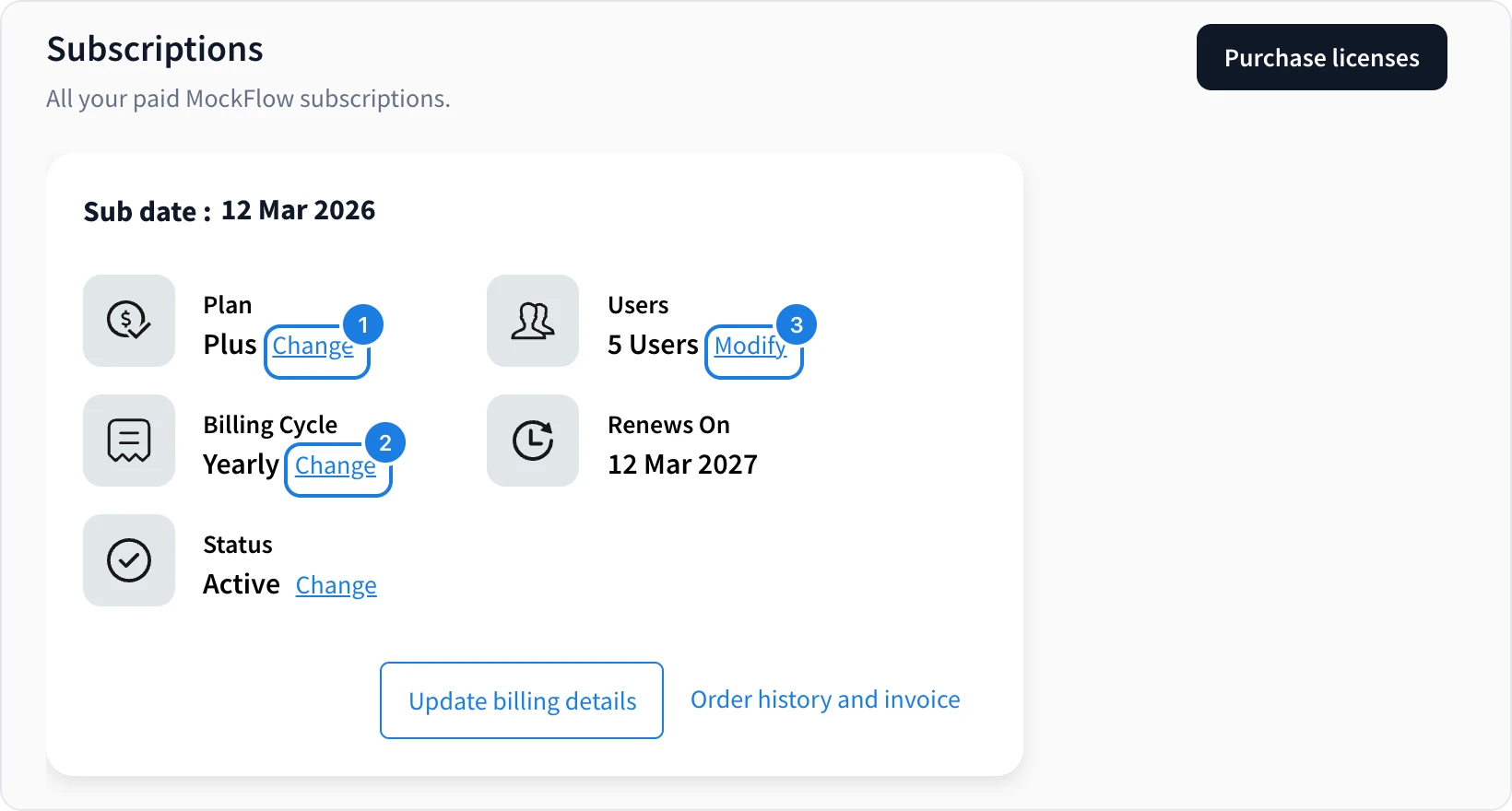
Your paid plans are listed in Subscriptions: click your name at the bottom of the workspace sidebar and choose Subscriptions. Each subscription shows its plan, billing cycle, status, number of users and renewal date. There are no contracts and no fees for changing.
Change your plan
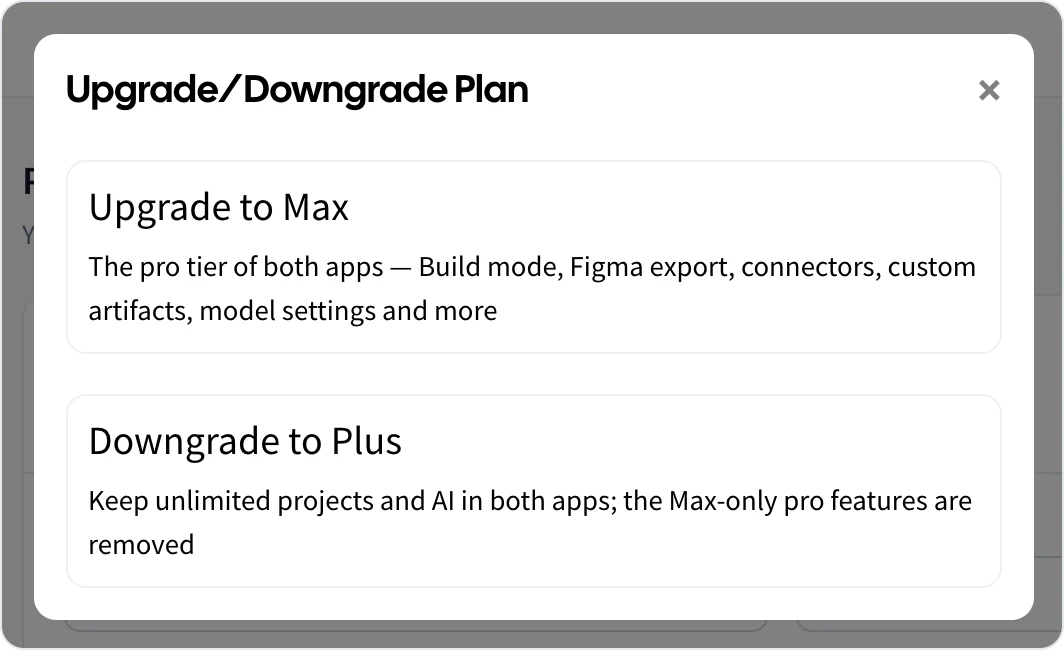
Click Change next to Plan (1) and choose Upgrade to Max or Downgrade to Plus.
Switch between yearly and monthly
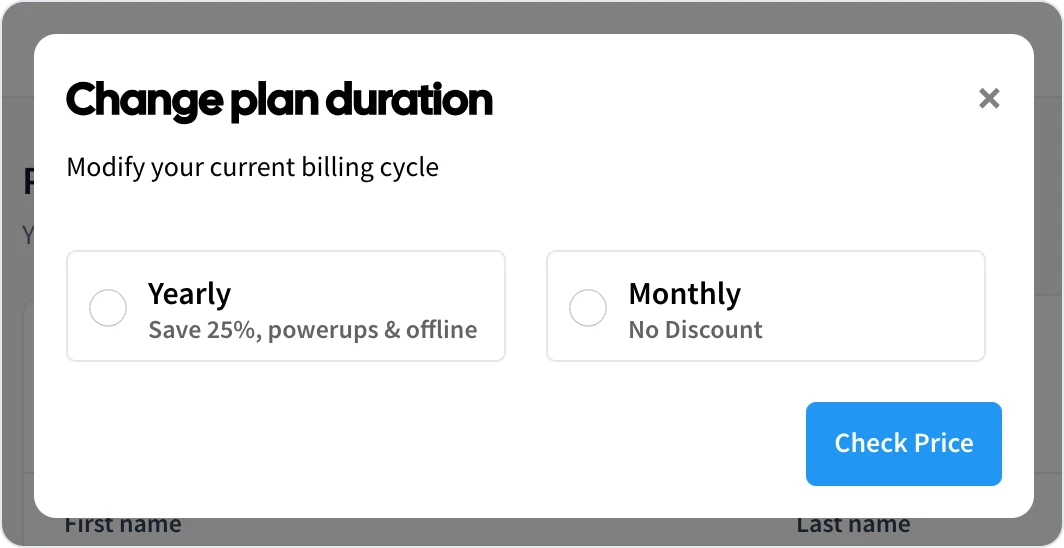
Click Change next to Billing Cycle (2), choose Yearly (save 25%) or Monthly, click Check Price to see the new amount, then Confirm.
Change the number of users
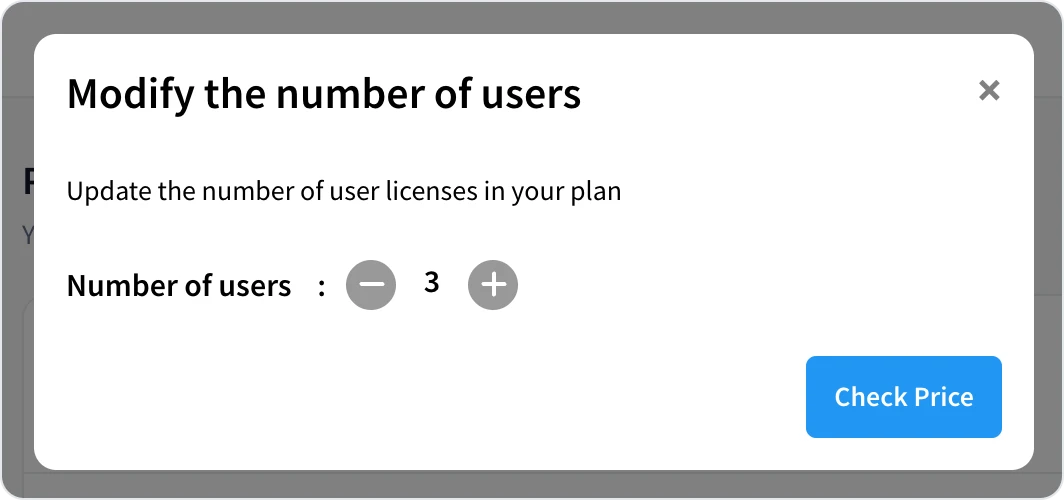
Click Modify next to Users (3), set the Number of users, click Check Price, then Confirm.
When a change lowers what you pay, the unused amount from your current period is added to your account as credit.
To choose who uses each license, open User licenses in the account menu. See Teams & admin.