
Chat with your team on a board
Use team chat on a MockFlow board to talk with teammates, mention them with @, point to a spot on the canvas and ask Mida about the discussion.
Team chat keeps the conversation about a board on the board itself. Teammates discuss a wireframe, a launch plan or a diagram while looking at it, and the chat history stays with the board for anyone who joins later. Mention @mida and Mida, the MockFlow AI, answers in the chat for everyone: a summary, the decisions made or a list of action items.

Open team chat
Point to the headset icon at the top right and click Team Chat.
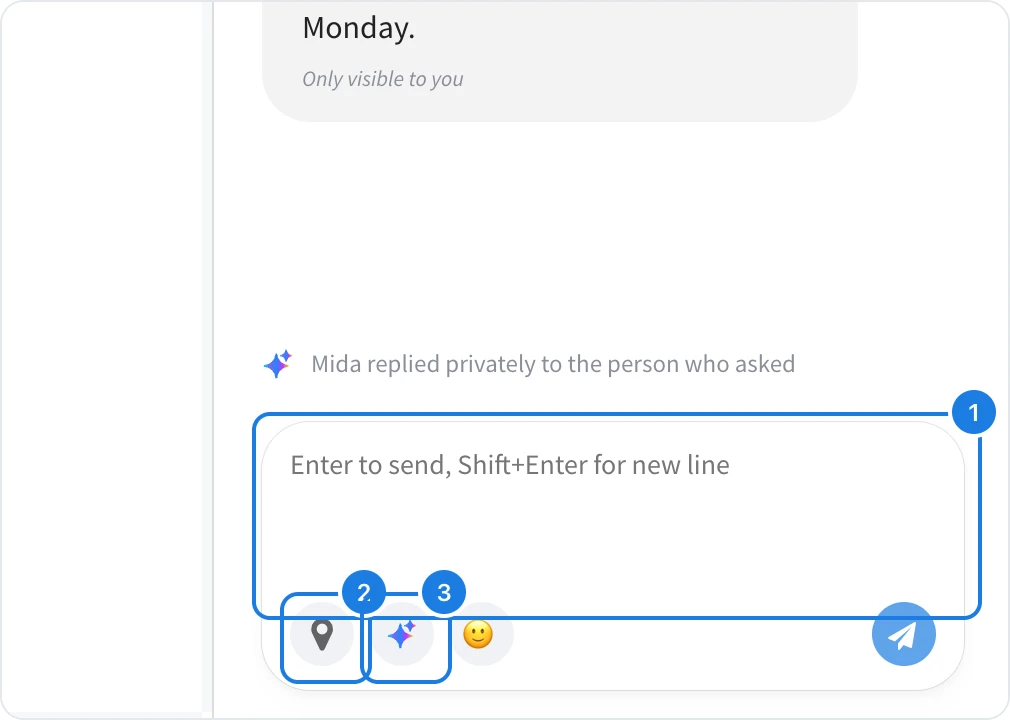
Type in the message field (1) and press Enter to send. Press Shift+Enter for a new line.
The panel shows how many members are online, and new messages appear for everyone on the board straight away. When a message arrives while team chat is closed, a badge appears on the headset icon.
Point to a spot on the canvas
Drag the marker button (2) below the message field onto the board to attach your message to that spot, for example a section of a wireframe or a card on a kanban. Teammates see exactly what you are talking about.
Mention a teammate or Mida
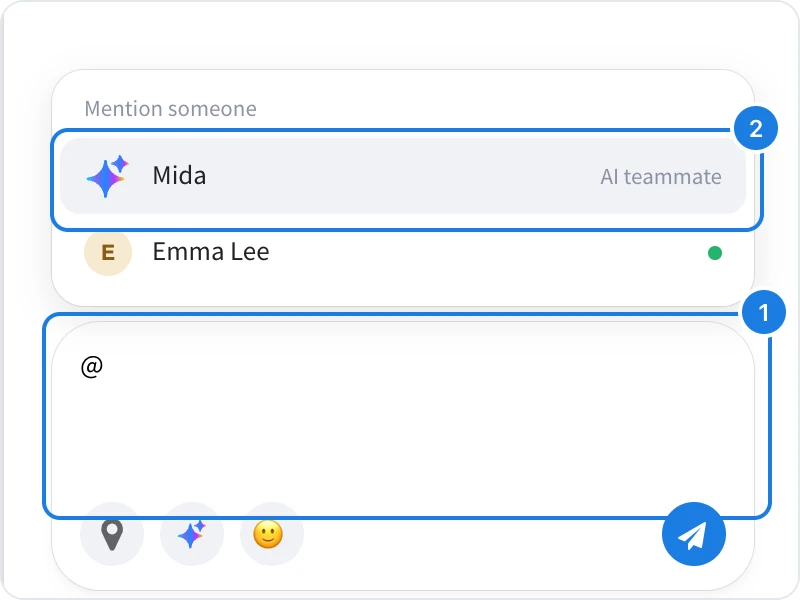
Type @ in the message field (1) and the Mention someone list opens with the members of the board, and a green dot shows who is online. Pick a name, or keep typing to narrow the list, then finish your message. The person you mention gets a notification that says you mentioned them.
Mida (2) is at the top of the list as your AI teammate.
Ask Mida in team chat
Mention @mida in a message, or click the Mida button below the message field, and ask about the discussion, the board or the team. The Mida button shows example questions, for example:
Catch up: Catch me up on what I missed, What did we decide yesterday?, List the action items from this discussion
The board: Where is the latest wireframe?, What are the open comments?, What changed on the board today?
The team: Who is on the board right now?, What time is it for everyone here?, Ask the board owner to review this
Create: Create a mindmap of this discussion
Mida posts its answer in the chat for the whole team. When an answer is useful only to you, such as catching you up, Mida replies privately: the reply is marked Only visible to you, and the team sees that Mida replied to the person who asked. Mida's answers use AI credits, as described in AI credits.
Mute notifications
Click … at the top of the panel and choose Do not disturb to stop chat notifications for a while. The same menu has Start Meeting, to move the conversation into a call on the board.