
Manage tasks on a kanban board
Add a Kanban Board to your MockFlow board, generate lists and cards with AI, track priority, owners and due dates, and export to Trello, Jira or Asana.
A kanban board shows work as cards that move across lists, such as To do, Doing and Done. On a MockFlow board, the Kanban Board component is a quick way to track the tasks that come out of planning, such as the steps of a newsletter, a school event or a small release, right beside the ideas, diagrams and wireframes they came from.
When the work grows into a larger project, you can export the cards to the project tool your team already uses.
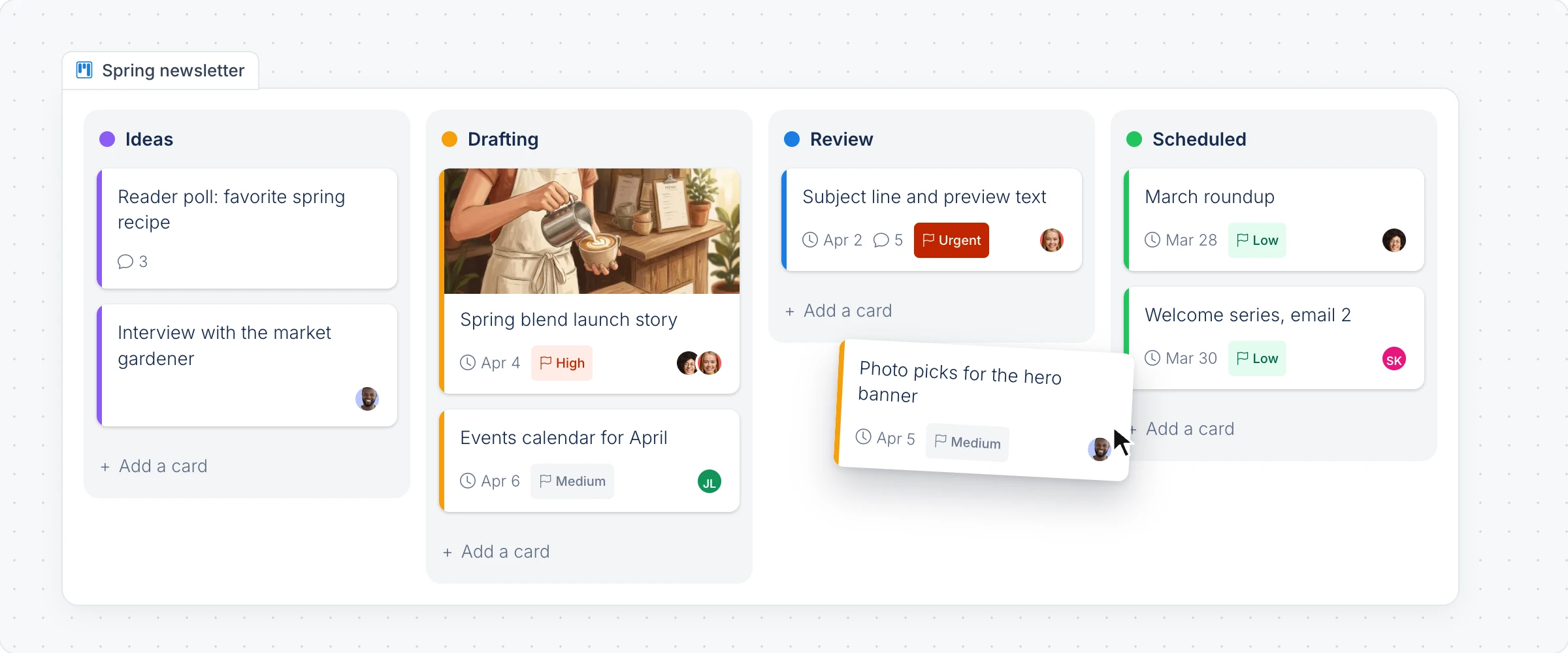
Generate a kanban board with AI
Click Add anything (the plus button) in the toolbar at the bottom of the board and choose Kanban Board.
With the kanban board selected, click the AI button on the left of its toolbar and choose Generate new.
Describe the work, for example "Tasks to launch a spring newsletter, from drafting to sending", and click Generate.
The AI menu also has Modify with AI, to add lists or rework cards with a prompt, and Convert to, to turn the kanban board into another kind of item, such as a mind map or a checklist.
Add lists and cards
Click Interact with Component (the hand button) to work inside the kanban board.
Add List in the toolbar adds a new column.
Add a card at the foot of a list adds a card. Type its title and press Enter.
Drag a card to another list to change its status, or drag a list to change the order of the columns.
Delete List removes a list and its cards.
Track priority, owners and due dates on a card
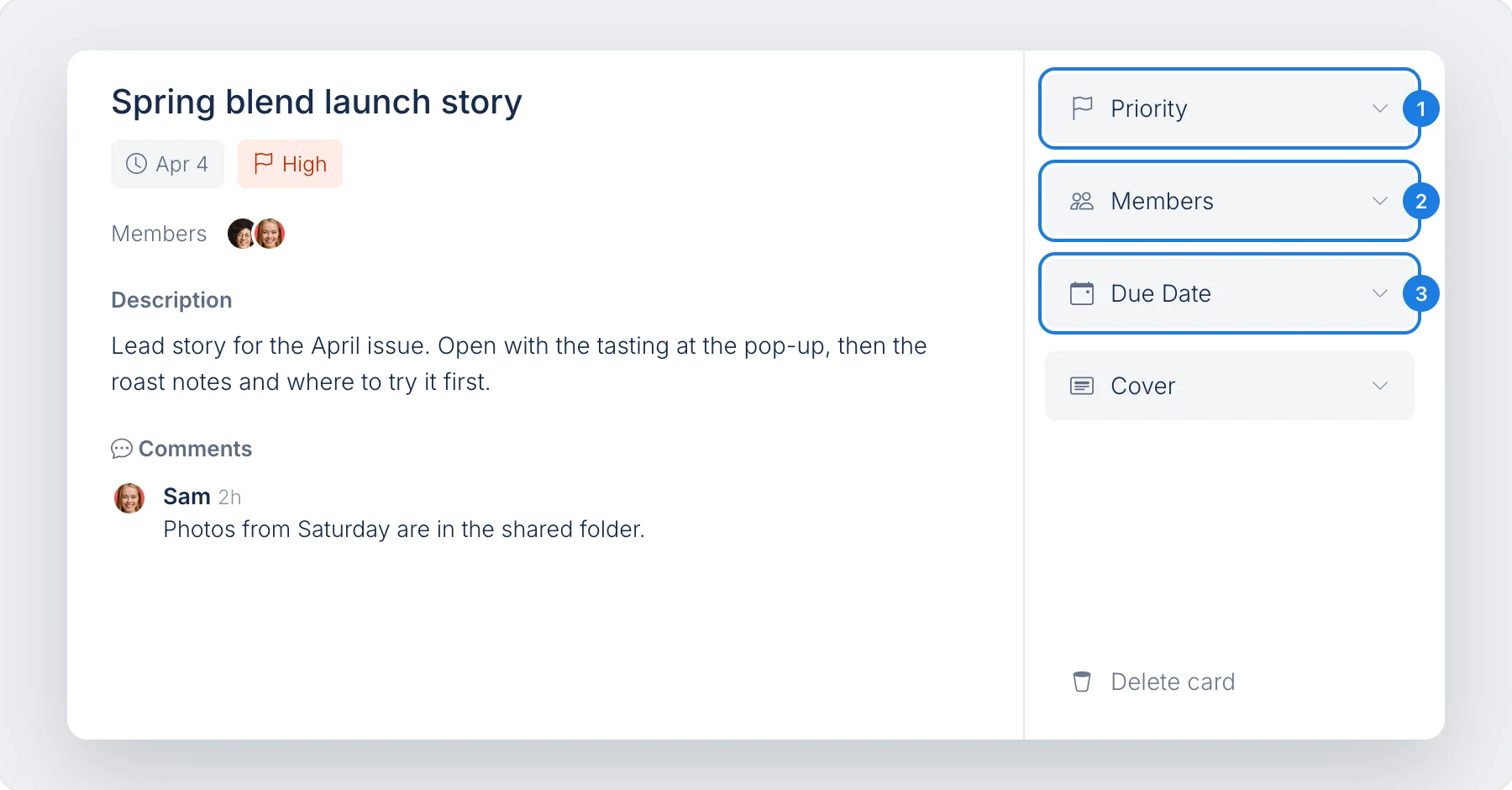
Click a card to open it.
Priority: None, Low, Medium, High or Urgent.
Members: the people working on the card.
Due Date: the date the card is due.
A card also holds a description, a Cover image or video and comments, so the discussion about a task stays on the task. Delete card removes it.
Change the colors
With the kanban board selected, the toolbar sets Card background, Card font, List background and List font color. Select a single list to give it its own Accent color, for example red for a Blocked list.
Export a kanban board to Trello, Jira or Asana
Choose Export Kanban in the toolbar to download the lists and cards.
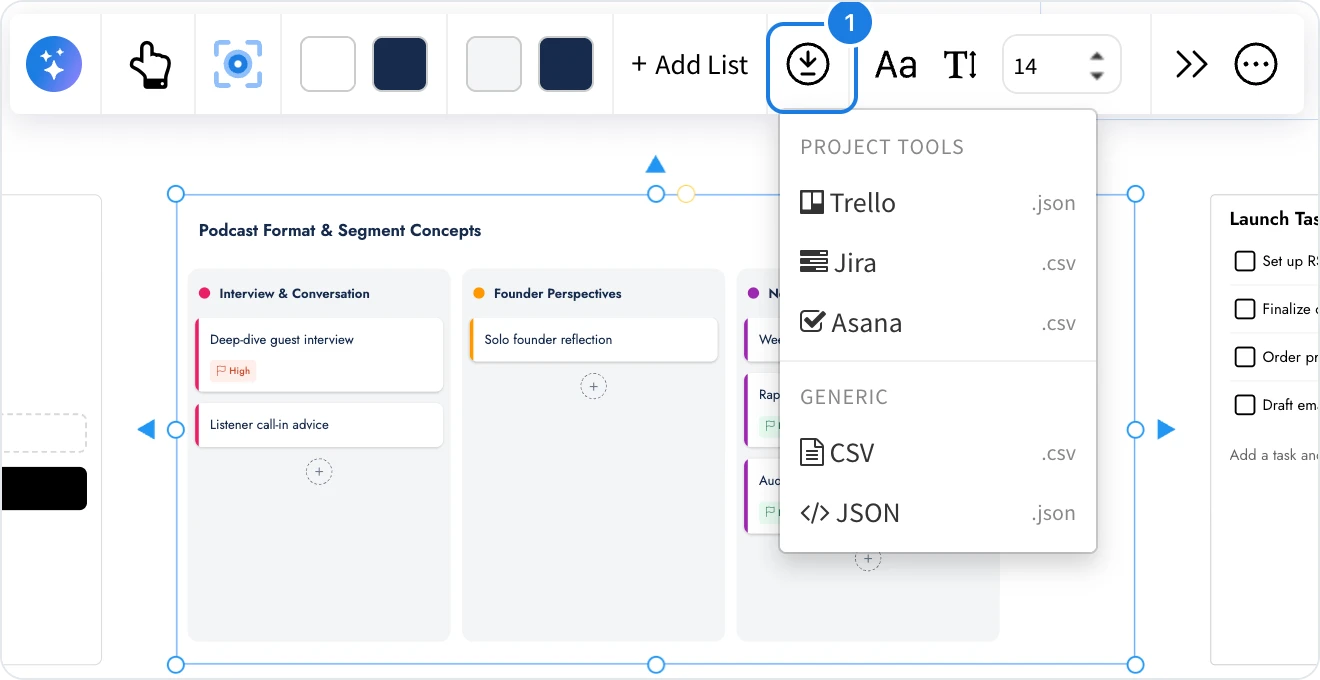
Export | File | Use it to |
|---|---|---|
Trello | JSON | Import the cards into a Trello board |
Jira | CSV | Import the cards as Jira issues |
Asana | CSV | Import the cards as Asana tasks |
CSV or JSON | CSV or JSON | Open the data in a spreadsheet or another tool |
The Kanban Board component is available on every plan. Generating with AI uses AI credits. See MockFlow pricing.