
Move around the board
Pan, zoom and jump around a MockFlow board: Space and drag, Ctrl and scroll, FIT, the mini map and board search.
A MockFlow board is an open visual canvas that grows as you add to it, so a busy board soon holds more than one screen can show. You move around it the way you would a map: pan to slide the view, zoom out to see everything, zoom in to work on the details, and jump straight to the part you need.
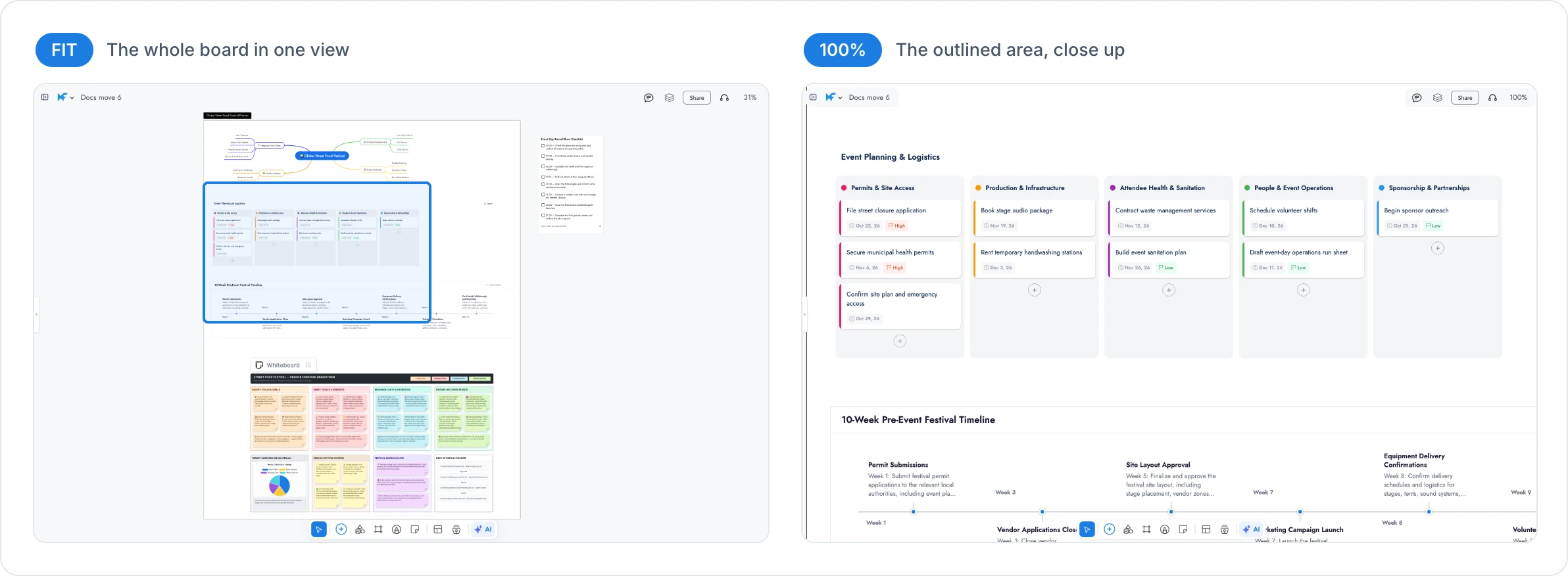

The picture shows the same festival planning board twice. On the left, FIT shows the whole board in one view. On the right, the board is at 100%, showing only the outlined area close up.
The zoom menu
The zoom level in the top right corner of the board, for example 100%, tells you how close you are. Point to it to open the zoom menu, which gathers every way to zoom and jump in one place.
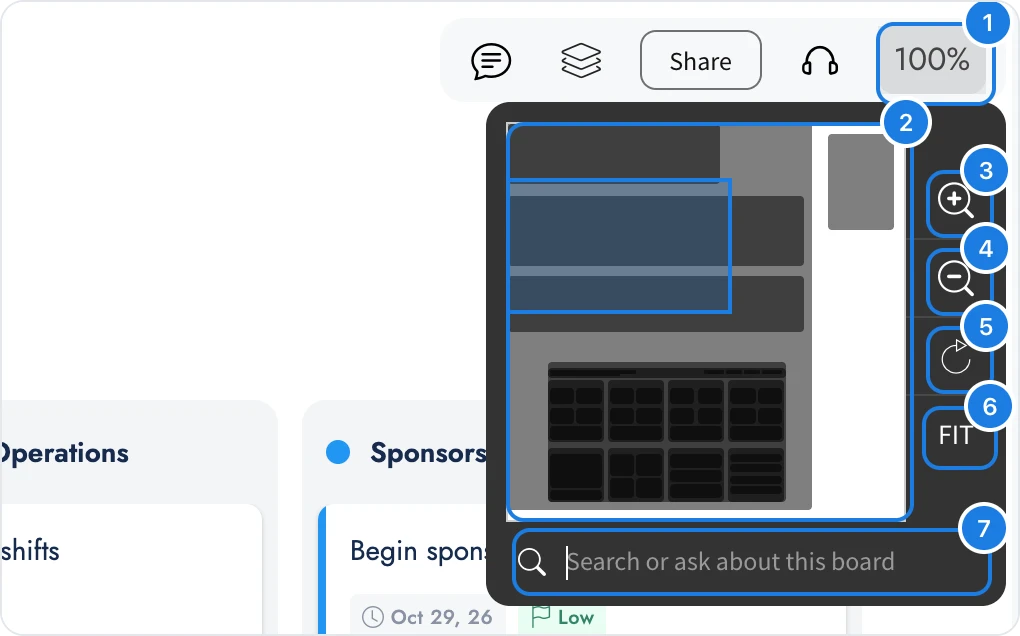
Zoom level: how large the board is drawn. Point to it to open this menu.
Mini map: a small map of the whole board. The blue box shows the part you are looking at.
Zoom in: enlarge the board by 10%.
Zoom out: shrink the board by 10%.
Reset to 100%: show the board at its actual size.
FIT: zoom so the whole board fits in the window.
Search: find anything on the board by typing a word or a question.
The zoom menu closes when you click anywhere outside it.
Pan the board with Space and drag
Panning slides the board under the window without moving any items, so you can reach the parts that are off screen.
Point to the board and hold down the Space bar. The pointer turns into a hand.
Keep holding Space and drag in any direction. The board follows the pointer.
Release the mouse and the Space bar when the part you need is in view.

There are other ways to pan as well:
Scroll: scroll with the mouse wheel or swipe with two fingers on a trackpad. Hold Shift while you scroll to move sideways with a mouse.
Play mode: in Play mode, dragging any empty part of the canvas pans the board, with no key to hold. Read more in Edit mode and Play mode.
While you are typing in a sticky note or a text box, the Space bar types a space. Click outside the text first, then hold Space to pan.
Zoom in and out
Zoom out to see how the parts of a board fit together. Zoom in to read small text or place items precisely. The board can be shown from 10% to 300% of its actual size.
The quickest way to zoom is to hold Ctrl and scroll, or to pinch on a trackpad. The board zooms around the pointer, so the item under it stays in place while everything grows or shrinks around it.
You can also zoom from the zoom menu, with Zoom in (3) and Zoom out (4) in the picture of the zoom menu, or with the keyboard.
Action | Windows | Mac |
|---|---|---|
Zoom in | Ctrl and + | ⌘ and + |
Zoom out | Ctrl and - | ⌘ and - |
Zoom around the pointer | Ctrl and scroll, or pinch | Pinch on the trackpad, or Ctrl and scroll |
Show the board at 100% | Ctrl and 0 | ⌘ and 0 |
Fit the whole board in the window | Ctrl and 1 | ⌘ and 1 |
Pan | Hold Space and drag | Hold Space and drag |
See the whole board with FIT
FIT (6 in the zoom menu) zooms out just enough to show every item on the board, and centers it in the window. Use it to find your way after working close up, to check the layout of a board, or to show someone the whole board at the start of a review. Press Ctrl+1 (⌘+1 on Mac) for the same result.
When the whole board already fits at 100%, FIT keeps it at 100% and centers it. To go back to the actual size after zooming, click Reset to 100% (5) or press Ctrl+0 (⌘+0 on Mac).
Jump to any part with the mini map
The mini map in the zoom menu shows the whole board in small. Each item is drawn as a dark block, and the blue box marks the area in your window.
Point to the zoom level in the top right corner to open the zoom menu.
Drag the blue box in the mini map. The board moves with it, so you can sweep across the board and stop where you need.
Or click any part of the mini map. The view jumps there at once.
The mini map keeps the current zoom level, so you arrive at the new spot just as close as you were.
Search the board
On a large board, the fastest way to reach an item is often to ask for it. The search field in the zoom menu finds items by what they contain, so you can type a name, a word from a note or a plain question.
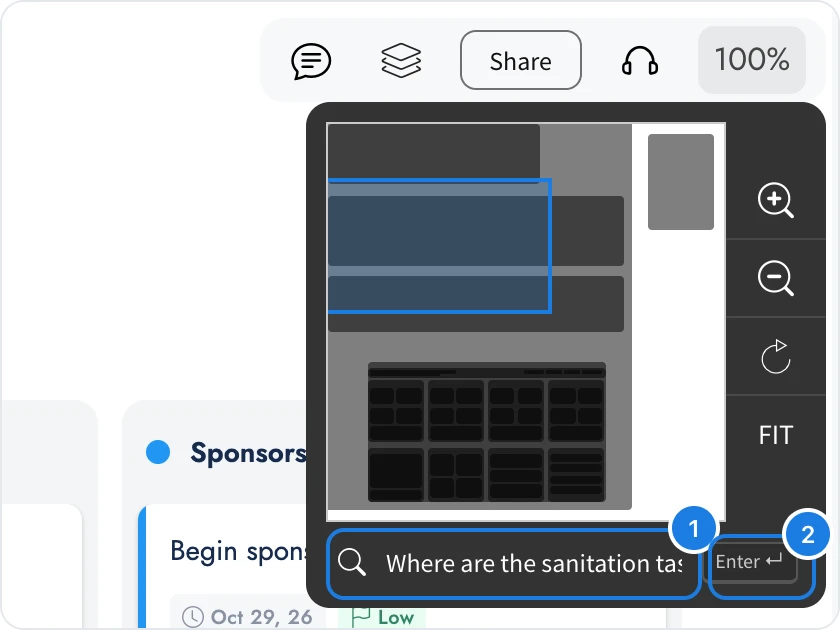
Point to the zoom level to open the zoom menu. The search field is ready to type in.
Type what you are looking for in Search or ask about this board (1), for example sanitation tasks or Where is the vendor checklist?
Press Enter, or click Enter (2).
Your search opens in Mida, the AI assistant in MockFlow. Mida reads the board, answers your question and lists each matching item as a link.
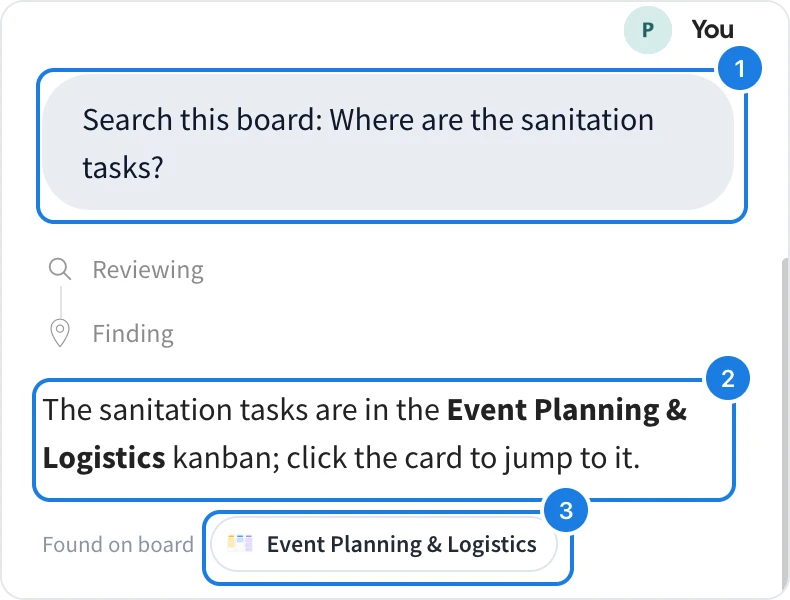
Your search, sent as Search this board followed by what you typed.
The answer, which names the items that match.
Found on board: a link to each matching item. Click it and the board scrolls and zooms to that item.
Because the search goes to Mida, you can follow up in the same conversation, for example to ask what an item says or to change it.
Tips for finding your way on large boards
Start a session with FIT to see the whole board, then zoom in where you want to work.
Group related items in sections with clear titles, such as Week 1 or Vendors, so they are easy to spot when zoomed out and easy to find with search. See Sections: group and organize items.
Keep one hand on Space while you work close up, and pan instead of zooming out and back in.