
Open a board file
Open a .board or .wire file saved on your computer, from the desktop app's File mode section or by double-clicking it.

Board files live in folders on your computer, so you open them the way you open other documents: from inside the MockFlow desktop app, or from Finder or File Explorer.
Open a file from the desktop app
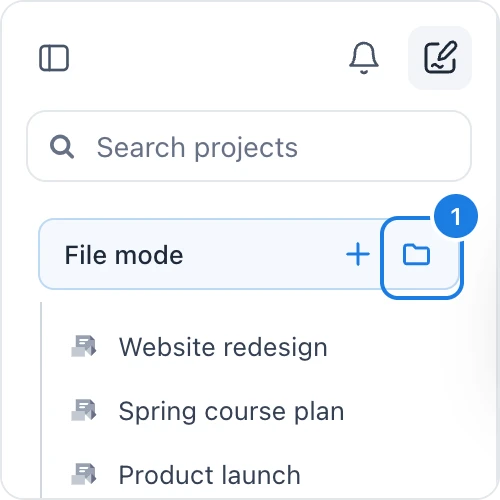
In the workspace sidebar, find the File mode section.
Click the Open file button (1), the folder icon.
Select a
.boardor.wirefile and click Open.
The file opens in a window of its own, with its name at the top of the window.
Open a file from Finder or File Explorer
The desktop app is set up to open MockFlow files. Double-click a .board or .wire file in Finder (Mac) or File Explorer (Windows) and it opens in MockFlow, starting the app if it isn't running.
Work with several files
Each file opens in its own window, so you can keep several boards open side by side. Use the Windows menu in the app menu bar to switch between open windows.
Open a file on another computer
A board file holds its pages, images, fonts and revisions, so you can copy it to another computer and open it there. That computer needs the MockFlow desktop app, signed in on a plan that includes file mode.
If the file is password protected, MockFlow asks for the password each time it opens.