
My microphone doesn't work in a meeting
Fix a blocked or missing microphone in a MockFlow meeting: what each message means, how to allow the mic in your browser and system settings, and how to try again.
When MockFlow cannot use your microphone, you still join the meeting and hear everyone, but the others cannot hear you. The microphone button on the meeting bar turns grey with an orange ! badge, and a message explains why.
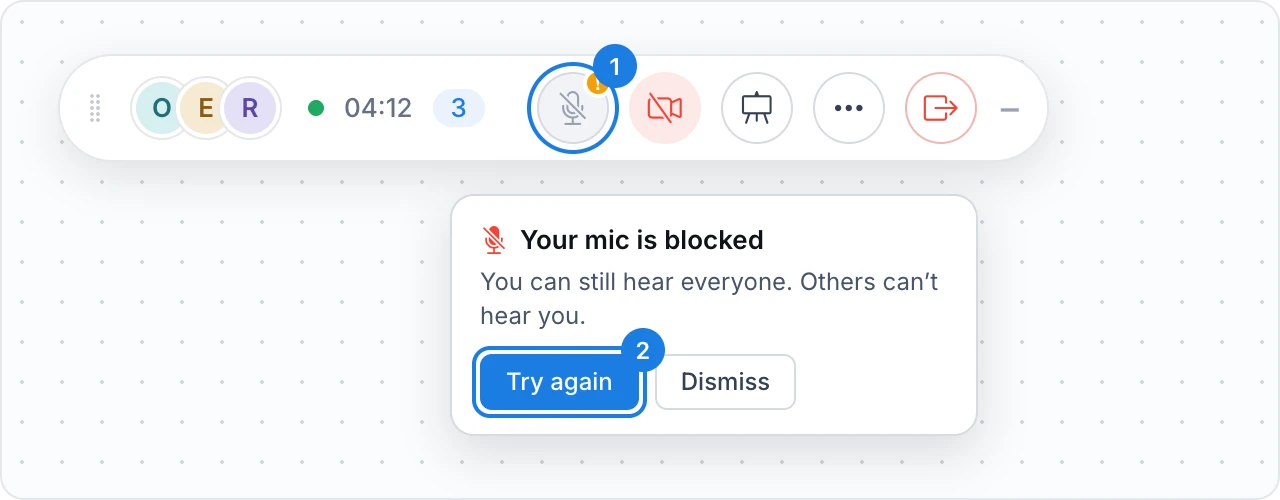
Click the microphone button (1) at any time to see the message again. Try again (2) asks for the microphone again, and Dismiss closes the message.
What the microphone message means
Message | What happened |
|---|---|
Your mic is blocked | Your browser or computer refused MockFlow access to the microphone. |
No microphone found | No microphone is connected, or your computer does not detect it. |
Your mic could not start | A microphone was found but could not be opened, for example because another app is using it. |
Allow the microphone in your browser
If you clicked Block when the browser asked, it does not ask again by itself. After a refused Try again, the message shows the fix: click the lock icon in the address bar, set Microphone to Allow, then try again.

Click the icon at the left end of the address bar, next to app.mockflow.com.
Set Microphone to Allow. In Firefox, clear the blocked microphone permission instead.
Click Try again in the message, or click the microphone button. Your microphone turns on and the others can hear you.
In Safari, open Safari > Settings > Websites > Microphone and set app.mockflow.com to Allow.
Allow the microphone in your computer's settings
If the browser allows the microphone but the message stays, your operating system may be blocking the browser:
macOS: open System Settings > Privacy & Security > Microphone and turn on your browser, or MockFlow if you use the desktop app. Quit and reopen the app if macOS asks.
Windows: open Settings > Privacy & security > Microphone, and turn on Microphone access and access for your browser or desktop apps.
In the MockFlow desktop app, a blocked microphone shows Microphone access was blocked. Allow MockFlow in the system settings above, then rejoin the meeting.
If no microphone is found or it cannot start
Connect your headset or microphone, check that it is selected as the input device in your system's sound settings, then click Try again.
Close other apps that may be using the microphone, such as another video call, then click Try again.
If a Bluetooth headset just connected, leave the meeting and join it again.