
What is the board canvas
The board, the canvas and the items on it: how the MockFlow canvas grows with your work, how to move around it, how to change its background and how many items a board holds.
Every MockFlow board is a visual canvas for people, teams and agents. Before you learn the tools, it helps to know three ideas that the whole board editor is built on: the board, the canvas and the items you place on it.
Board, canvas and items
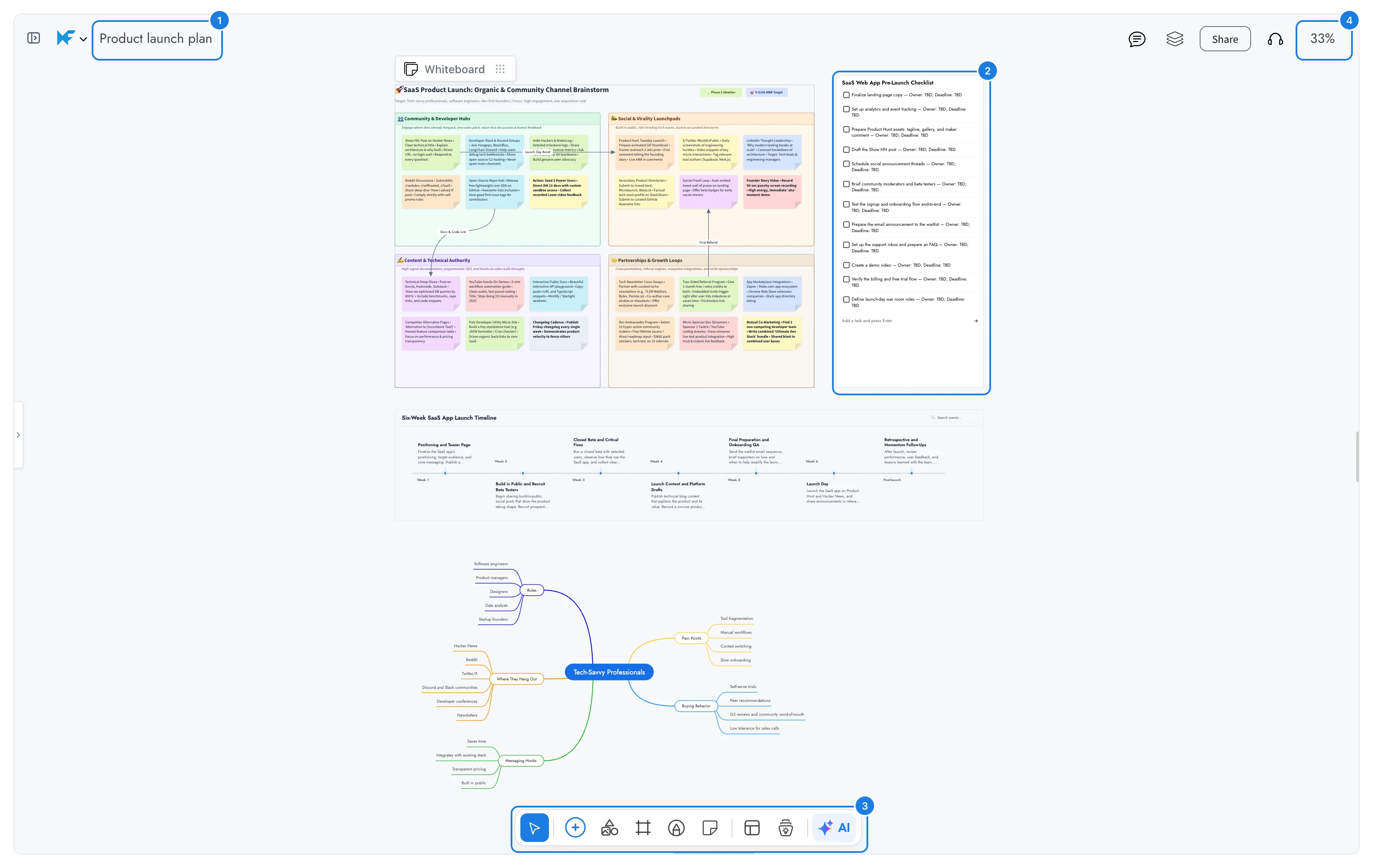
Board name: a board is one piece of work with its own name, such as Product launch plan. Your boards are kept in your workspace, in a team space or in Private boards.
Items: everything placed on a board is an item. This board holds a whiteboard of sticky notes, a checklist, a timeline and a mind map, and each of them is an item you can select, move, resize and style.
Tool bar: where you add new items to the canvas.
Zoom level: how close you are to the canvas. Hover over it to open the zoom panel.
The canvas is the open surface behind the items. It fills the whole editor, and everything on the board lives on it.
Term | What it means |
|---|---|
Board | A named piece of work, kept in your workspace and shared with the people you choose |
Canvas | The open surface of a board, where items are placed and arranged |
Item | Anything on the canvas: a sticky note, a frame, a chart, an image, a connector, a drawing, a comment and much more |
A canvas that grows with your work
You never choose a page size for a board. The canvas makes room as your work grows: MockFlow always keeps free space to the right of and below your furthest item, and when you move an item close to the top or left edge, it adds room on that side too.

This means one board can hold a quick brainstorm or a whole project side by side: ideas, plans, diagrams, designs, documents, media and anything else you add, with space left for what comes next.
Everyone you share the board with works on the same canvas at the same time. Their changes appear as they make them, and you can see where each person is by their named cursor.
Move around the canvas
Use these controls to pan across the canvas and zoom in and out.
Pan: hold Space and drag the canvas. Scrolling with a mouse wheel or trackpad also moves it.
Zoom: hold Ctrl and turn the mouse wheel, pinch on a trackpad, or press Ctrl + and Ctrl -.
See the whole board: press Ctrl 1, or choose FIT in the zoom panel.
Back to 100%: press Ctrl 0.
Pan: hold Space and drag the canvas. Scrolling with a mouse wheel or trackpad also moves it.
Zoom: pinch on the trackpad, hold ⌘ and turn the mouse wheel, or press ⌘ + and ⌘ -.
See the whole board: press ⌘ 1, or choose FIT in the zoom panel.
Back to 100%: press ⌘ 0.
Hover over the zoom level at the top right to open the zoom panel. Its mini map shows the whole board, so you can jump to any part of a large canvas in one click. See Find your way around a board for a tour of the panel.
Change the canvas background color
A background color sets the tone of the whole board, for example a warm cream for a workshop or plain white for a design review.

Right-click an empty spot on the canvas and choose Change Background (1). You can also click the board name at the top left.
In Project options, click a color under Background colors (2). Scroll the row sideways to see more colors.
Press Esc to close the dialog.
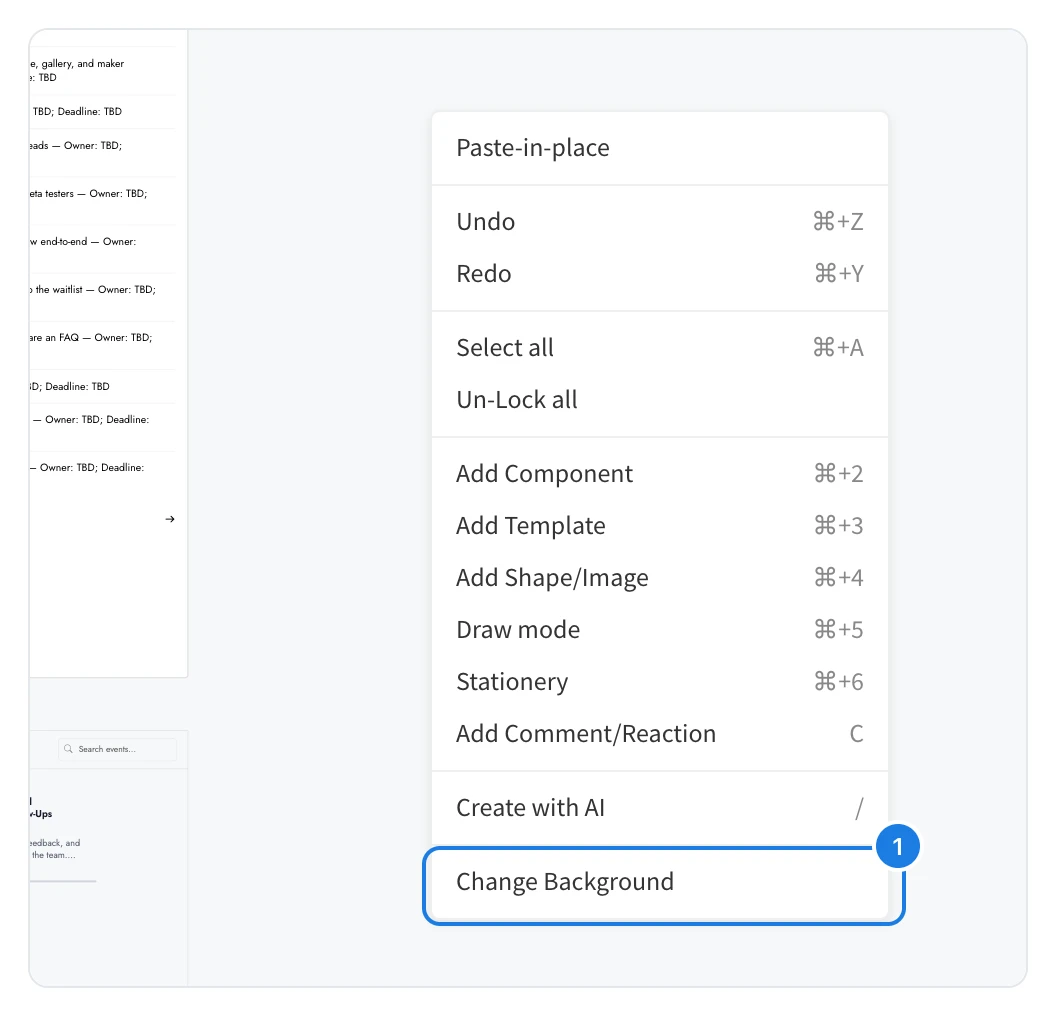
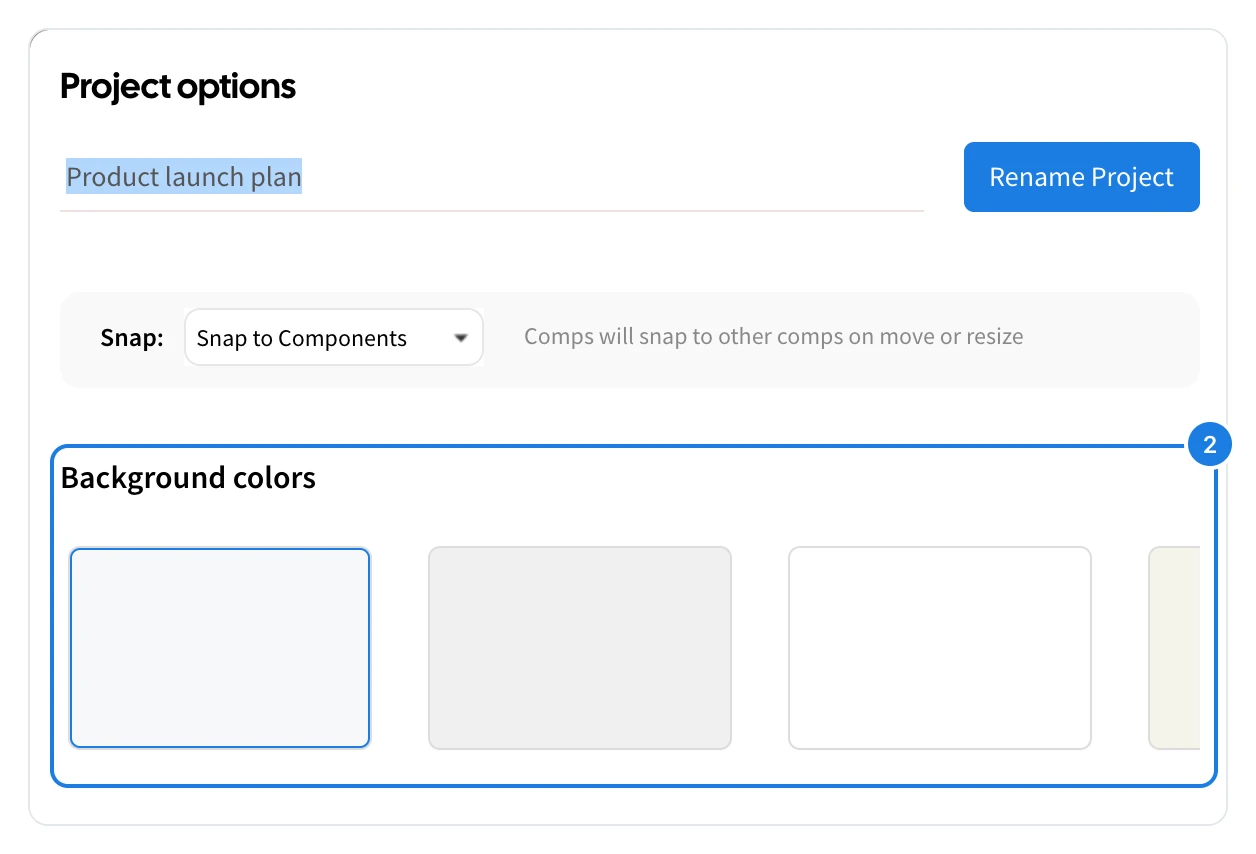
The new color is saved with the board, and everyone working on it sees the change straight away.
How many items a board can hold
Every item on the canvas counts toward the size of a board: sticky notes, text, frames and components, and also connectors, drawing strokes, comments and reactions.
On the Basic plan, a board holds up to 500 items. When a board reaches the limit, MockFlow shows a message and new items are not added until you remove some or upgrade. Plus and Max have no item limit. See MockFlow pricing.