
Build a screen with widgets
Open a Wireframe for editing, drag widgets from the widget library onto the screen and change their text, settings and layers.
A wireframe screen is made of widgets: buttons, text, inputs, lists, navigation bars, charts and more. You add and change them in edit mode, right on the board.
Open a screen for editing
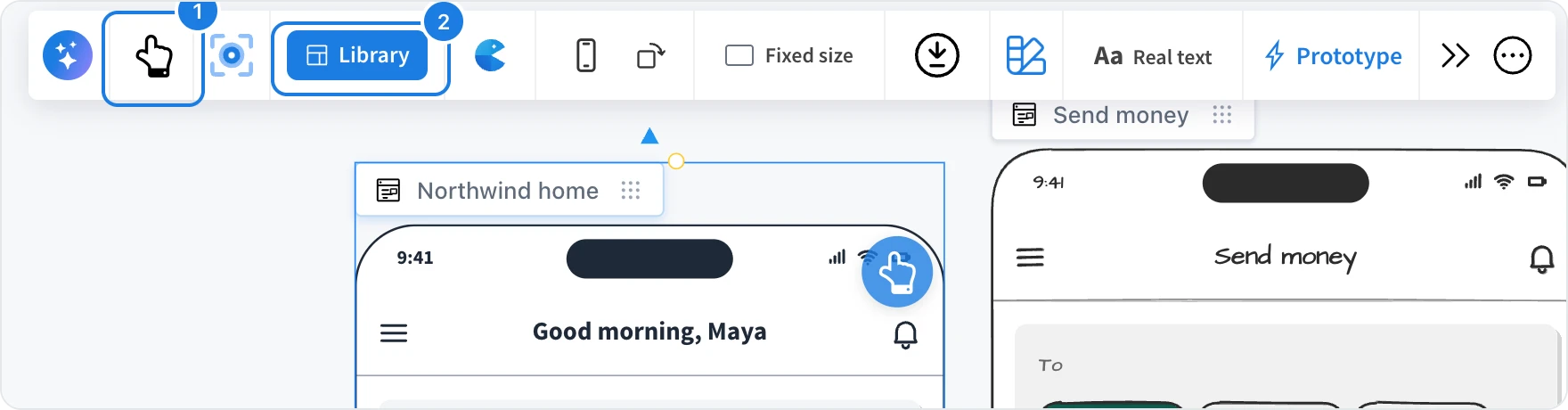
Select the Wireframe.
Click Edit wireframe (1), or click Library (2) to open the widget library straight away.
The board toolbar is replaced by the wireframe toolbar while you edit.
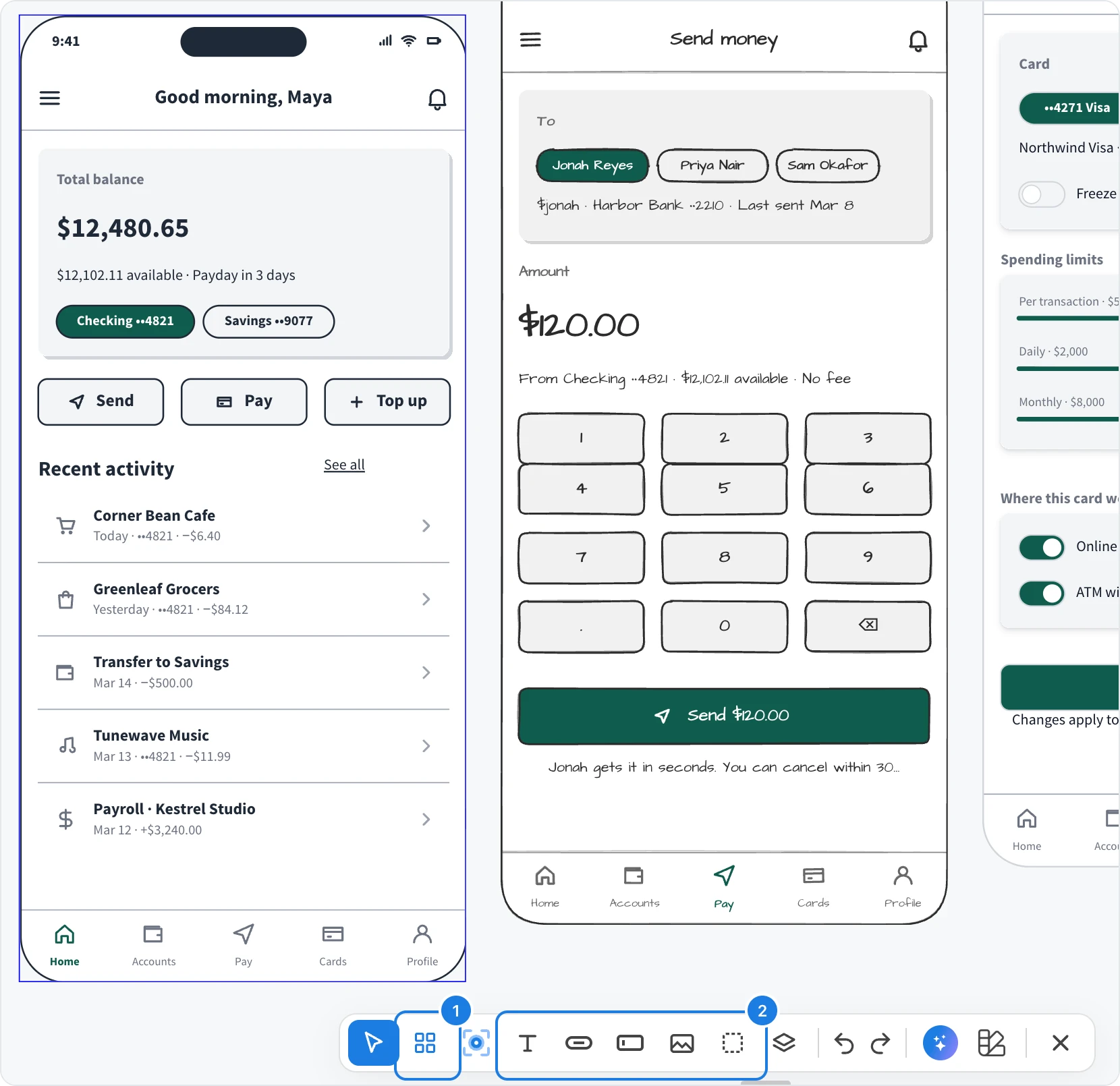
Widget library (1): opens the full list of widgets. Press L.
Quick tools (2): Text (T), Button (B), Text input (I), Image box (M) and Box (X). Click a tool, then click or drag on the screen.
Click Exit wireframe (the X at the end of the toolbar) when you are done.
Generate, modify and restyle while you edit
The wireframe toolbar also holds the screen's AI and style menus, so you can rework the whole screen with AI or switch its look without leaving edit mode.
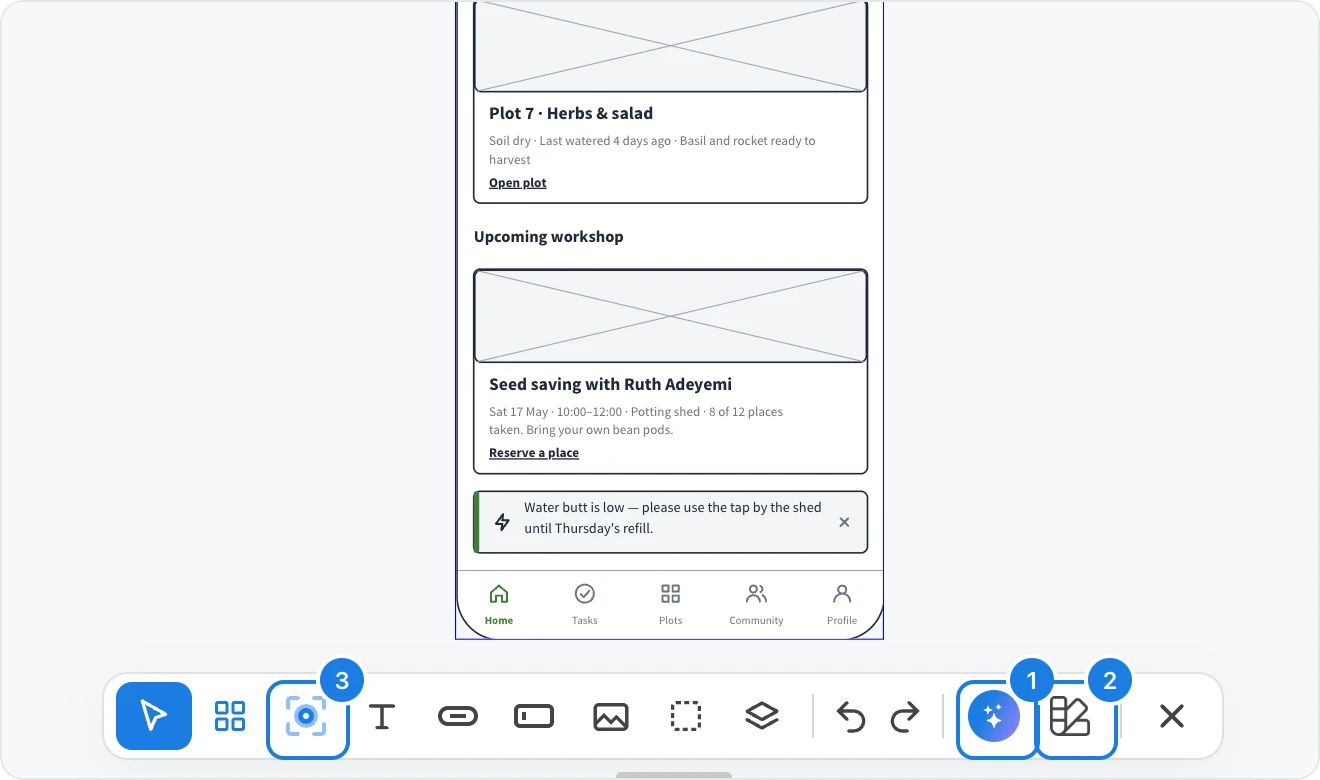
AI (1): opens the screen's AI menu, with Generate new, Modify with AI, Create new screen, Fill images with AI and more. Its prompt box opens just above the toolbar.
Change style (2): switches the screen between styles such as Sketchy, Hi-fi and Liquid glass, and sets dark mode, a brand colour and a font. See Change a screen's style.
Enter Focus Mode (3): gives the screen the whole view.
While AI works on the screen, the toolbar shows Generating… in place of its tools. Exit wireframe stays available.

Add widgets from the library

Open the widget library.
Find a widget by browsing, or type in Search widgets.
Drag it onto the screen, or click it to drop it inside the screen.
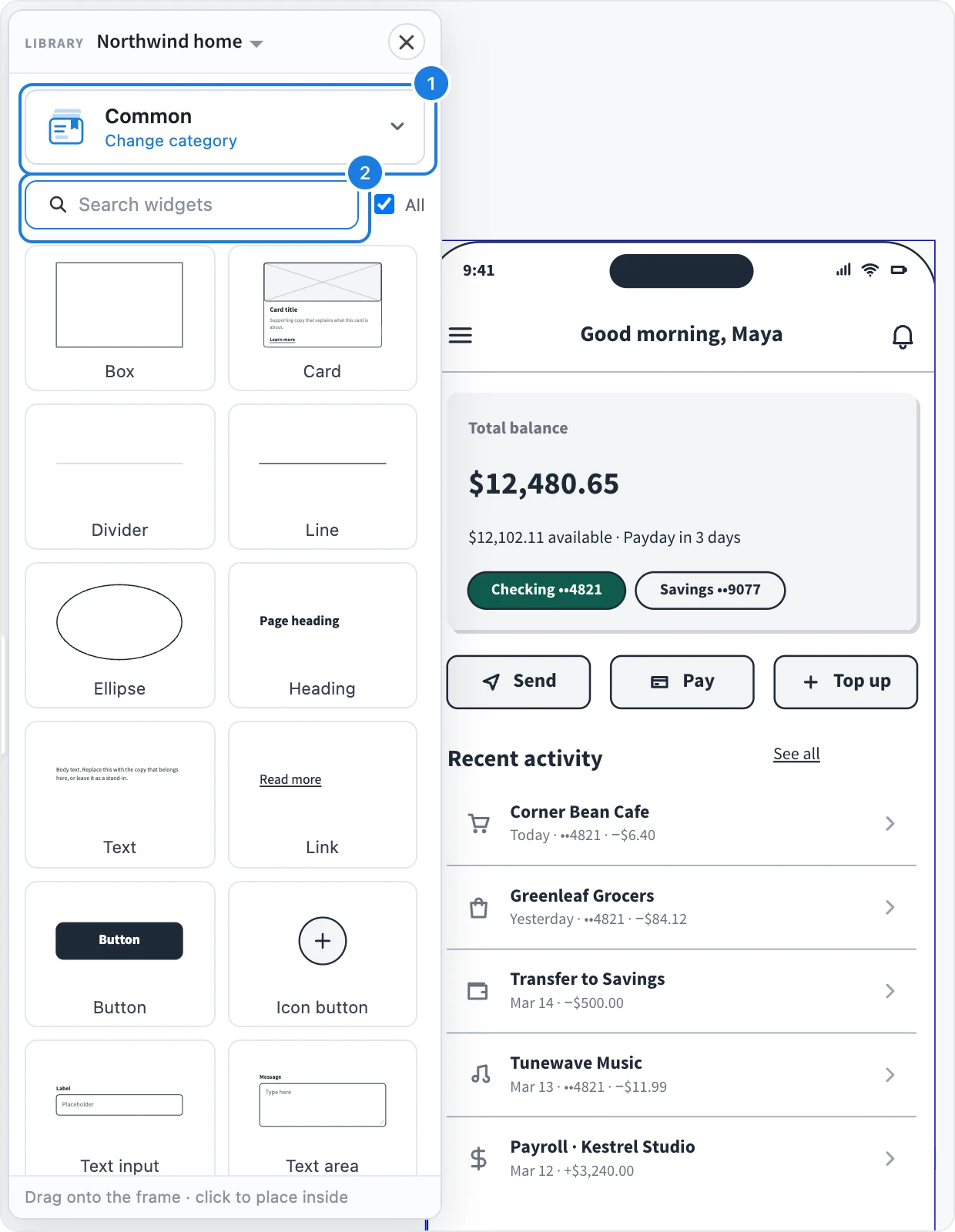
Widgets are grouped in categories (1), such as Layout, Controls, Navigation, Data, Blocks, Mobile, iOS and Android. Click Change category to switch. Search widgets (2) searches every category.
Edit a widget
Click a widget to select it. A small toolbar opens above it:
Edit text: double-click the widget, or use the text button, and type.
Properties: press Enter or click the settings button to open Widget Settings, with sections such as Content, Style, Typography, Arrange and Layout. Tables and charts also get a Data editor, where you can paste cells from a spreadsheet.
Duplicate, Delete, Bring forward and Send backward.
Right-click a widget for more: Group, Lock, Hide, Align, Distribute and Put inside another widget.
Find widgets in Layers
Click Layers in the wireframe toolbar, or press Alt+1, to see every widget on the screen as a list. Use Find layers to locate one by name, and click a layer to select its widget.
To keep widgets lined up as you edit, see Stack widgets with spacing and padding. To change the look of the whole screen, see Change a screen's style.