
Pages, folders and master pages
Organize a WireframePro project into pages and folders, share layouts with master pages, set page size and background, and restore deleted pages.
Each screen of a WireframePro project is a page. Pages can be grouped in folders, for example a Payments folder with Send money and Pay a bill, so the page list reads like the site map of the product.
Add pages and folders
Click Pages on the left rail, or press Ctrl (⌘ on Mac) + 3.
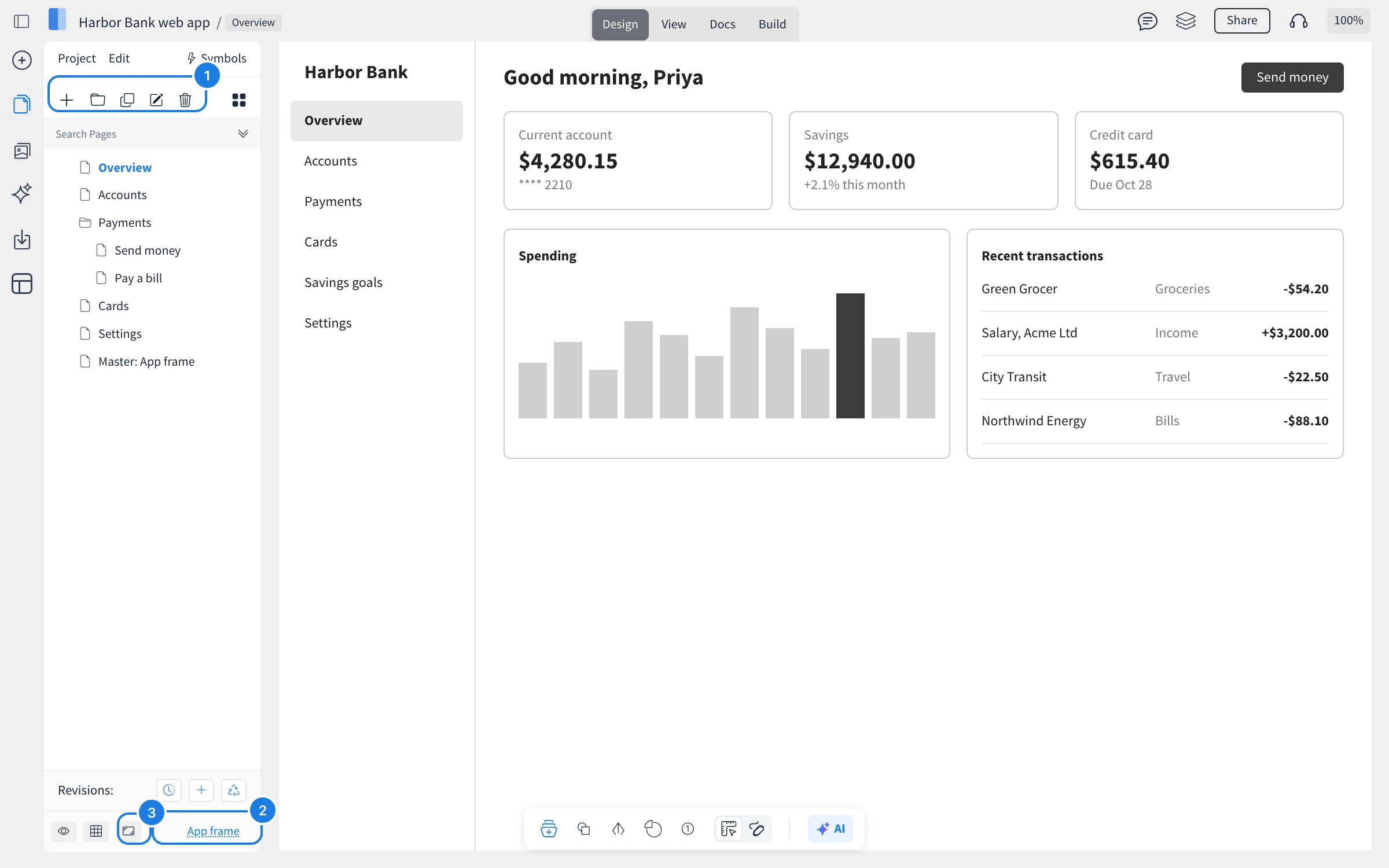
Use the toolbar at the top of the panel (1): New Page, New Folder, Duplicate Page, Edit Name and Delete Selected.
Drag pages to reorder them or to move them into a folder.
Search Pages filters a long list, and Visual Listing shows pages as thumbnails.
Share a layout with a master page
A master page holds what several pages share, such as an app's navigation bar and sidebar. Applied to a page, it shows underneath as the background, and a change to the master updates every page that uses it.
Design the shared layout on its own page, for example App frame.
Open the page that should use it and click Select Master at the bottom of the Pages panel (2).
Choose the master page and click Select.
Use Edit Master Page to change the master and Remove Master Page to detach it.
Set page size and background
Click the page size button at the bottom of the Pages panel (3), or choose Page Settings in the Project menu. Pick a size preset, such as iPhone X, iPad Pro, Pixel 2, Apple Watch, Web HD (1920x1080) or Web Standard (1024x768), or set a custom width and height. Current changes only this page, and Global changes the default for the project. The background color is a reference only and is not included in exports.
Restore a deleted page
Deleted pages go to the page trash. Click View deleted pages next to Revisions at the bottom of the Pages panel, or choose View Deleted Pages in the Project menu, then Restore the page.
What is not available on the Basic plan
On the Basic plan a project can have up to three pages, and restoring deleted pages is not available. Plus and Max include unlimited pages and page restore, along with many other features, such as unlimited projects. See MockFlow pricing for details.