
My camera or screen sharing doesn't work
Fix Camera access was blocked, a screen share that will not start, or a faded Share your screen button in a MockFlow meeting.
Meetings on a MockFlow board use your browser's access to the camera and the screen. When that access is refused, MockFlow shows a short message above the meeting bar and the meeting carries on without your video or screen.
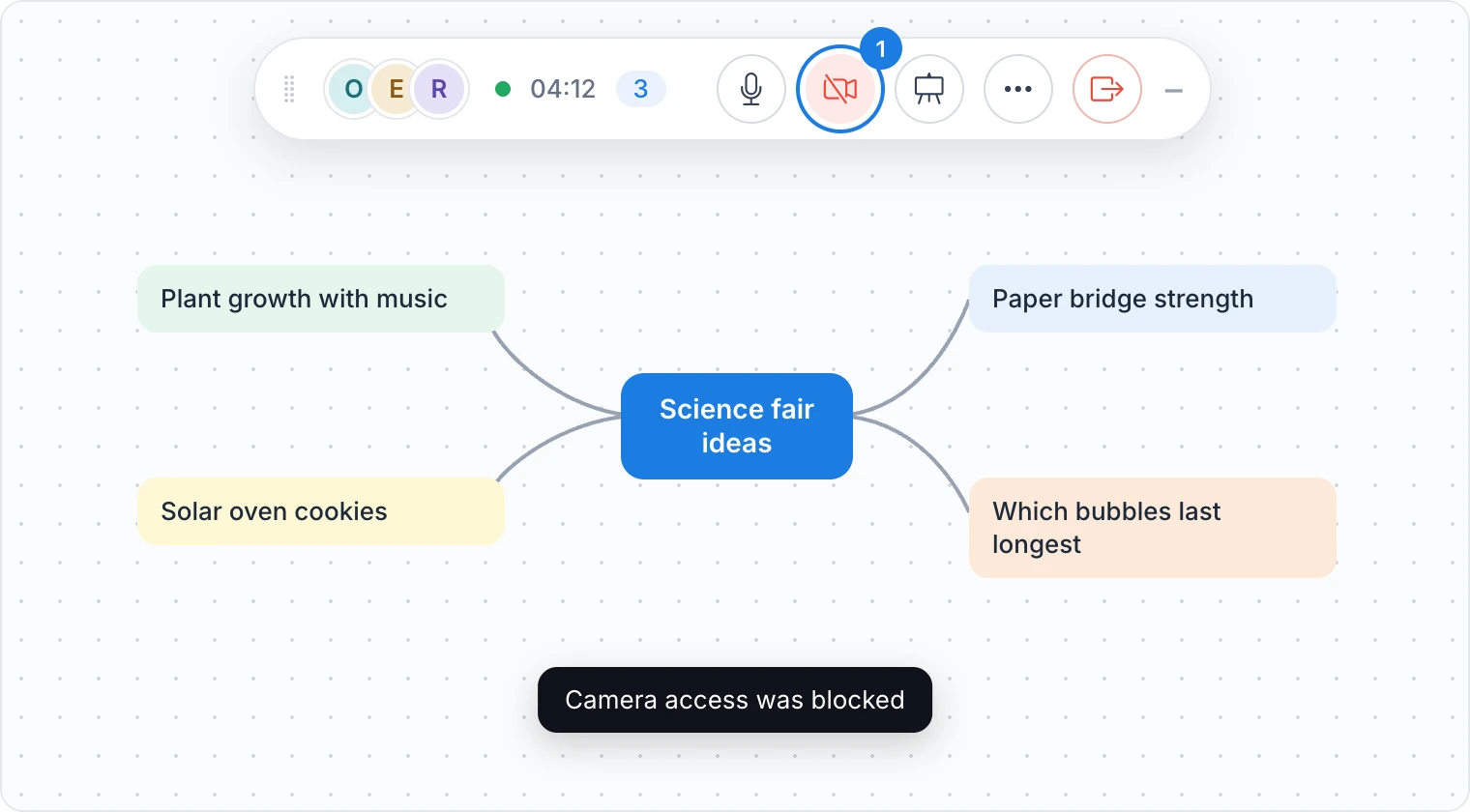
Camera access was blocked
This message appears when you click the camera button (1) and the browser or your computer refuses the camera.
Click the icon at the left end of the address bar, next to app.mockflow.com, and set Camera to Allow. In Safari, open Safari > Settings > Websites > Camera.
On macOS, open System Settings > Privacy & Security > Camera and turn on your browser. On Windows, open Settings > Privacy & security > Camera and turn on camera access for your browser.
Click the camera button again.
If the message says No camera available, connect a camera, or close another app that is using it, and click the camera button again.
Turning the camera on is part of the Max plan. On Plus, meetings are audio only. See MockFlow pricing.
Screen sharing does not start
When you click Share your screen, the browser asks which window, tab or screen to share. Closing that picker without choosing cancels the share, and no message appears.
If you see Could not start the screen share, check the system permission. On macOS, open System Settings > Privacy & Security > Screen & System Audio Recording, turn on your browser, then quit and reopen it.
If the picker never appears, update your browser to the latest version. See Supported browsers and other requirements.
Screen sharing and presenting do not run together
While someone presents the board, Share your screen is faded, and clicking it shows Screen sharing is disabled while the presentation is active. While someone shares a screen, clicking Present shows Presentation mode is disabled while screen sharing is active. Stop the share or the presentation first, then start the other one. See Present a board live.
Recording is not supported in this browser
From the screen share panel you can record a short clip and place it on the board. If you see Recording is not supported in this browser, use the latest version of Chrome, Edge or Firefox, or place a screenshot instead.