
Delete and restore boards and spaces
Delete boards and spaces you no longer need, restore them from Trash Bin within 30 days, or delete them forever.
Deleting keeps your workspace tidy, and Trash Bin makes it safe: on Plus and Max, deleted boards and spaces wait in Trash Bin for 30 days, so a board deleted by mistake is one click away from coming back.
At a glance
Plus and Max | Basic | |
|---|---|---|
Deleting a board | Moves it to Trash Bin | Deletes it permanently |
Deleting a space | Moves it to Trash Bin with all its boards | Deletes it and all its boards permanently |
Restoring | From Trash Bin, within 30 days | Not available |
After 30 days in Trash Bin | Deleted for good | No Trash Bin |
Delete a board and restore it

In the workspace sidebar, point to the board, click More options and choose Delete.
Confirm with Delete. The board leaves its space and goes to Trash Bin.
To bring it back, open Trash Bin, point to the board and click Restore. The board returns to the space it was deleted from.
You can delete boards in Private boards, boards in spaces where you are the owner or an admin, and boards you own in Default space. A board in someone else's space goes to the space owner's Trash Bin, and the confirmation says so. If a board was shared with you directly and you just want it out of your sidebar, use Remove from my list instead, as described in Rename, duplicate and lock a board.
Delete a space
Point to the space, click its settings button and choose Delete space.
Read what will happen: on Plus and Max, the space moves to Trash Bin with its boards and is deleted for good after 30 days.
Type delete to confirm, then click Delete space.
Only the owner of a space can delete it. Members lose access to the space and its boards as soon as it is deleted. If you are a member rather than the owner and only want to leave the space, choose Remove space access instead.
Use Trash Bin
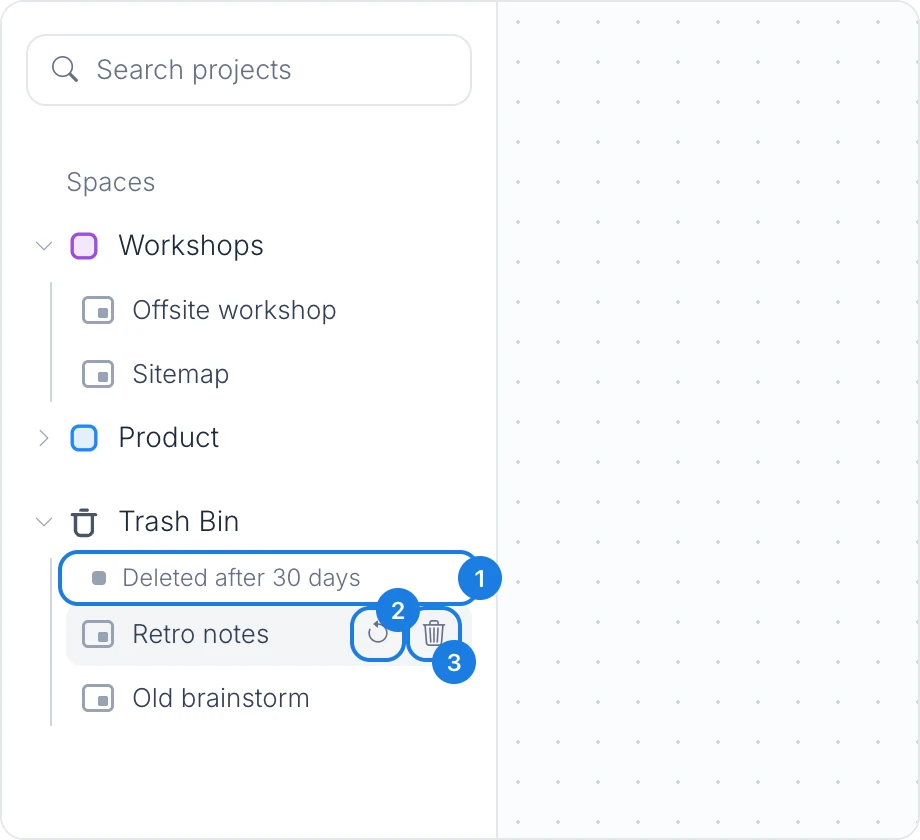
Trash Bin sits below your spaces in the workspace sidebar. Open it to see deleted spaces and boards. The note at the top (1) is a reminder that items are deleted for good after 30 days. Point to an item to see its buttons:
Restore (2): brings the board or space back where it was, straight away. A restored space comes back with its boards.
Delete forever (3): removes it permanently after you confirm. Deleting a space forever also deletes all of its boards. This cannot be undone.
When Trash Bin has nothing in it, it shows Trash is empty.
If a board cannot be restored because its space has reached the plan's limit for that kind of project, MockFlow says so. Delete a project in that space first, then restore again.
What is not available on the Basic plan
The Basic plan has no Trash Bin. Deleting a board or a space on Basic is permanent, so MockFlow asks you to type delete to confirm, and restoring is not available. Plus and Max include Trash Bin with 30 days to restore, along with many other features, such as unlimited spaces and longer revision history. See MockFlow pricing for details.