
Organize information in a table
Collect and compare information with the Table component: generate it with AI, choose field types such as select, person, media and votes, start from a template and import or export CSV.
The Table component keeps information in rows and columns on your MockFlow board, with a type for each column, such as a date, a person, a picture or a vote. Use it to compare options, prioritise ideas, run a retro or keep a list of places, people or features, right beside the work it belongs to.
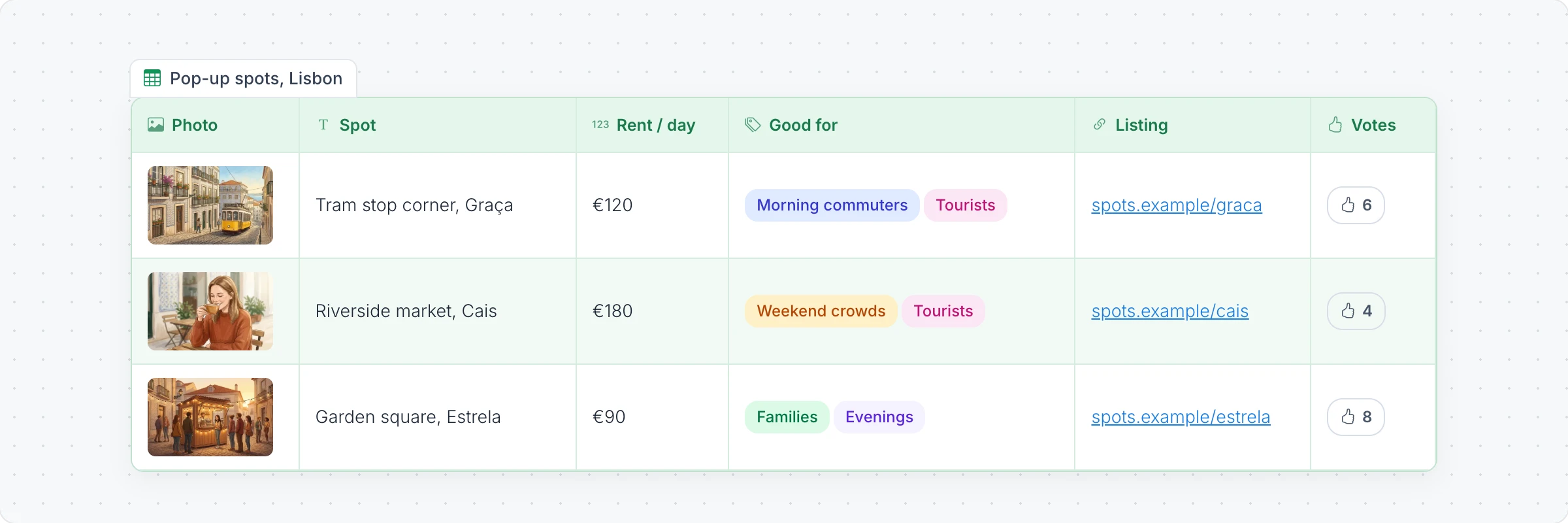
Generate a table with AI
Click Add anything (the plus button) in the toolbar at the bottom of the board and choose Table.
With the table selected, click the AI button on the left of its toolbar and choose Generate new.
Describe the table, for example "Compare three pop-up locations in Lisbon by rent and crowd", and click Generate. Turn on Gen Images to make a picture for each row in a media field.
The AI menu also has Modify with AI, to add rows or columns with a prompt, and Convert to, to turn the table into another kind of item, such as a chart or a kanban board.
Start from a template
Templates in the toolbar sets up a ready table:
Template | Use it to |
|---|---|
Prioritise ideas | Rate impact and effort, assign owners and vote |
Impact / effort 2×2 | Sort sticky notes into four boxes |
SWOT | List strengths, weaknesses, opportunities and threats |
Retro | Collect what went well, what to improve and action items |
Comparison | Compare options feature by feature |
Blank table starts with three text columns to fill in.
Add fields and rows
Click Edit cells in the toolbar, or double click the table, to type in it.
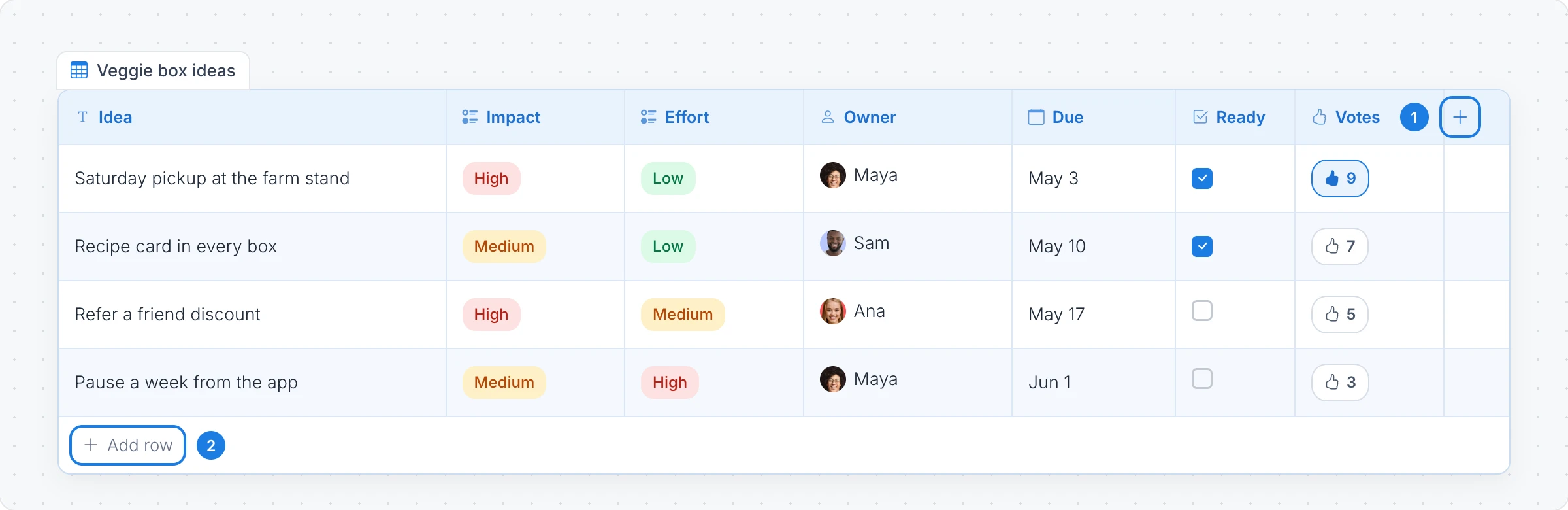
Add field: the plus button at the end of the header adds a column. Choose its type.
Add row: adds a row at the bottom of the table.
Each field has a type, so its cells behave the right way:
Record fields: Text, Number, Single select, Multi select, Date, Person, Checkbox, URL, Media and Icon.
Board fields: Votes, where people on the board vote for a row, and Stickies, where sticky notes sit inside a cell and can be dragged between cells.
People need to be signed in to vote. To limit voting, click a Votes field's header and set Votes per person to 1, 3 or 5, or leave it at Unlimited.
Fill a table with AI
While you edit a table, AI can add fields and rows and fill in empty cells, using what the table already holds.

Create with AI: in the Add field menu, describe the field you need, such as "Walking time from school in minutes". AI names the field, picks its type and fills every row.
Fill with AI: click a field's header and choose Fill with AI. Fill empty cells completes the gaps and Replace all rewrites every cell. Type what to write to steer it. In a Media field, it makes a picture for each row, up to 10 per run.
Fill row with AI: click the handle at the left of a row to fill that row's empty fields, or replace all of them.
Add with AI: at the end of Add row, adds 3, 5 or 10 new rows that follow the table's pattern.
AI leaves Person, Icon and Votes fields for the people on the board. Each action runs as soon as you click it and uses AI credits. With your local agent connected, the text runs on your agent instead, and pictures for Media fields are not available.
Change the style
Table style: color themes such as Clean, Soft blue, Mint, Peach and Bold.
Banded rows, Borders and Compact rows: how dense and lined the table looks.
Fixed size with scrollbars: keep a long table to a set size on the board.
Import and export
Import and export in the toolbar can:
Import a file: replace the table with a CSV or TSV file.
Download the table as CSV, or as an Image (PNG or PDF) of how it looks.
Copy it for Google Sheets or Excel, or As Markdown for documents, Notion, Slack or GitHub.
The Table component is available on every plan. Generating and filling with AI, and pictures made with AI, use AI credits. See MockFlow pricing.