
Create a Classic WireframePro project
Start a new Classic WireframePro project from a new board's starting panel, or import a .wire file into a space.

A Classic WireframePro project is created from the same place as a board: the workspace sidebar. You start a new board, then choose Classic WireframePro in its starting panel, and the project opens in the WireframePro editor in the same space.
Create a project
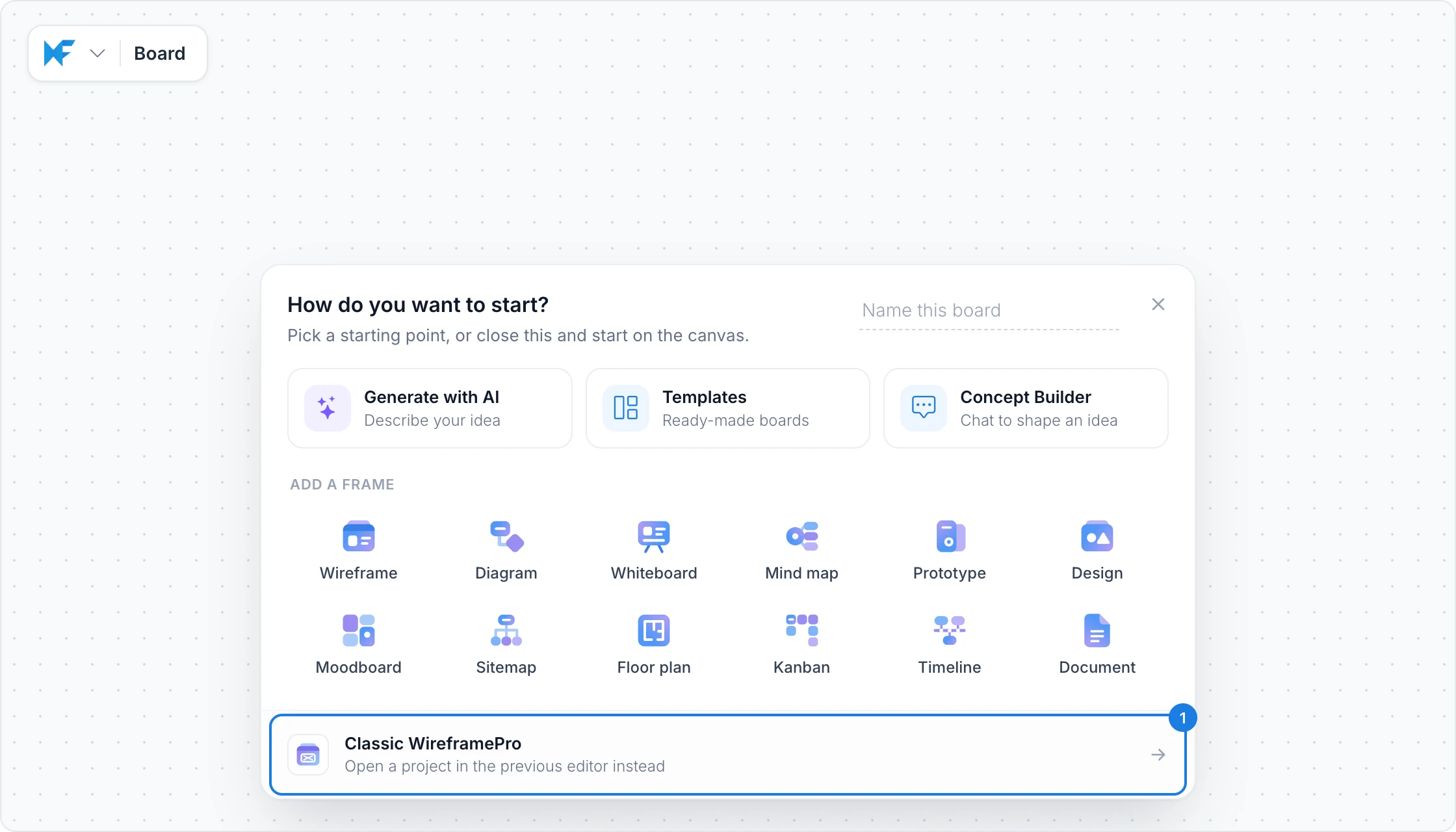
In the workspace sidebar, click New board at the top, or New in a space to create it in that space.
In the How do you want to start? panel, choose Classic WireframePro (1) at the bottom.
The empty board is replaced by a new WireframePro project named Wireframe in the same space, and the editor opens on its first page. Rename the project from its menu in the workspace sidebar.
When your plan's board limit is reached
If your plan cannot add more boards, MockFlow says so in Your plan's board limit is reached. You can still create a WireframePro project from that message with Create WireframePro project, as long as your plan allows another one.
Import a .wire file
WireframePro projects saved as files, for example from the MockFlow desktop app, can be imported into a space. In the workspace sidebar, open the space's menu and choose Import project file, then pick the .wire file. It becomes a Classic WireframePro project in that space. See Import a board or wireframe file.
What is not available on the Basic plan
The Basic plan includes one WireframePro project with up to three pages. Plus and Max include unlimited projects and pages, along with many other features, such as team chat and activity tracking. See MockFlow pricing for details.