
Set up single sign-on (SAML)
Let your team sign in to MockFlow through your company's identity provider, such as Okta, Microsoft Entra ID (Azure AD) or Auth0, and optionally require it.
Single sign-on (SSO) lets your team sign in to MockFlow with the same company account they use for other work apps. MockFlow supports SAML 2.0, so it works with Okta and with any SAML identity provider, such as Microsoft Entra ID (Azure AD), Auth0 or OneLogin. You can also require SSO, so nobody on your license can sign in another way.
Before you start
You need two things from your identity provider: its Sign-in URL and Issuer ID, and its X.509 certificate. Create a SAML app for MockFlow in your identity provider first:
Okta: add MockFlow from the Okta Integration Network catalog. Its View Setup Instructions page lists the three values.
Any other identity provider: create a custom SAML app with the MockFlow values shown in the next section.
Connect your identity provider

Click your name at the bottom of the workspace sidebar, choose My Account, then choose Security & SSO.
Switch on Enable single sign-on.
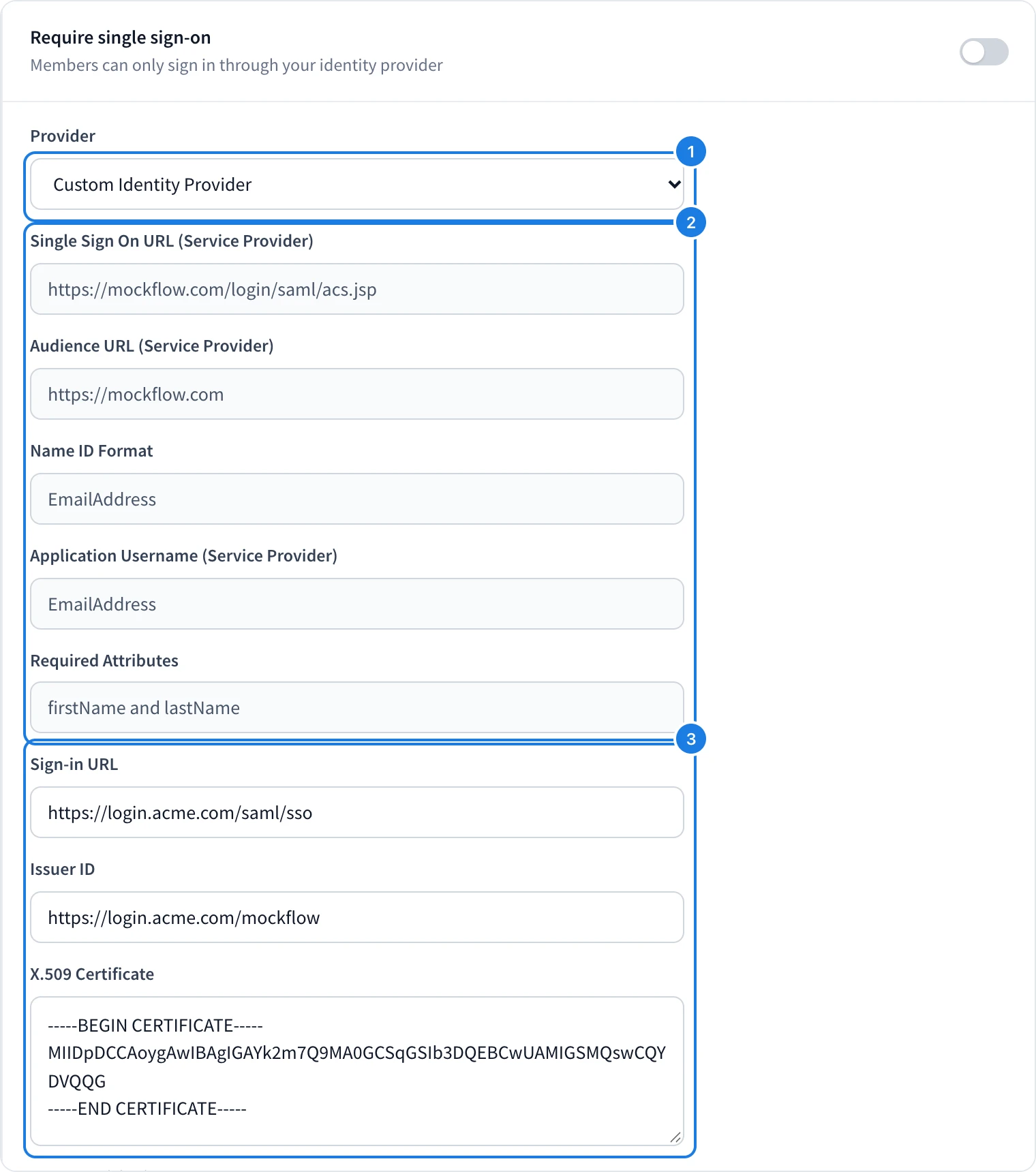
Under Provider (1), choose Okta, or Custom Identity Provider for any other provider.
For a custom provider, copy MockFlow's values into your identity provider's SAML app (2). Click a value to copy it.
Enter the Sign-in URL, Issuer ID and X.509 Certificate from your identity provider (3).
Click Save.
MockFlow confirms that the settings are saved. People on your license can now click Sign in with SSO on the sign in page and enter their work email, as described in Create an account and sign in.
MockFlow value | Use in your identity provider |
|---|---|
Single Sign On URL: | Assertion Consumer Service (ACS) or reply URL |
Audience URL: | Audience, entity ID or identifier |
Name ID Format: | Name ID format |
Application Username: | Application username |
Required Attributes: | Attributes sent with the sign in |
Require single sign-on
Once SSO works for your team, switch on Require single sign-on and click Save. Members and License Admins can then sign in only through your identity provider, not with a password, Google or Microsoft. The license owner can still sign in with a password, so you can always reach these settings.
Who can set up single sign-on
Single sign-on is part of the Max plan with yearly billing and five or more licenses. Only the license owner sees Security & SSO.
To add and remove people automatically from your identity provider, see Provision users with SCIM.