
Play and share a prototype
Click through a MockFlow prototype on the board, play it full screen, open it on your phone with a QR code, or export it to code.
A prototype on a MockFlow board works like the real app. You can click through it in place, play it full screen for a review, try it on your own phone, or take it away as code. To make one, see Make a clickable prototype.

Click through a prototype on the board
Select the prototype to see its toolbar.
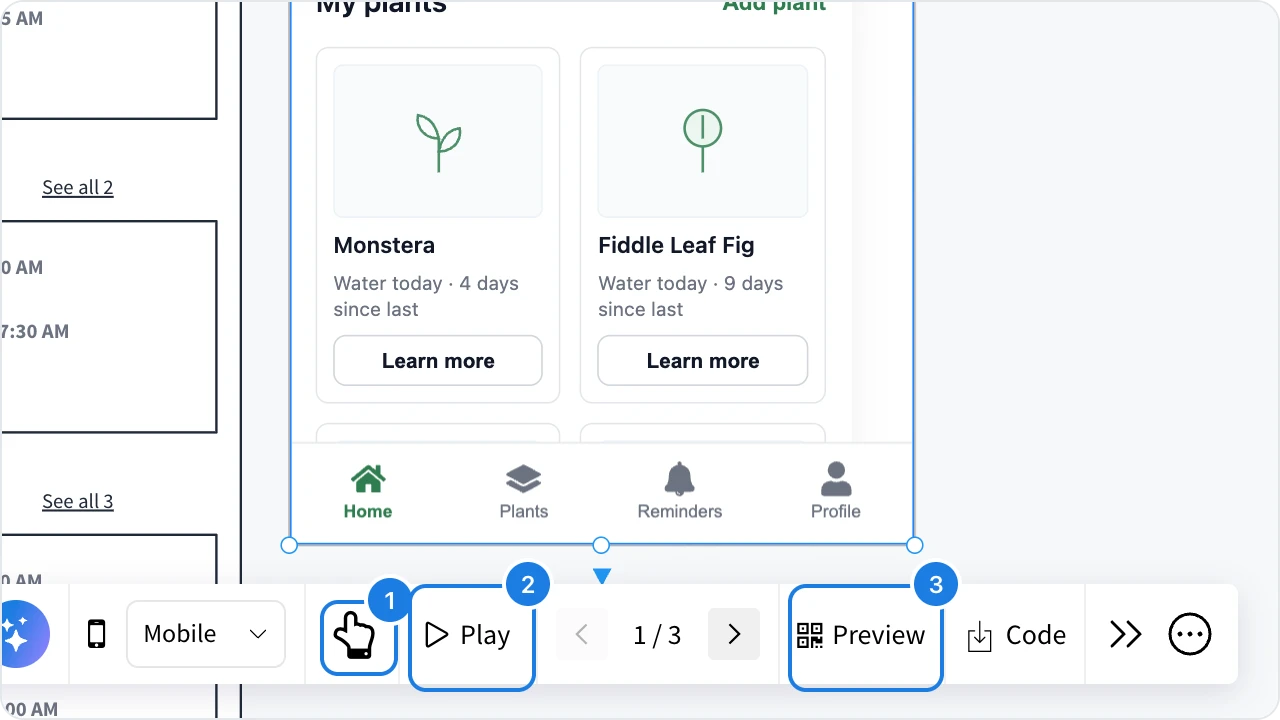
Click Interact with prototype (1), or double-click the prototype.
Click buttons, links and tabs inside it, as you would in the app.
To jump between screens directly, use the arrows and the screen counter, such as 1 / 3, in the toolbar or below the prototype.
Use the Device frame list in the toolbar to show the prototype as Mobile, Tablet or Desktop.
Play a prototype full screen
Click Play (2) to open the prototype full screen, with the board hidden behind it. This suits reviews and presentations. The arrows below it move between screens.
Preview a prototype on your phone
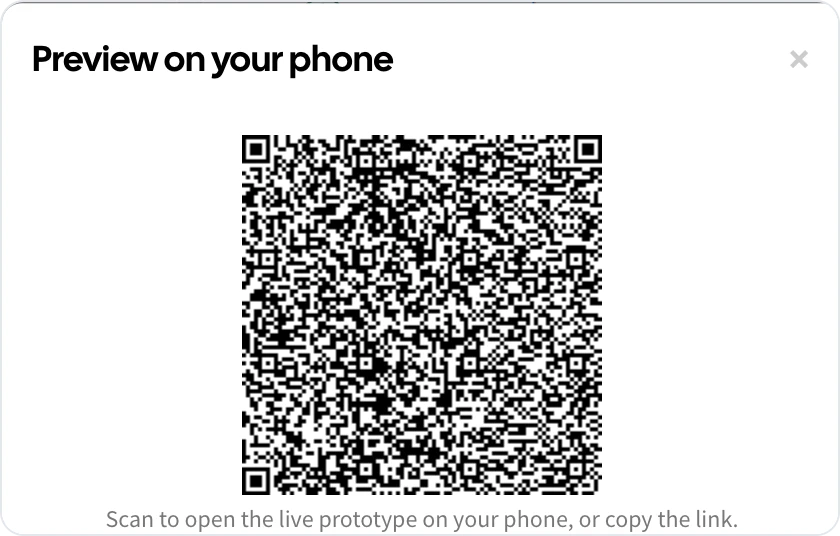
Click Preview (3) in the prototype's toolbar.
Scan the QR code with your phone's camera to open the live prototype.
To send it to someone, click Copy to copy the link instead.
Export a prototype to code
Click Code in the toolbar to download the prototype as standalone HTML. The exported files keep the clickable flow between screens and run without MockFlow, so a developer can open them in a browser or build on them.
Code export works for prototypes generated in MockFlow. An embedded Figma prototype has no code to export.
To take a single screen to Figma or an AI coding tool, see Export a wireframe.