
Mida chats, memory and privacy
Who can see your chats with Mida and with Concept Builders, how long Mida remembers a conversation, and how to reset its memory.
The panel on the right of your board holds three kinds of chat: Mida, team chat and Concept Builders. Each one keeps your conversations differently, so it helps to know who can see what.
Who can see each chat
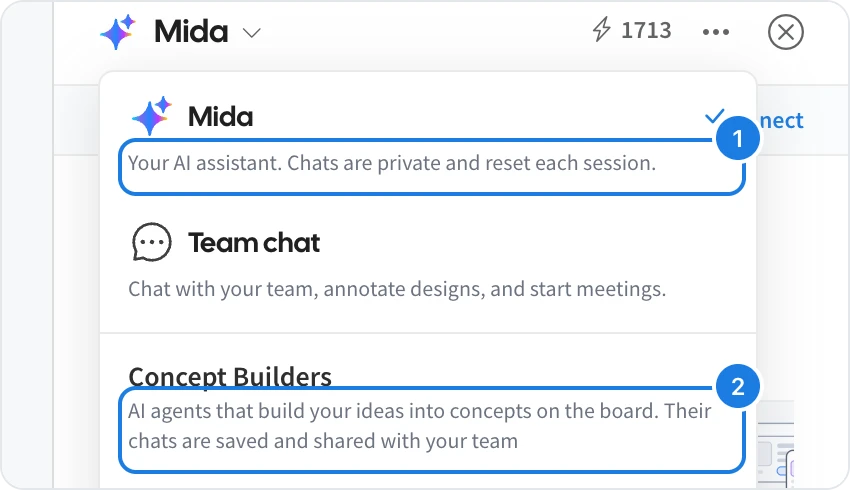
Chat | Who sees it | How long it lasts |
|---|---|---|
Mida | Only you | Private, and resets each session (1) |
Team chat | Everyone on the board | Saved with the board |
Concept Builders | Your team | Saved and shared with your team (2) |
Switch between them with the menu next to the name at the top of the panel.
In team chat, Mida's answers to an @mida mention are posted for everyone, except replies useful only to you, which are marked Only visible to you. See Chat with your team on a board.
How Mida remembers a conversation
During a session, Mida remembers what you asked and what it made, so you can follow up with Make it shorter or Add a column for owners without repeating yourself. It also remembers the items it created or changed recently, so it knows what it refers to.
When you open the board again, Mida starts a fresh chat. Your boards keep everything Mida made.
Reset Mida's memory
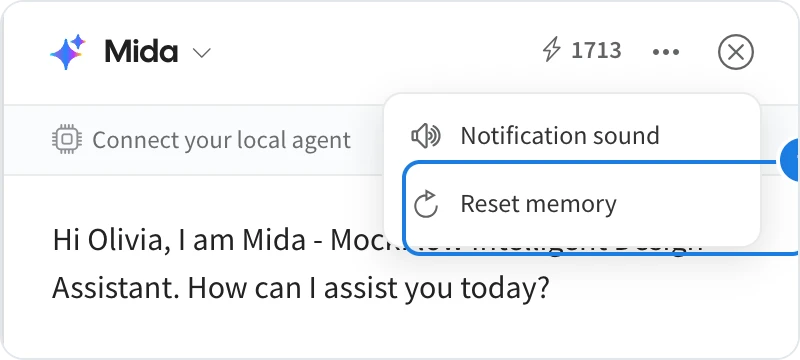
Click … at the top of the panel and choose Reset memory (1) to start over without the earlier conversation, for example when you switch to a different topic. Mida confirms that it won't remember the previous conversation.
For a Concept Builder, Reset memory clears what the builder remembers from earlier sessions on this board.
Stop a reply and mute sounds
To stop Mida while it is working, click × on its progress line. If you send a new message while it is still answering, Mida asks whether to cancel the current reply.
To turn off the sound when Mida finishes, click … and choose Notification sound.