
Add images to a board file
Place photos, screenshots and other files from your computer on a board file. They are stored inside the .board file, so the board stays complete wherever you take it.
In file mode, images come from your own computer and are stored inside the board file. A board with product photos, screenshots or a mood board of references stays complete when you copy the file to another computer or open it offline.
Add an image from your computer
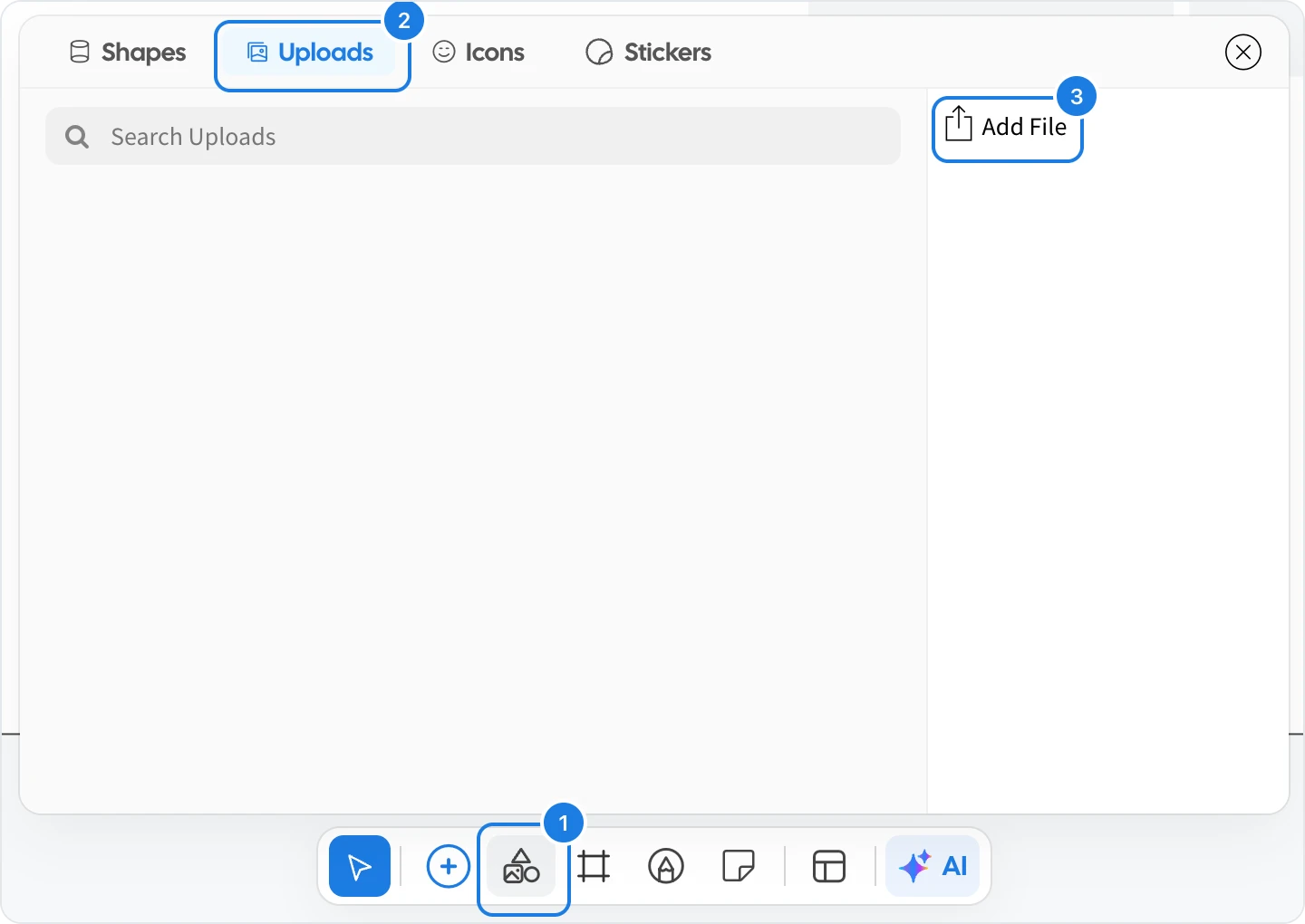
In the toolbar at the bottom of the board, click the shapes and images button (1).
Select the Uploads tab (2).
Click Add File (3) and choose a file from your computer.
The file is added to the board and to the Uploads list, so you can place it again later. Search the list with Search Uploads.
File types you can add
Add File accepts images (JPG, PNG, GIF, SVG and WebP), PDF documents, video (MP4, MOV and WebM), audio (MP3) and 3D models (GLB).
Everything you add is saved into the .board file the next time you save, which also makes the file larger. To keep files small, add images at the size you need rather than full resolution camera photos.