
Choose what an automation makes and where it goes
Pick the board or component an automation makes, whether AI makes it, where it lands, and what happens after: Slack, email, Google Drive or a notification.
Four parts of an automation decide its result: Make (what kind of board or component), How (whether AI makes it), Where (which board it lands on) and Then (what happens after). This article covers each choice.
Make: what the automation makes
Click pick what it makes to choose the kind of result. The list holds the components MockFlow AI can make on its own, grouped by what they are for, for example:
Planning: kanbans, Gantt charts, timelines, calendars, to-do lists and floor plans
Brainstorming: mind maps, journey maps, idea boards, whiteboards, knowledge graphs and polls
Structure and diagrams: flowcharts, swimlanes, architecture diagrams, sitemaps, org charts and work breakdown structures
Documents and data: documents, tables, spreadsheets and charts
Design: wireframes, prototypes, designs, storyboards and moodboards
Maps: maps and map regions
Sticky notes, which are placed as the app sends them
Multiboard makes several frames on one board, planned from what the automation reads. MockFlow AI picks the types that best show it, for example a meeting as its decisions, its follow ups and a mind map of topics.
When the automation reads an app, the list suggests the types that fit what it reads.
How: whether AI makes it
Click the How part, which reads by AI or similar in the sentence, to choose how MockFlow does it. The menu is titled How should MockFlow do it? and shows, for each choice, whether AI reads, whether AI writes and what it costs.
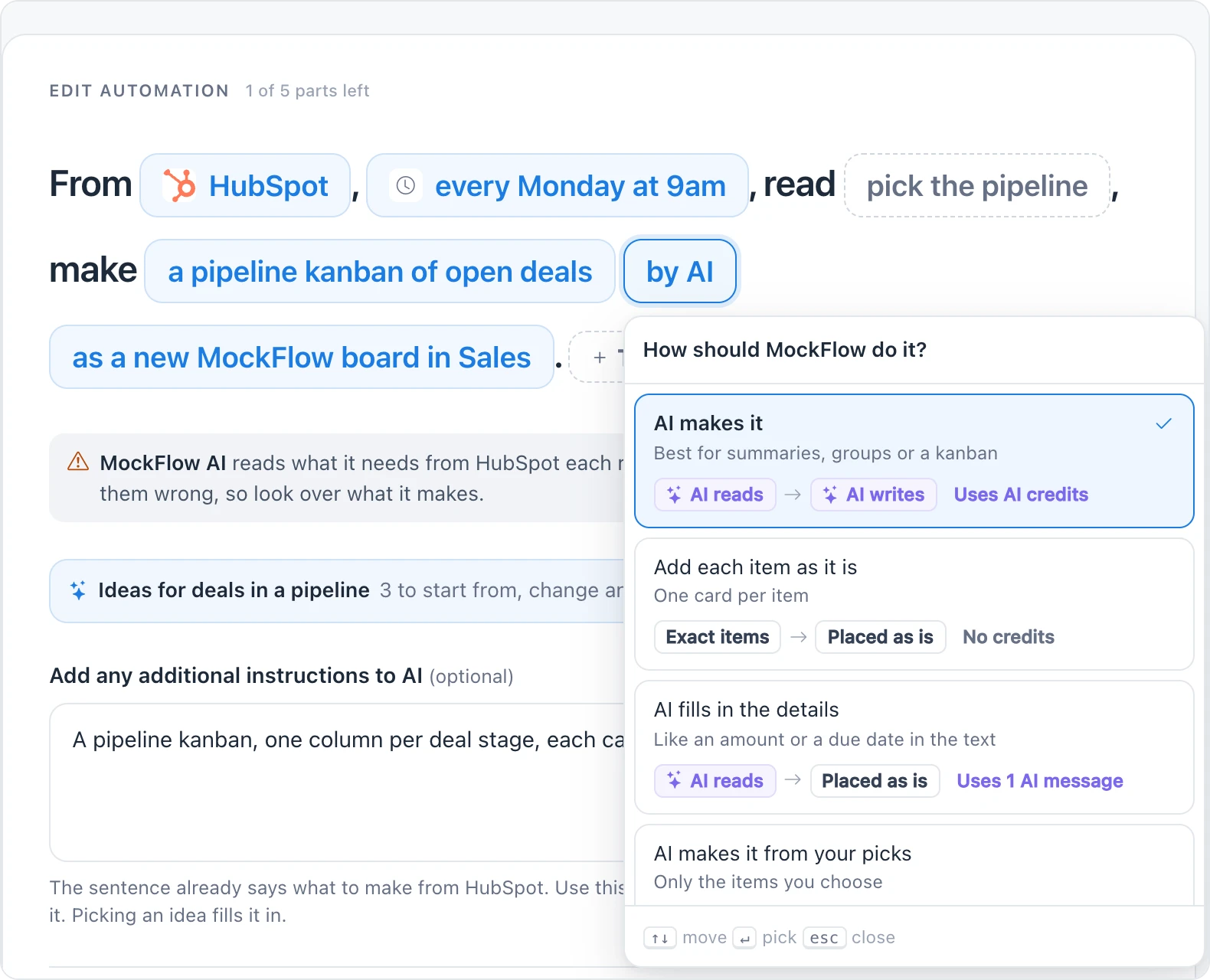
Choice | What happens | Good for | Cost |
|---|---|---|---|
AI makes it | MockFlow AI reads everything and writes the result | Summaries, groups, a mind map of a meeting transcript | Uses AI credits |
Add each {item} as it is | One board item per record, exactly as the app sends it | A kanban card per Jira issue, a sticky note per Slack message | No credits |
AI fills in the details | Each record is placed as it is, and AI picks out details like an amount or a due date from its text | Deals with amounts, tasks with due dates | Uses 1 AI message |
AI makes it from your picks | AI writes the result from only the records you choose | A report on the issues you select | Uses AI credits |
With Add each {item} as it is, each run adds new records to the component. When the same record comes back changed, for example a Jira issue that moves to another status, its item moves too, so the board stays in step with the app.
Where: which board it lands on
Click pick where it goes, or the place already in the sentence. There are two kinds of choice.
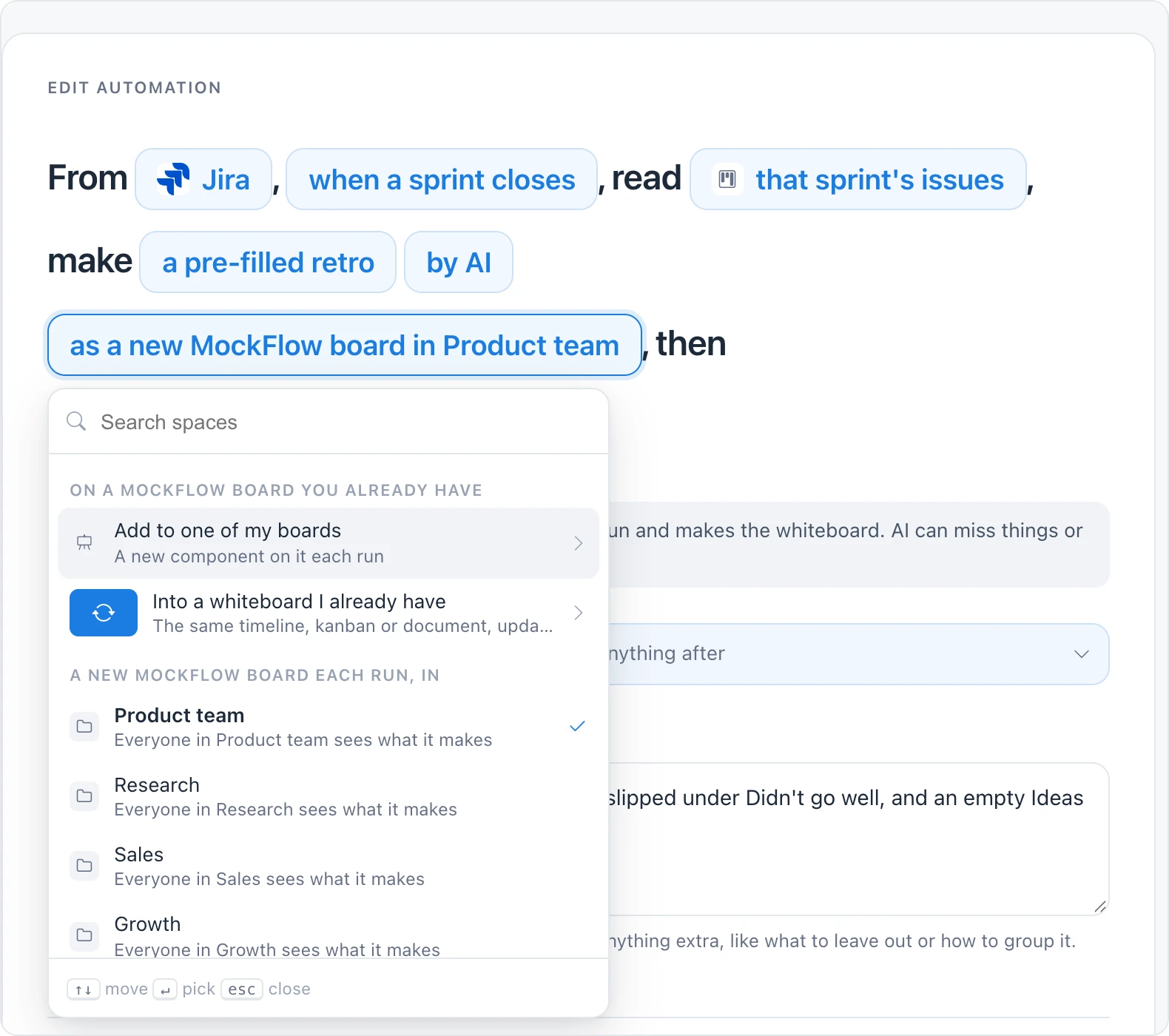
A new MockFlow board each run, in a space you pick. Each run creates a board titled with the automation's name and the date, marked with a bolt icon.
In Private, only you see what it makes.
In a shared space, everyone in that space sees what it makes, and the space is notified of the new board.
On a MockFlow board you already have:
Add to one of my boards: search your boards and pick one you can edit. Each run adds to it.
Into a {type} I already have: the same timeline, kanban or document, updated each run. Pick a component on one of your boards, such as a kanban or a document, then choose Rewrite it to replace its content each run, or Add what is new to it to add only what is new.
With a MockFlow event under When, you can also choose The board it is about or The space it is about. When you start from Automate this board in a board's menu, Add to that board is offered first.
Before a run changes a board you already have, MockFlow saves the board as a revision named Before automation. Open the board's revision history to go back.
Then: what happens after
Click + Then… to add a step after the board is made, or choose Nothing else. The steps are listed under Then send it:
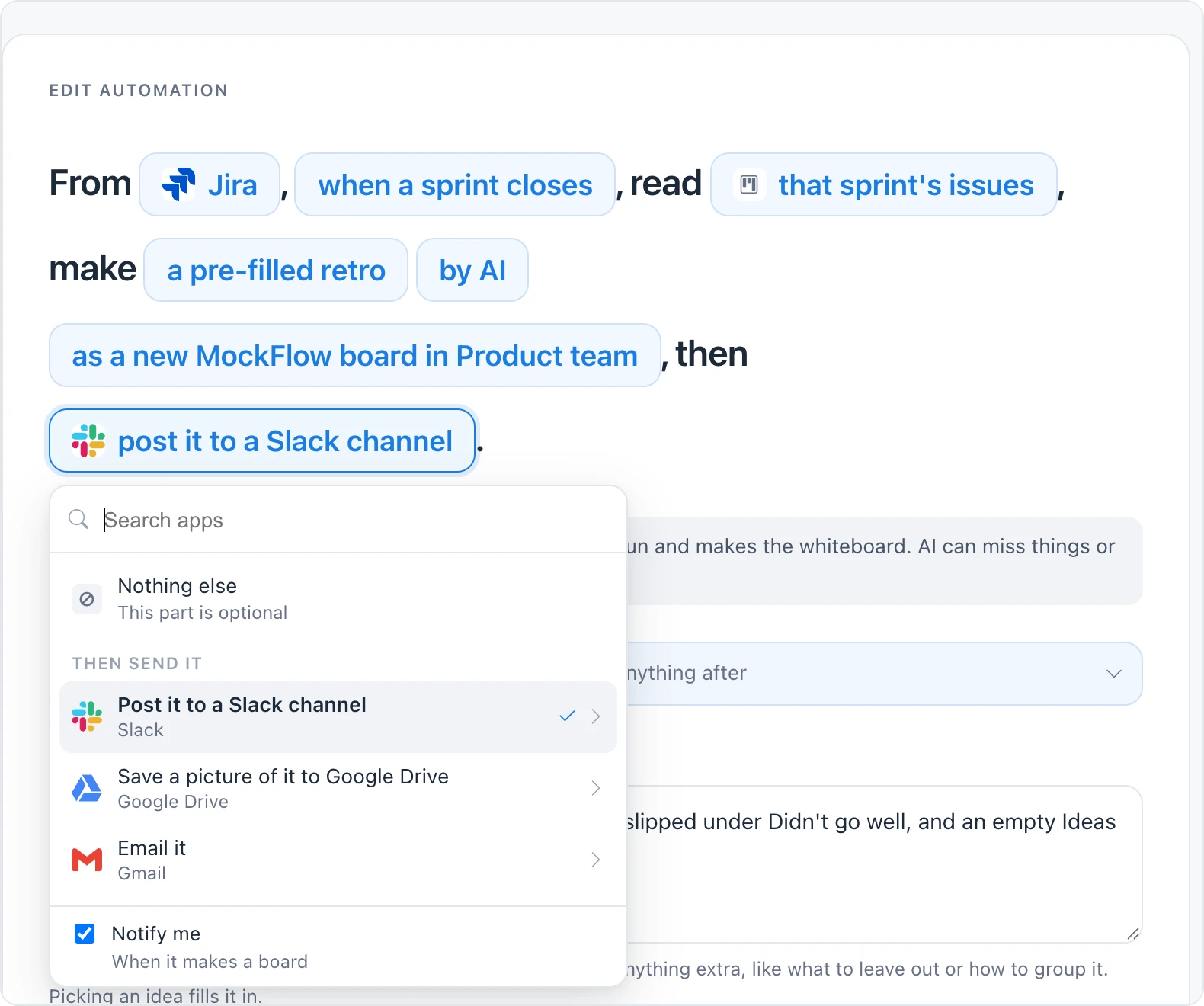
Post it to a Slack channel: enter the Channel.
Email it: enter who it goes To.
Save a picture of it to Google Drive: optionally choose a Folder.
Each step has What to write with it. Leave it empty and MockFlow AI writes a short line from the board.
Use Notify me to get a browser notification When it makes a board. Failures and pauses always notify you, even when Notify me is off. See Manage automations and their runs.
Read the summary before you turn it on
The builder sums up the result in plain words, such as New MockFlow board each time, Adds to one board, Rewrites one component or Adds to one component, with Everyone in {space} sees it or Only you see it, and Each run uses your AI credits or no AI credits. Check it matches what you want, then try it once.