
Generate and edit screens with AI
Describe a screen and let AI design it in a Wireframe, then change it with a prompt or add the next screen of the app.
A Wireframe item on a MockFlow board can design its own screen. Describe what you need, and AI lays out real widgets with realistic text, sized to the device you picked. Every generated screen stays fully editable.

Generate a screen from a prompt
Select the Wireframe and pick its device first, for example a phone. AI designs to the device and the frame size.
Click the AI button at the left of the toolbar and choose Generate new. On an empty Wireframe you can also click Generate with AI.
Describe the screen (1). Name the app, the screen and what it should show.
Click the arrow button to generate.
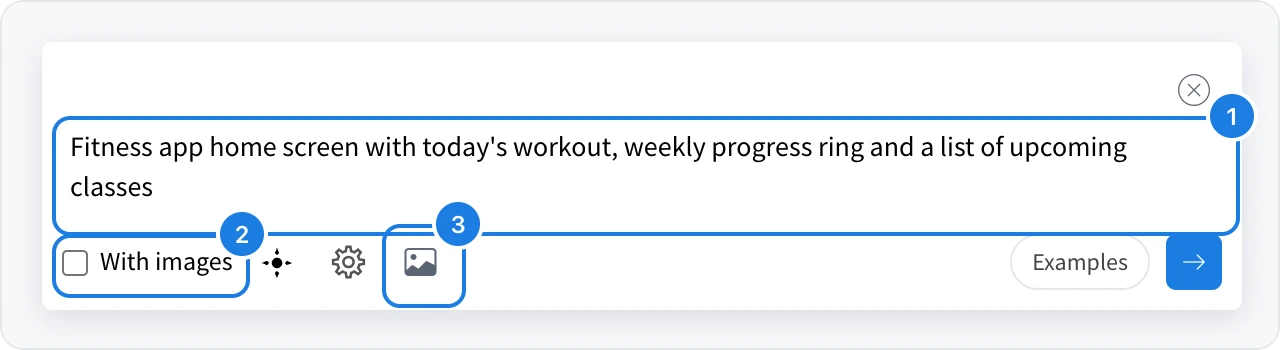
With images (2): fills the image slots with real pictures instead of placeholders. This uses extra AI credits.
Attach a screenshot or sketch (3): AI recreates the attached picture as an editable wireframe. PNG, JPG and WebP files up to 10 MB work.
Examples: ready prompts such as a login screen, an analytics dashboard or a checkout.
To turn a live webpage into a wireframe, use the Clippy Chrome extension. See Turn a webpage into a wireframe with Clippy.
Modify a screen or add the next one
Once a Wireframe has a screen, its AI menu offers more options.
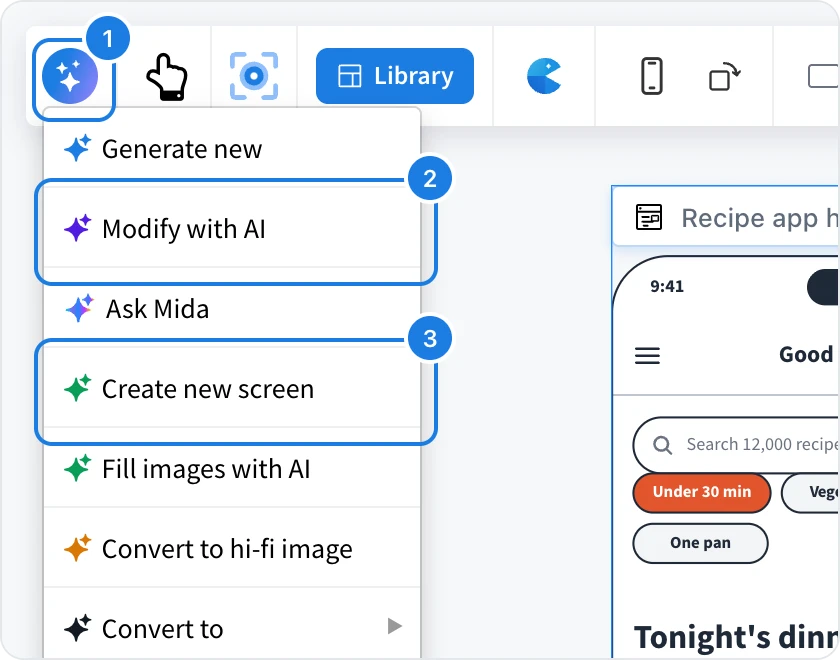
Modify with AI (2): describe a change, such as "add a filter for vegetarian dishes", and AI updates the current screen.
Create new screen (3): adds a new Wireframe beside this one, in the same device and style. Describe the screen you want, or leave the prompt empty to let AI pick the next screen of the app.
Ask Mida: opens Mida, the AI assistant of the board, with this screen.

The same menu also renders the screen as a finished design and converts it into other items. See Render a hi-fi screen or device mockup and Turn a screen into a flowchart, spec or tasks.
Generating wireframes from a prompt, a screenshot or a live URL is included in the Plus and Max plans. Each generation uses AI credits.
After generating
A generated screen is made of ordinary widgets. Edit any text, move widgets, change the style or link several screens into a prototype: