
Add a screen and pick a device
Add a Wireframe to your MockFlow board, choose the device it is designed for and set whether the screen is fixed, scrolls or grows with its content.
Each screen of an app or website is one Wireframe on the board. You add it from the component library, then choose the device it is designed for.
Add a Wireframe to the board
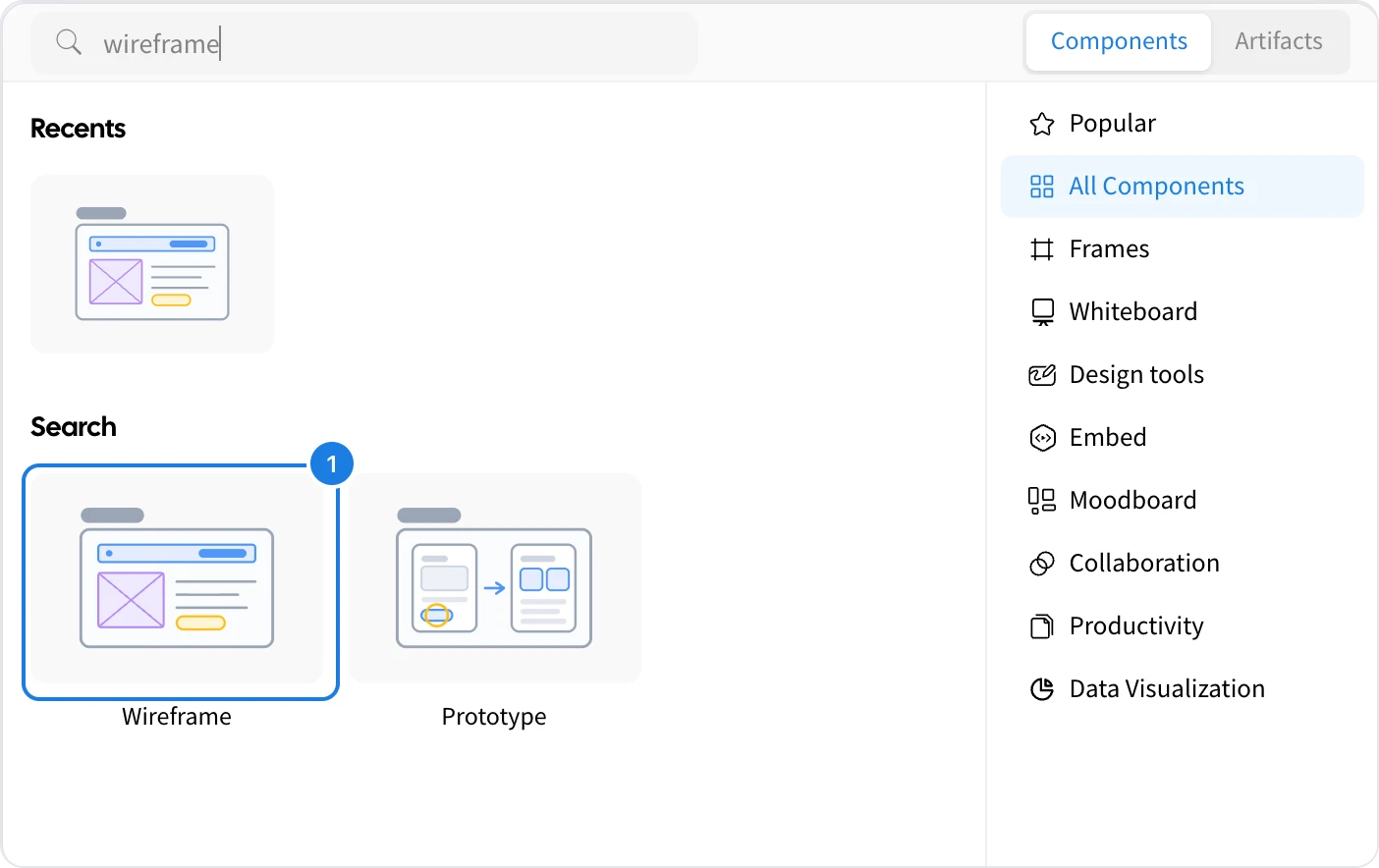
Click the + button in the toolbar at the bottom of the board to open the component library.
Type wireframe in the search box, or open Design tools.
Click Wireframe (1). An empty screen is placed on the board.
Start from a layout or with AI
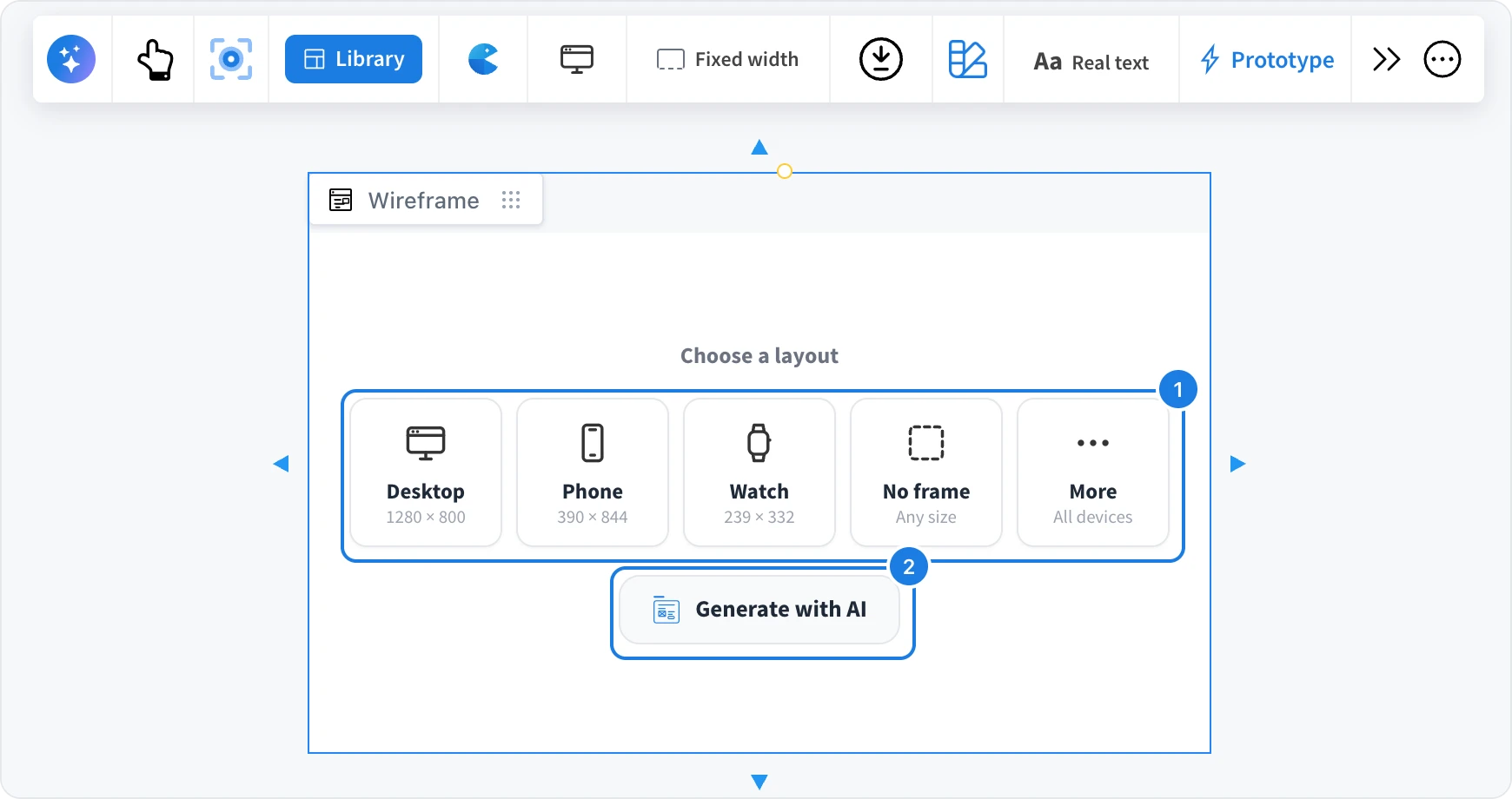
A new Wireframe offers two ways to begin:
Choose a layout (1): pick Desktop, Phone, Watch or No frame, or More for every device.
Generate with AI (2): describe the screen and let AI design it. See Generate and edit screens with AI.
Change the device
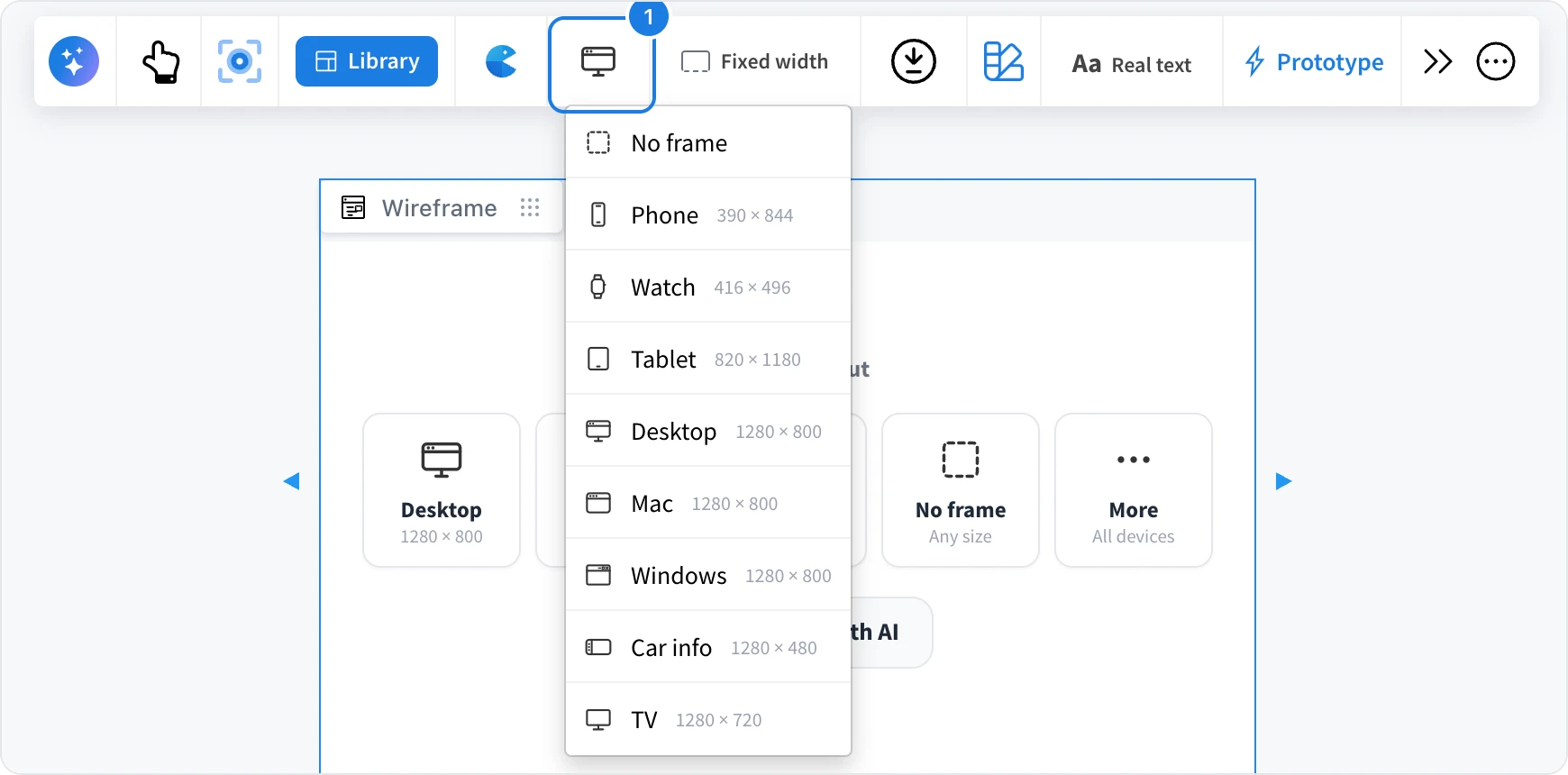
Select the Wireframe.
Click the device button (1) in its toolbar.
Choose a device: No frame, Phone, Watch, Tablet, Desktop, Mac, Windows, Car info or TV.
The screen takes the device's size and frame. For phones and tablets, a Rotate to landscape button appears next to the device button. Click it again to rotate back to portrait.
Set the frame size
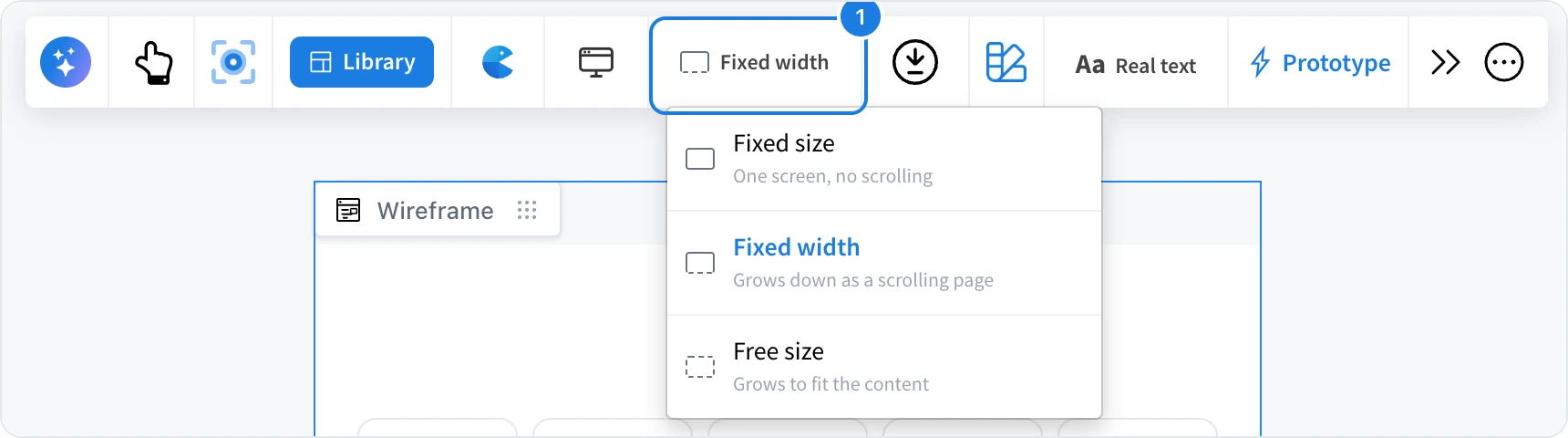
The frame size button (1) sets what stays fixed when content is added:
Option | Use it for |
|---|---|
Fixed size | One screen with no scrolling, such as an app screen. |
Fixed width | A page that grows down as it scrolls, such as a website. |
Free size | A frame that grows to fit its content, such as a single card or dialog. |
AI designs to the frame size you choose, so set it before generating a screen.
Next: Build a screen with widgets.