
Create wireframe files on your computer
Design screens in Classic WireframePro and save them as .wire files on your computer with the desktop app's file mode.
Classic WireframePro is MockFlow's dedicated UI design tool, with its own UI packs, layouts and components for designing app and website screens. In the desktop app's file mode you can keep a WireframePro project as a .wire file on your computer, the same way a board is kept as a .board file.
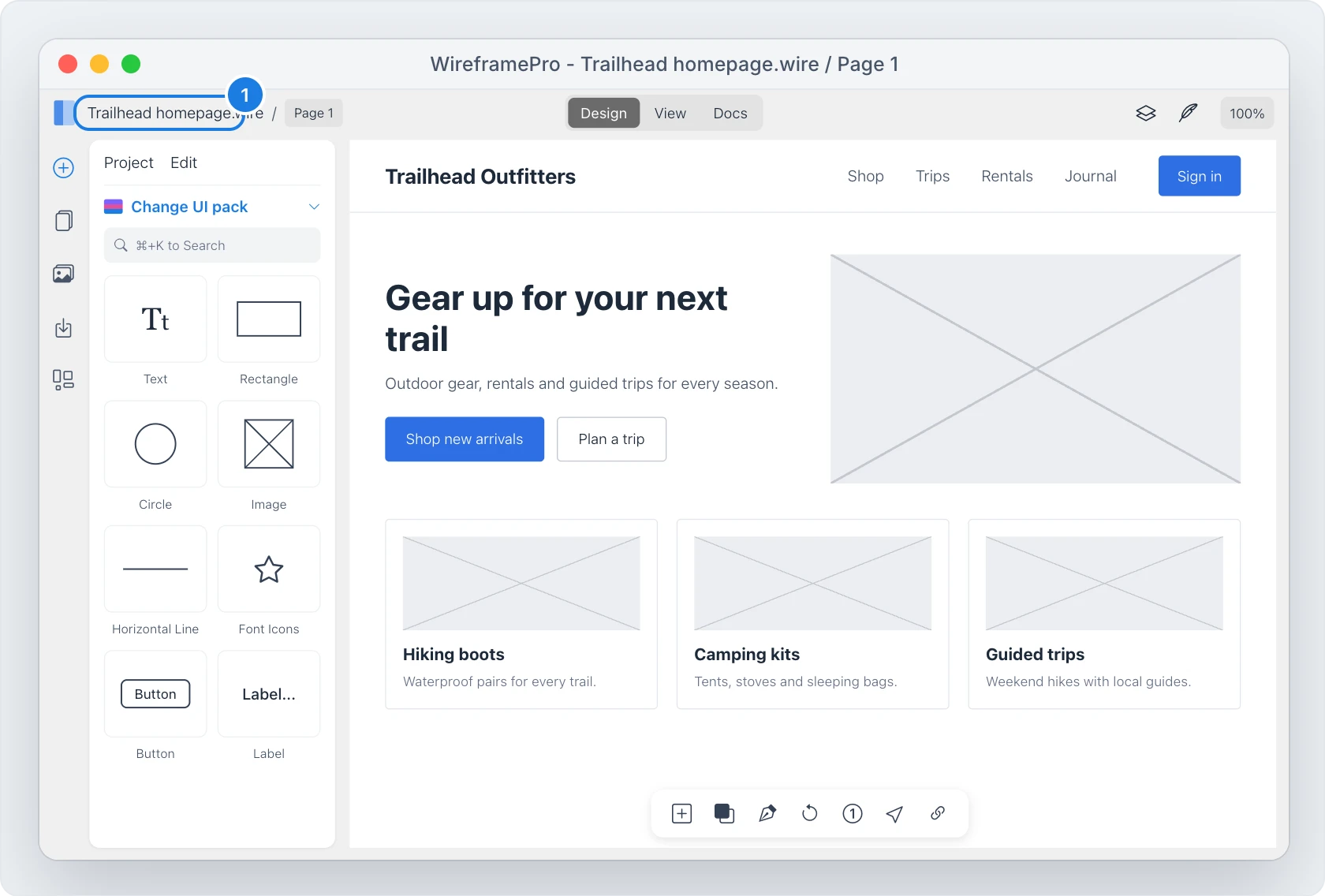
Create a wireframe file
In the workspace sidebar, click the New file button in the File mode section.
Choose New wireframe file. A new WireframePro project opens in a window of its own.
Design your screens with the components in the left panel.
Press Ctrl+S (⌘S on Mac), choose a folder and type a name. The file name appears at the top of the window (1), such as Trailhead homepage.wire.
Open a wireframe file
Open a .wire file with the Open file button in the File mode section, or double-click it in Finder or File Explorer. See Open a board file.
A .wire file can also be brought into a space as a cloud project when you want to share it. See Import a board or wireframe file.