
Change a screen's style
Restyle a wireframe in one click: sketchy, outline, hi-fi, blueprint or a platform look such as Liquid glass, Fluent or Android, in light or dark mode.
Every Wireframe item on a MockFlow board can be drawn in several styles. The widgets, text and layout stay the same; only the look changes. Start with a rough sketch for early ideas and switch to a platform look when the screen is ready to present.

Pick a style
Select the Wireframe.
Click Change style (1) in its toolbar.
Click a style. The screen redraws at once.
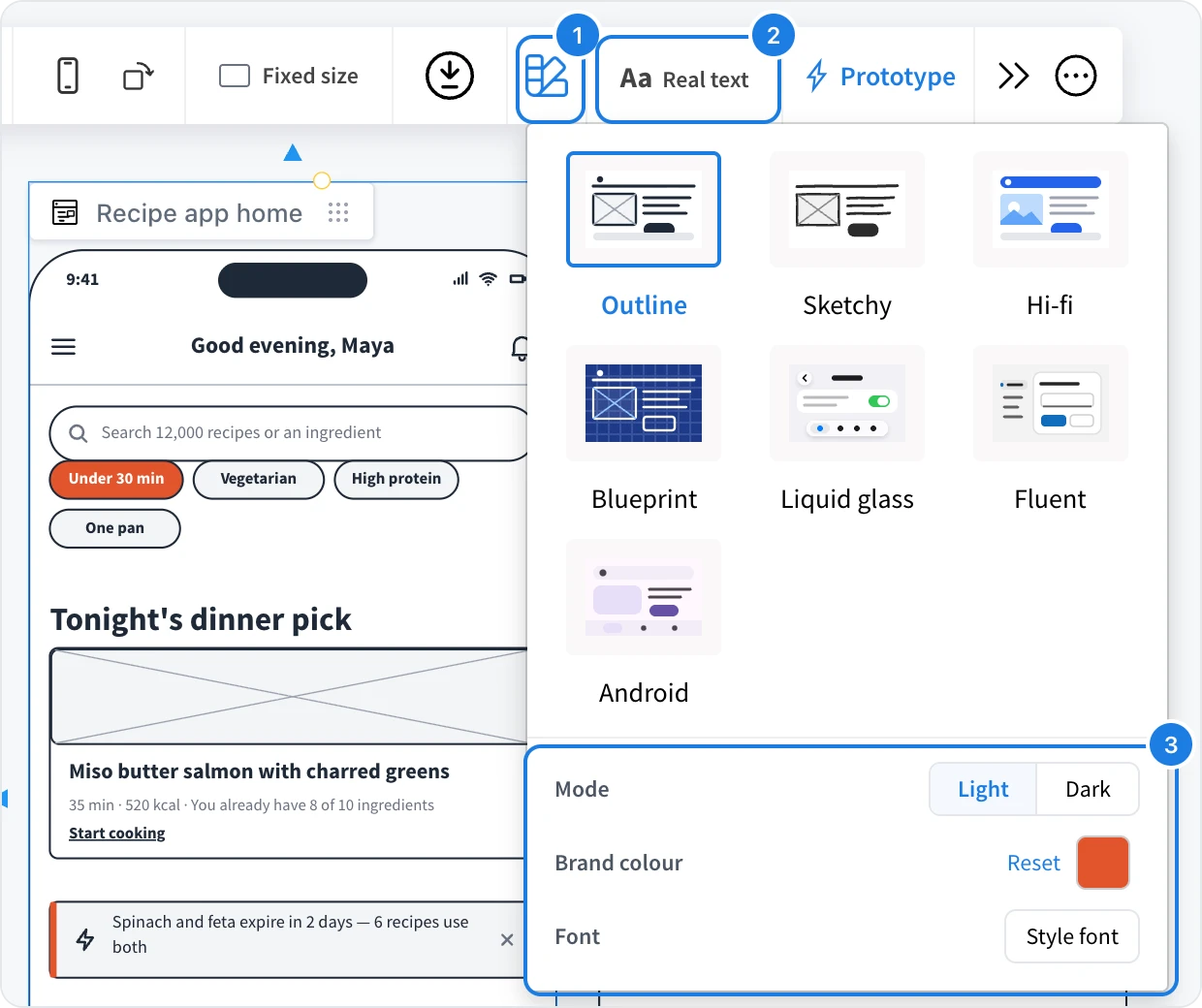
Style | Looks like |
|---|---|
Outline | Clean grey lines, the classic wireframe |
Sketchy | Hand drawn strokes and handwriting, for early ideas |
Hi-fi | A finished, polished design |
Blueprint | White lines on a blue grid |
Liquid glass | An iOS app |
Fluent | A Windows 11 app |
Android | An Android app in Material 3 Expressive |
Liquid glass, Fluent and Android also change how some widgets are built, such as switches, text fields and tab bars, so each screen feels native to its platform.
Dark mode, brand colour and font
The bottom of the menu (3) fine tunes the chosen style:
Mode: Light or Dark.
Brand colour: the accent used for buttons, links and highlights. Reset goes back to the style's own colour.
Font: pick a Google font for the whole screen. Reset goes back to the style's font.
Show real text or placeholder blocks
The Text button (2) next to Change style switches between Real text and Placeholder blocks. Placeholder blocks replace words with grey bars, which keeps a review focused on layout instead of copy.
Generated screens follow the style that is selected, so pick the style before you generate a screen with AI. To turn a screen into a finished design with real pictures, see Render a hi-fi screen or device mockup.