
Generate a board from a prompt
Describe what you need and Mida asks a few questions, plans the items and builds them on your board, laid out and ready to edit.
Describe what you need in a sentence and Mida builds it on the board: a launch plan with a roadmap and a risk matrix, a sprint board, a set of app screens or an architecture diagram. Mida asks what matters, shows you the items it plans to make, and adds the ones you choose to the board, laid out together and ready to edit.

Describe what you want
Open Mida with the AI chip in the bottom toolbar or Ctrl (⌘ on Mac) + J, type what you need and press Enter. Name the items you want when you know them, for example Plan the launch of a mobile banking app: a launch roadmap, a launch checklist and a risk matrix.
Answer Mida's questions
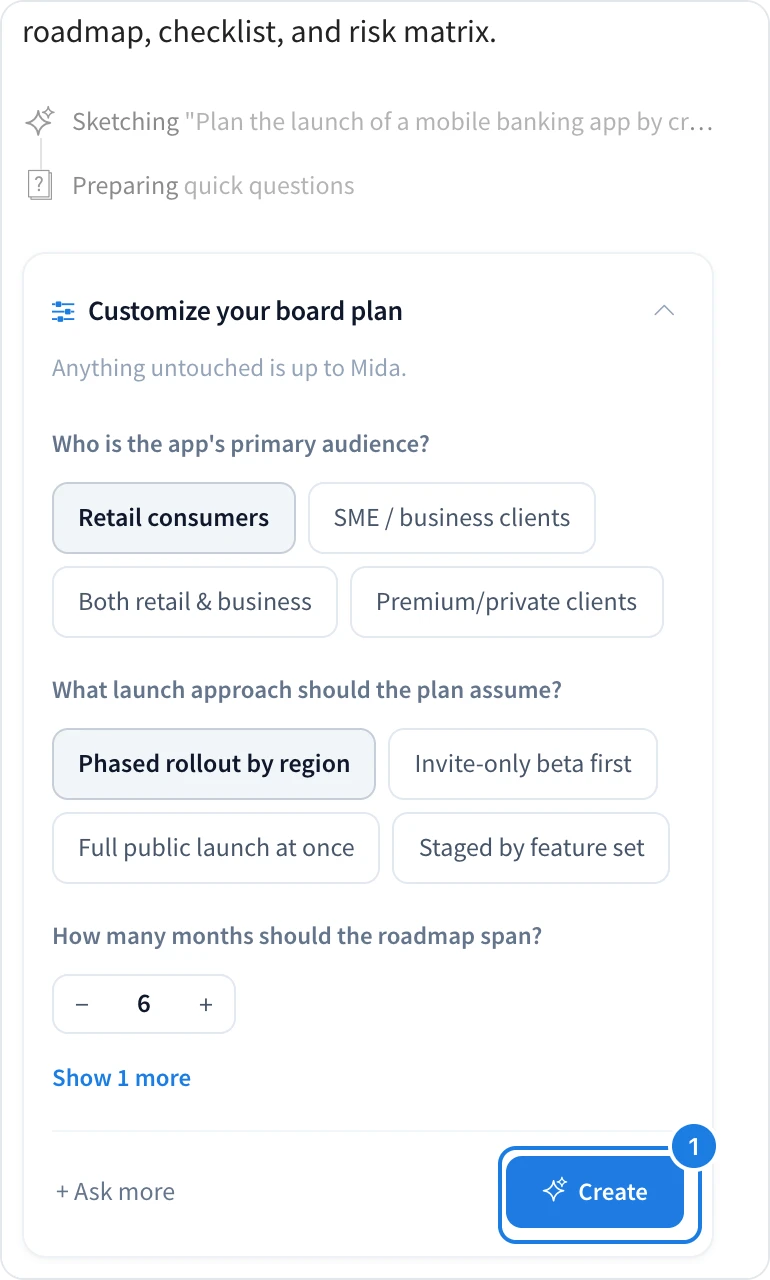
For a bigger request, Mida asks a few quick questions under Customize your board plan, such as who the audience is or how long the roadmap should be. Pick the answers that fit, then click Create (1). Anything you leave untouched is up to Mida. Click + Ask more for further questions, or Show 1 more to see the rest.
Choose the items to generate
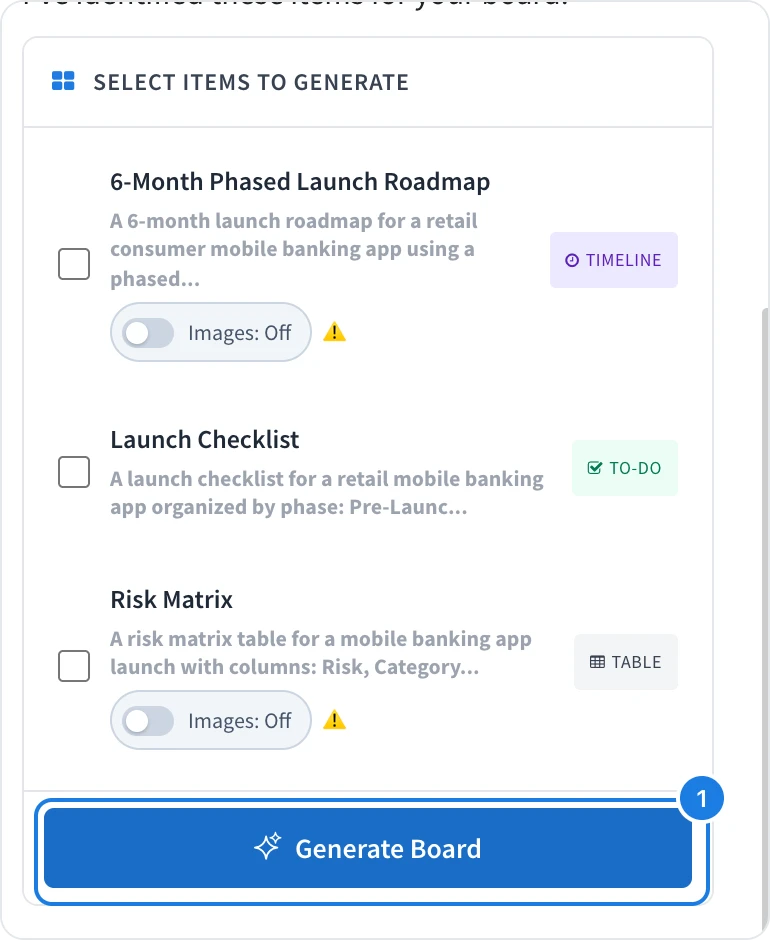
Mida lists the items it plans to make under Select items to generate, each with its type, such as a timeline, a to-do list or a table.
Tick the items you want.
Turn on Images for an item if you want AI-generated images in it. Images use extra AI credits.
Click Generate Board (1).
To change the plan first, tell Mida in the chat, for example Add a budget table.
What Mida adds to the board
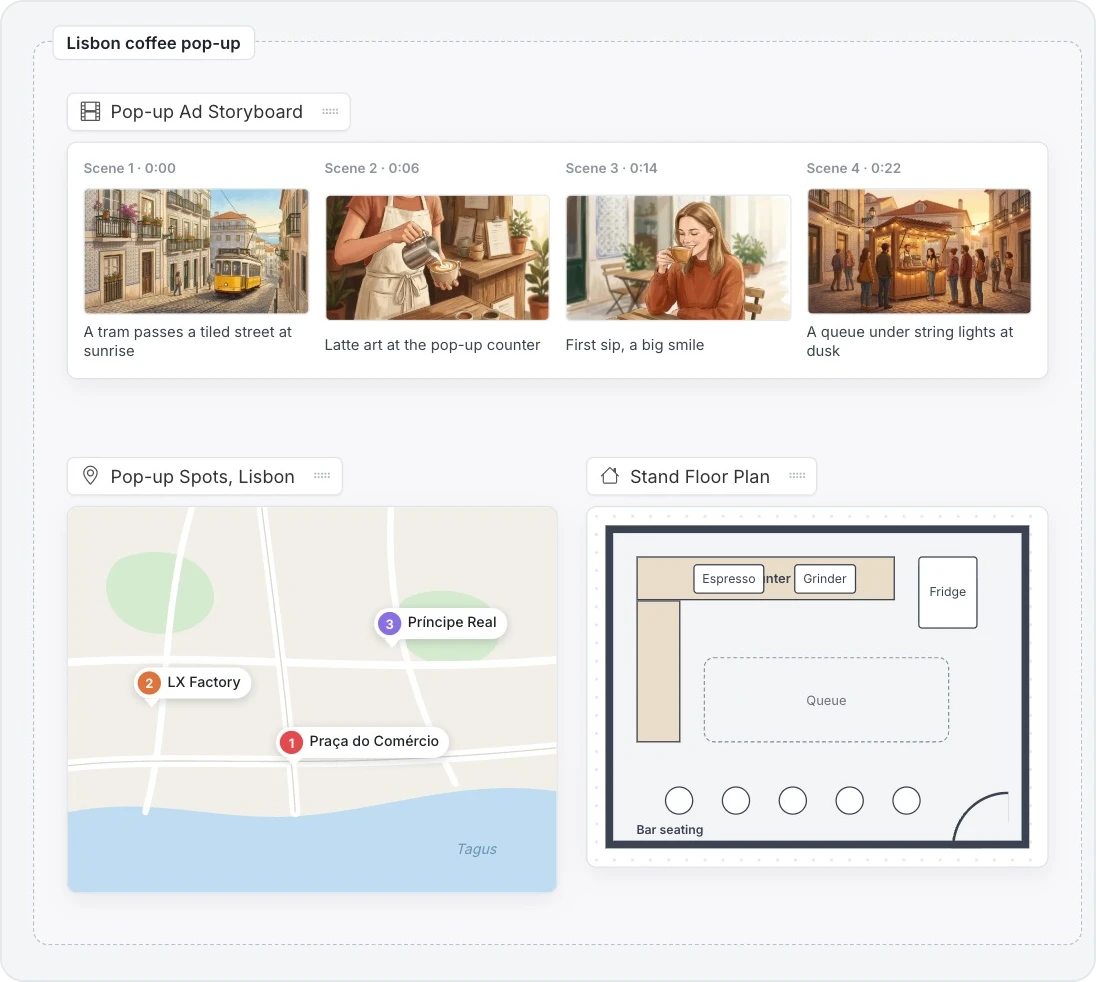
Mida builds each item on the board and places them together in a section named after your request. When it finishes, Mida shows how many items it generated and the credits used, with a card that takes you to the section. Every item is a normal MockFlow component, so you can edit, move or restyle it like anything else on the board.
Use the 👍 and 👎 buttons on the card to tell us how the result turned out.