
Track tasks with a checklist
Keep a to-do list on your MockFlow board with the TODO or Checklist component: generate tasks with AI, tick them off, reorder them and change the style.
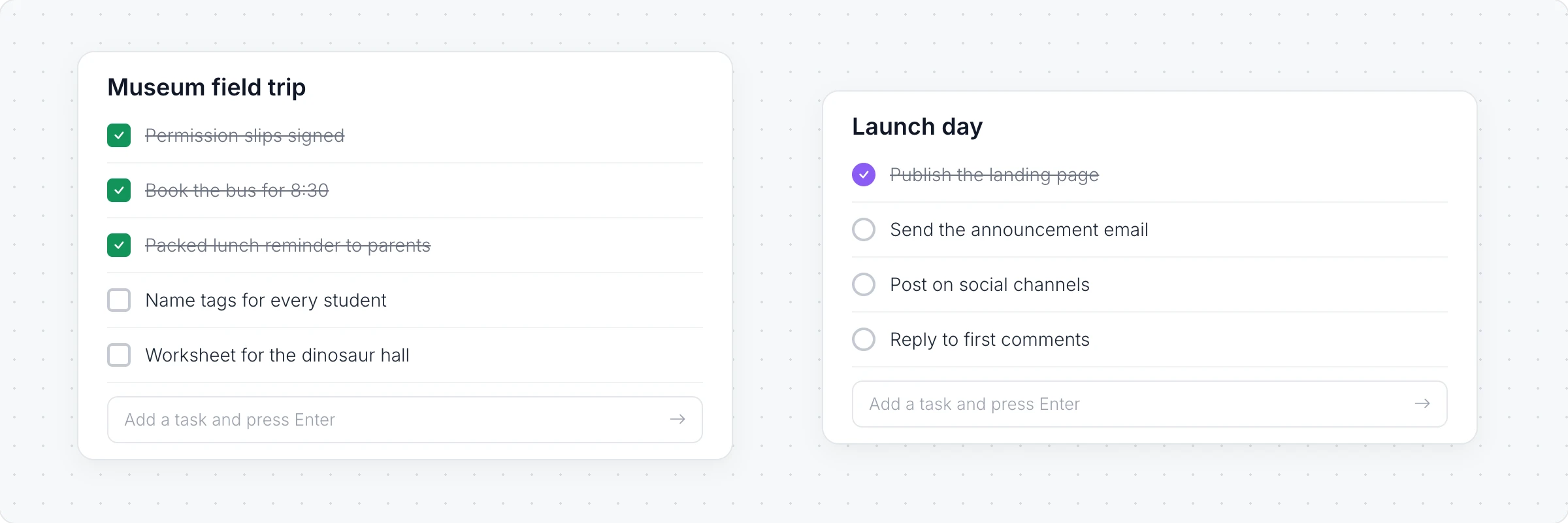
The TODO or Checklist component is the quickest way to keep track of what needs doing, right on the board where the work is planned: the steps before a field trip, the jobs for launch day or the follow-ups from a workshop. Everyone on the board sees the same list, so it is clear what is done and what is left.
Generate a checklist with AI
Click Add anything (the plus button) in the toolbar at the bottom of the board and choose TODO or Checklist.
With the checklist selected, click the AI button on the left of its toolbar and choose Generate new.
Describe the list, for example "Things to prepare for a class trip to the science museum", and click Generate.
The AI menu also has Modify with AI, to add or rewrite tasks with a prompt, and Convert to, to turn the checklist into another kind of item, such as a kanban board or a document.
Add, tick and reorder tasks
Click Interact with Component (the hand button) to work inside the checklist.
Type in Add a task and press Enter to add a task.
Click a task's checkbox to tick it off. A done task is crossed out.
Drag a task up or down to change the order, and use the trash icon to remove it.
Double click the title to rename the list, or use Change Title in the toolbar.
Change the style
With the checklist selected, the toolbar sets:
Checkbox style: square or circle checkboxes.
Todo color: the color of the checkboxes.
Toggle Border and Corner Radius: the card's outline and corners.
Toggle Auto Height: grow the checklist as tasks are added.
The TODO or Checklist component is available on every plan. Generating with AI uses AI credits. See MockFlow pricing.