
Run a timer for your team
Start a countdown everyone on a MockFlow board sees at the same time, to time-box brainstorming, voting or a review.
A shared timer keeps a session moving: ten minutes to sketch layout ideas on a wireframe, three minutes to vote on launch tasks, five minutes for a standup. Everyone on the board sees the same countdown in real time, so the whole team works to the same clock.

Start a timer
Point to the headset icon at the top right and click Start Timer.
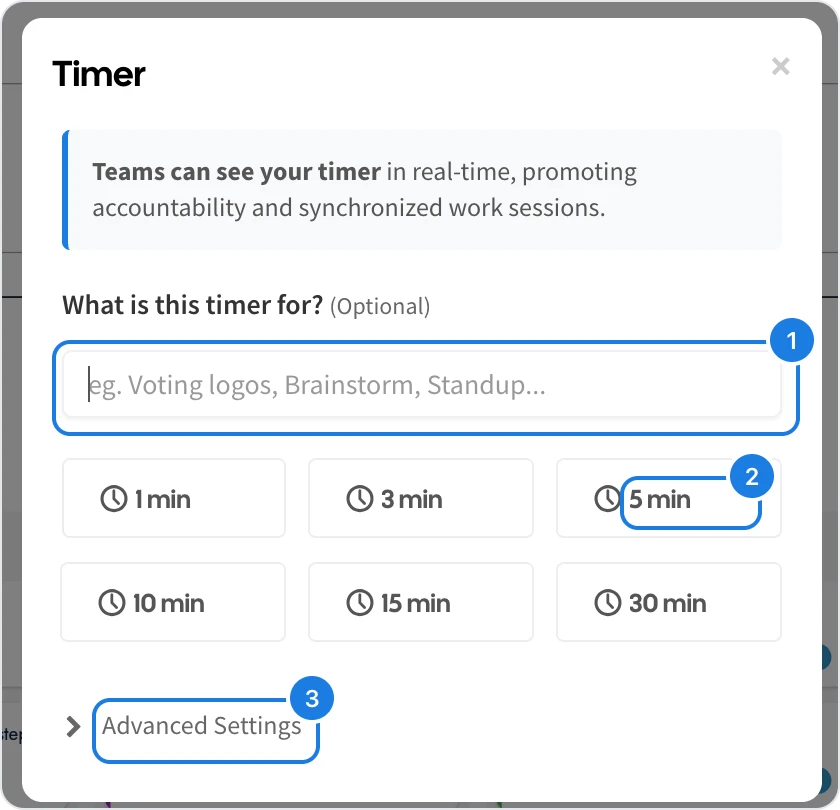
Optionally, say what the timer is for (1), for example Pricing test ideas.
Click a length (2) from 1 to 30 minutes. The timer starts straight away.
For any other length, open Advanced Settings (3), enter the minutes and seconds under Custom Time, and click Start Timer. The same section turns the sound at the end of the timer on or off.
What your team sees
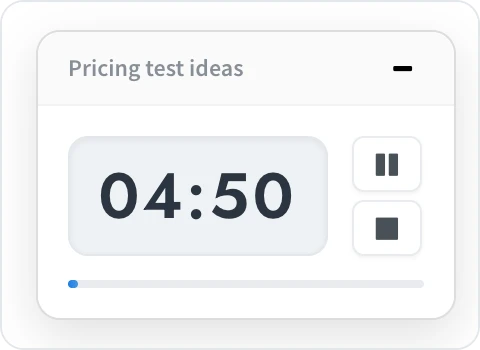
The timer appears at the top right of the board for everyone, with its name and the time left. Use the pause and stop buttons next to the time to pause or end it early, or minimize it to keep the board clear.