
Turn wireframes into code with Build mode
Use Build mode in WireframePro to convert a page or a selected part into front-end code for HTML, React, Vue or native platforms, or into a prompt for AI coding tools.
Build mode converts wireframe designs into front-end code using AI. Select a section, such as the checkout's order summary, or convert a full page, pick the framework your team uses, and get code you can preview, download or open in your code editor.
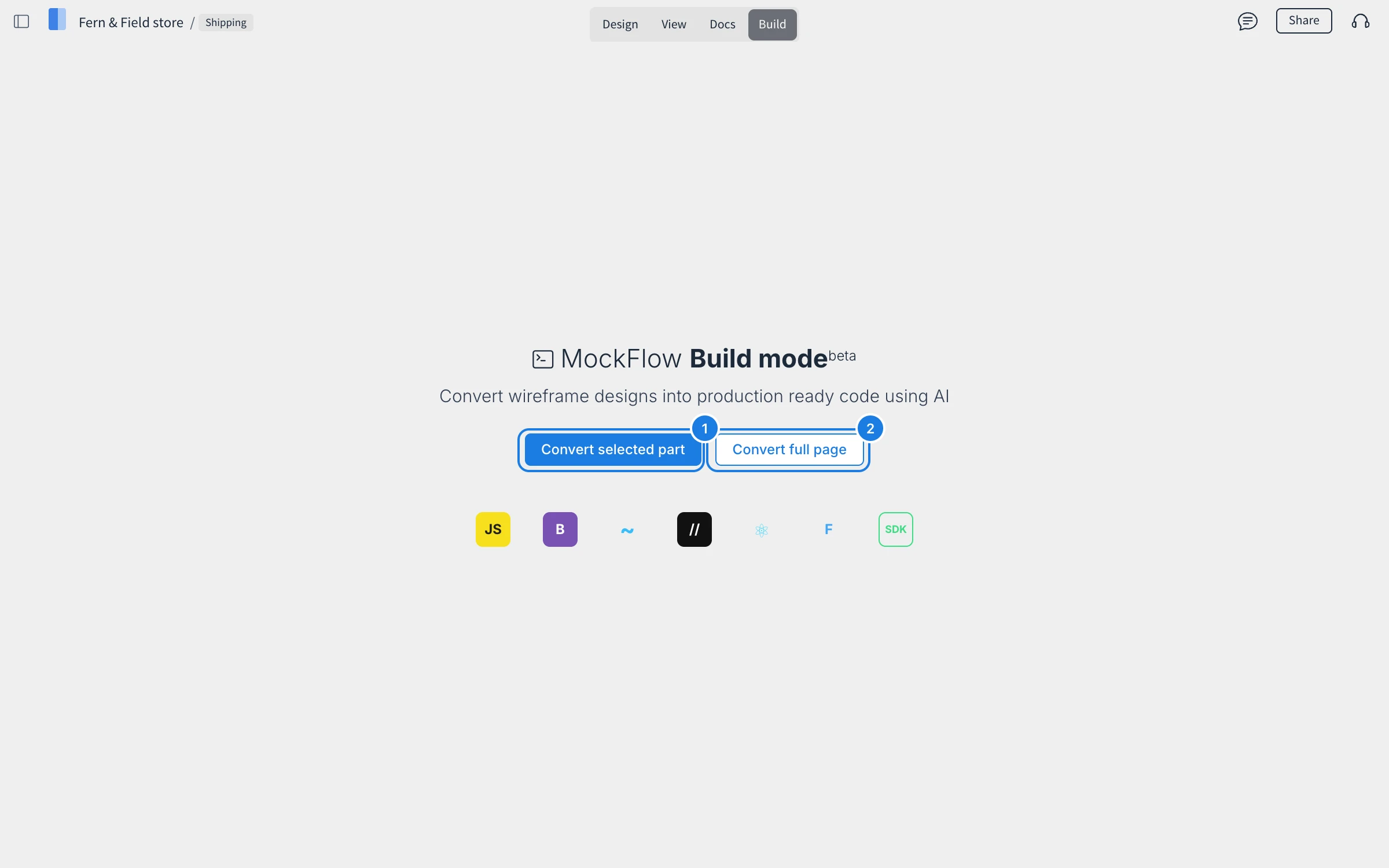
Convert a page or a part of it
On the Design tab, select the part of the page you want, or skip this to convert the whole page.
Click Build at the top of the editor.
Click Convert selected part (1) or Convert full page (2).
Choose the code type and generate the code.
Each conversion becomes a file in Build mode. Switch between Preview and Code, open the preview in a new window, copy the code to VS Code, regenerate it, or download it. A large page uses more AI credits.
Supported code types
HTML: with Tailwind, Bootstrap, Material, Shadcn, Ant Design or Bulma.
React: with Tailwind, Shadcn, Bootstrap or Ant Design.
Vue: with Tailwind, Bootstrap or Ant Design.
Native UI: iOS, iPadOS, watchOS, Android, Flutter, Windows and macOS.
You can also right-click the page and choose Export to Code to convert a page from the Design tab.
Export a prompt for AI coding tools
To build with an AI coding tool instead, right-click and choose Export for AI Prompt. Choose what to include, such as the design context, a screenshot and the style guide, add instructions and click Generate AI Prompt. Then copy the prompt for Claude Code, Cursor, Lovable, Bolt, Replit or any other tool.
What is not available on the Basic and Plus plans
Build mode and Export for AI Prompt are part of the Max plan. Max also includes many other features, such as Figma export and team UI packs. See MockFlow pricing for details.