
Share a private board
Boards in Private boards are visible only to you. Move one to a team space from the board to share it.
Private boards is your own place in MockFlow for work that is not ready to share yet, such as a first draft of a pitch, personal notes or an idea you are still shaping. Only you can see a private board, so it has no Share button. When the board is ready for others, move it to a team space and share it from there.
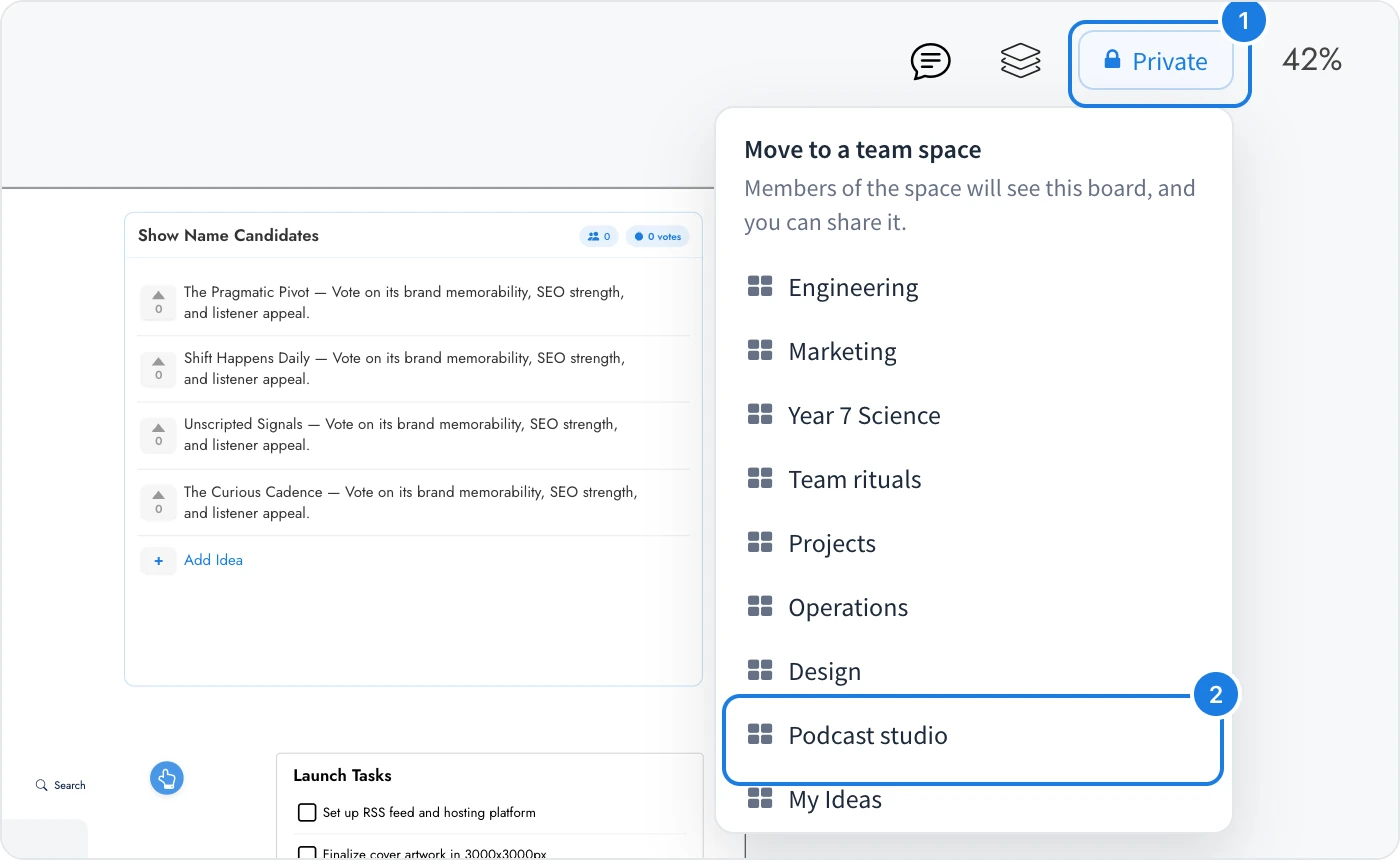
Move a private board to a team space
Open the board. At the top right, where other boards show Share, click the Private tag (1).
Under Move to a team space, click the space for the board (2).
The board moves to that space straight away. Members of the space can now see it, and the Share button appears in place of the tag, so you can invite more people or create a public link. The list shows the team spaces where you can add boards: spaces you own and spaces where you are an editor or an admin. If you have no team spaces yet, create one first, as described in Create and organize spaces.
Share the board after moving it
Once the board is in a team space, share it like any other board:
Share a board with people to invite reviewers, editors and admins.
Share a board with a public link to let anyone view it.
Present a board live to walk the team through it.
You can also move boards from the workspace sidebar, as described in Move boards between spaces.
What is not available on the Basic plan
On the Basic plan, boards cannot be moved between spaces, so a private board stays private. Moving boards between spaces and many other features, such as editor roles and live presentation mode, are available on Plus and Max. See MockFlow pricing for details.