AI visual boards from Slack.
Add MockFlow to your Slack account. Follow the below steps on how to install and create visual boards in Slack.
Install MockFlow app for Slack.
Click on the above 'Add to Slack' button to install MockFlow for your team.

Use the /mockflow command to create a board.
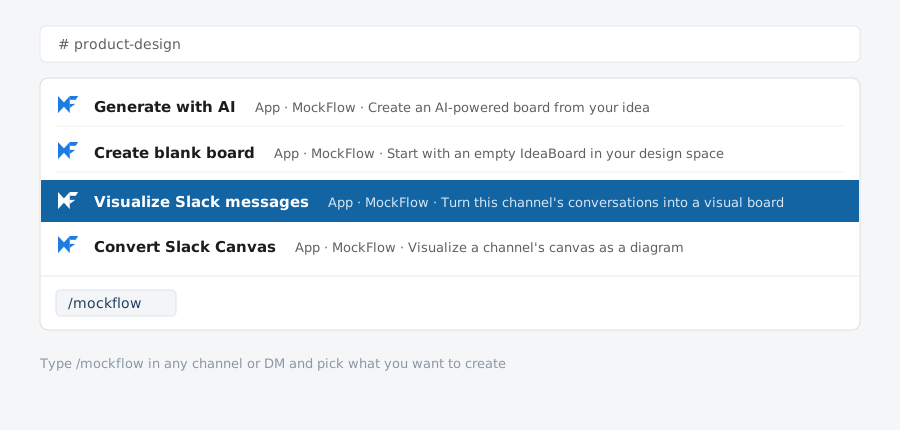
To start, enter the command /mockflow in any channel or direct message and pick one of four options:
- Generate with AI. Describe an idea and get a board.
- Create blank board. Start from an empty board.
- Visualize Slack messages. Turn the channel's conversations into a board.
- Convert Slack Canvas. Transform the channel's canvas into a diagram.
Connect your MockFlow account and pick a space.
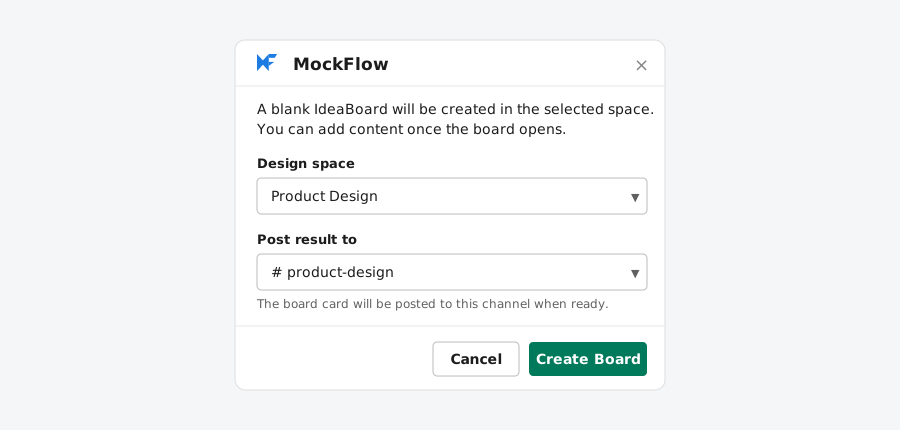
The first time you create a board, it will ask you to connect your MockFlow account with Slack. If you do not have a MockFlow account, you can signup for a free Basic Plan in the same page and connect.
In the dialog, choose the design space the board should be created in and the channel the result should be posted to. MockFlow can build flowcharts, mindmaps, kanban boards, timelines, whiteboards, tables and more.
Board is posted back to Slack.
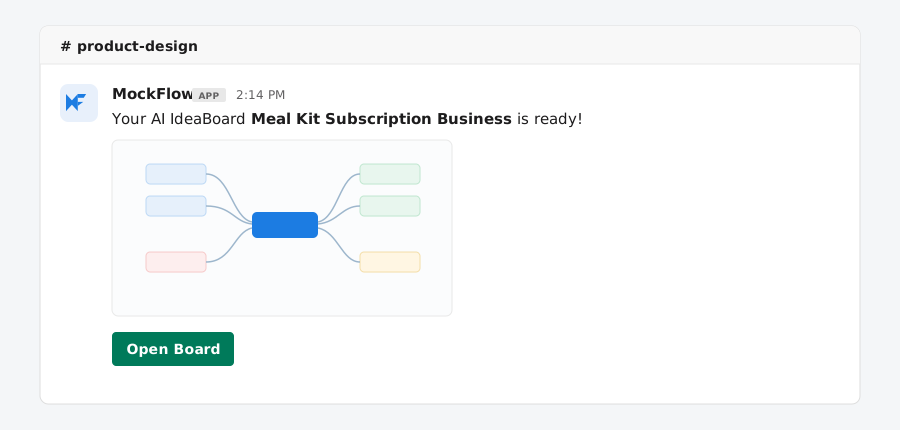
When the board is ready it is posted back to the same Slack channel as a card with a preview image and an Open Board button, so the whole team can jump straight in.
Notifications inside Slack.
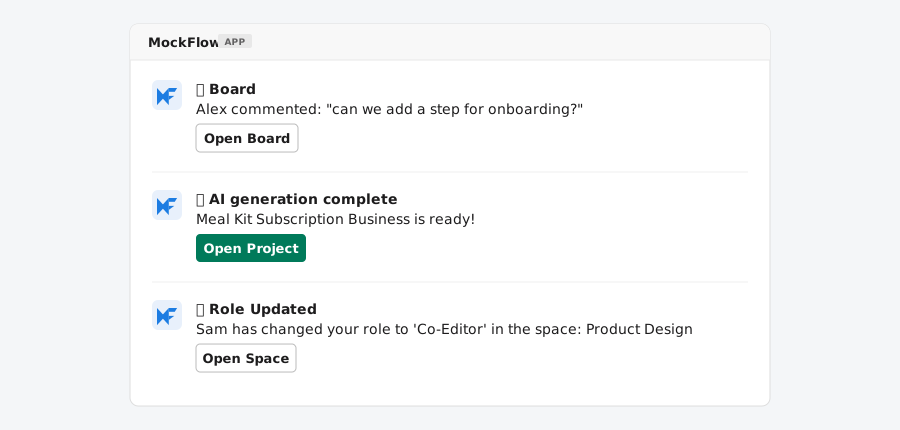
MockFlow sends you a direct message when something happens on your boards. Each notification carries a button that opens the board or space directly.
- Comments. A teammate comments on a board.
- AI generation finished. Your board is ready to open.
- Design space changes. A board added, a space shared or your role updated.
You decide what you hear about: switch each notification type on or off from the app's Home tab in Slack.
Boards that travel with your team.
Everything you create from Slack stays connected to your MockFlow account.
Saved in MockFlow
The boards you create are also available in your MockFlow.com account for later editing and collaboration.
Link previews
Paste any board link in Slack and it unfurls with the project name, thumbnail and last edited date.
Huddle notes to boards
When a huddle ends with AI notes, a button appears in the thread to convert them, so meeting notes become a visual board in one click.
Add MockFlow to Slack.
Install the app for your team and turn conversations into visual boards.
Learn how to use MockFlow in the support portal, or contact us at support@mockflow.com.




 Brainstorm with MockFlow MCP