
Internal
MS Teams Integration
Integrate MS Teams with MockFlow to draw and share UI ideas directly within your MS Teams channel. Within the MockFlow...
Integrate MS Teams with MockFlow to draw and share UI ideas directly within your MS Teams channel.
1 Within the MockFlow dashboard, choose a design space and click on the 'Create New' button.
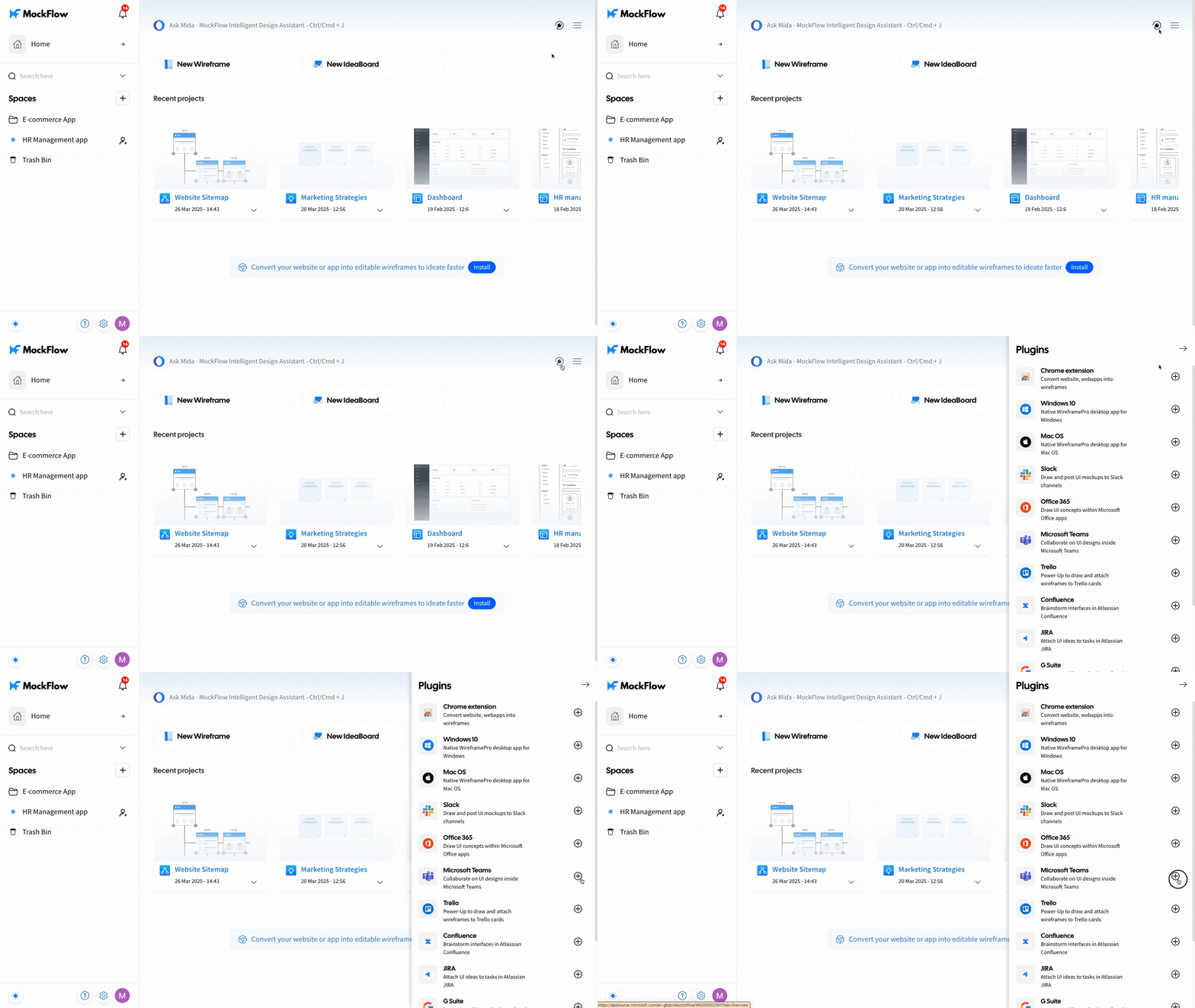
Next, click on 'Get it Now' to get access.
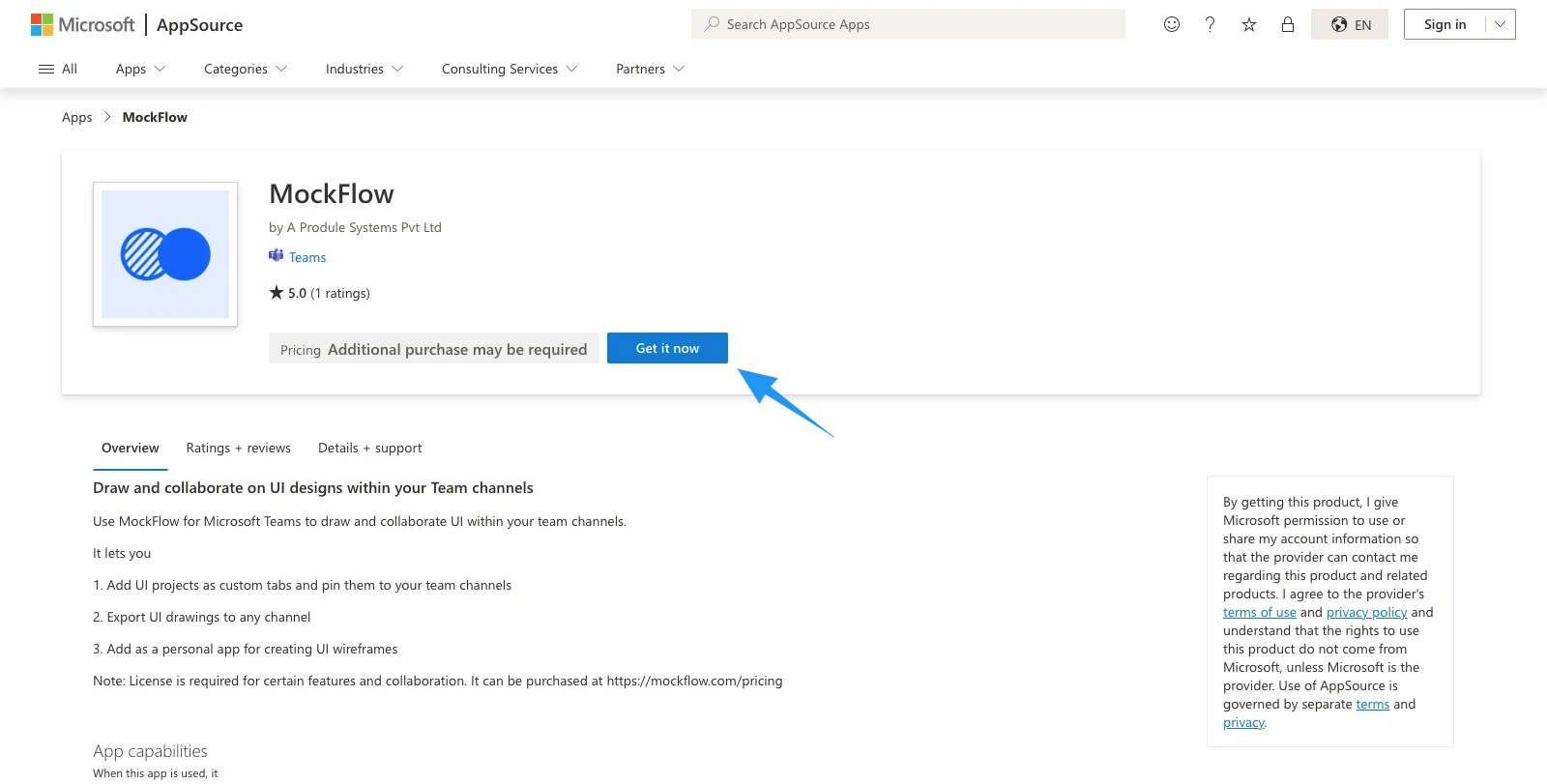
Login to your MS Teams account.
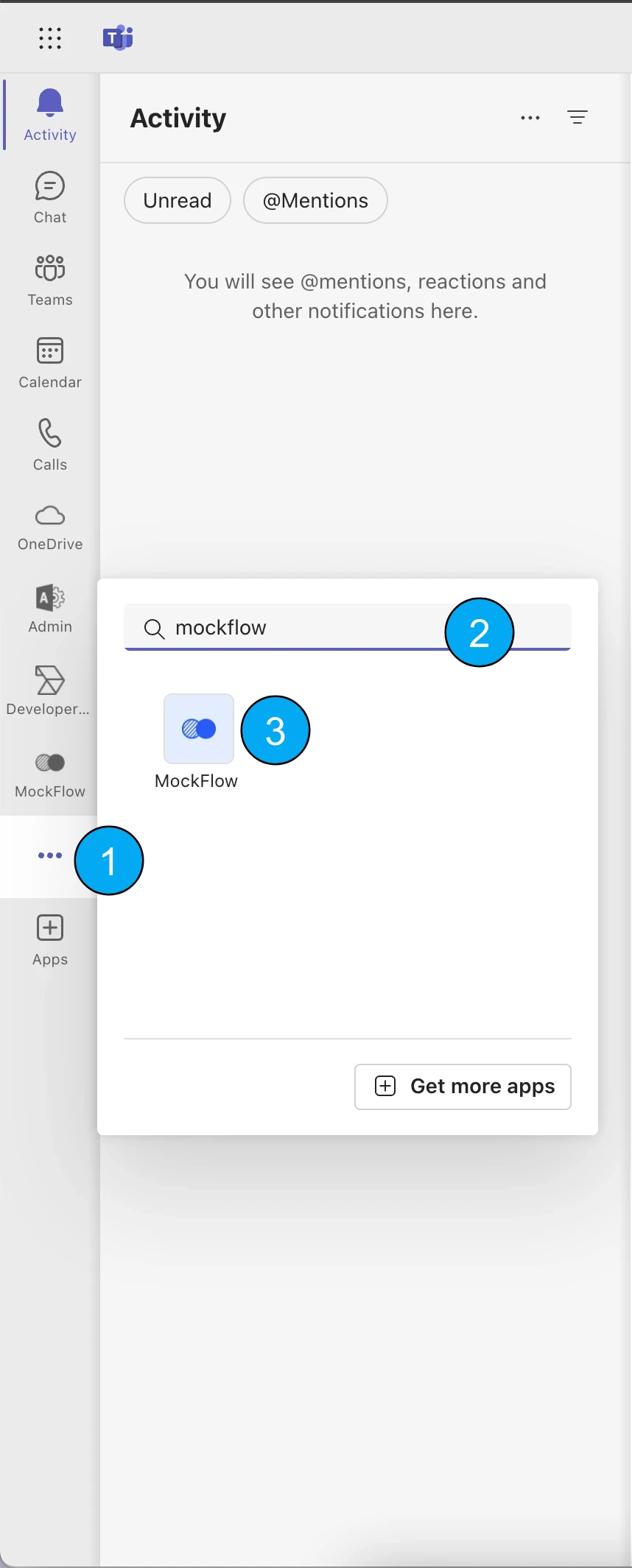
Click on Apps from the sidebar and search 'MockFlow.'
Log in to your MockFlow account.
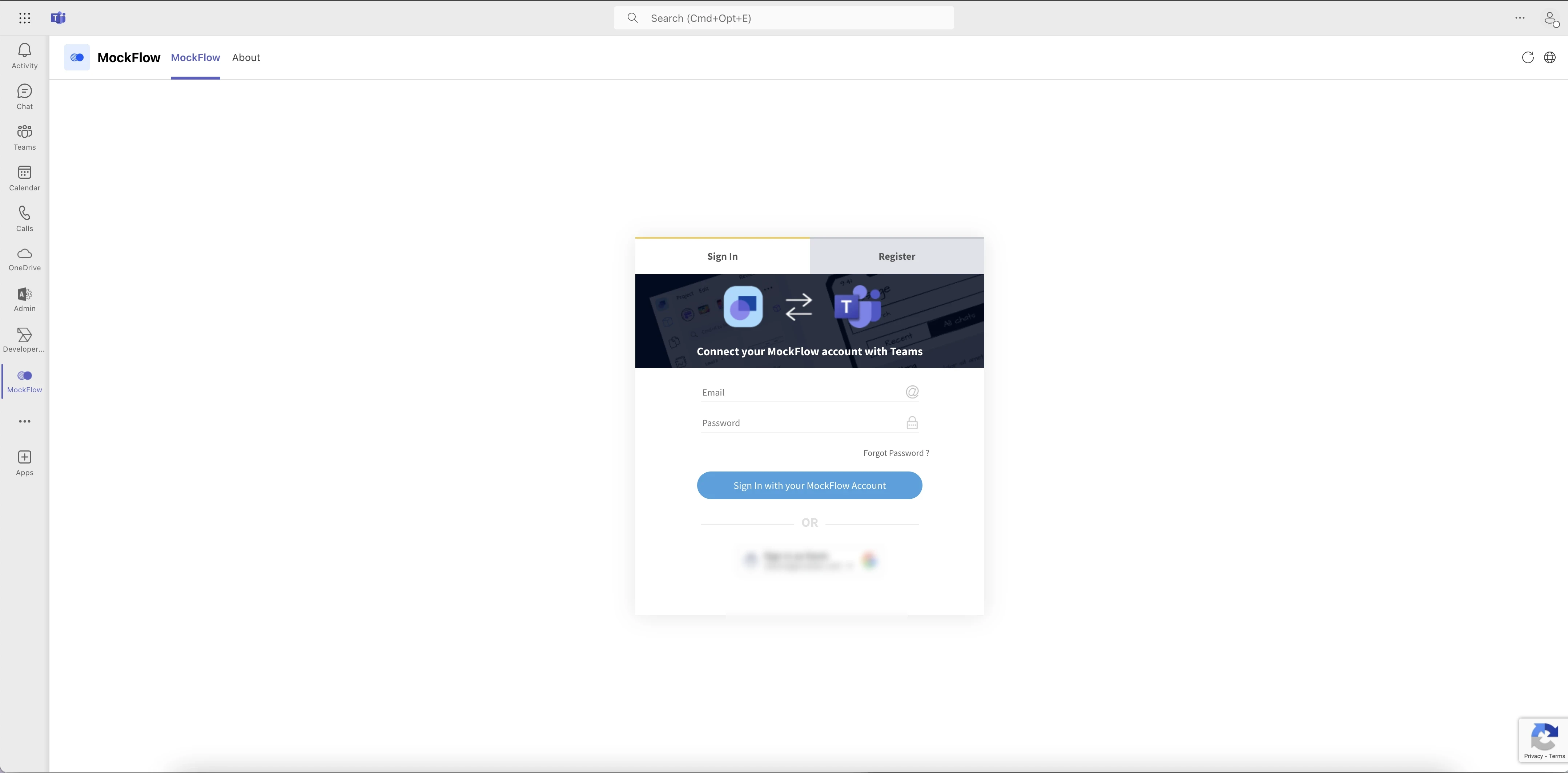
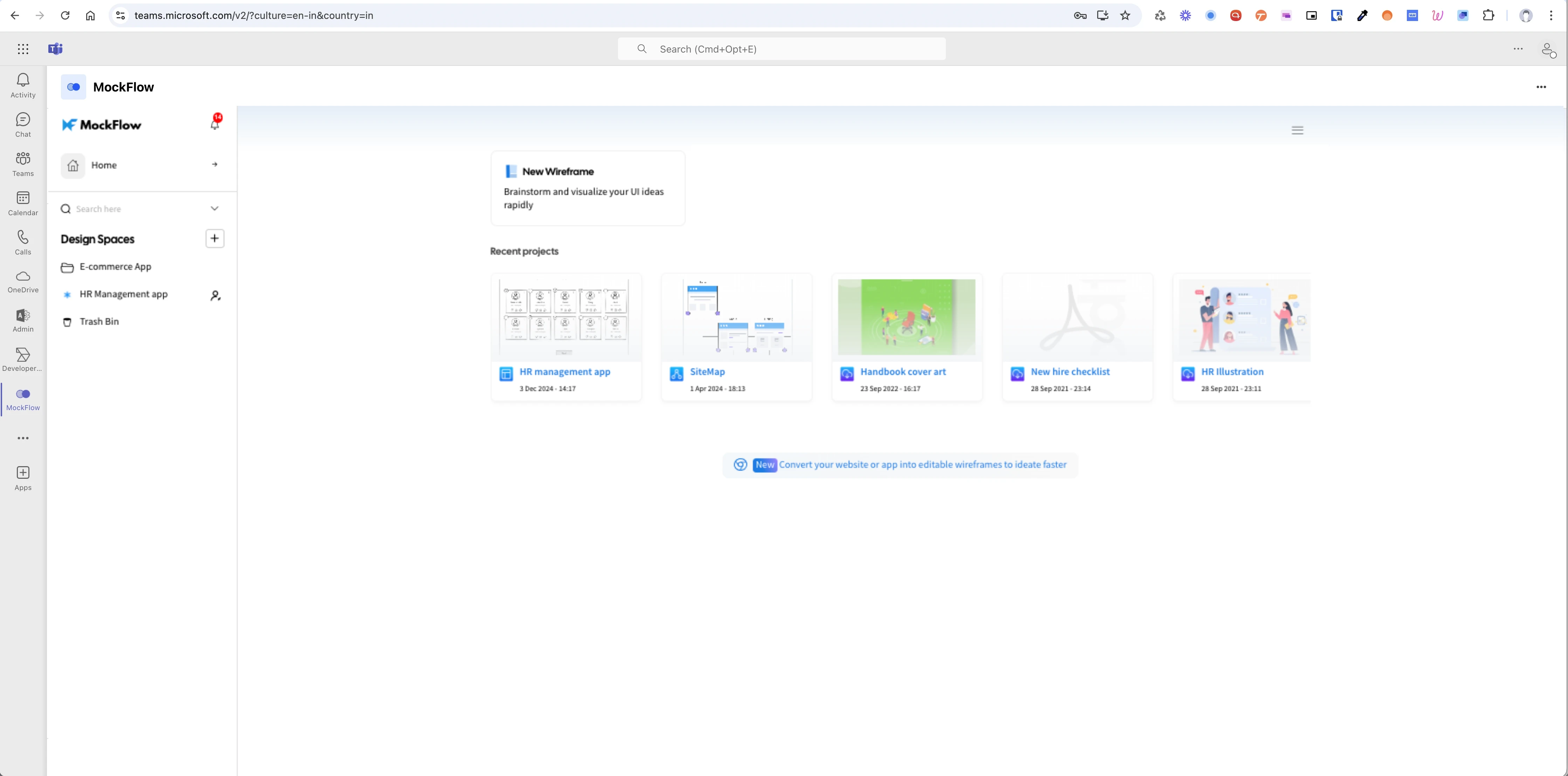
Mockflow dashboard opens up, and choose the project that has to be shared, inside the Microsoft Teams channel.
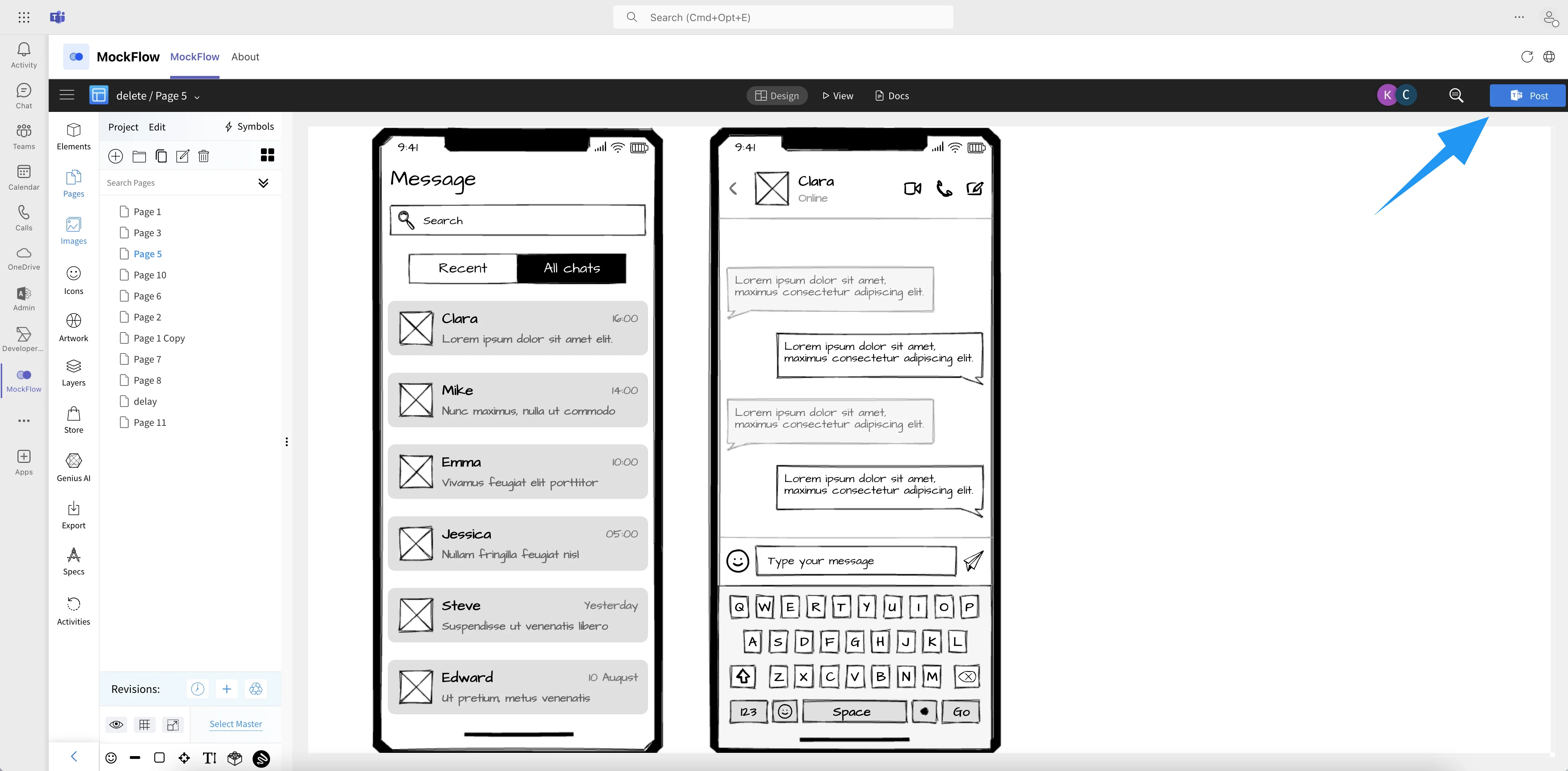
A tab opens up, click on the post button.
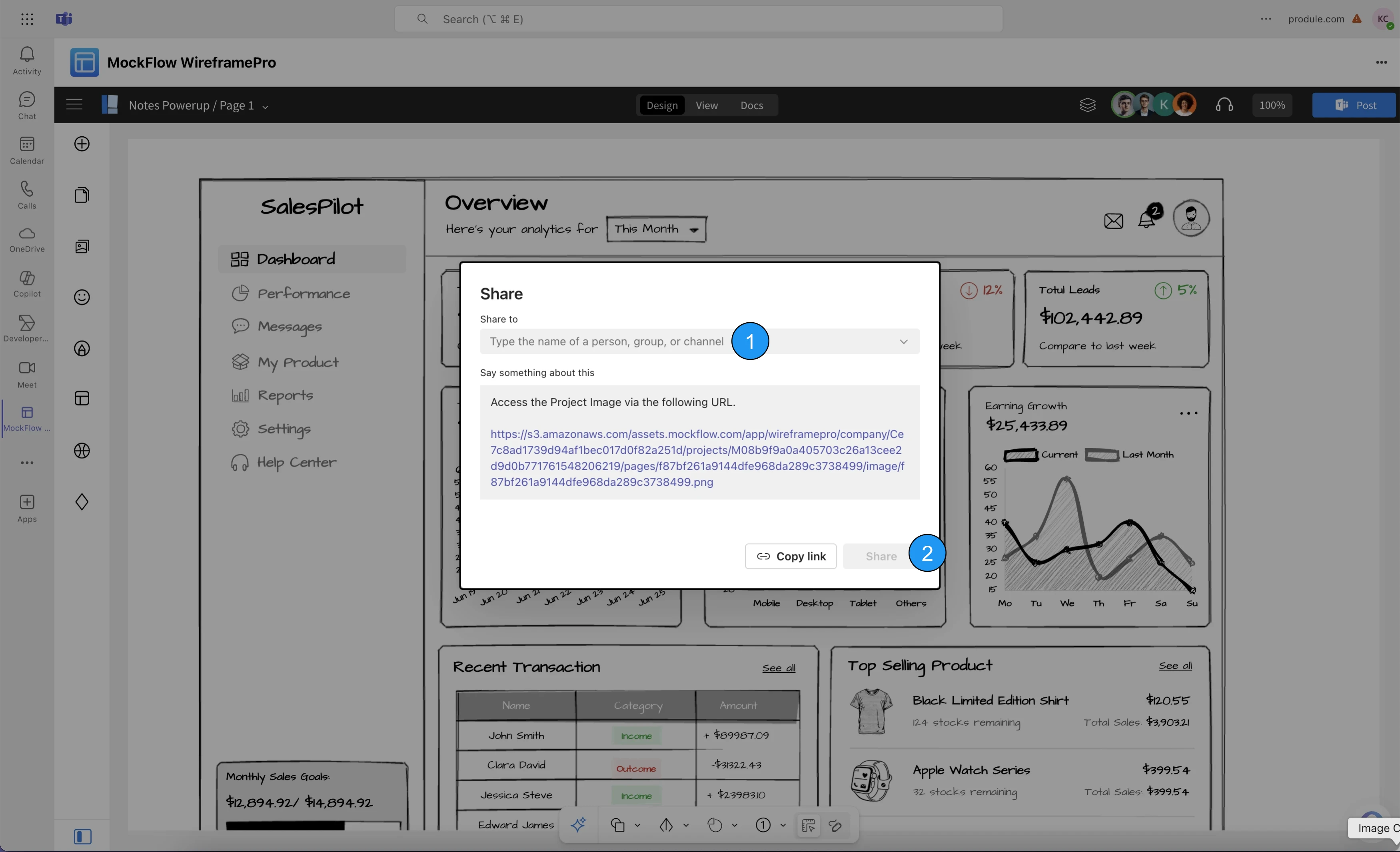
The project can be shared with a channel or individually.
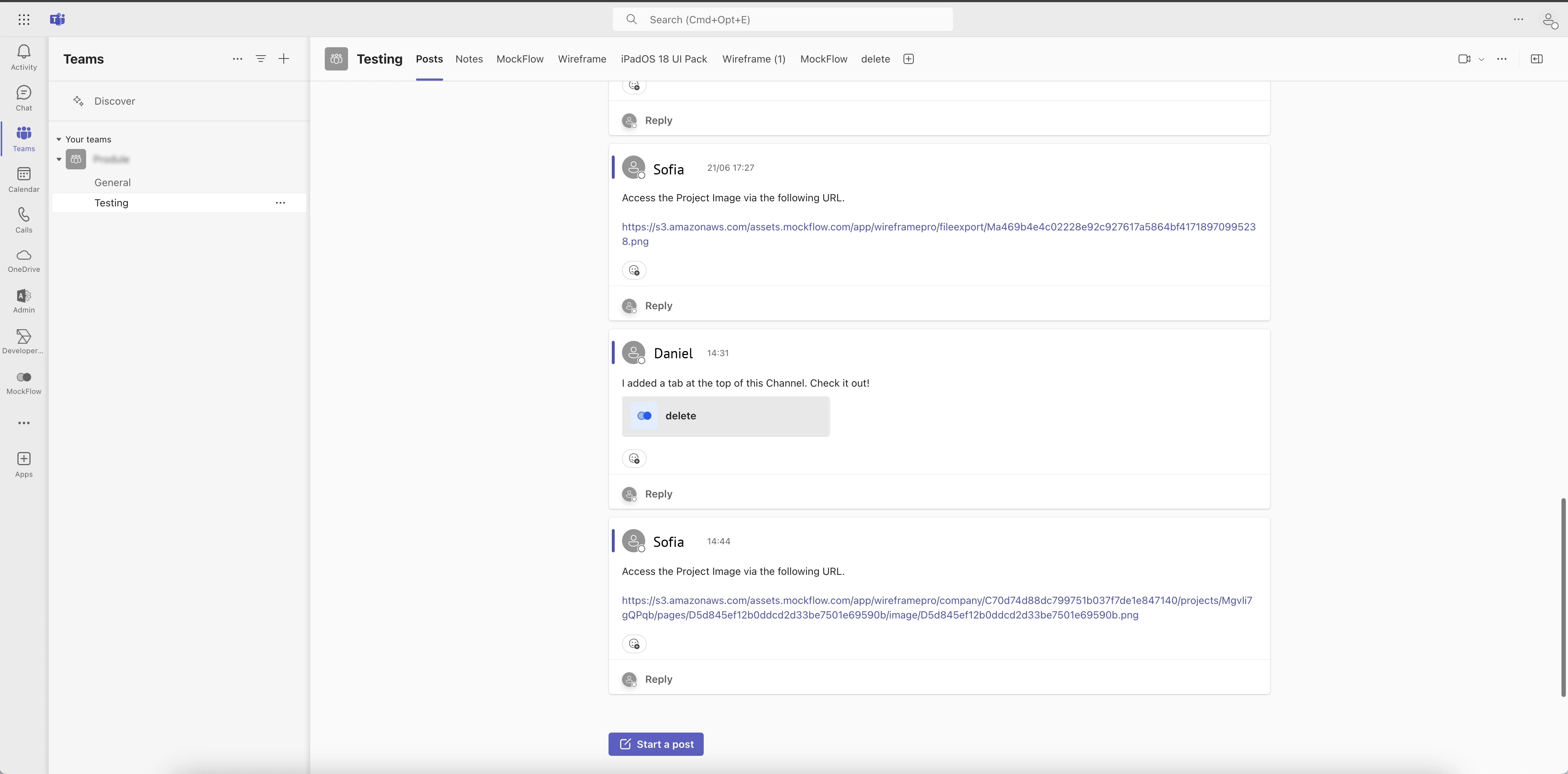
The page will be shared within the selected MS Teams channel.
Was this page helpful?