Sticky Notes
Sticky notes help capture quick ideas, organize thoughts, and visually structure information, making planning and brainstorming...
Sticky notes help capture quick ideas, organize thoughts, and visually structure information, making planning and brainstorming easier.
How to add Sticky notes?
In the MockFlow Board editor, click on the sticky note icon from the top toolbar.
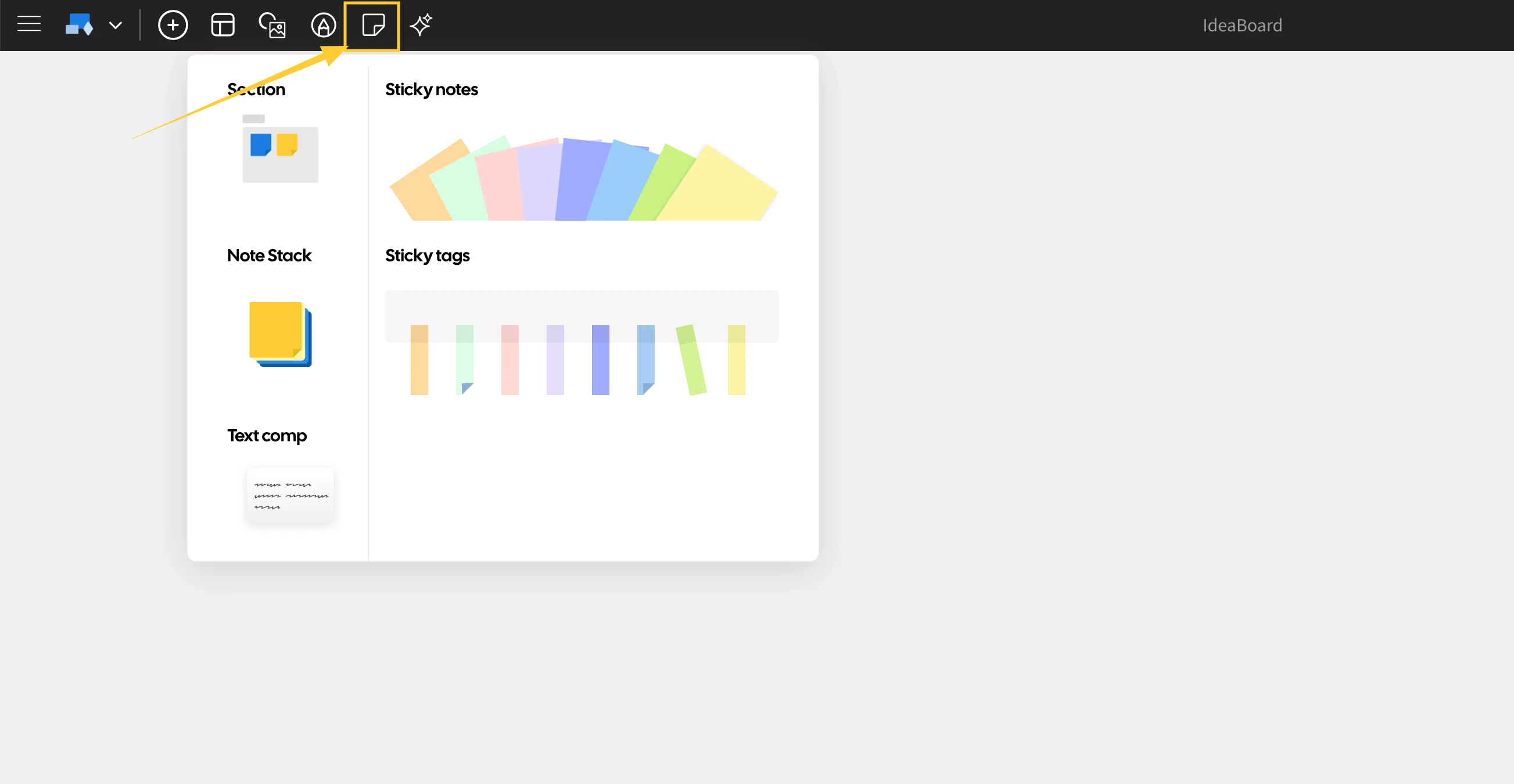
There are 3 options within sticky notes:
Default square sticky notes in different colors.
Sticky tags (rectangle like a tag) in different colors.
Sticky stack.
You can either click on it or drag & drop it onto a specific place on the MockFlow Board canvas.
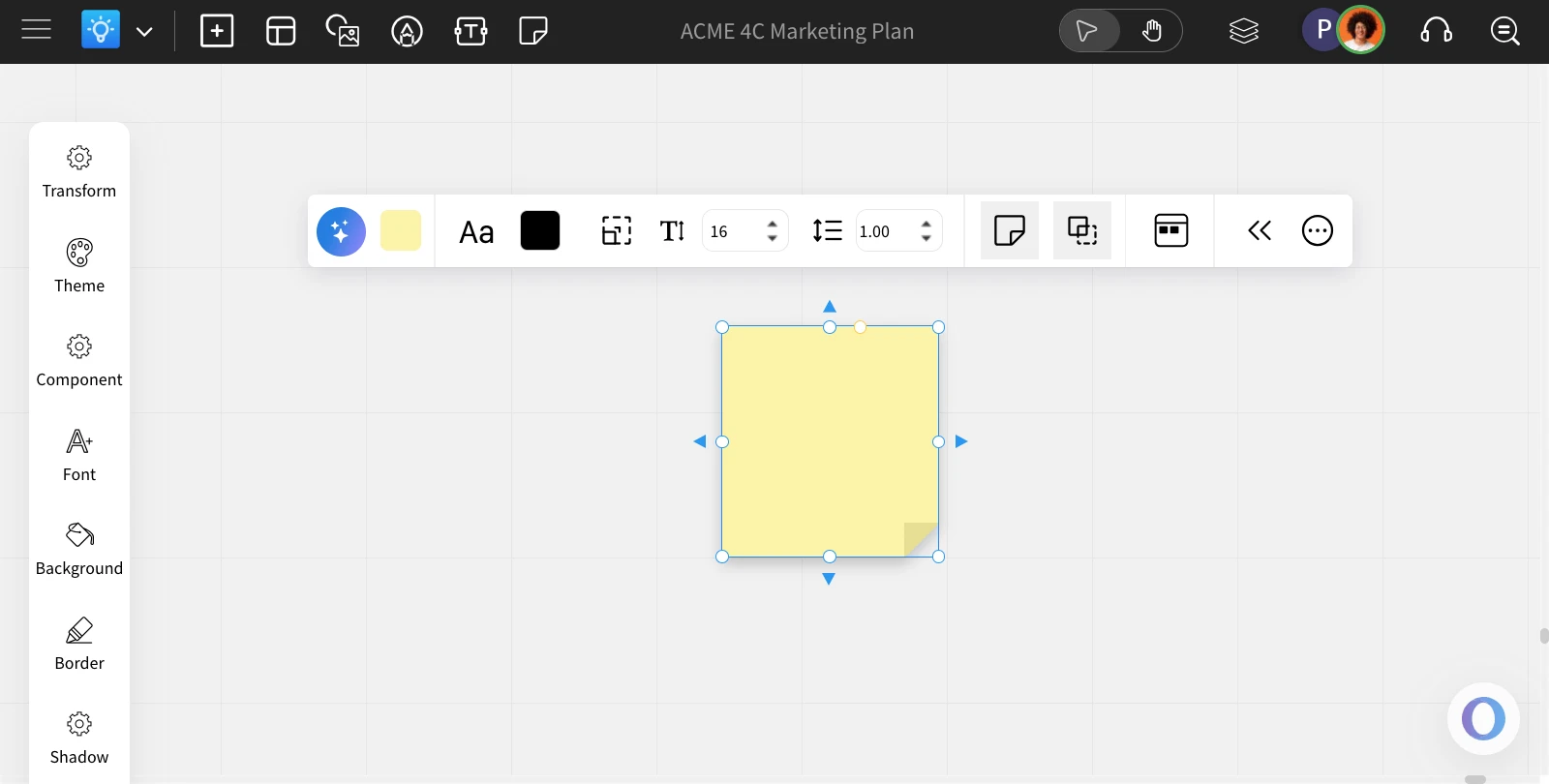
Sticky Notes can be customized using the quick toolbar that appears when you click on it.
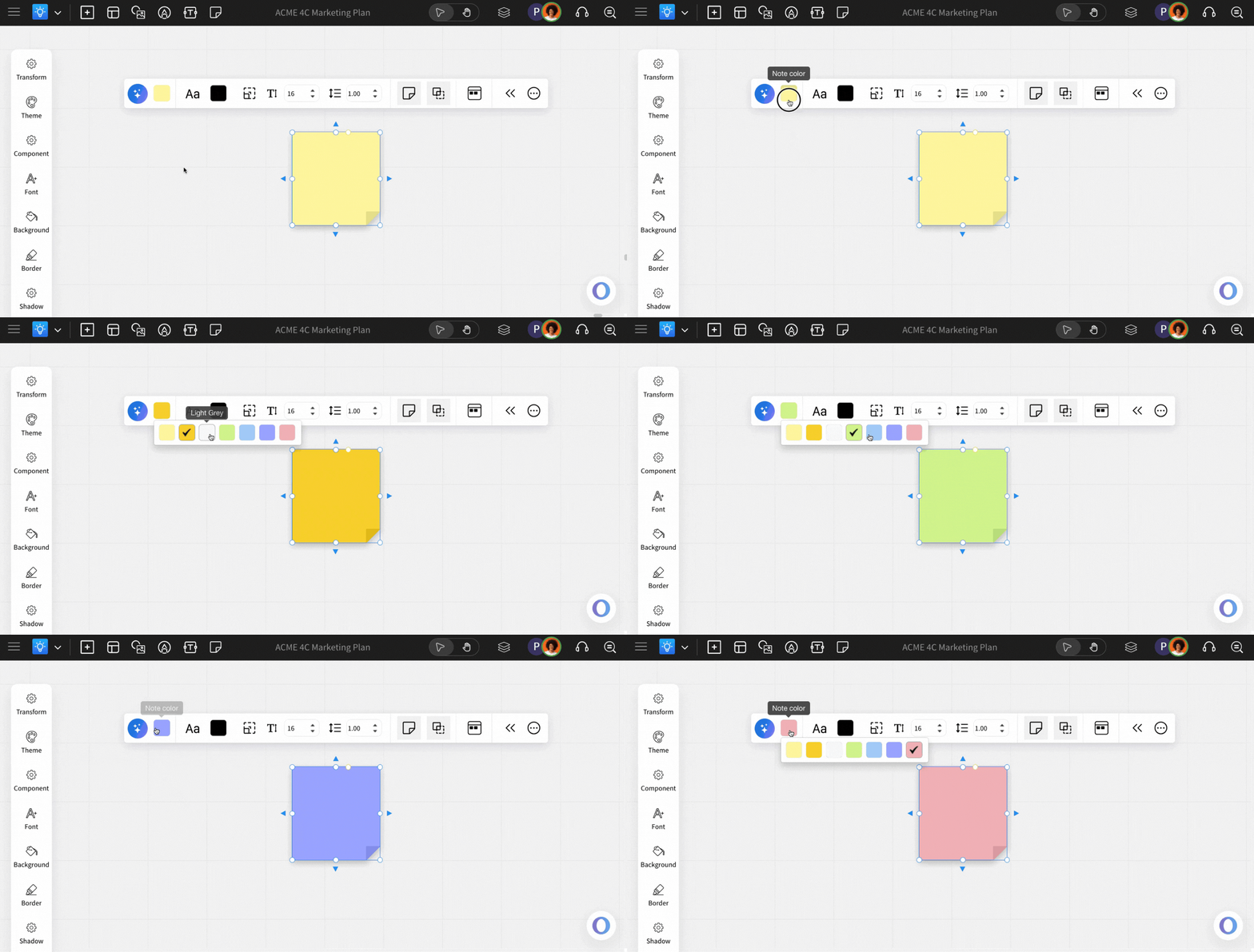
Changing the sticky note color: In the quick toolbar, click on the background color to see the default color options.
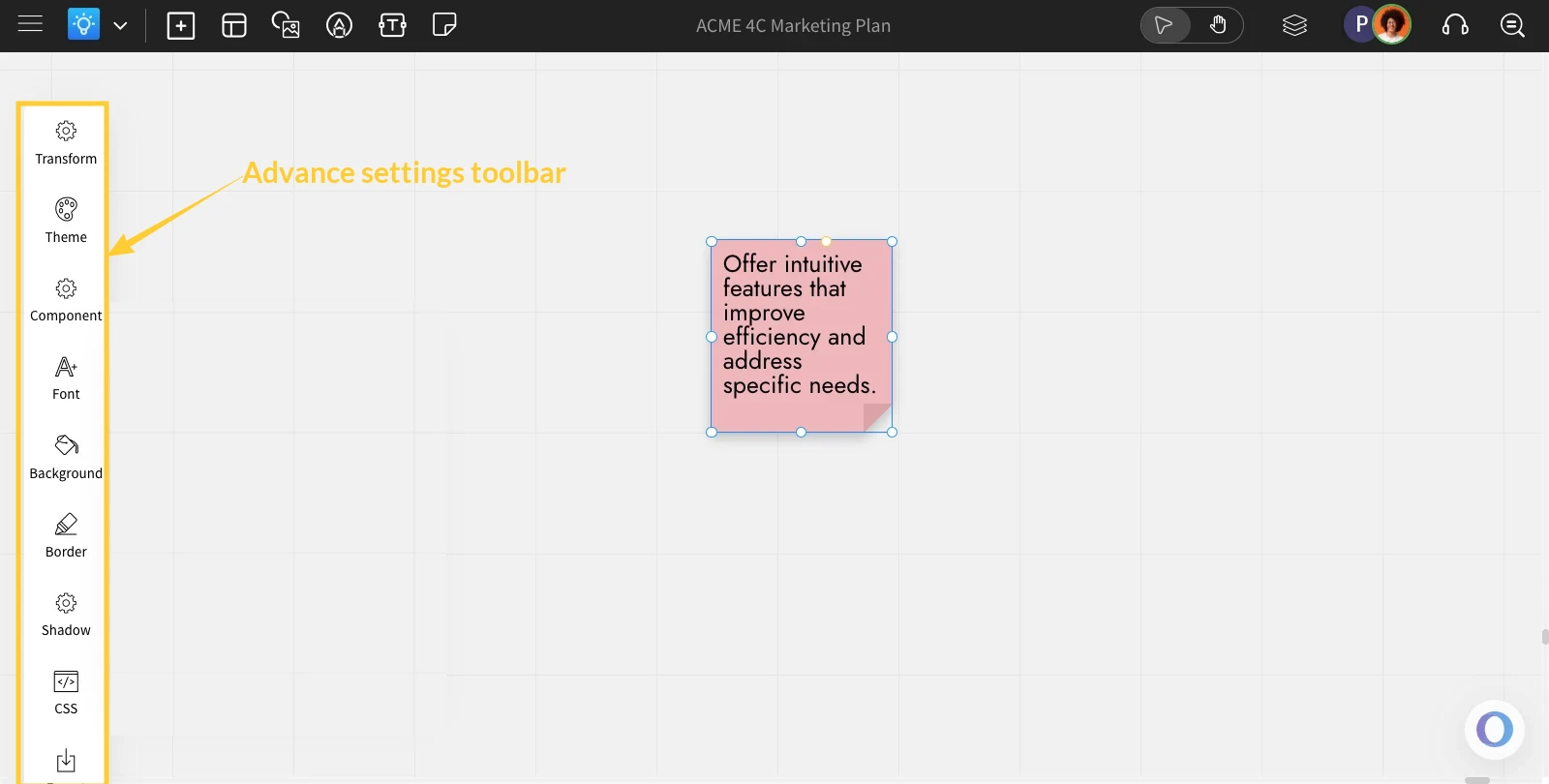
To change to a color that is not listed in the default color listing, click on more options and choose the desired color in the 'background' option from the advanced settings toolbar.
Auto-size text: Using this option, you can automatically resize the font size to fit the text in the sticky notes within their space.
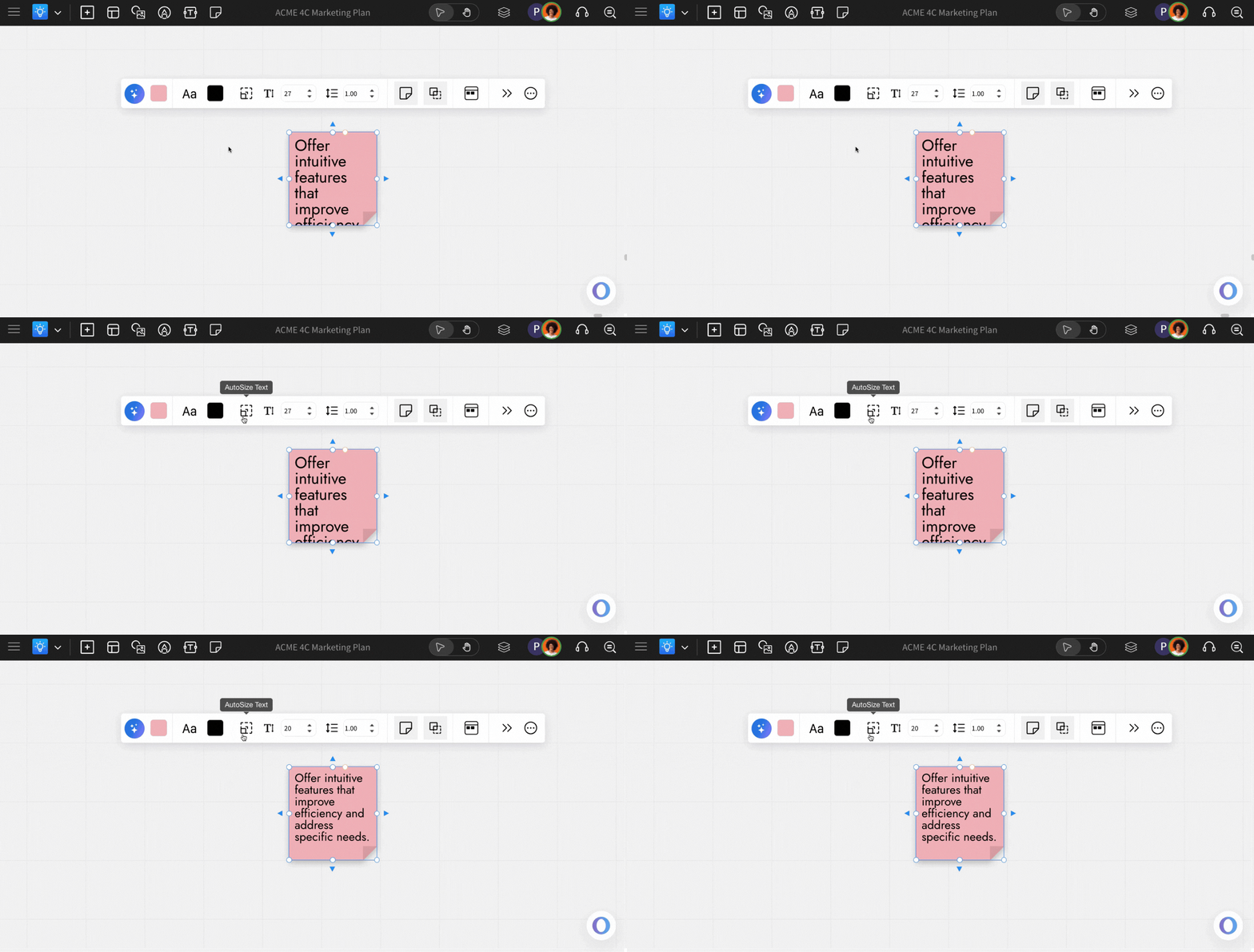
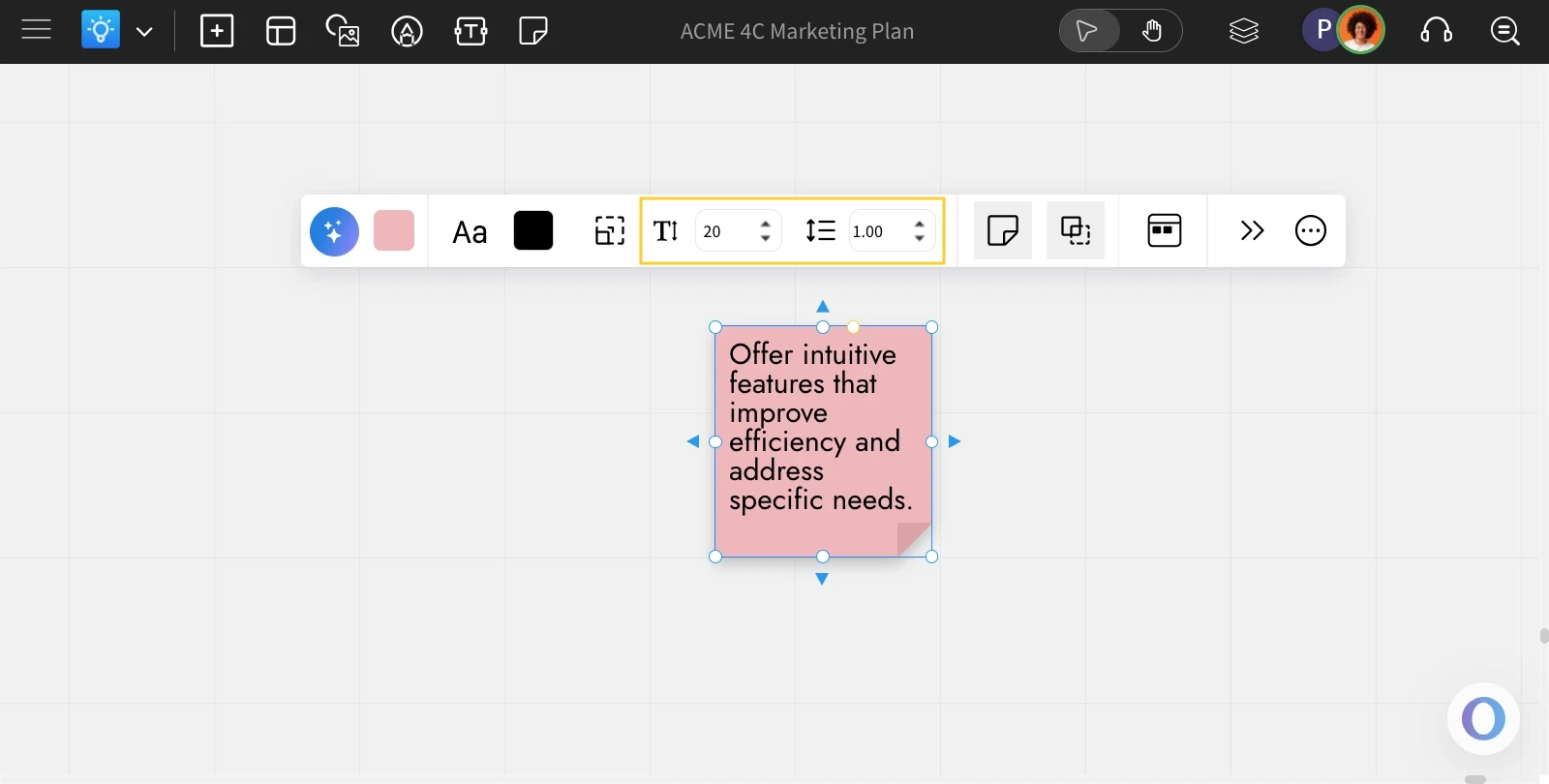
Change sticky note text font: You can change the font family, font color, font size, and line height from the quick toolbar itself.
More font options can be accessed from the advanced settings toolbar.
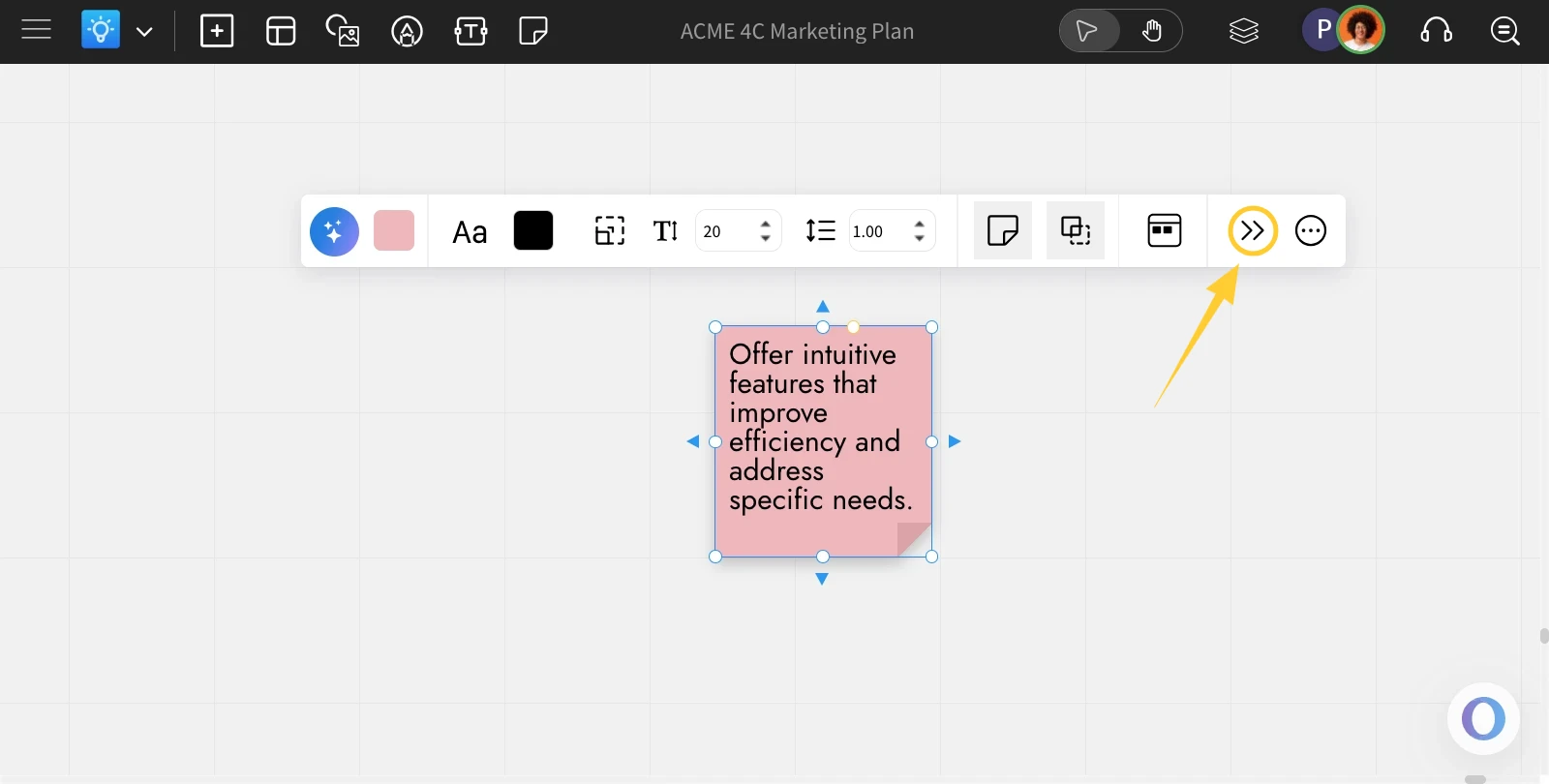
Accessing the Advanced Settings for Sticky Notes: To access the advanced settings toolbar, click on the 'Toggle Advanced Settings' option from the quick toolbar.
Folding the sticky note: By default, the sticky notes do not have a fold. You can enable it by clicking on the fold icon in the quick toolbar.
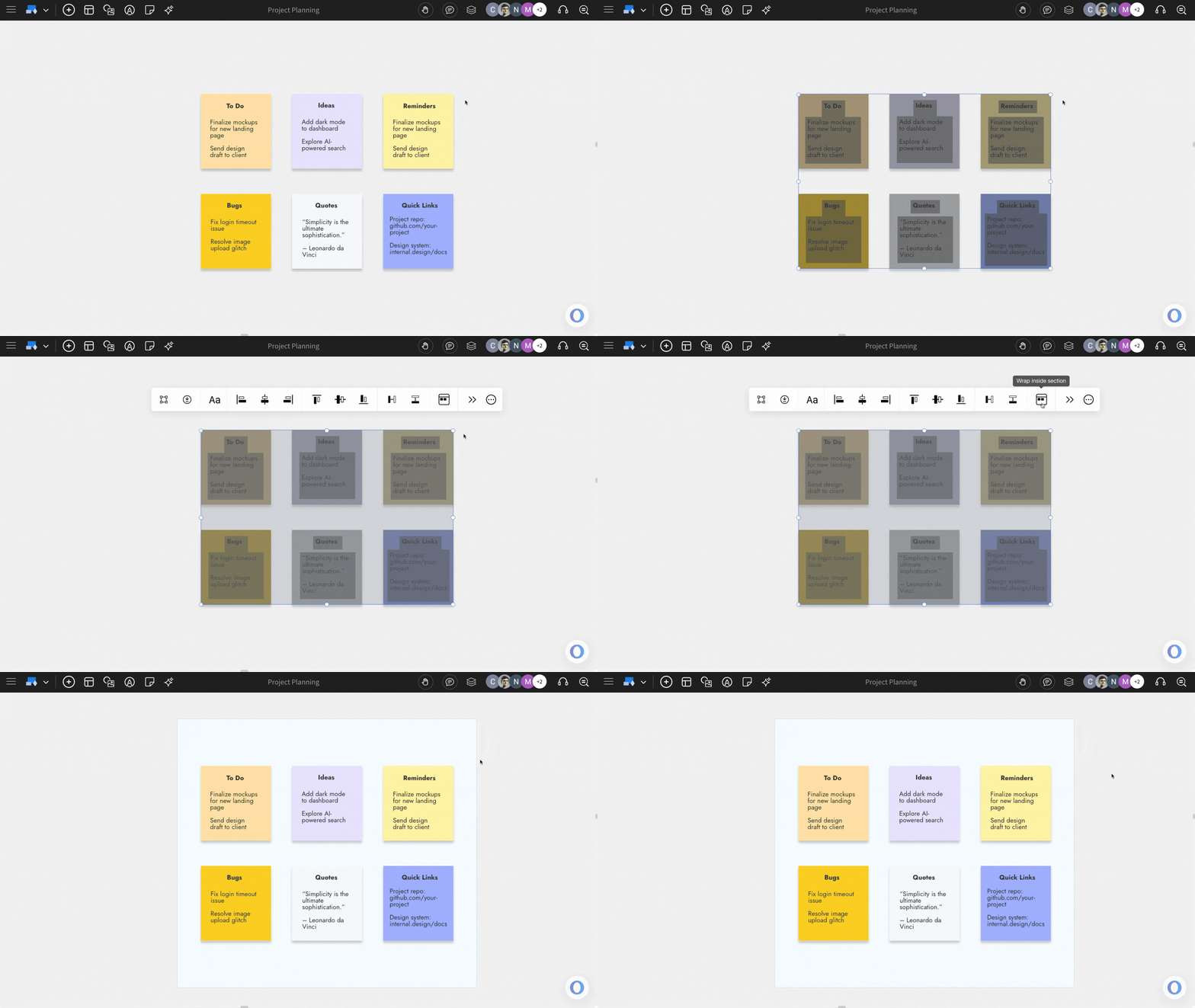
Wrap Notes inside a Section: To wrap notes inside a section component, use the 'Wrap Inside Section.' The Sticky notes will be wrapped inside the section component.