How to use MockFlow WireframePro Chrome Extension
Quickly convert webpages into wireframes with the MockFlow WireframePro Chrome extension. This can be very useful when you find...
Quickly convert webpages into wireframes with the MockFlow WireframePro Chrome extension. This can be very useful when you find inspiration for a website section, web app section, or to redesign your own website.
Follow the steps below to install and use the extension.
Open the Chrome Web Store and search for MockFlow WireframePro.

Click on the 'Add to Chrome' button to install the MockFlow Chrome extension in your browser.
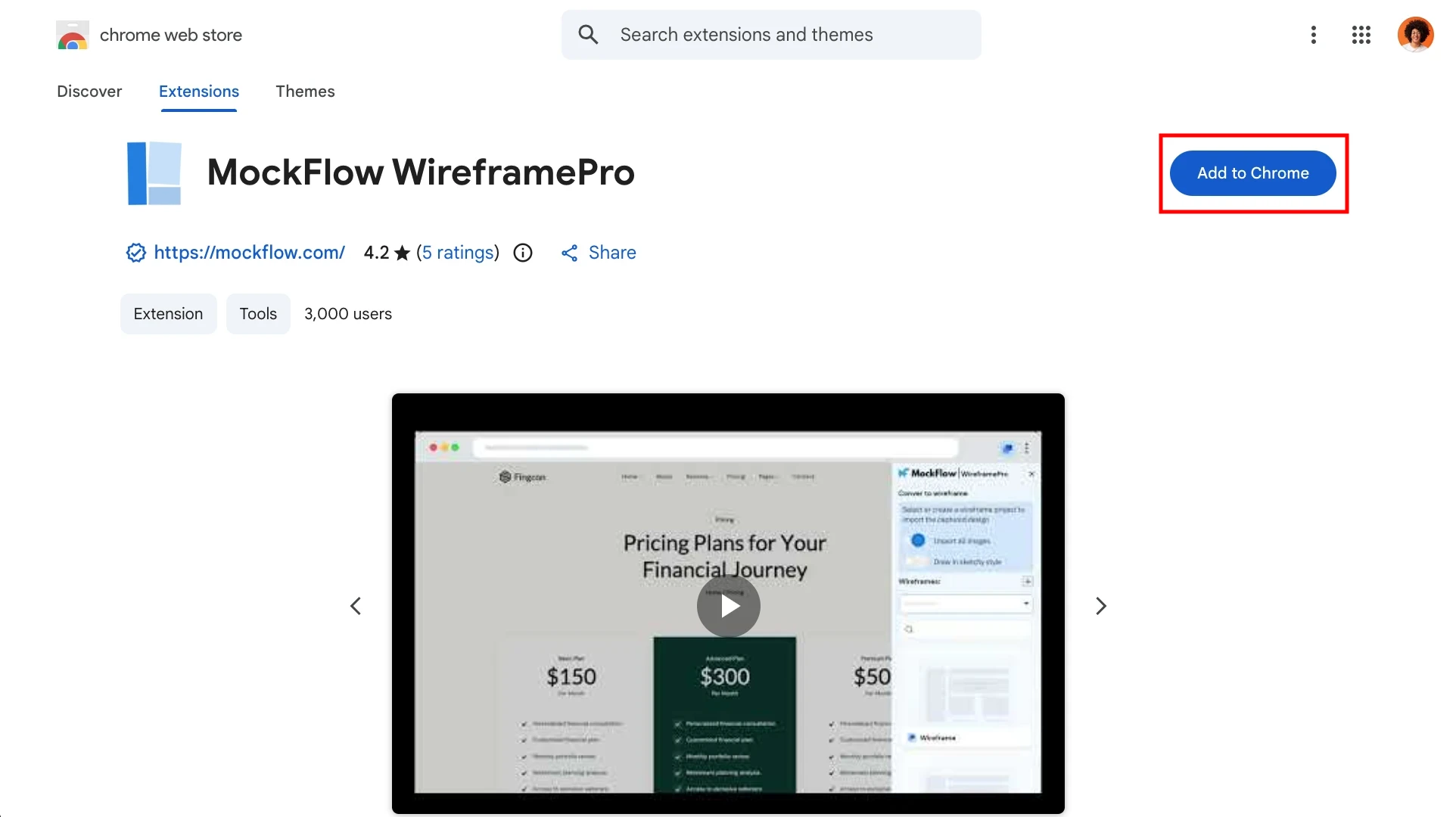
Confirm the installation by clicking Add Extension.
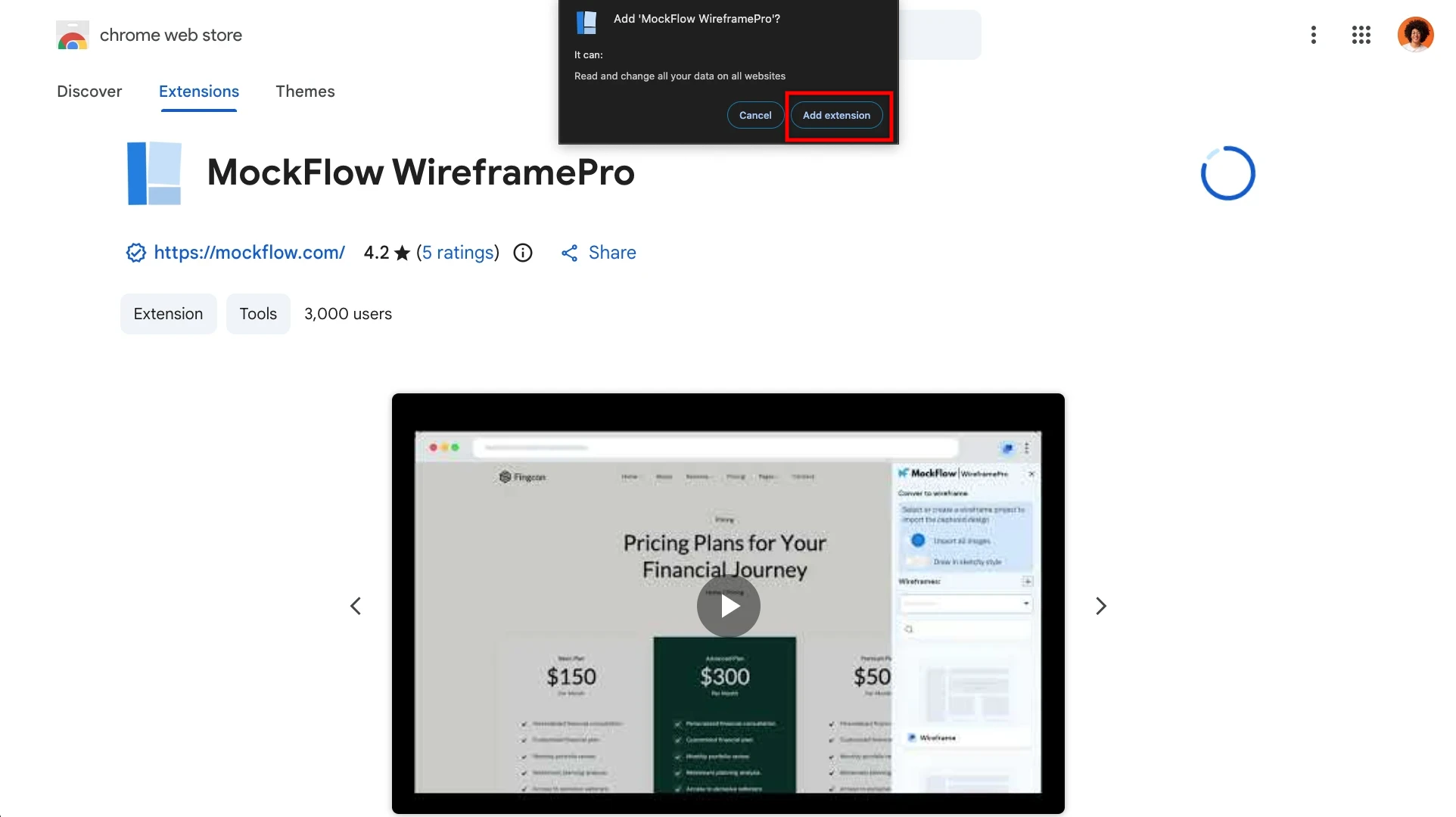
Once installed, the MockFlow WireframePro Chrome extension will be added to your browser. You can pin it for easy access.
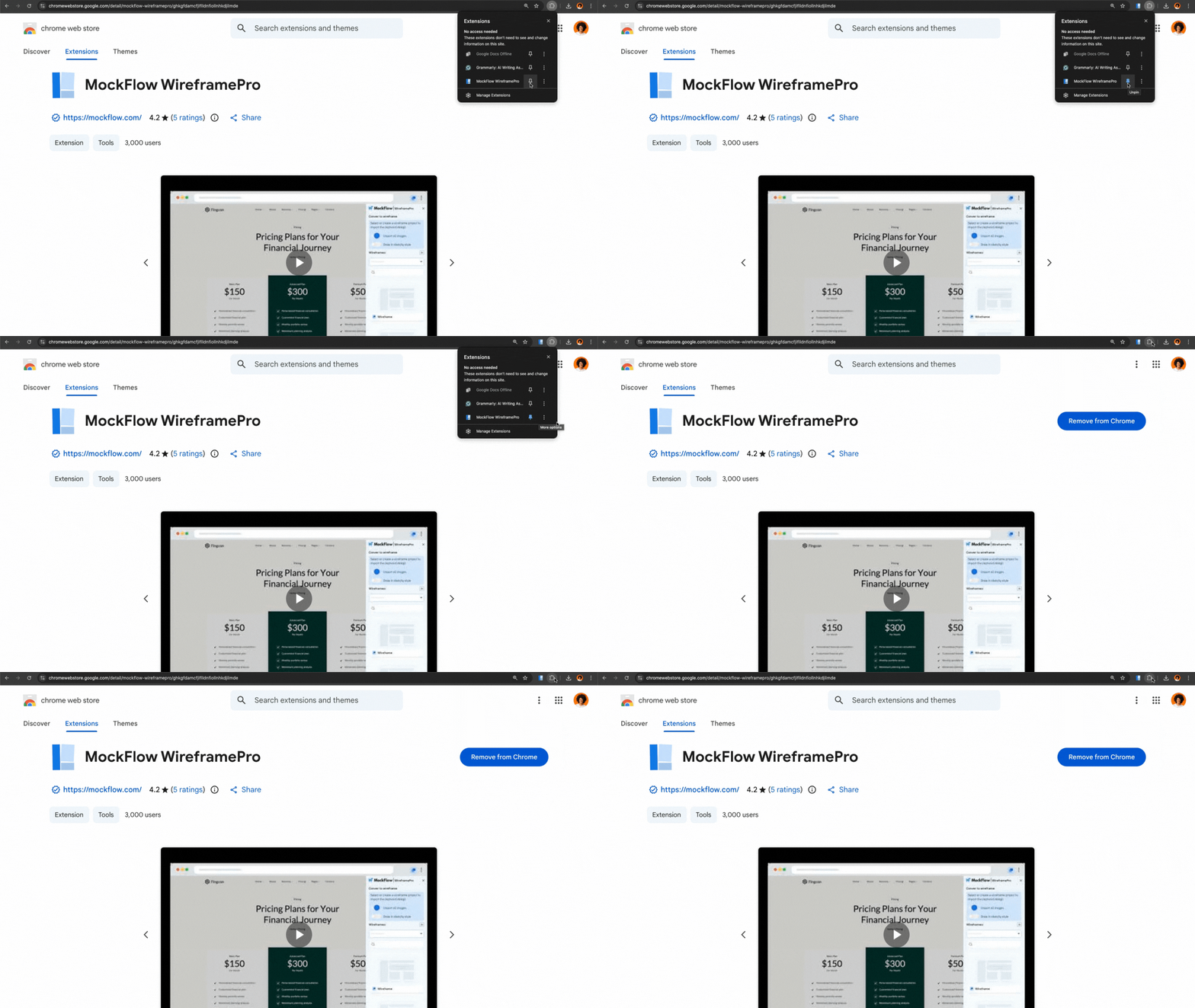
Click on the MockFlow WireframePro extension and log in with your MockFlow account.

After logging in, choose the page you want to capture and click 'Capture.'

The MockFlow Chrome Extension provides two ways to capture a website for reference:
Capture full page: Converts a specific section of a webpage into a Wireframe.
Capture selected portion: Converts the entire webpage into a Wireframe.
Choose any one of the options.

The page will be captured.

After capturing, you can customize the wireframe using:
Import All Images: Includes all images captured from the webpage in the wireframe.
Draw in Sketchy Style: Creates the wireframe in a hand-drawn sketch style.

You can repeat the steps to capture multiple pages if needed.
Once done, click 'Convert to Wireframe.'
Choose either 'New Project' to start a fresh project or 'Existing Project' to add the captured wireframe to an existing one.
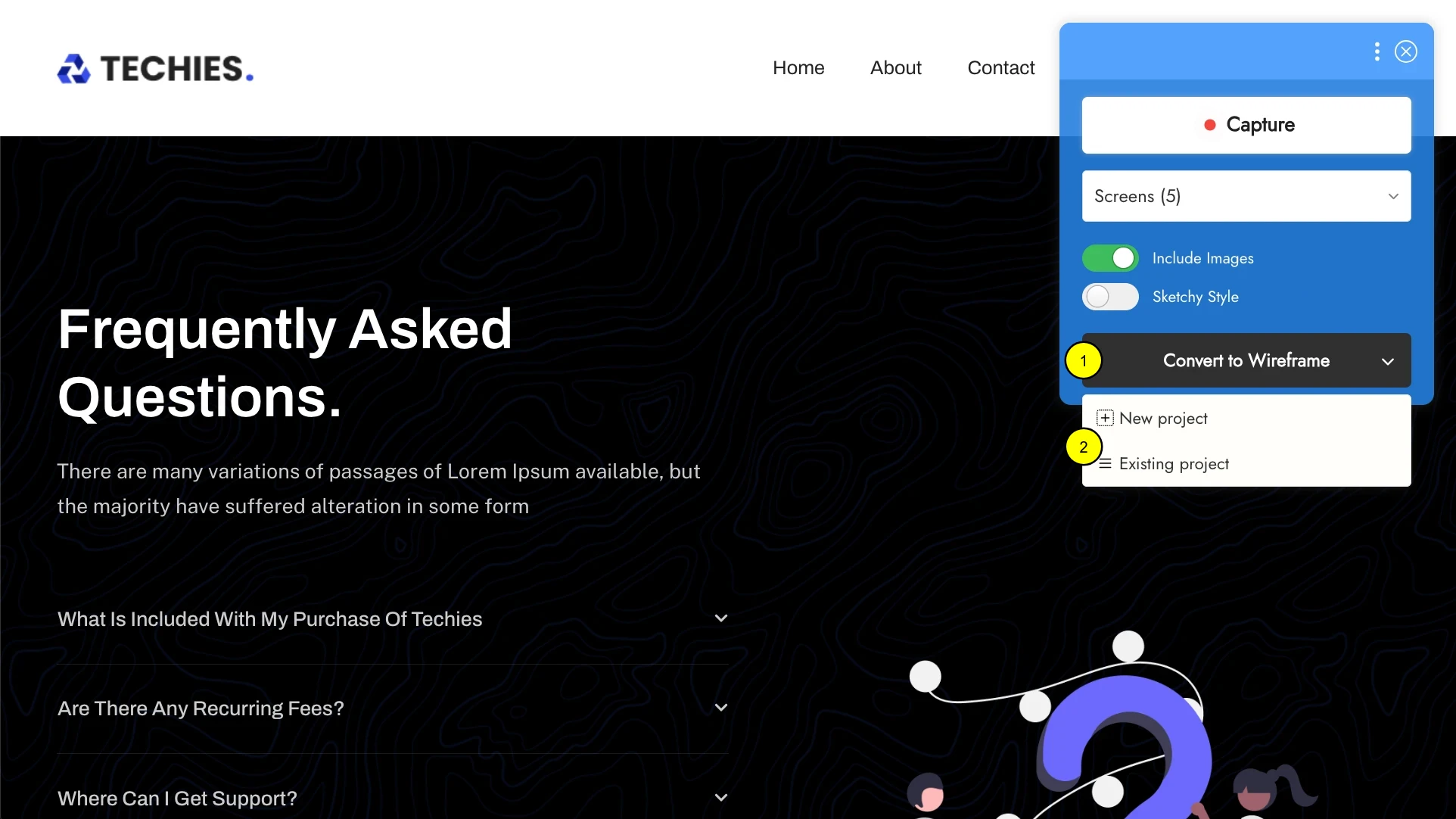
By choosing 'Create New Project', you can create a new project and export it directly.
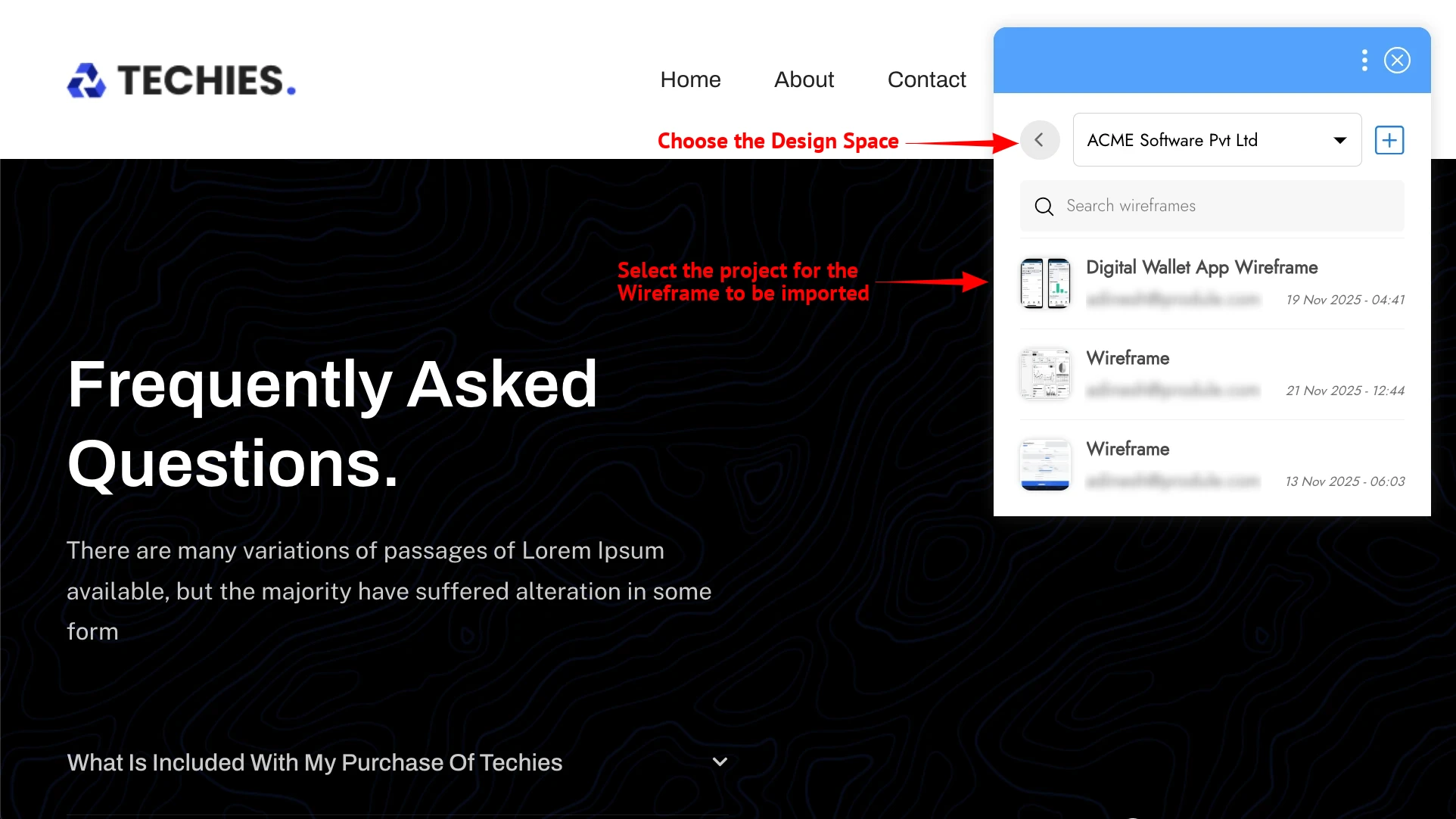
On Choosing 'Select Existing Project', you can choose the design space and the project where you want to add the captured Wireframe.
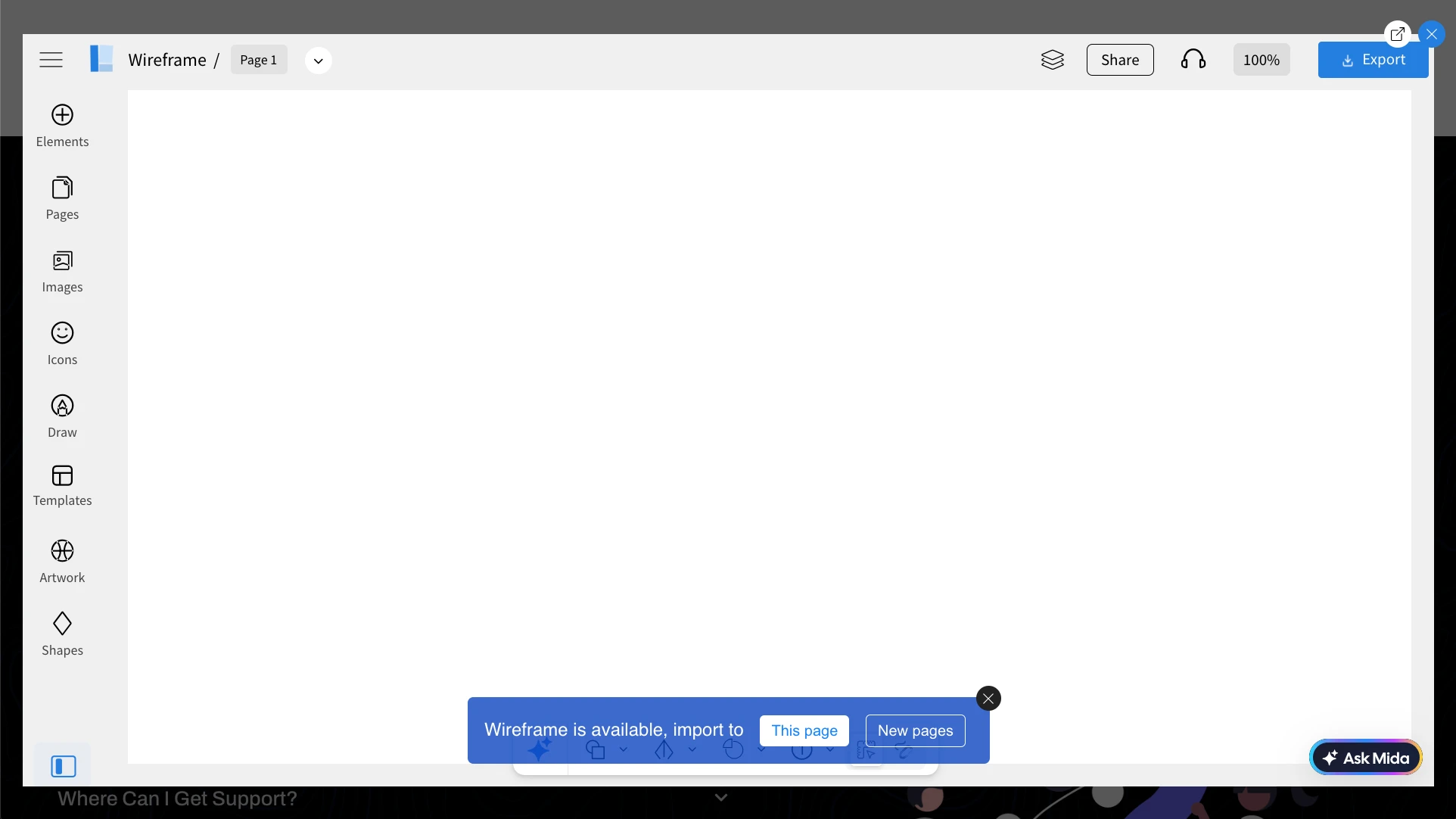
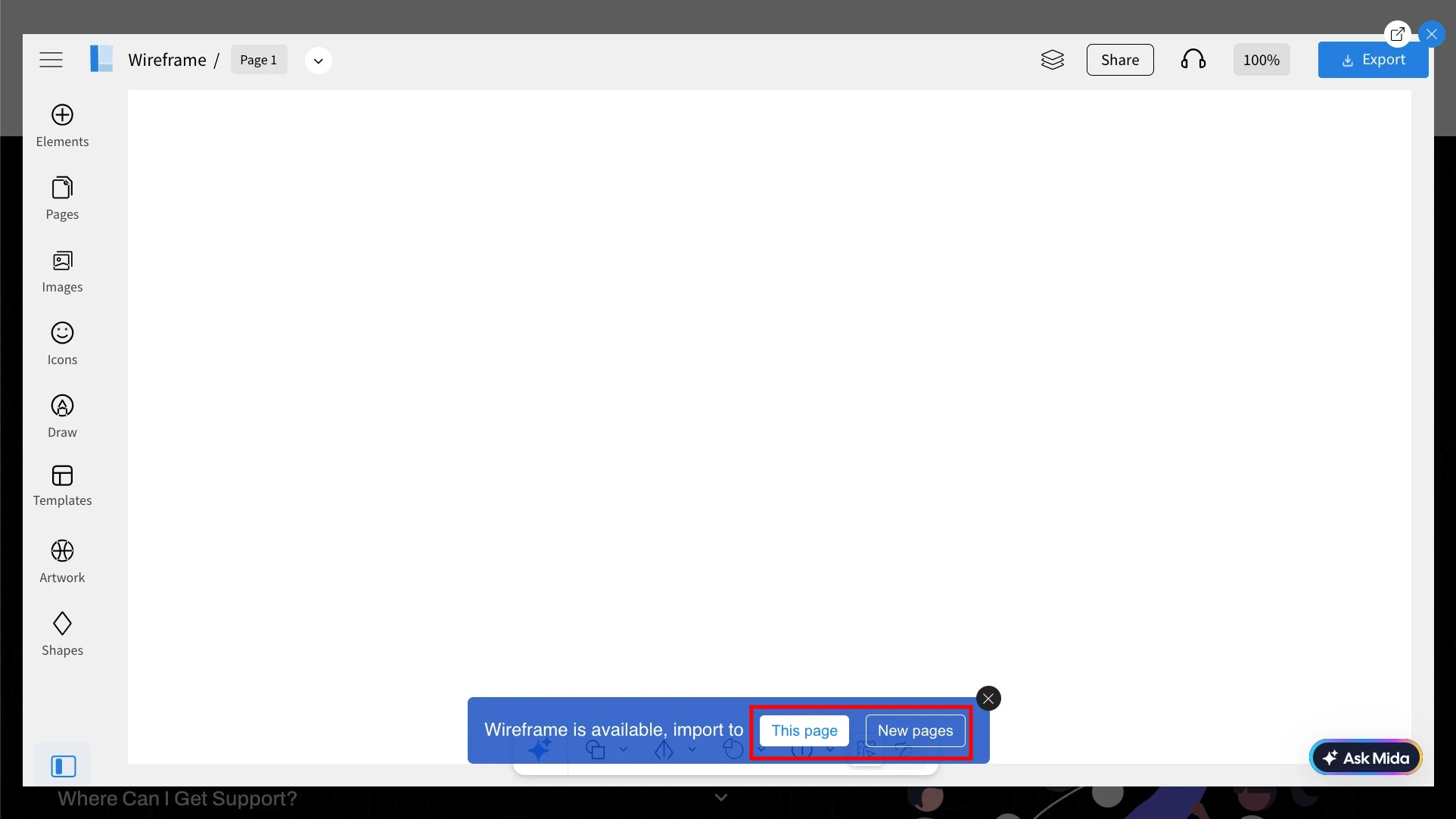
When importing into a project, you will have two options:
This Page: All pages will be imported into the same page.
New Pages: Each captured page will be imported into separate pages.
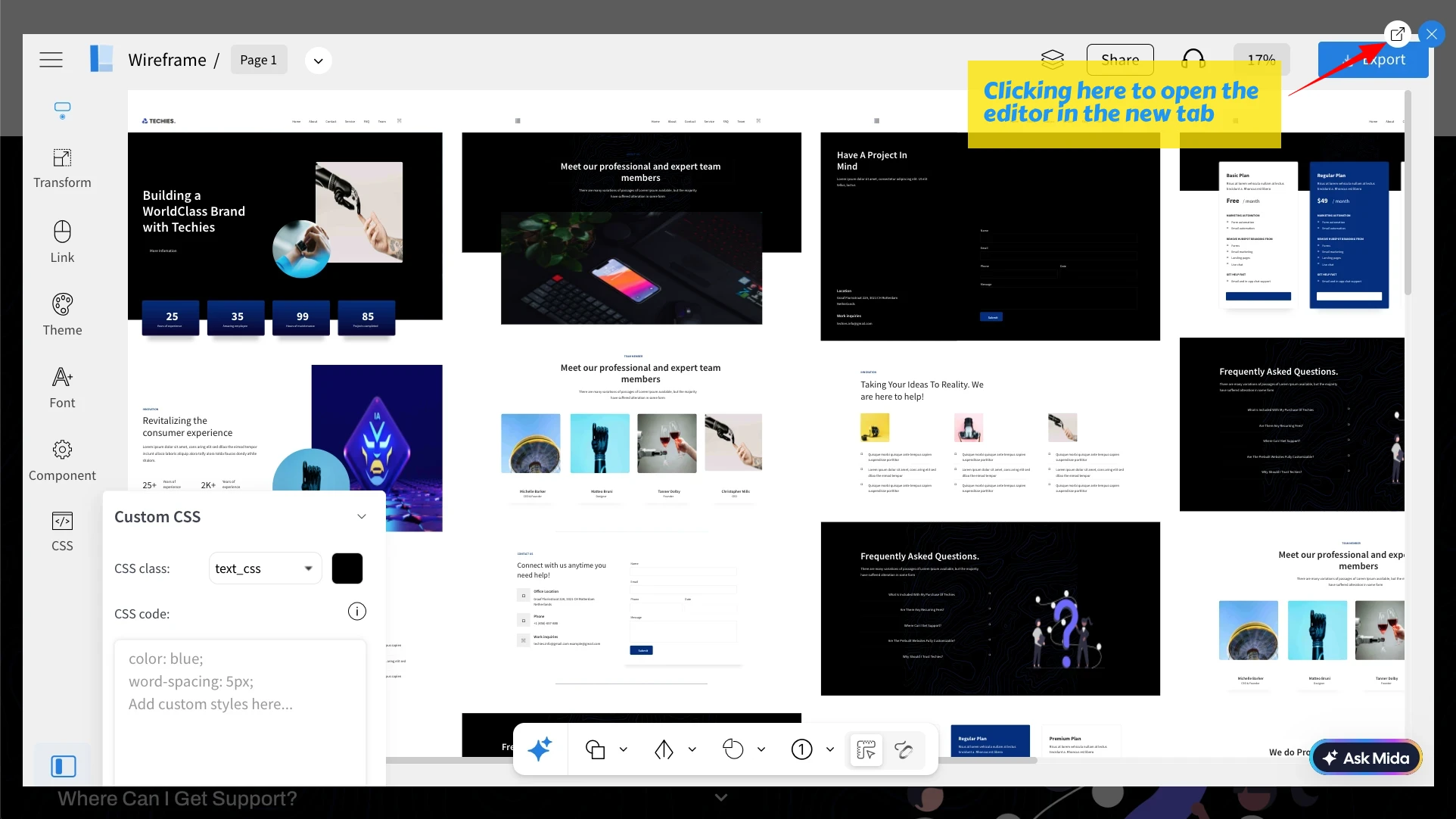
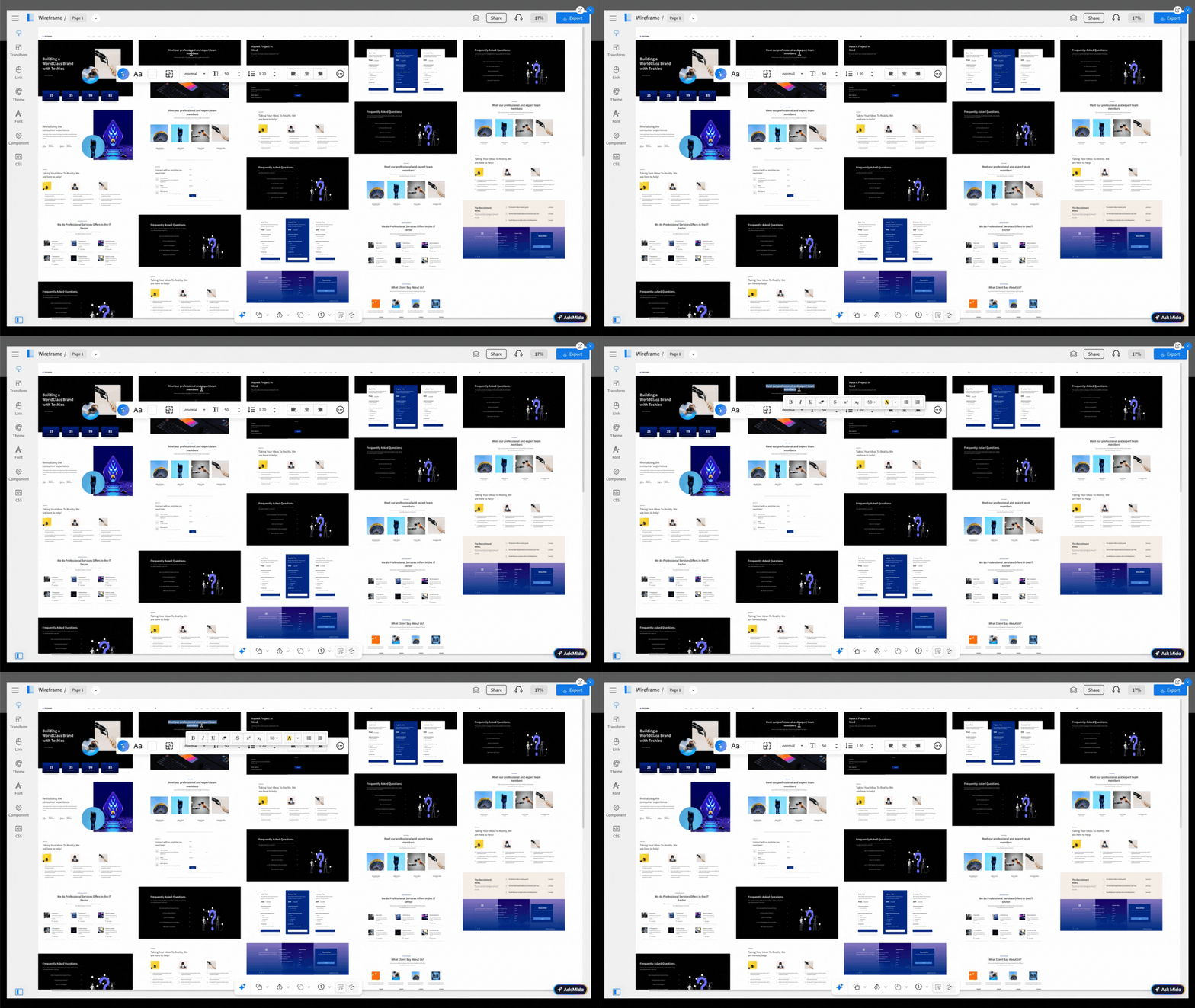
As seen in the image below, the webpage has been converted to an editable wireframe in sketchy style. You can now make edits to the wireframe as required.
Click 'Export' to download the wireframe.
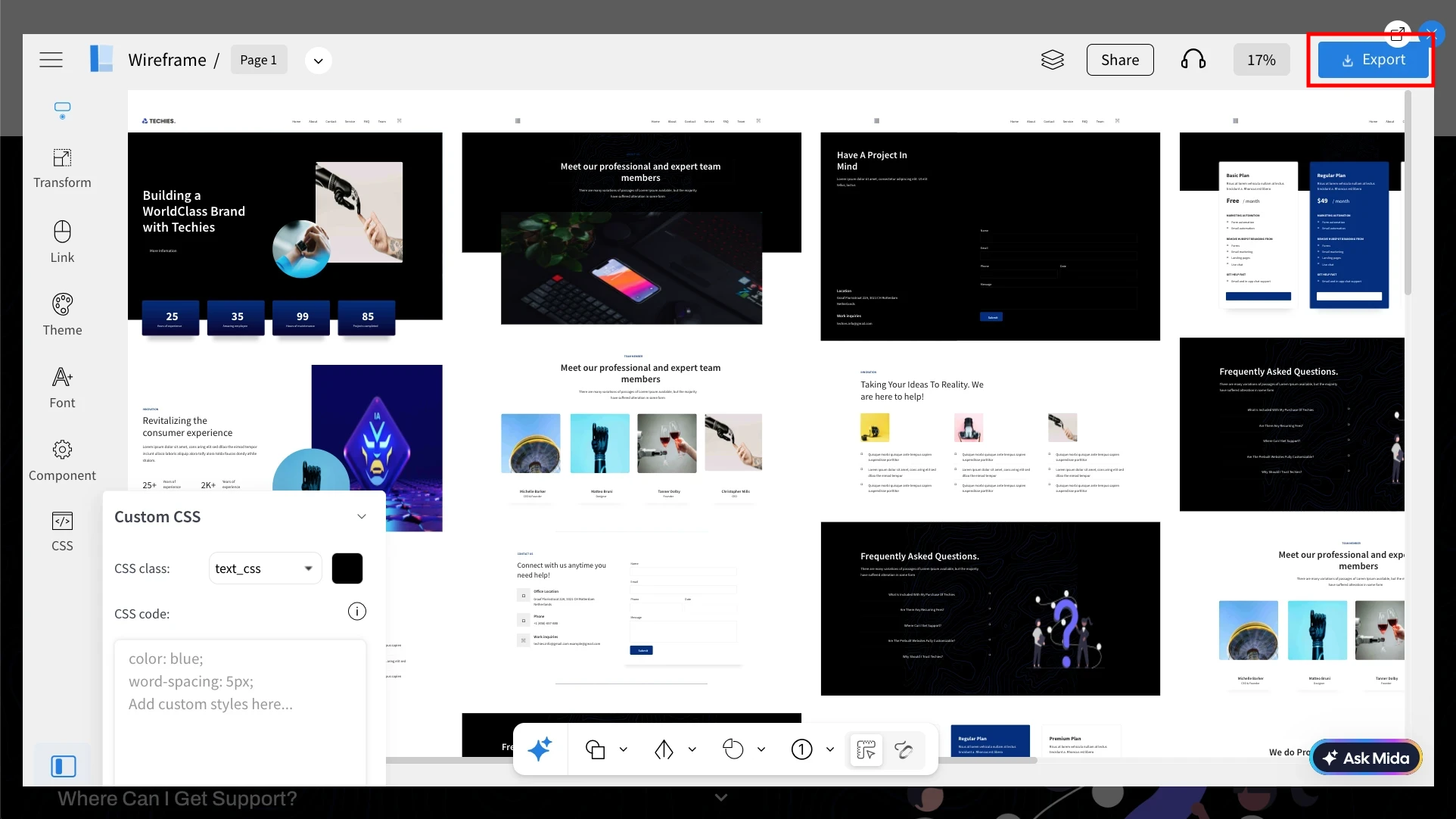
The open link icon at the top right is to open the wireframe editor in a new tab and continue editing your wireframe seamlessly.