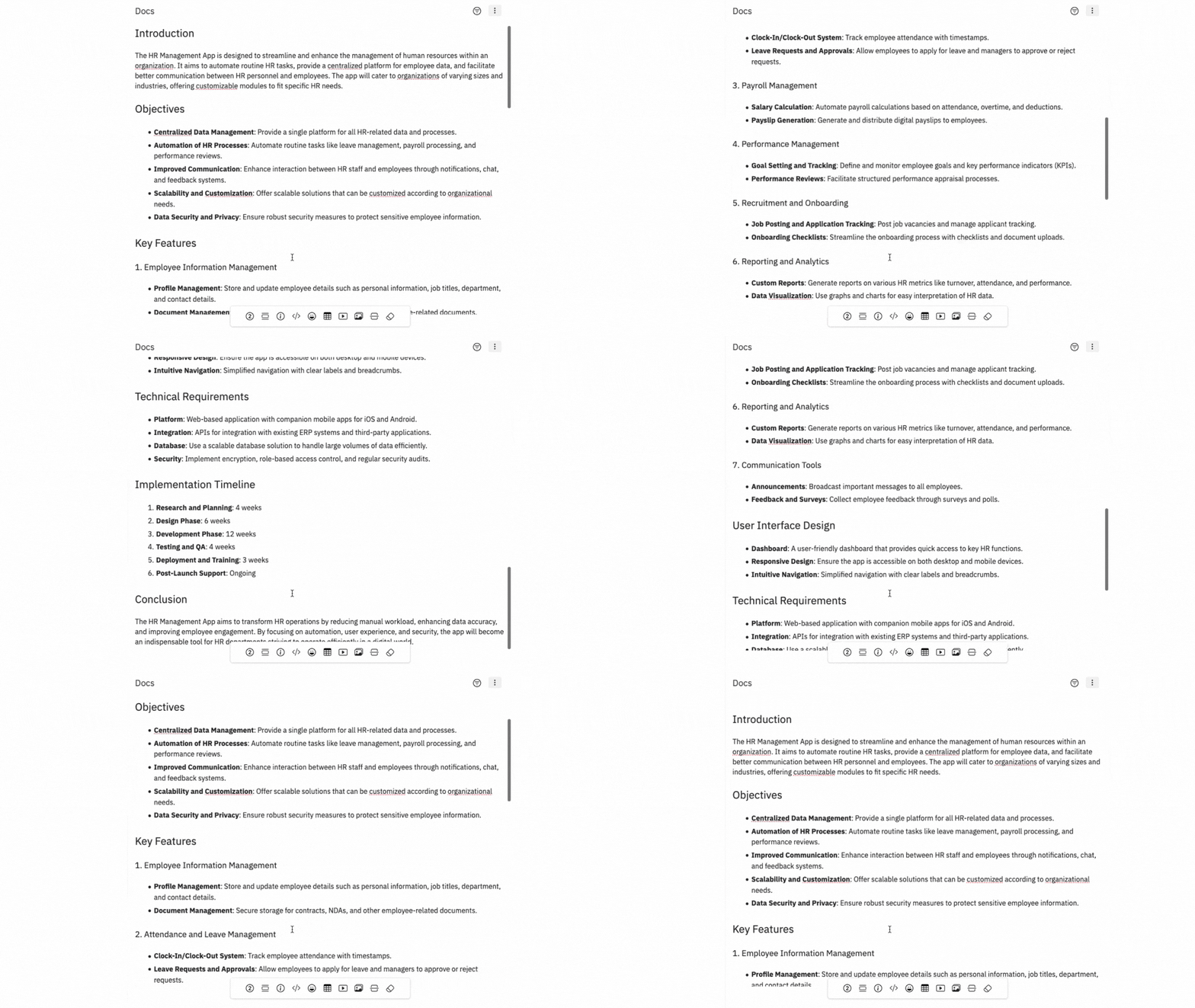
How to Create a UX Docs Using AI?
Creating UX docs with AI saves time and effort when you want a specific document structure like a Project requirement document,...
Creating UX docs with AI saves time and effort when you want a specific document structure like a Project requirement document, design brief, etc.
Follow these steps to create UX docs using MockFlow AI:
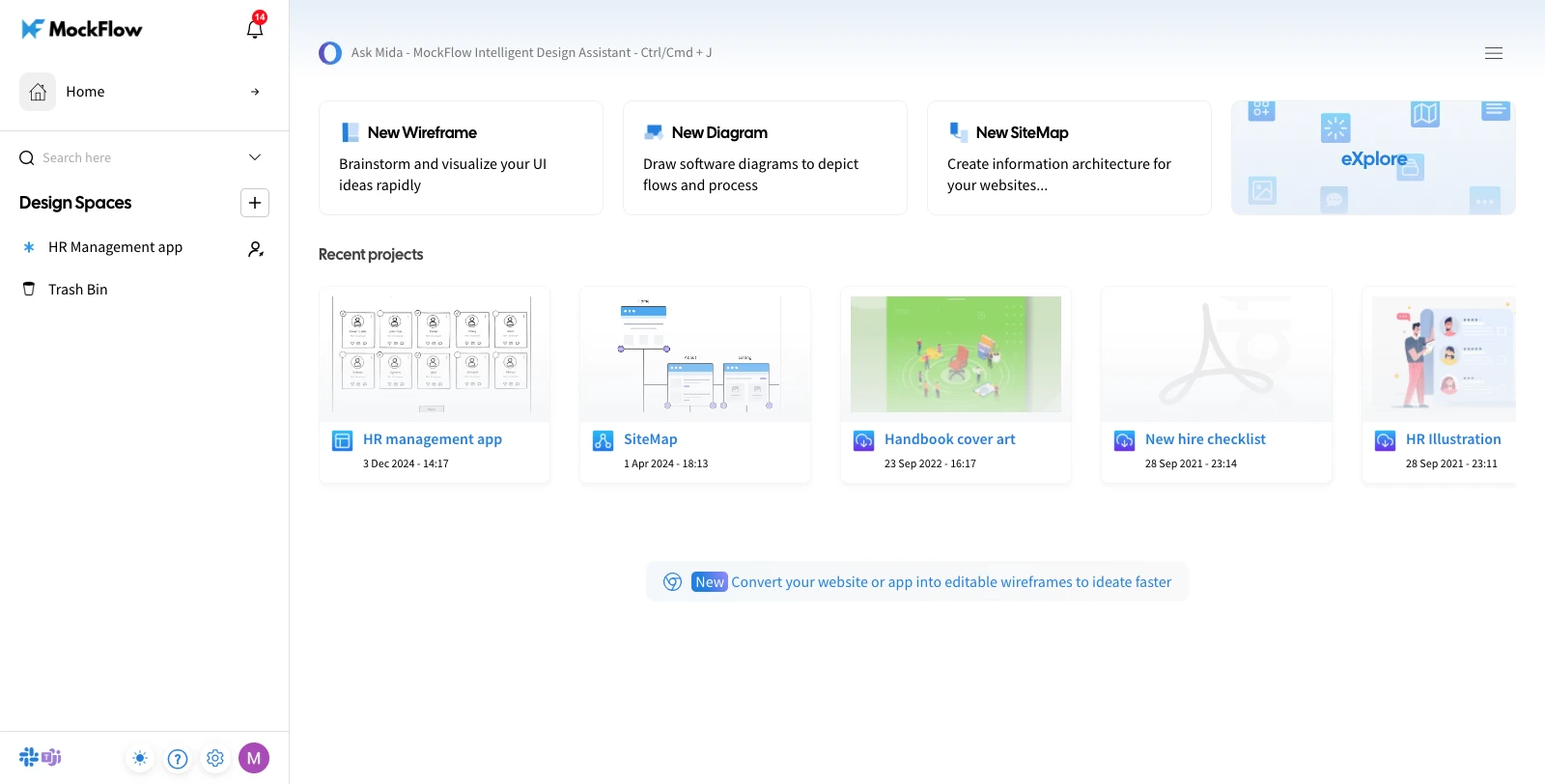
From your MockFlow dashboard, select a design space and open the desired project.
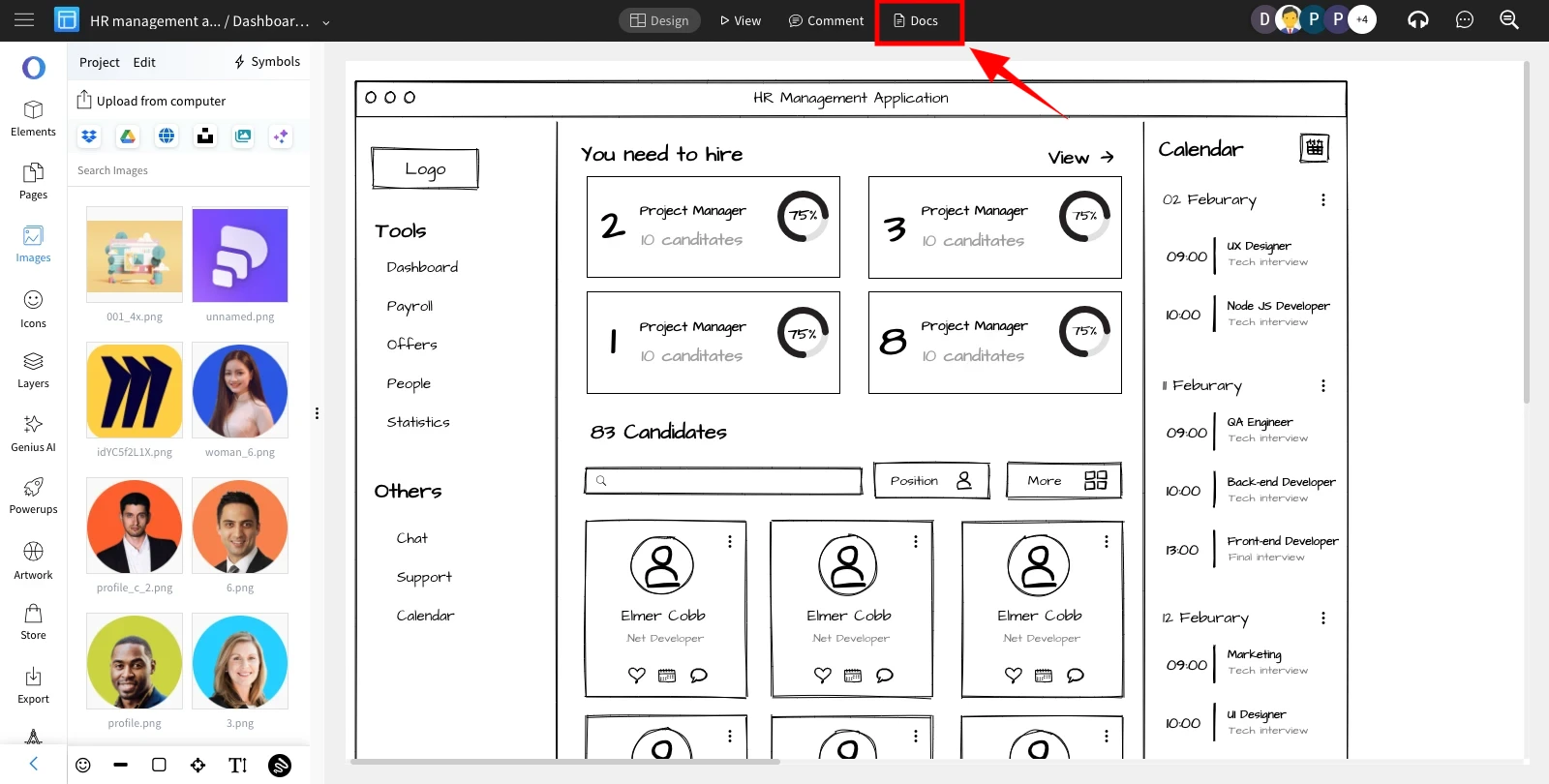
In the wireframe editor, click on 'Docs' from the top menu.
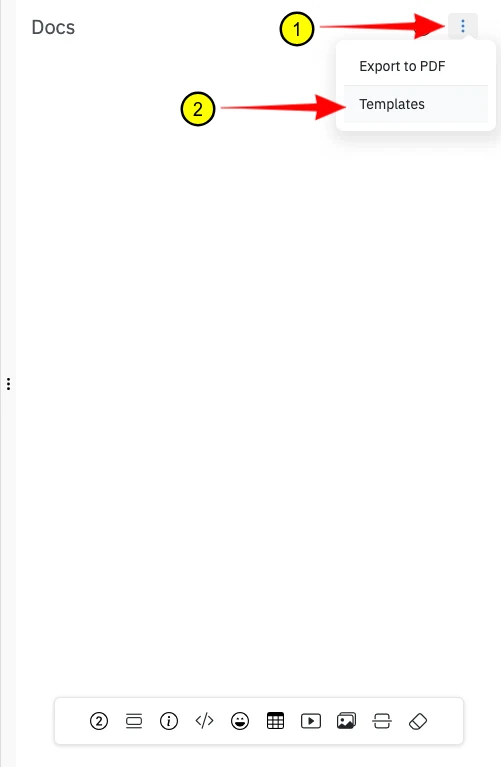
The Docs sidebar will appear, click on More Options and select a template from the list.
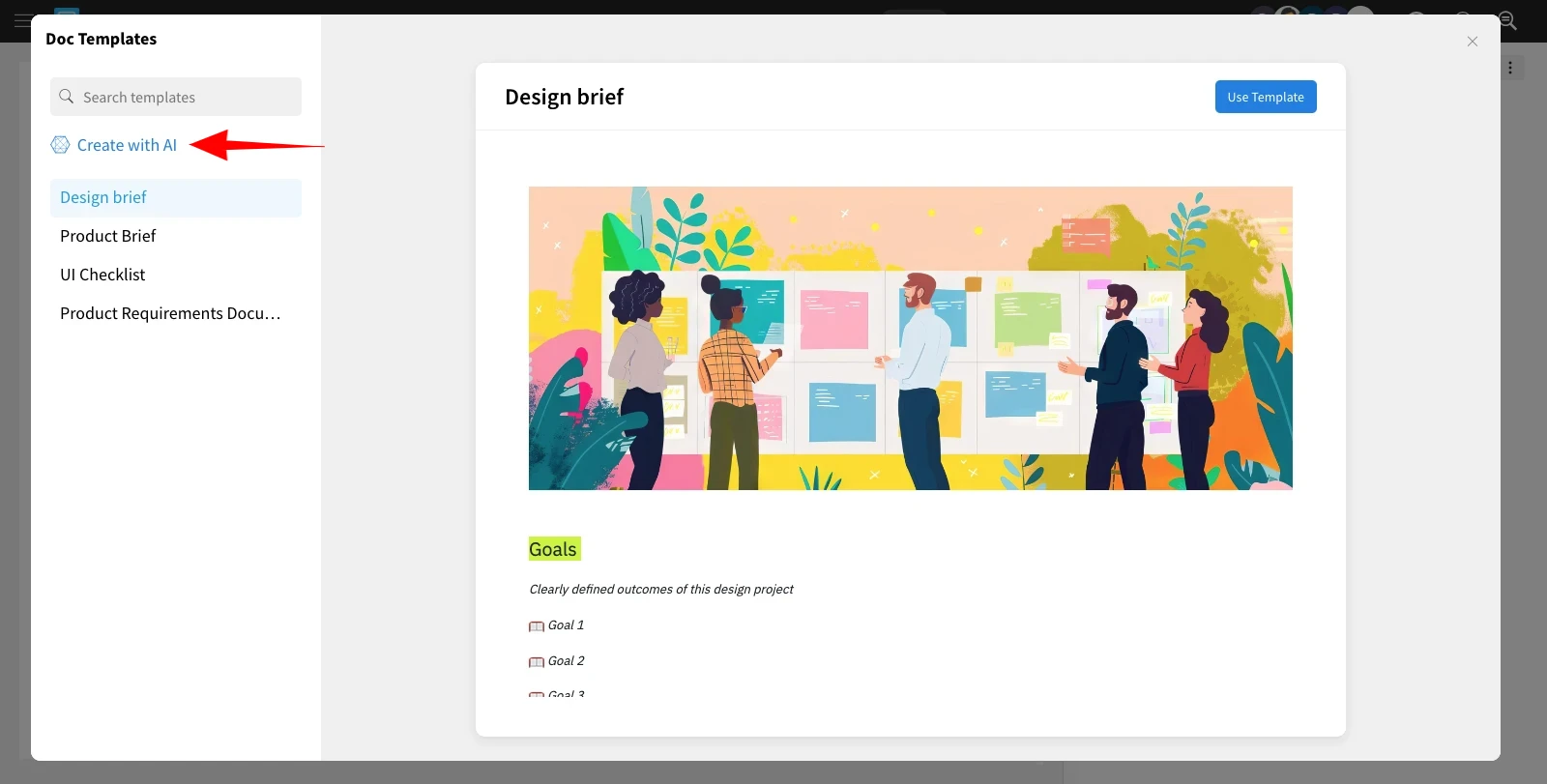
In the Templates section, click on 'Create With AI.'
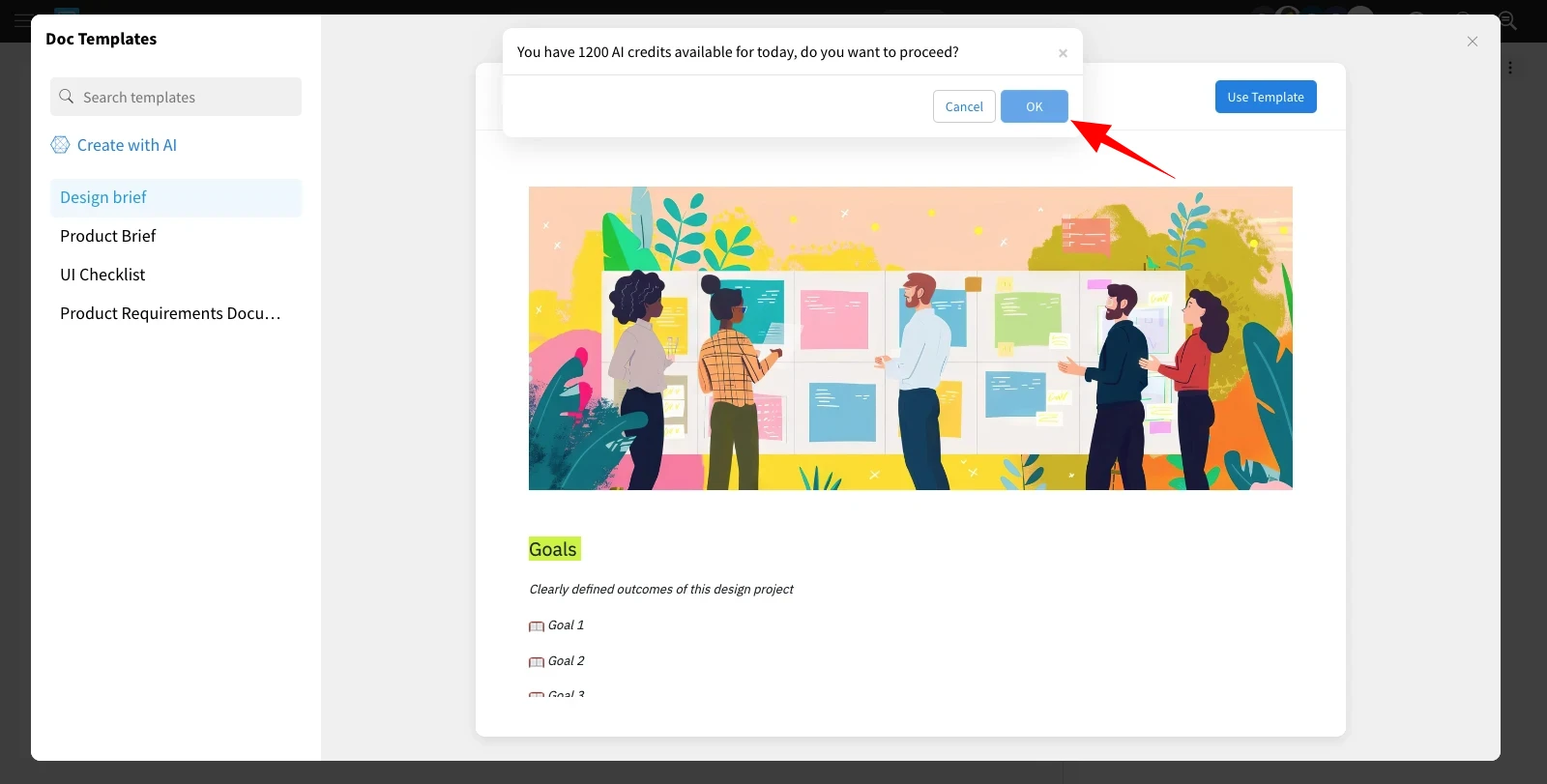
And confirm it by clicking 'ok.'
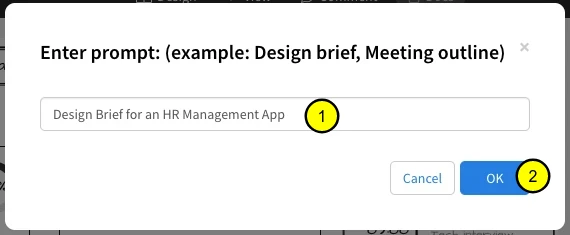
Enter your prompt and click 'OK' to generate UX docs using AI.
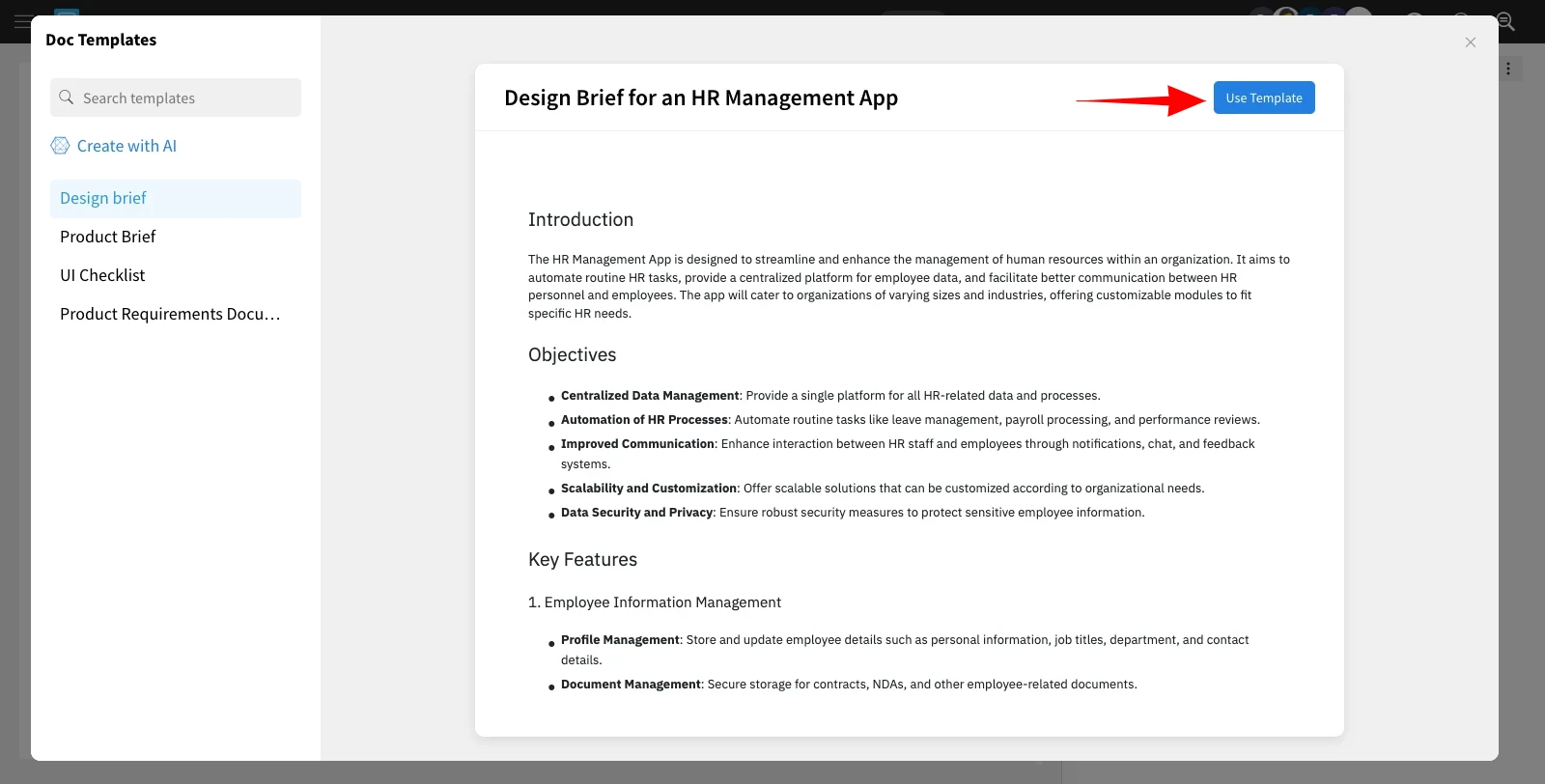
The AI-generated UX docs will be created based on your input. Click 'Use Template' to add them to your project.
Customize the AI-generated UX docs within the built-in Docs editor as needed.