
Using the Zoom Options
MockFlow Board features an infinite canvas, allowing you to add components and expand the board as much as needed. This makes it easy...
MockFlow Board features an infinite canvas, allowing you to add components and expand the board as much as needed. This makes it easy to keep everything in one place. However, finding specific elements quickly can be essential. That’s where the zoom options and mini-map navigation come in, helping you locate content effortlessly.
To use the Zoom options inside the MockFlow Board editor,
Hover on the zoom icon in the top right corner.
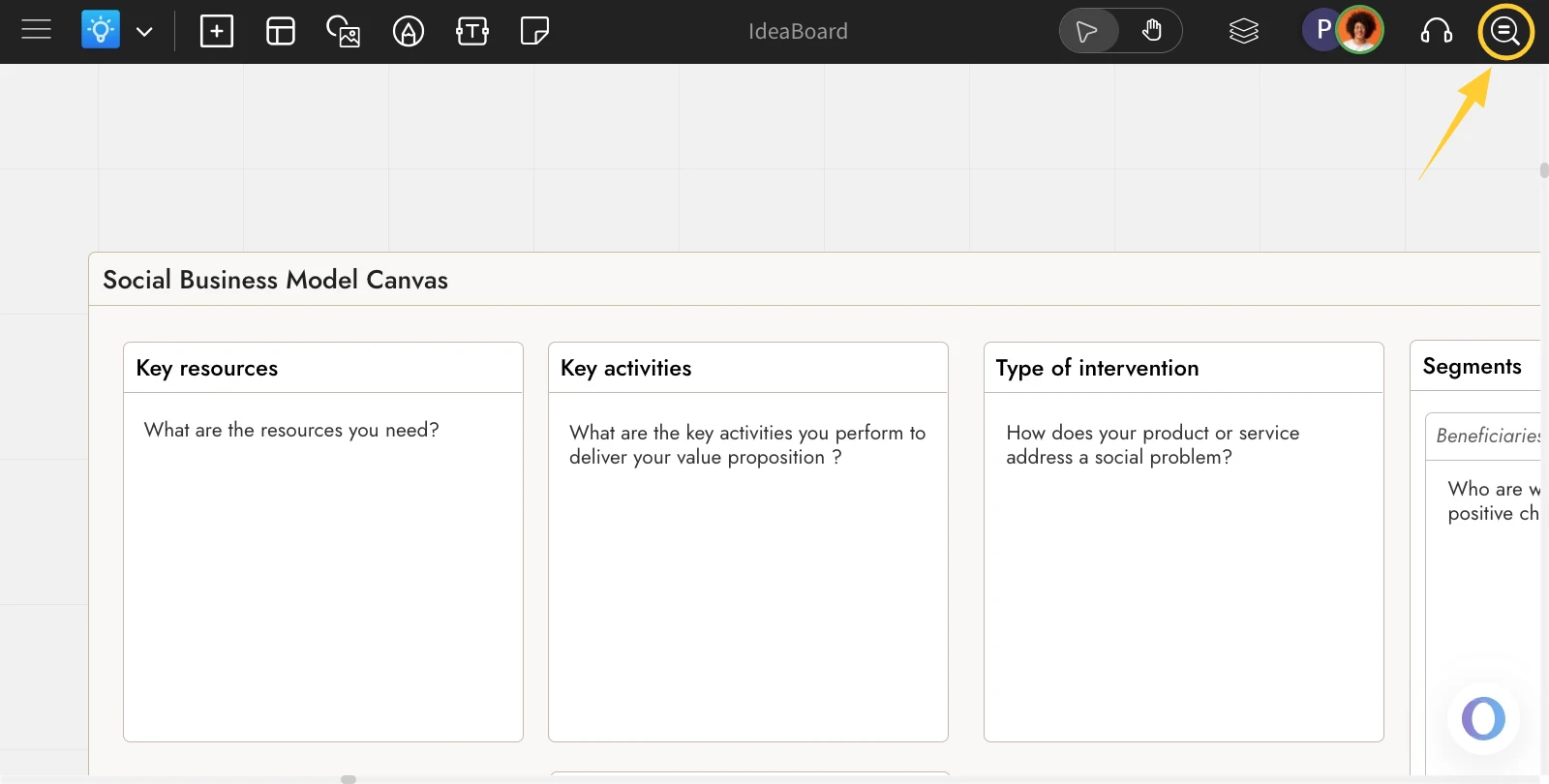
You can see the different zoom options - Zoom in, Zoom out, Reset, fit & a mini-map.
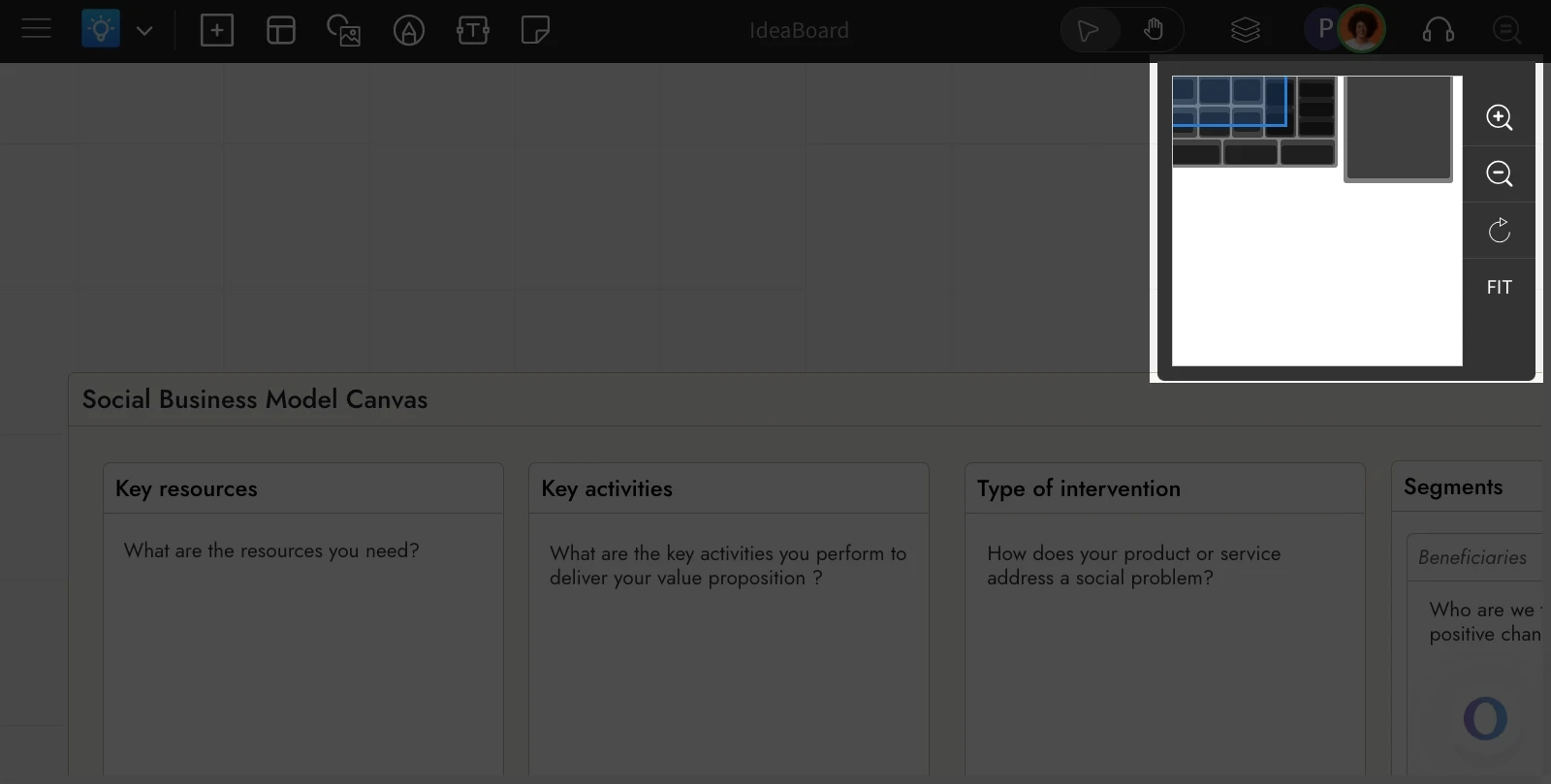
The 'Reset' icon is to reset the board to 100% zoom level.
The 'Fit' options adjust the zoom level to fit the entire board content within the viewable area.
With mini-map navigation, you can move around the board effortlessly. Check out this article for more details.