PDF Viewer
Learn how to use the PDF Viewer to add, view, and discuss PDF files directly on your whiteboard. Ideal for reviews, annotations, and design collaboration using MockFlow Board.
A PDF viewer component in a MockFlow Board lets you upload and view PDF files on the board.
How to add a PDF viewer?
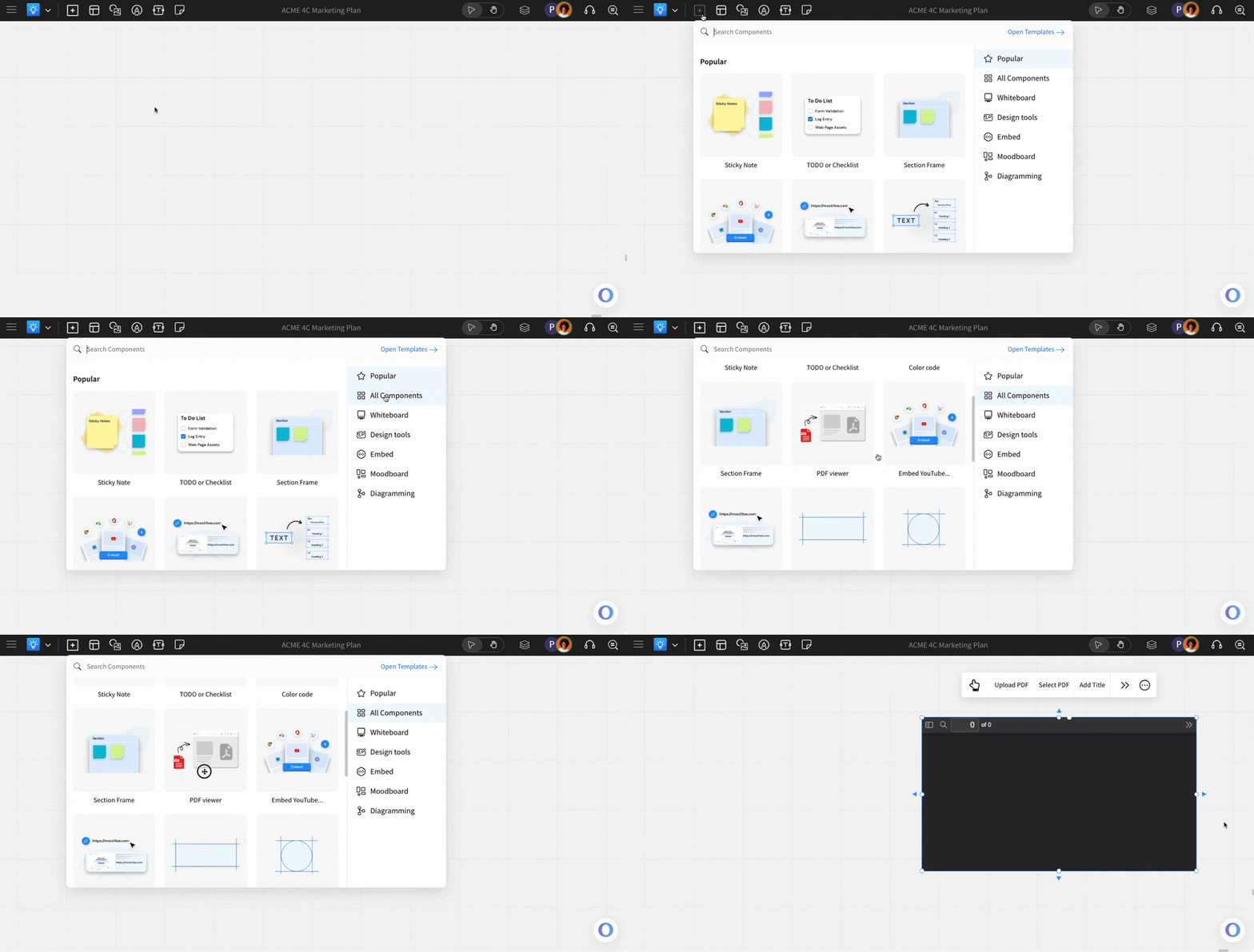
1 In the MockFlow Board editor, click on the 'Add Anything' icon at the top left. From the component list, drag and drop the 'PDF Viewer' onto the board.
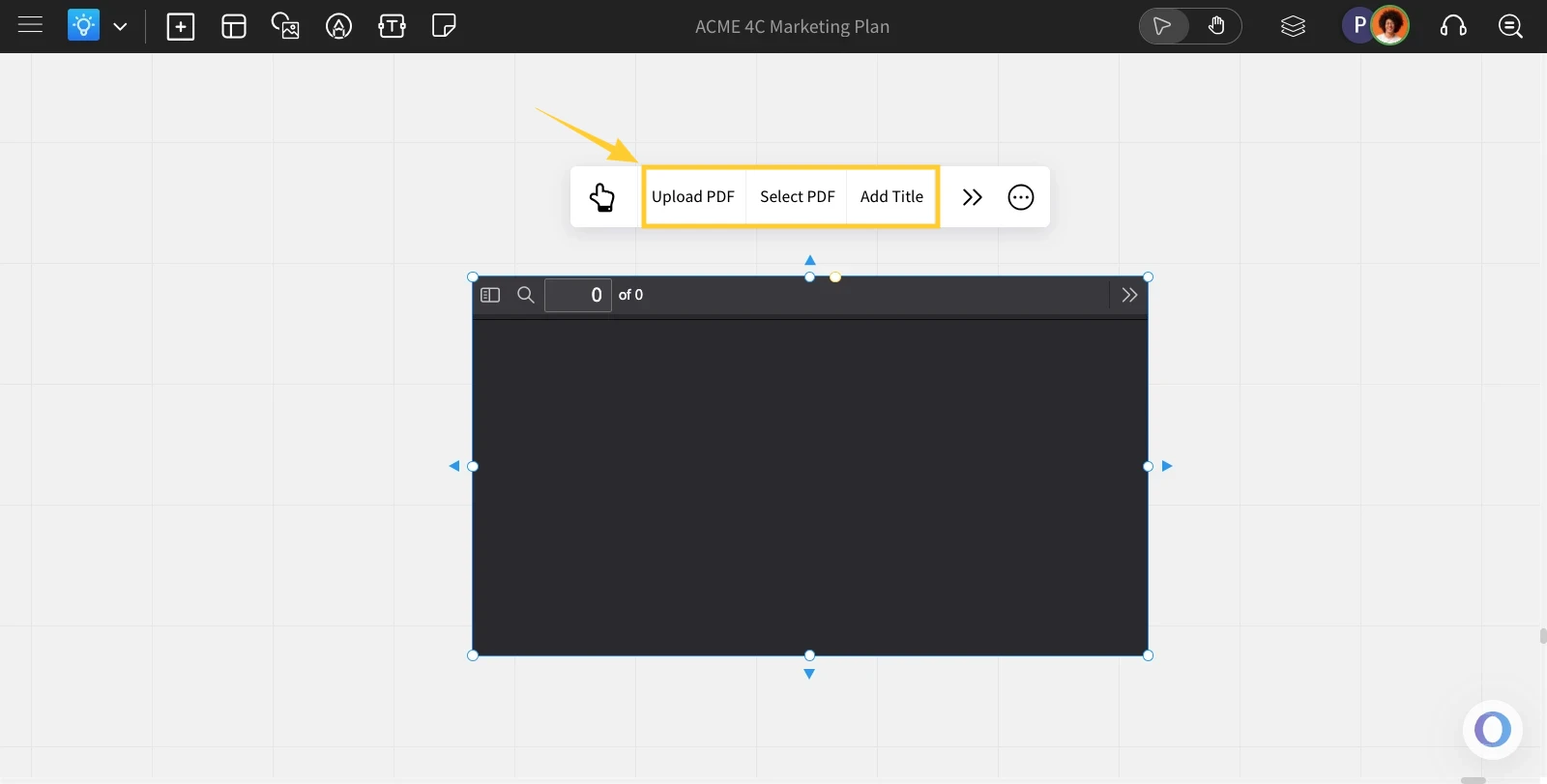
Uploading a PDF: To upload a PDF file, click on the 'Upload File' from the quick toolbar.
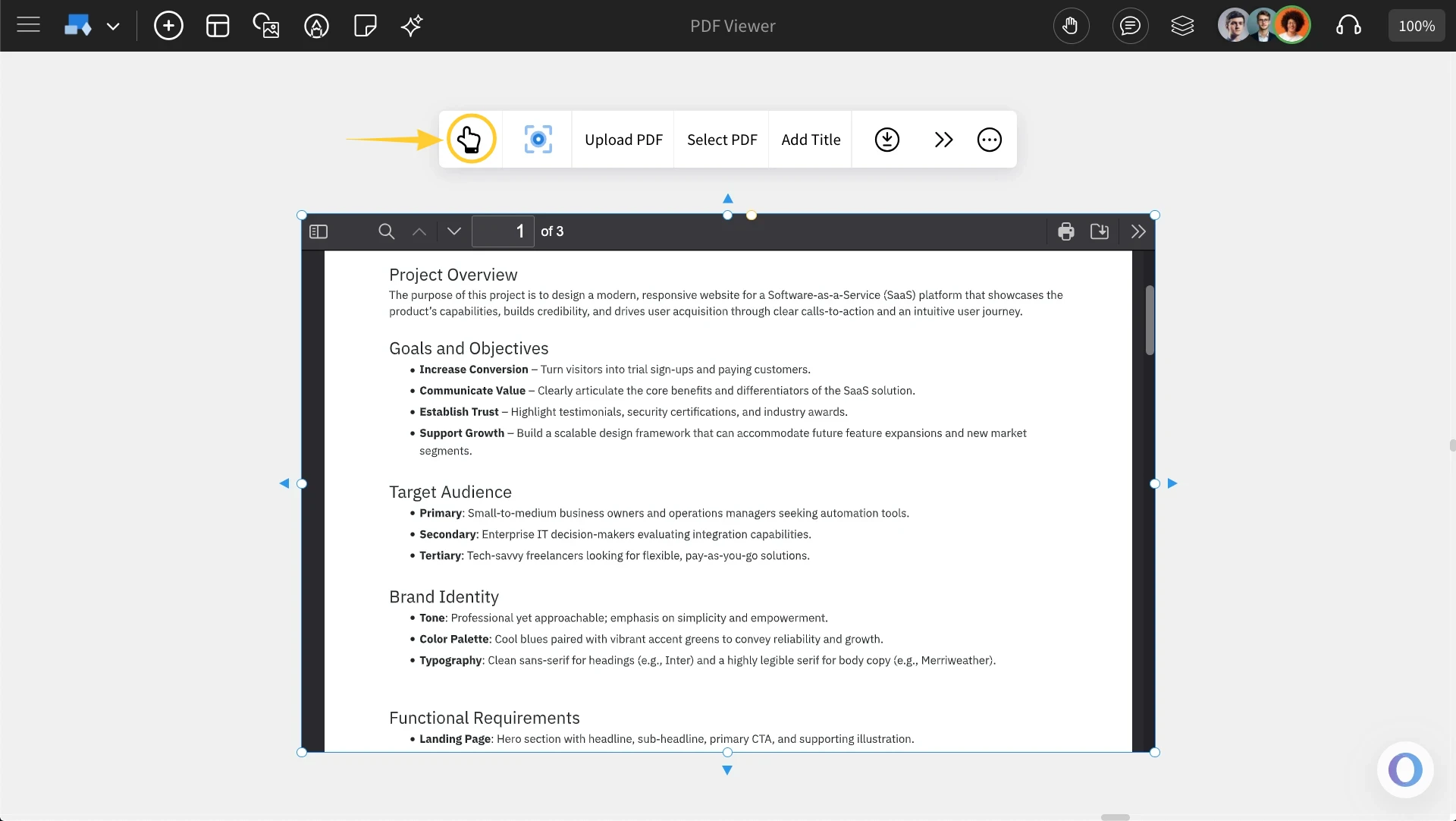
Interacting with the PDF: You can interact with the PDF file by clicking on 'Interact With Component' from the quick toolbar or the hand icon on the component itself. This option allows you to interact with the PDF file.
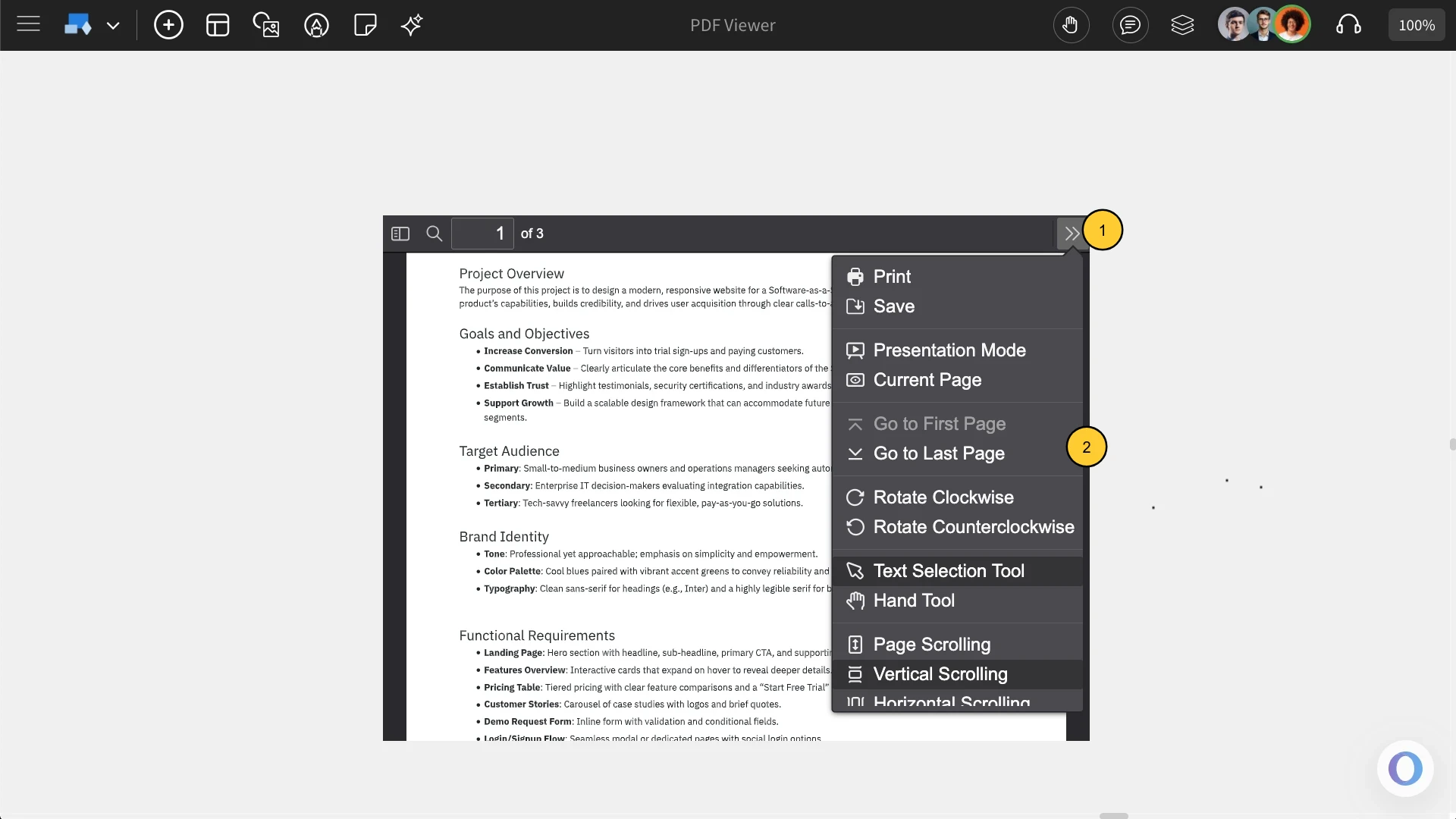
More accessible options: You can click on the More Options icon in the component to access additional options like Print, Save, Presentation Mode, and more.
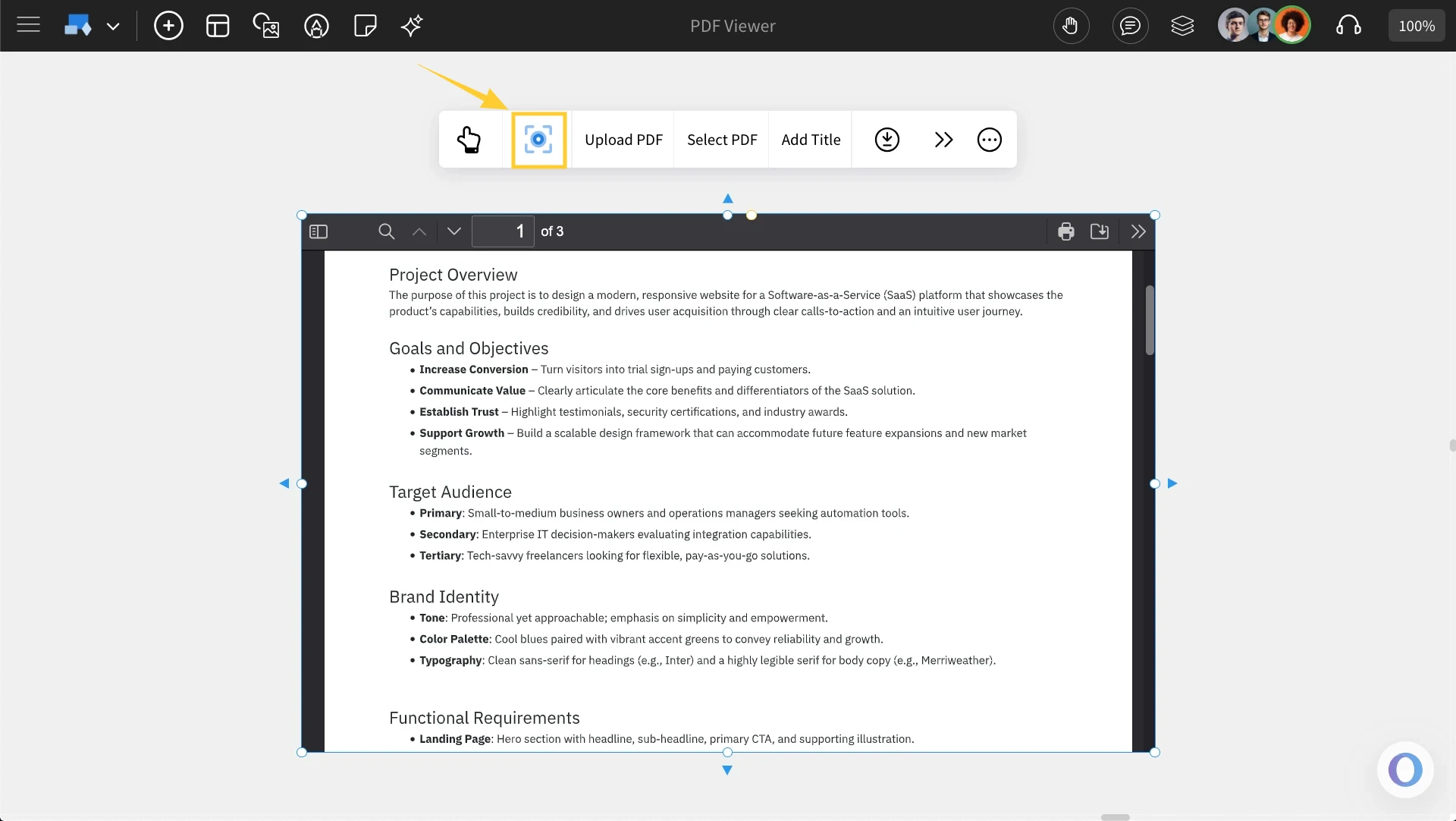
Using the Focus mode: There is an option to edit the PDF viewer in a 'focus mode' where all other components of the board are hidden, and only the PDF viewer component being edited is visible. To turn on this focus mode, click on the focus icon in the quick toolbar (as shown below). To exit focus mode, click the close icon at the top right.
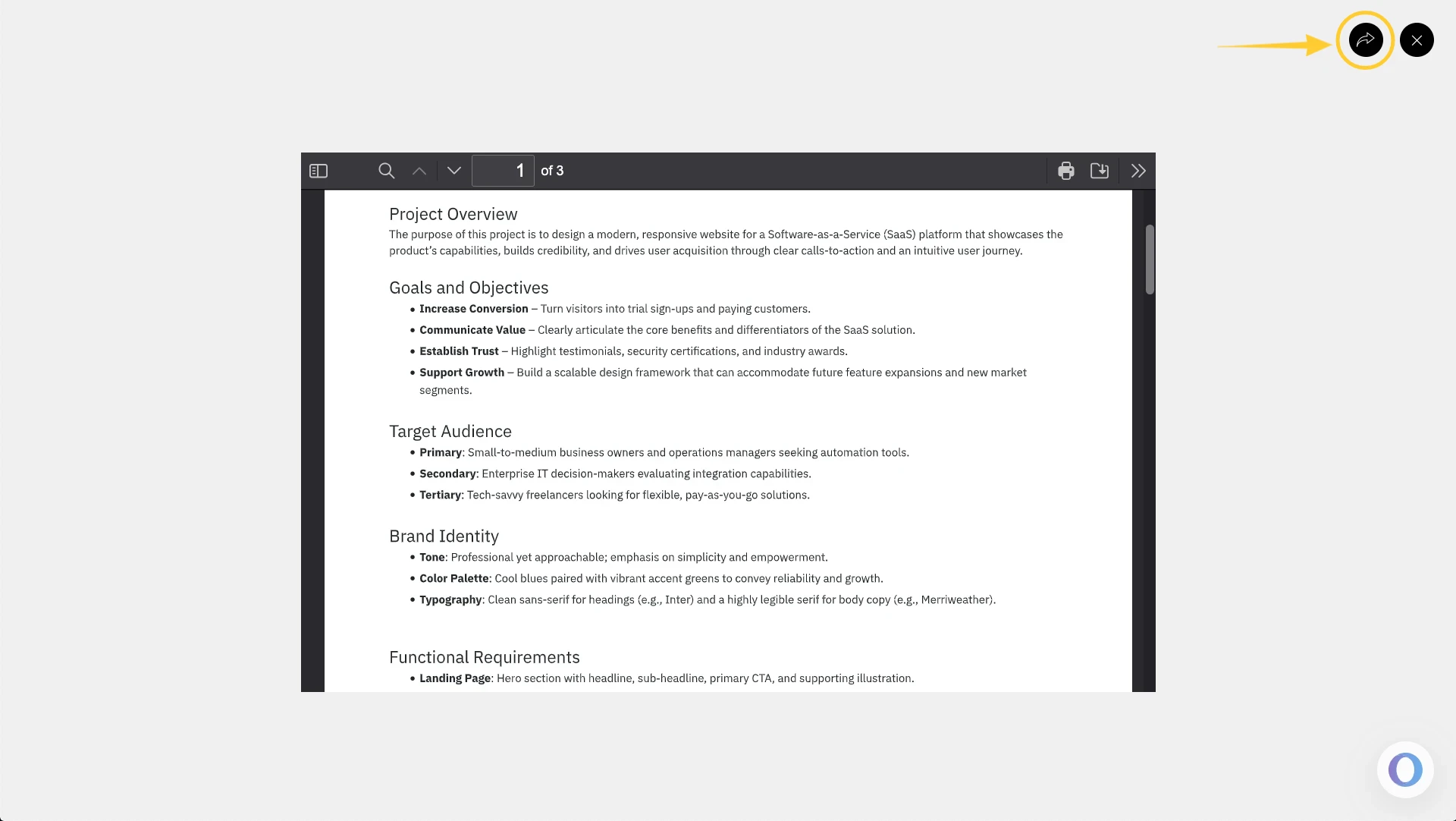
Share component link with team: In focus mode, the share icon is located at the top right, next to the close icon. Click on this share icon to copy a unique link for the component view to share directly within your team.
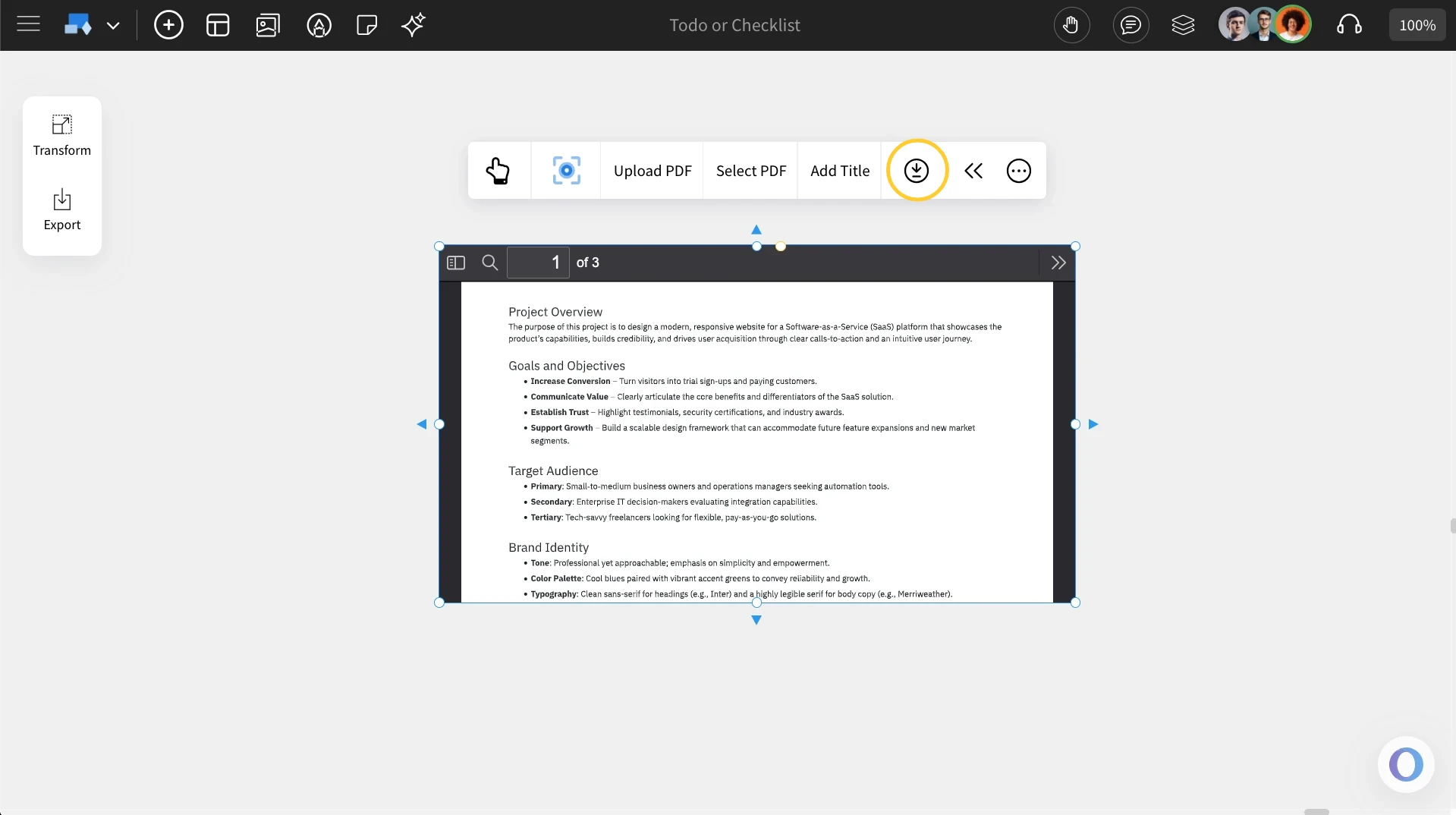
Downloading the PDF : You can download the PDF file by clicking on the 'Download PDF' option from the quick toolbar.