
Moving projects between spaces
Sometimes a project might be created under the wrong space. Or a project has to be moved to a different space due to...
Sometimes a project might be created under the wrong space. Or a project has to be moved to a different space due to re-organization or any other reason. This article explains how to move a project which can be a UI drawing, powerup, design file, or design embed from one space to another.
Let's for example, consider a UI drawing project called 'Website' that has to be moved from Space-A to Space-B.
Go to Space-A and click the options menu of the project "Website."
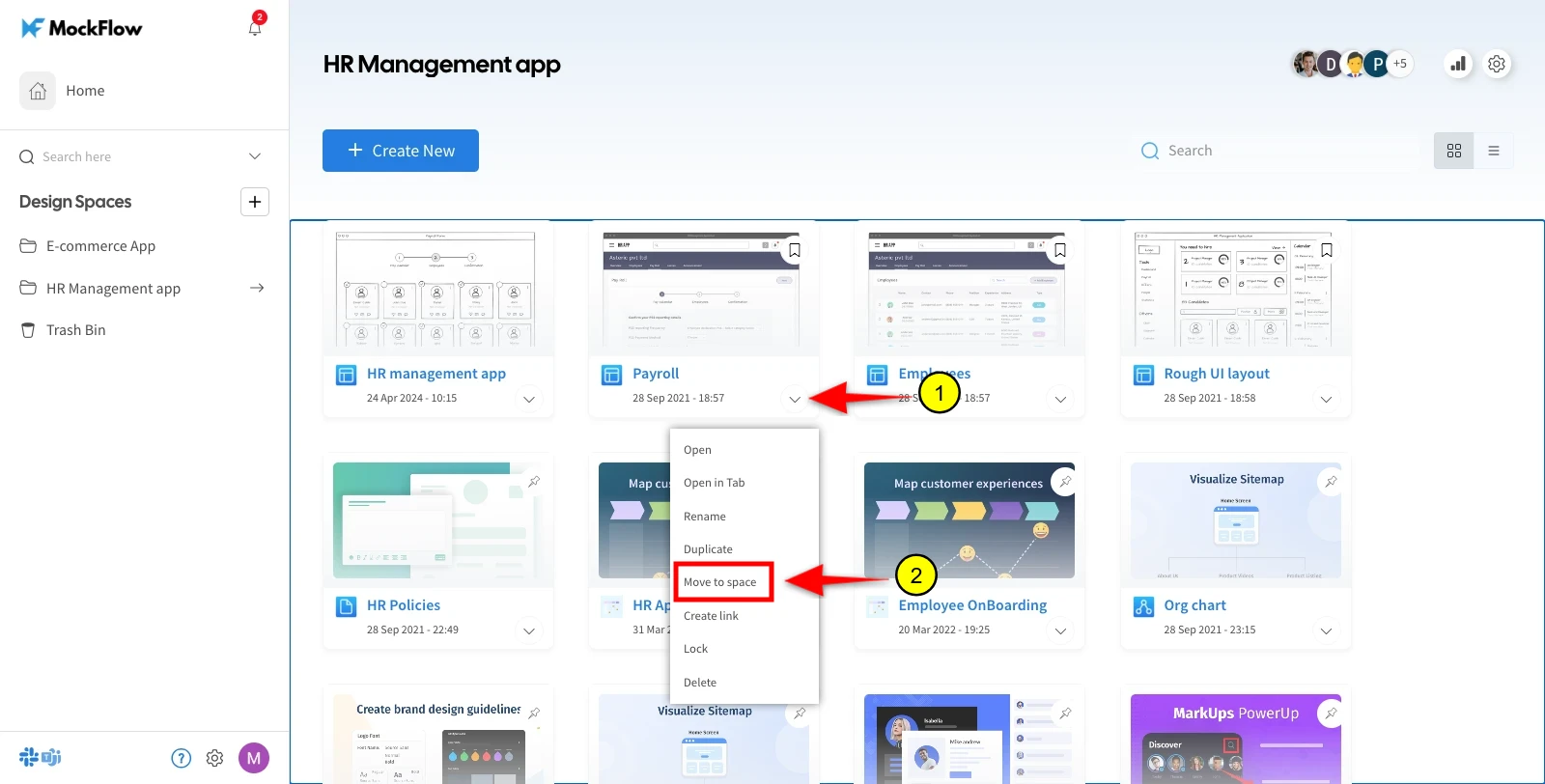
In the options menu, click 'Move to space' and select the destination space (Space-B) to which the project has to be moved.
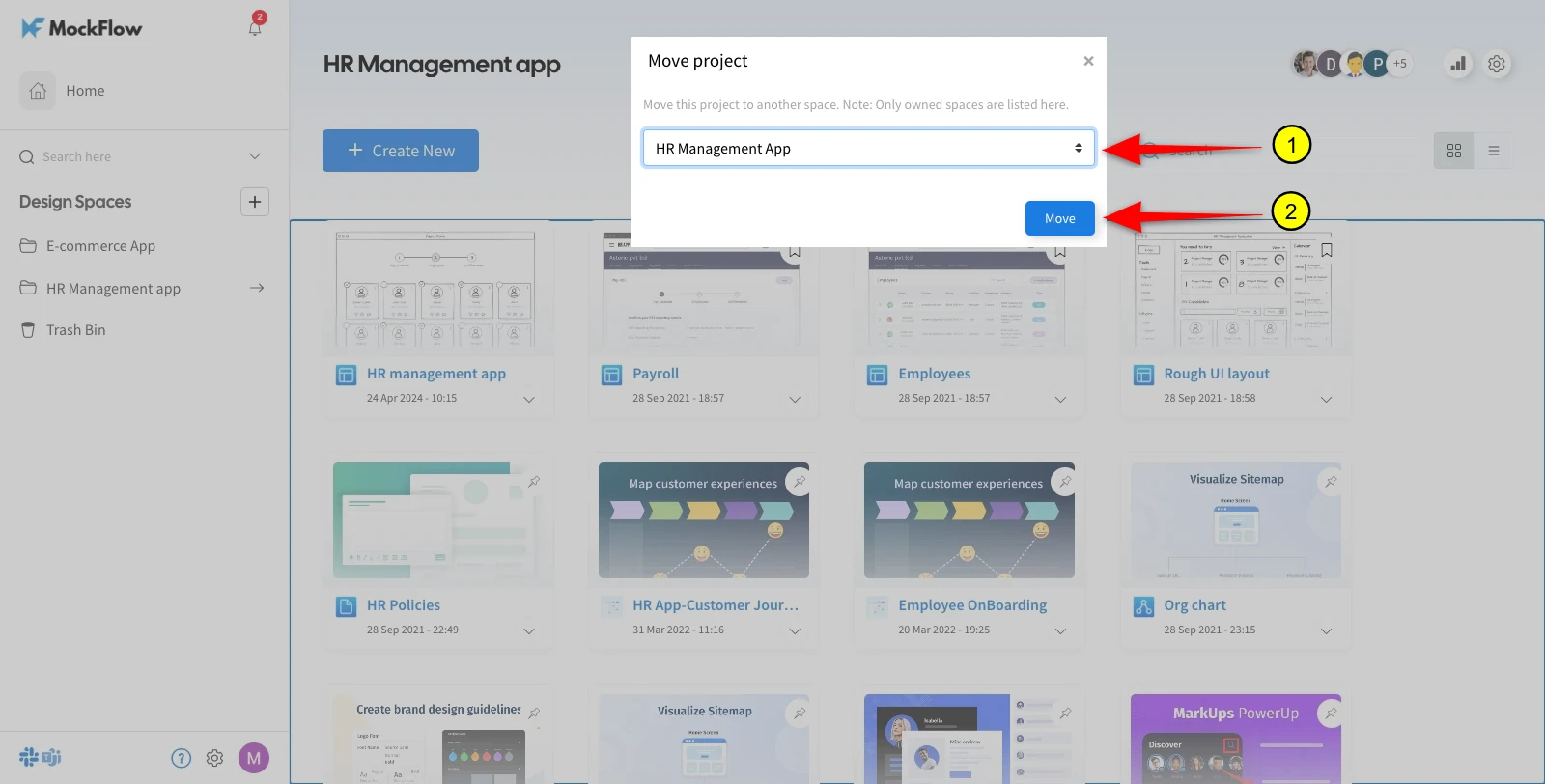
Moving a project between spaces has certain constraints as given below:
Only UI Drawing projects can be moved to 'Default space'.
When a UI drawing project is moved to any other design space, its associated 'Pin Powerup' projects and 'Pinned pages' will also be automatically moved along with it.
When a UI drawing project is moved to a default space. All its associated 'pinned powerups' and 'pinned pages' will be removed since the default space do not support pinned powerups and pages. However, the powerups can be still accessed within the wireframe editor.
Also, note when moving any project type between spaces, the sharing permissions will be updated as per its destination space.