
How to use show component and hide component in interactions?
Use Show and Hide interactions to control the visibility of components during prototyping. Ideal for elements like sidebars,...
Use Show and Hide interactions to control the visibility of components during prototyping. Ideal for elements like sidebars, modals, or dropdowns that appear based on user actions. Follow the steps below to implement Show and Hide interactions.
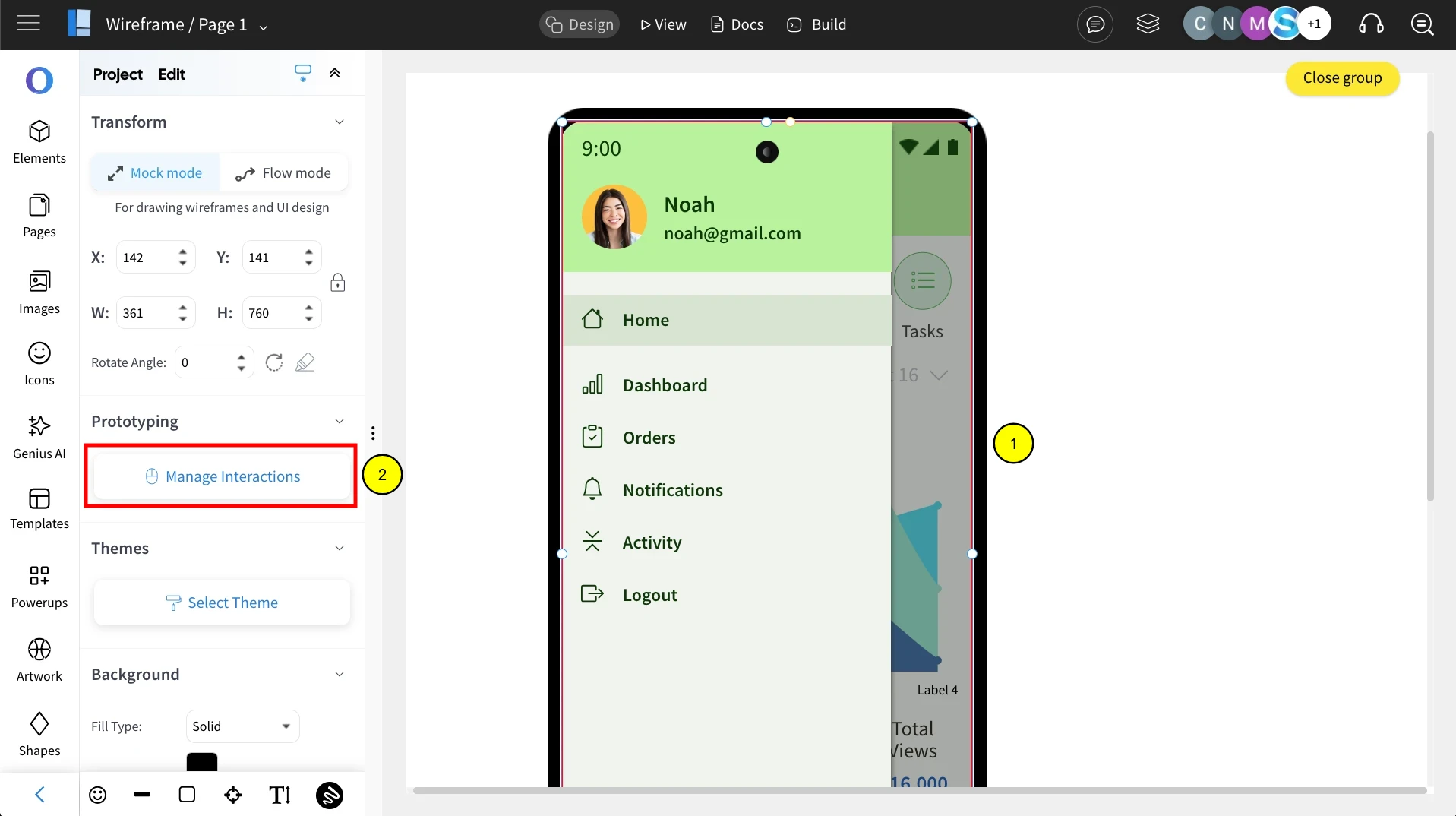
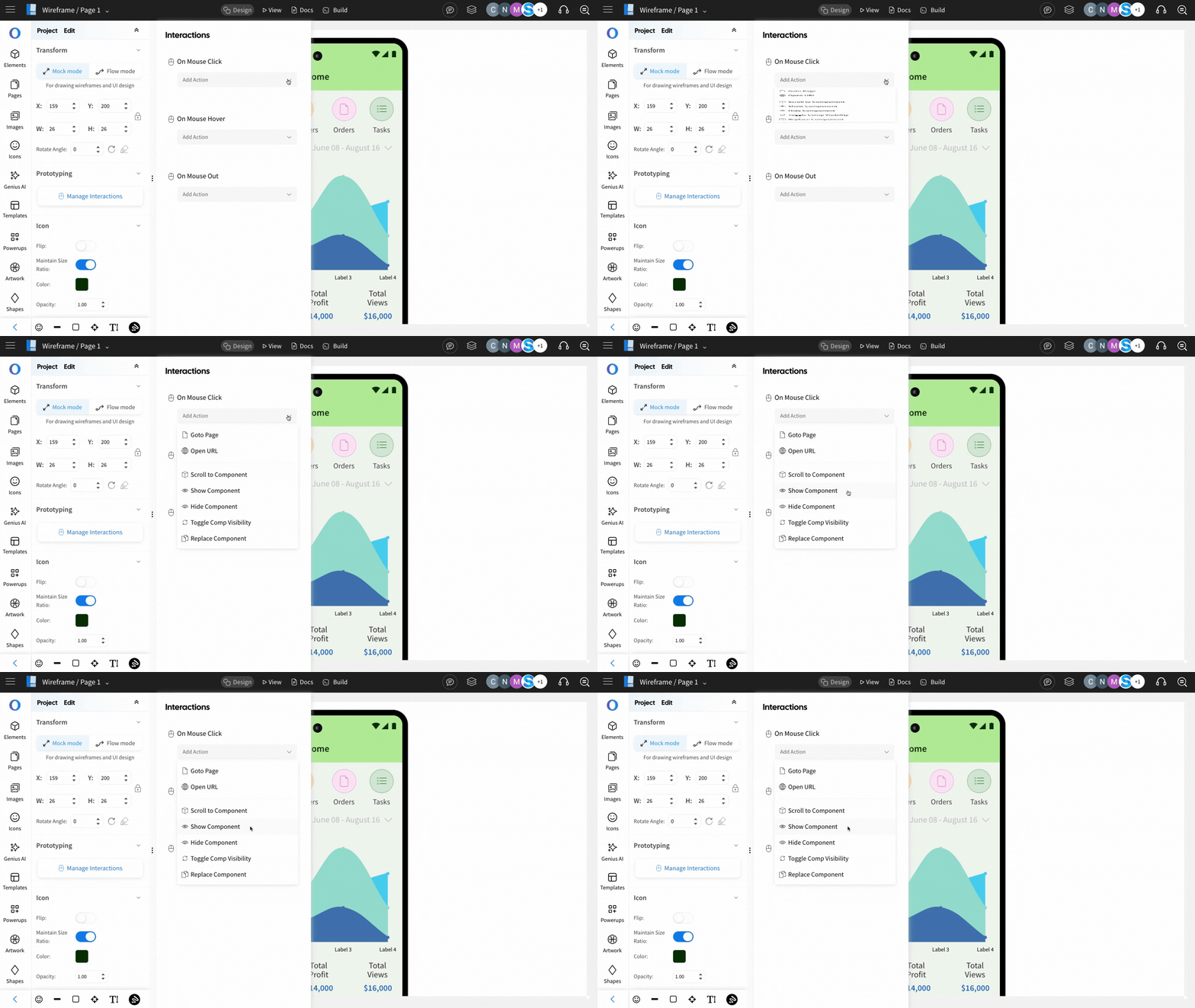
To use the Show or Hide Component feature, select a component from the wireframe and click 'Manage Interactions.'
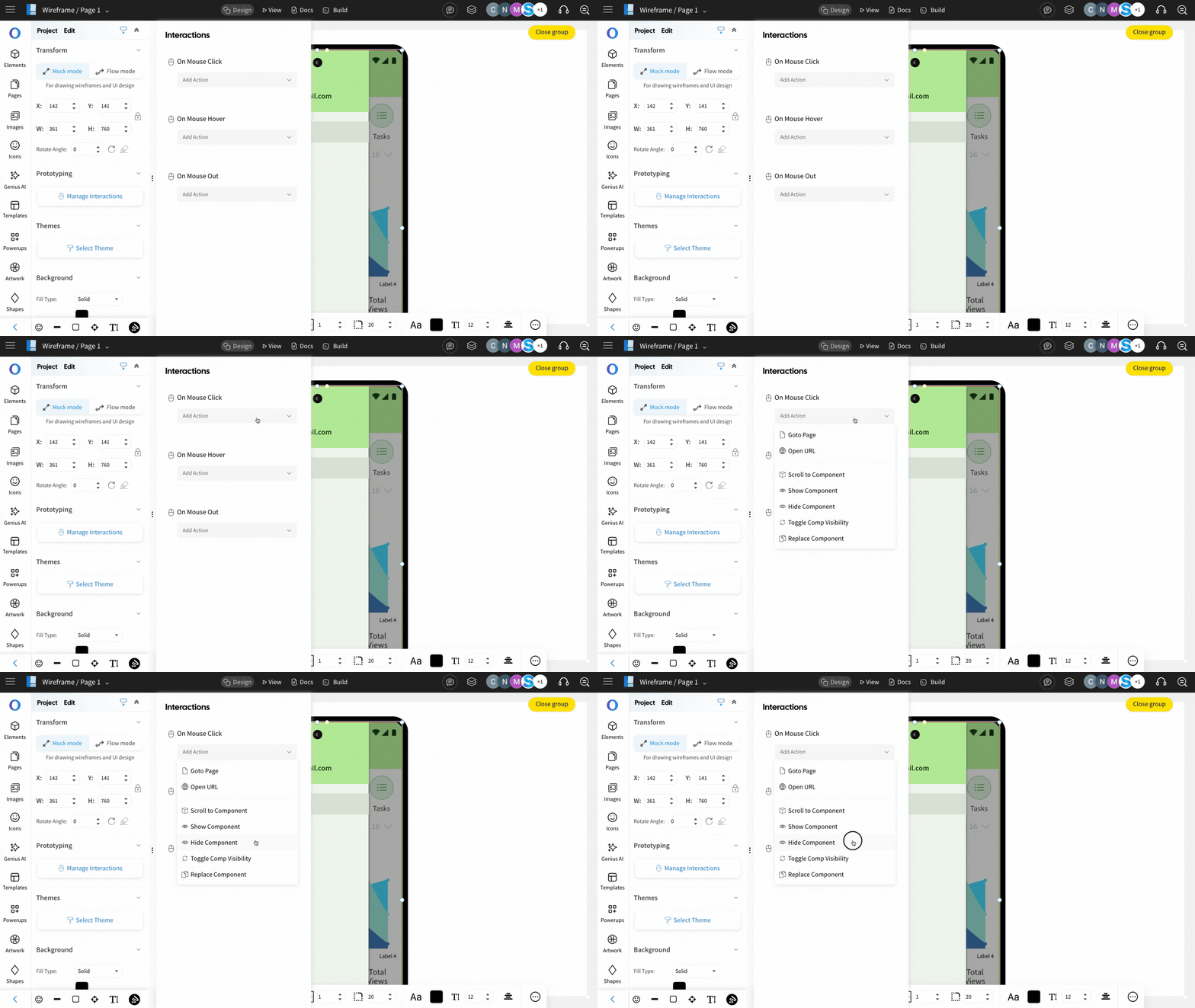
Choose an interaction, then select the 'Hide Component' action.
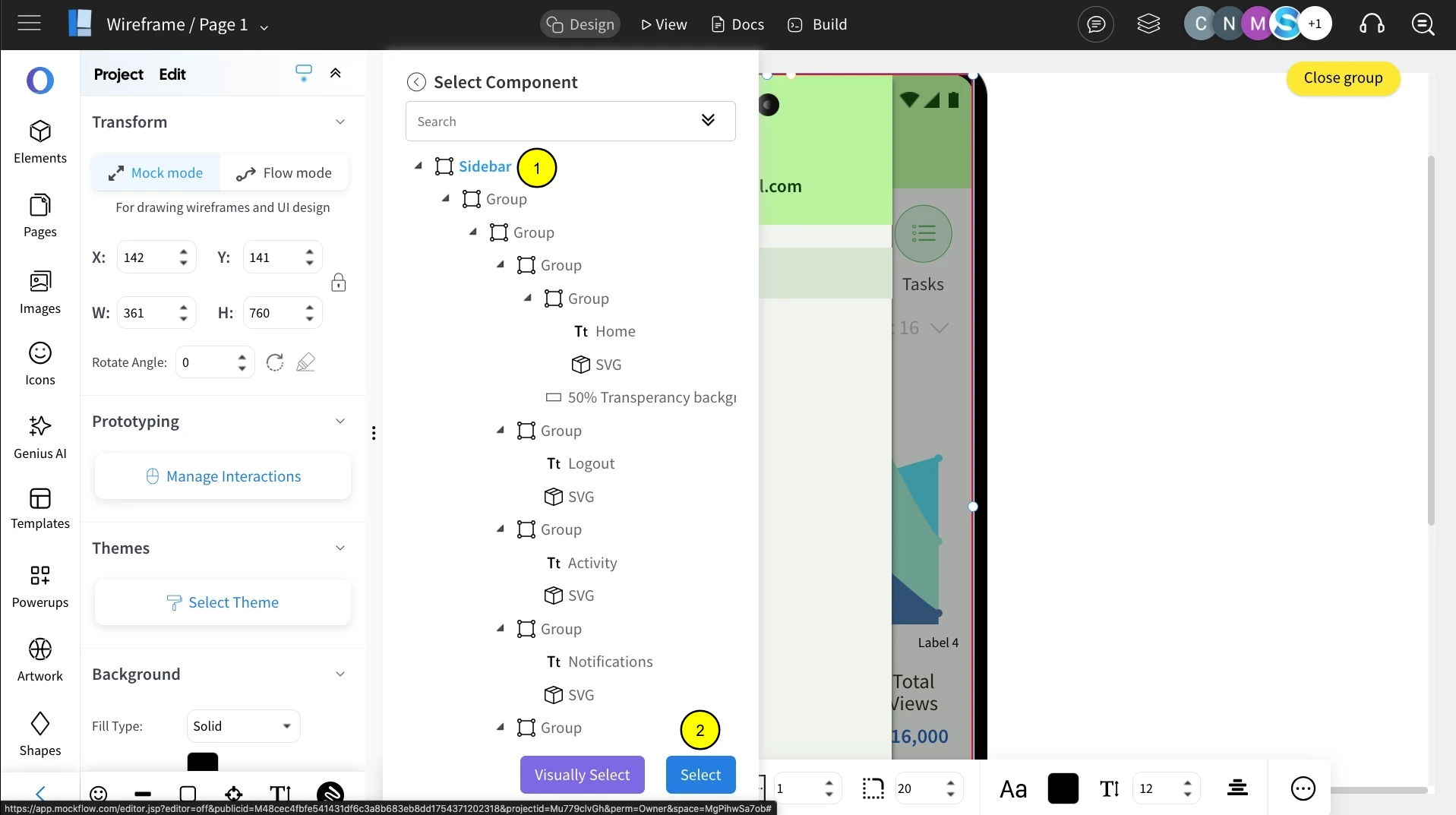
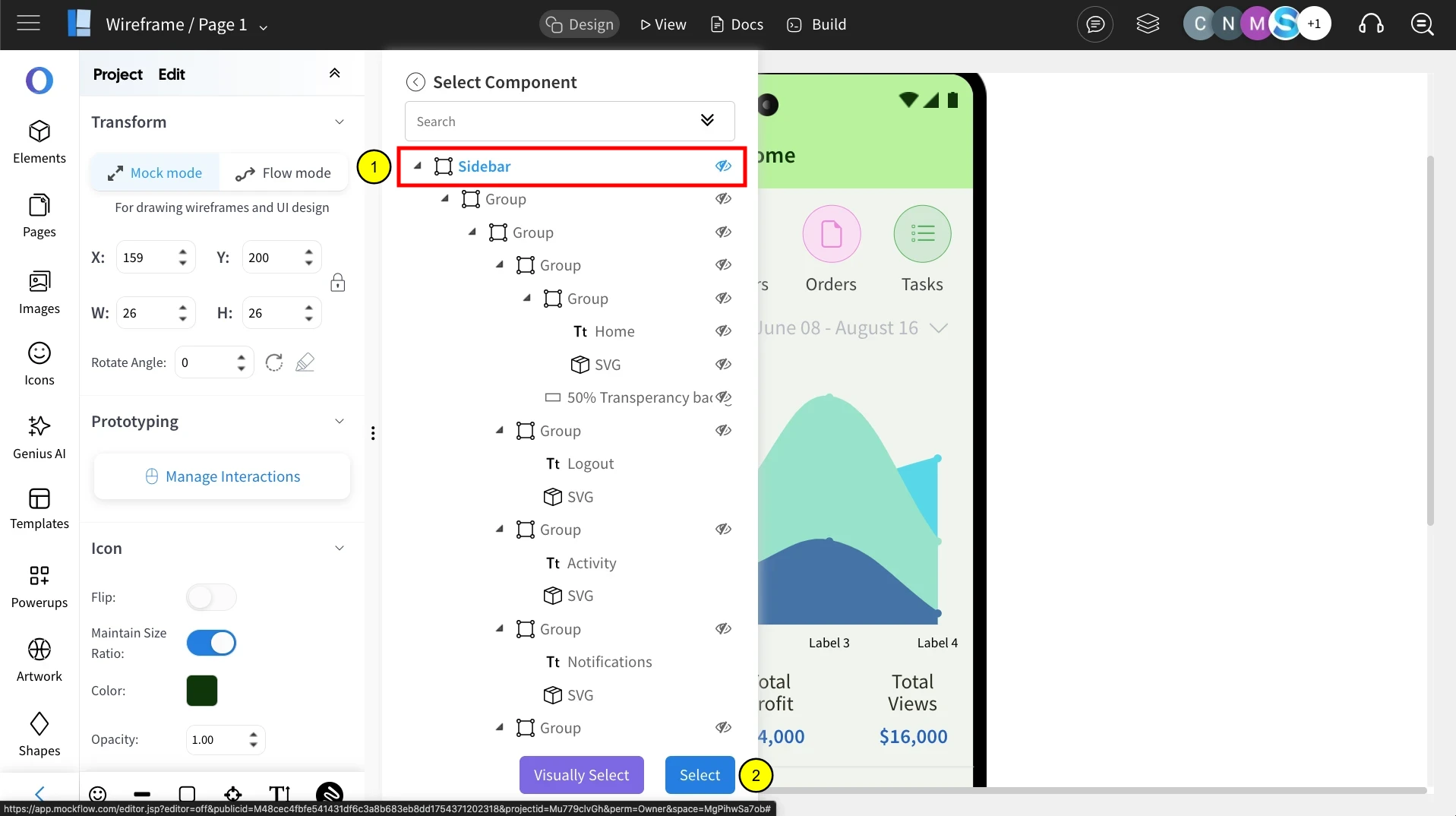
From the components list, select the component to be hidden and click 'Select.'
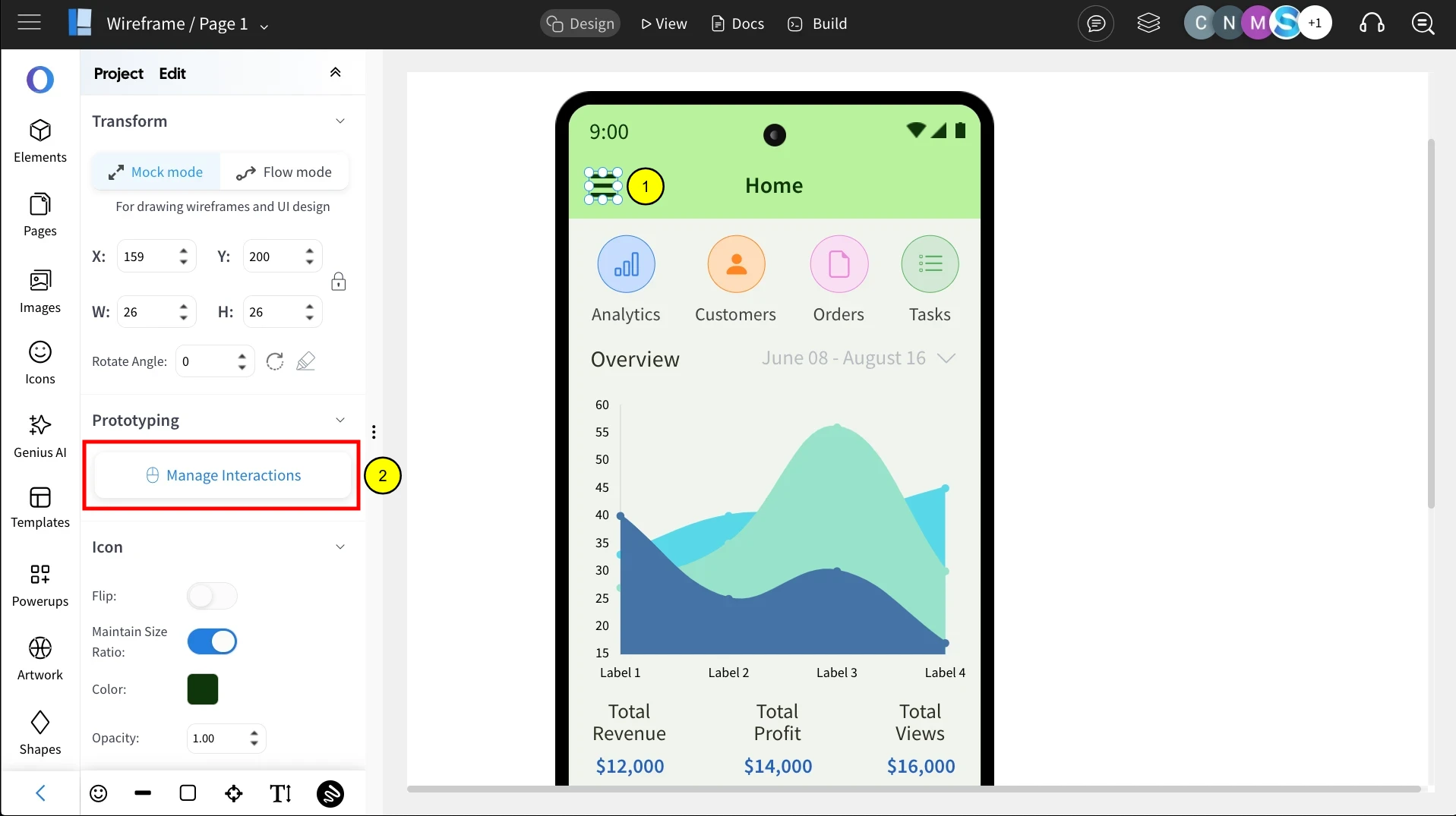
Next, select the component to show, and choose the preferred interaction.
And select the ' Show Component' action.
From the list, select the component to be shown, click 'Select,' and then click the eye icon to hide the component.
Add effects to the actions as needed. Refer to these articles for guidance on adding and editing effect transitions.
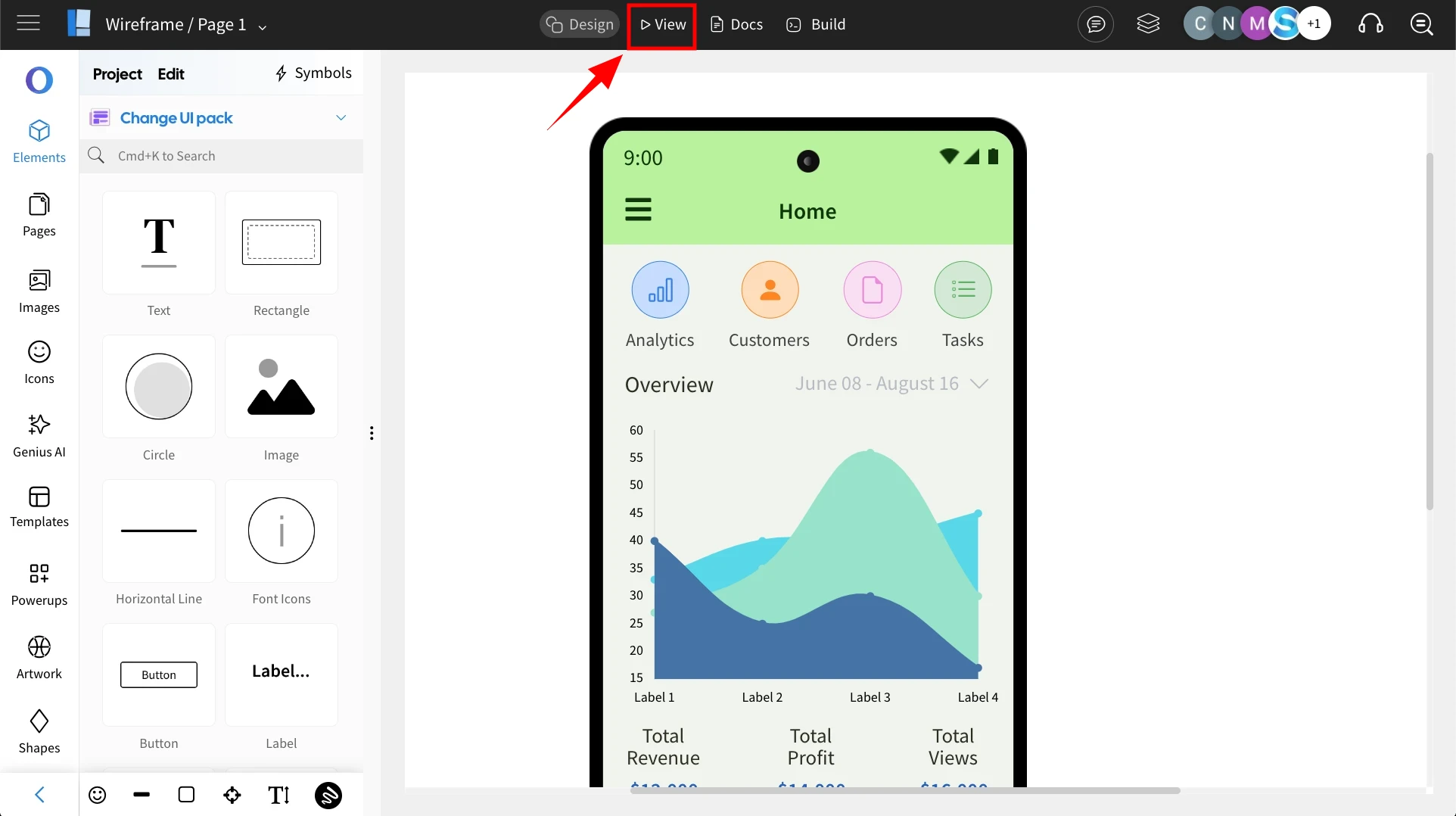
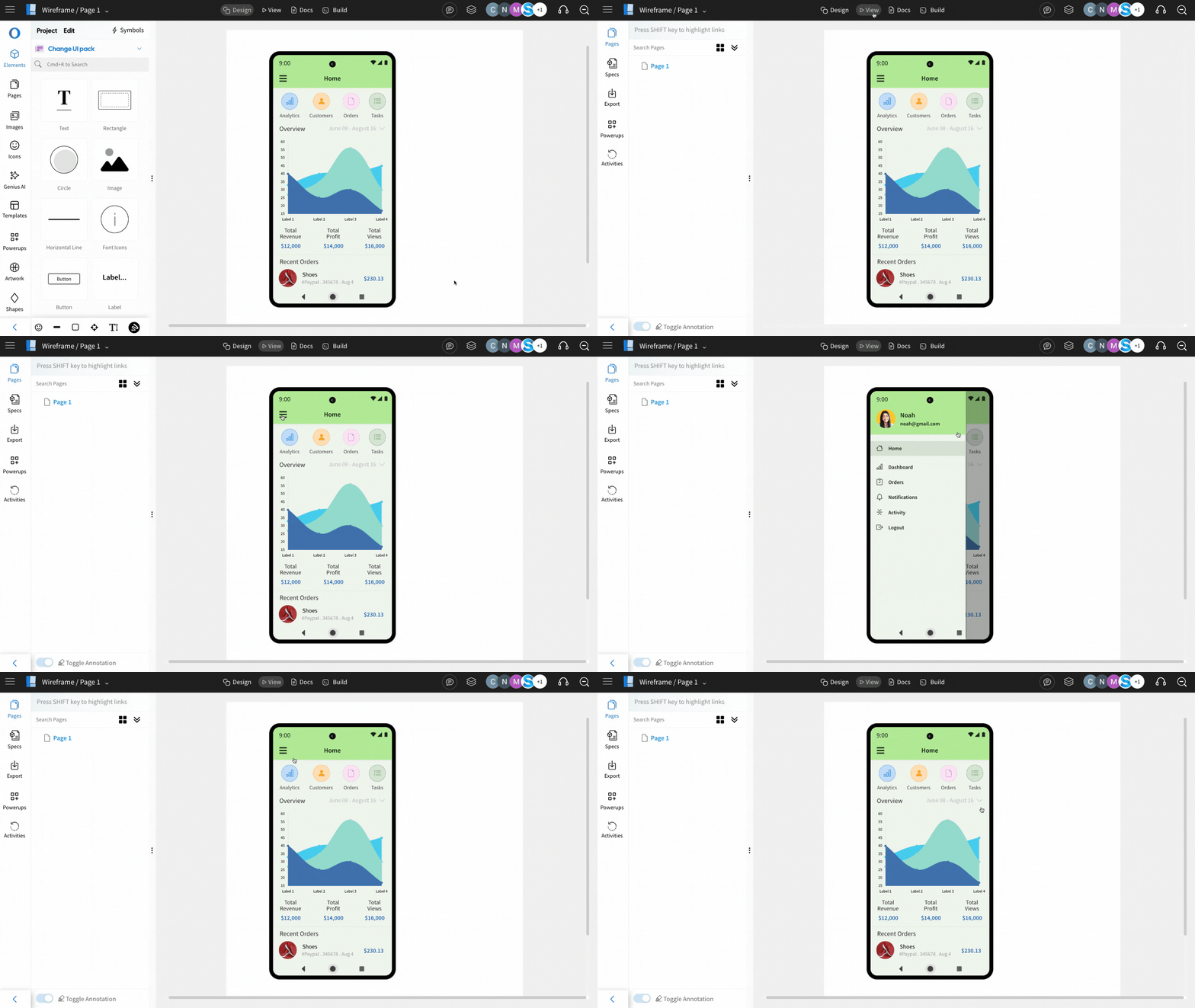
Switch to View Mode by clicking on 'View' to see the Show and Hide actions in effect by clicking on the desired component.
You'll notice that the actions are triggered each time the selected component is clicked.
Refer to this detailed prototyping tutorial on Show and Hide interactions in Wireframes.