How to Style Shapes in Flows?
Enhancing the aesthetic appeal of flowcharts is achievable through strategically applying styles to the shapes within them....
Enhancing the aesthetic appeal of flowcharts is achievable through strategically applying styles to the shapes within them. These allow for customization, including color, font, shadows, and custom CSS code, enhancing overall aesthetics.
If you would like to create a visually appealing and professional-looking flowchart, Follow the below instructions to style a shape in MockFlow WireframePro:
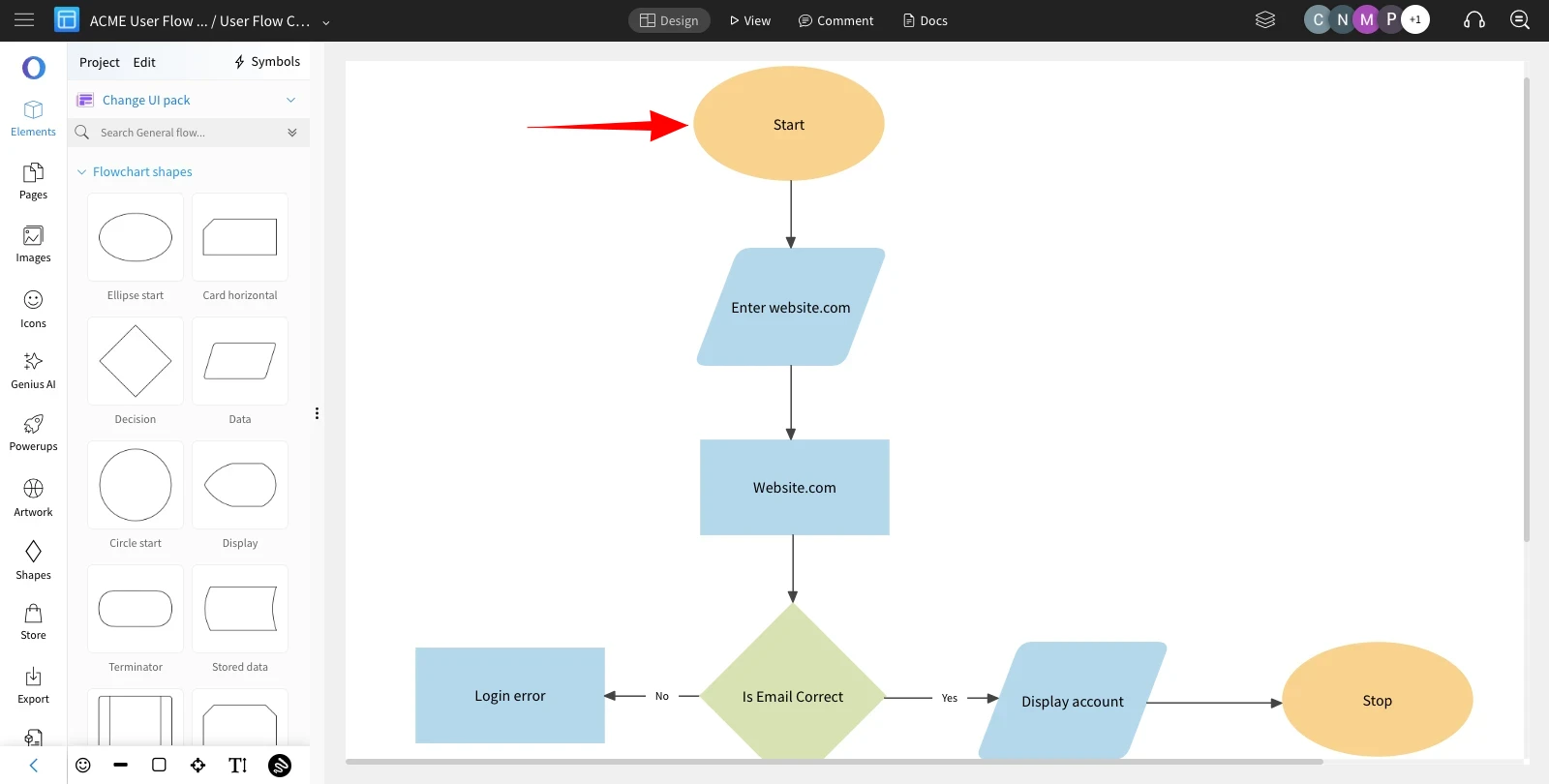
Upon clicking the shape, you can customize the shape color to your preference.
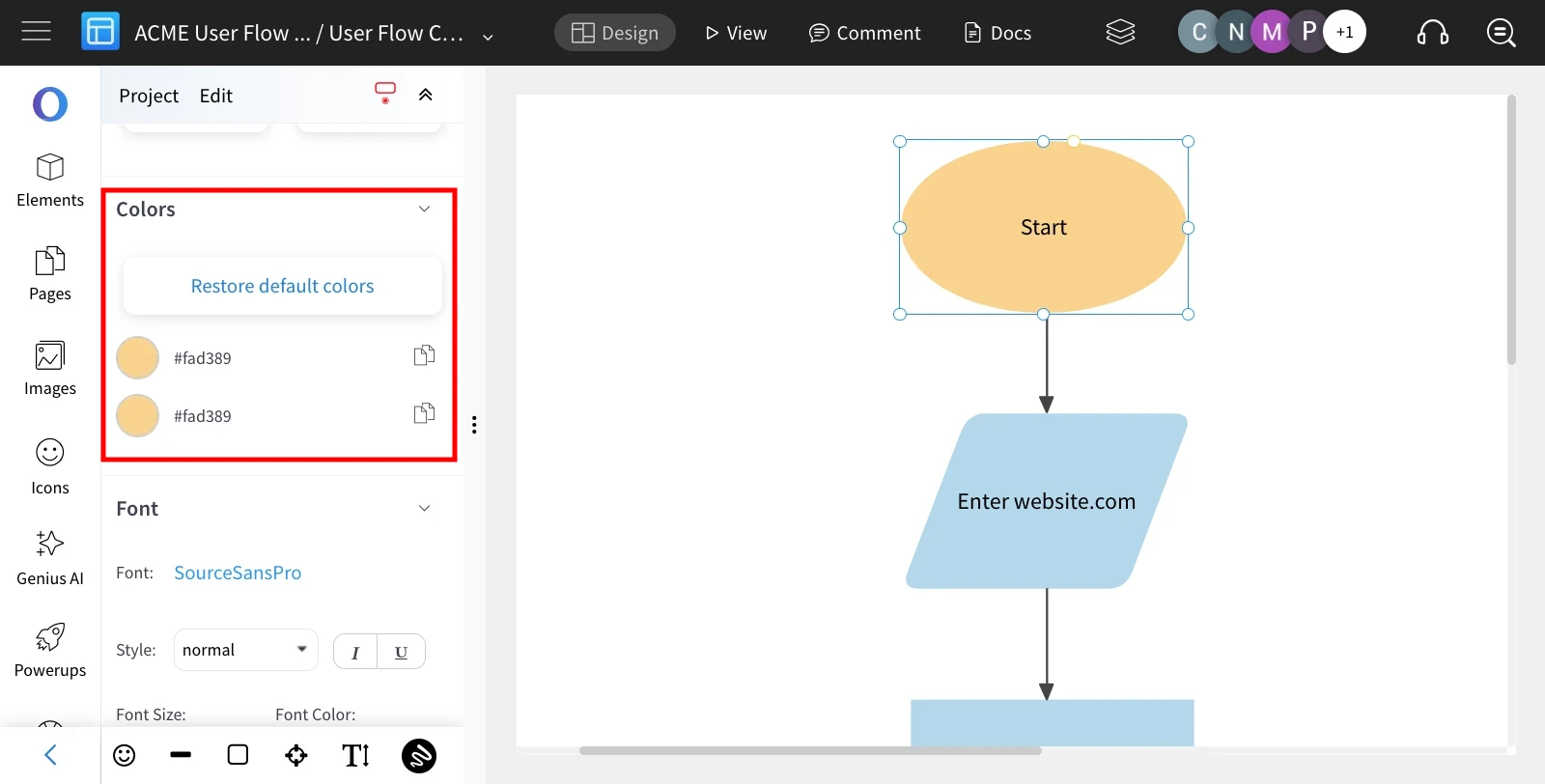
In the Colors section, you can modify the colors according to your preferences.
When double-clicking, you can customize the font style and color of the shape label.
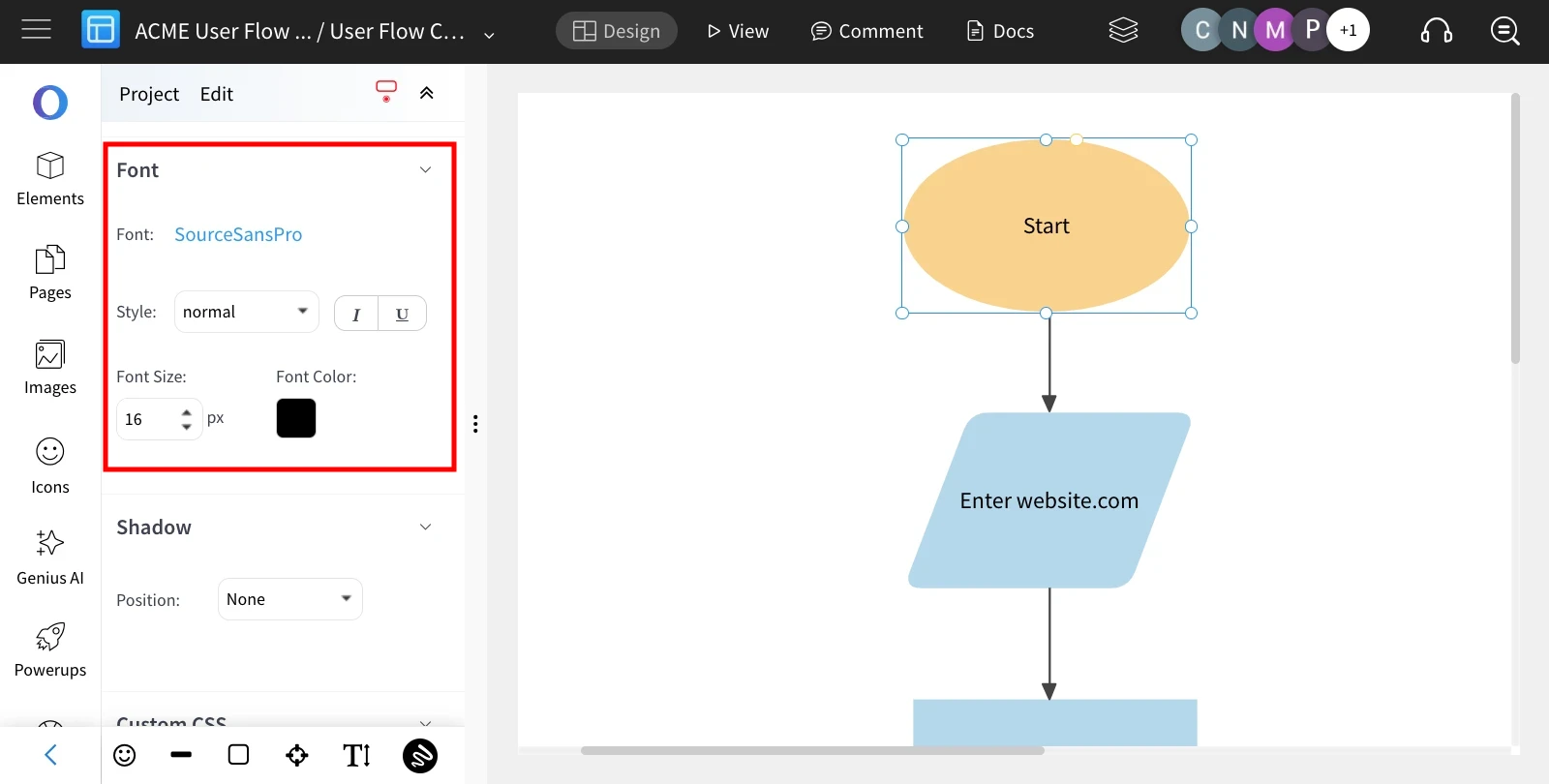
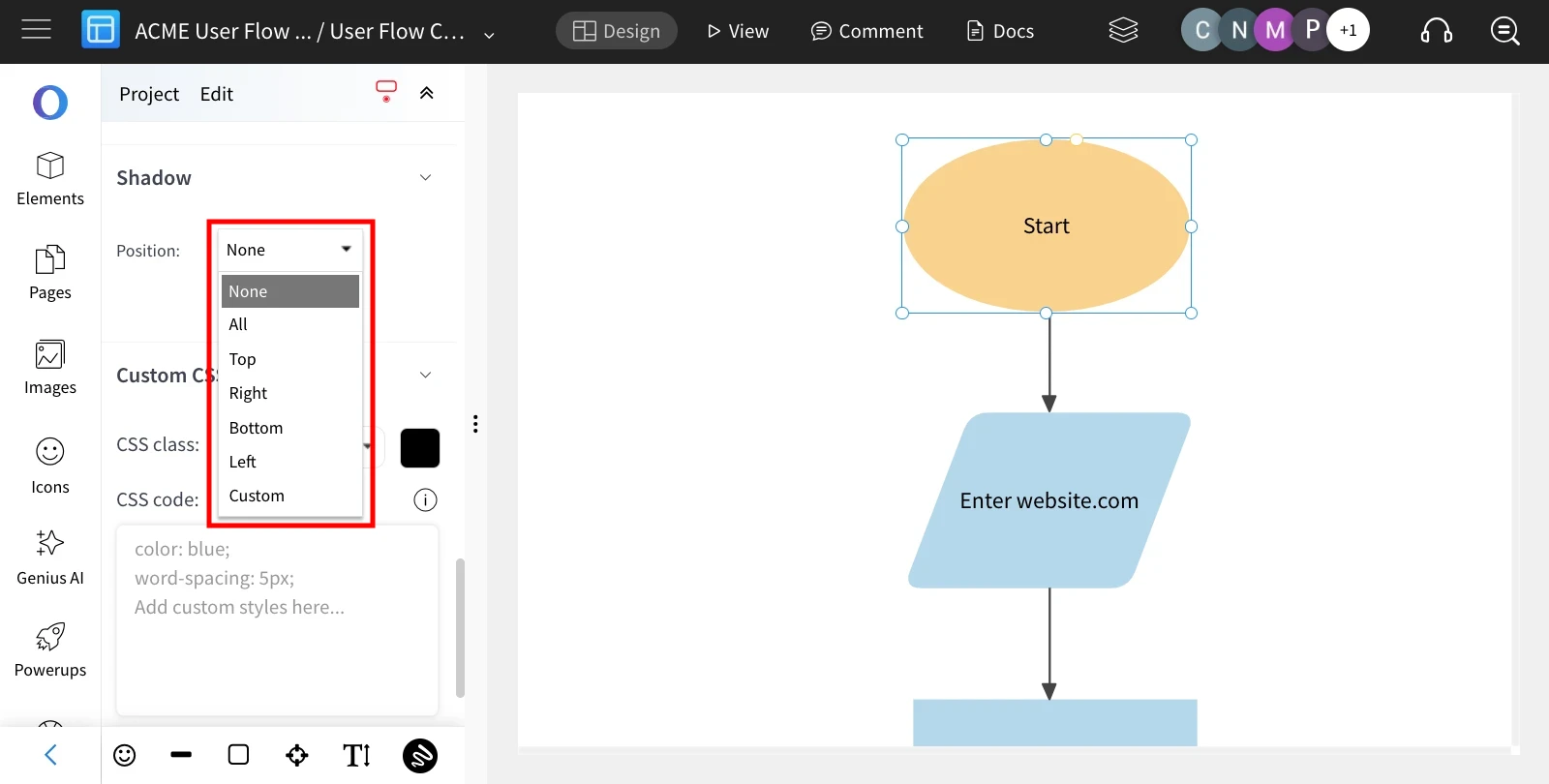
You can add a shadow effect by utilizing the shadow position option.
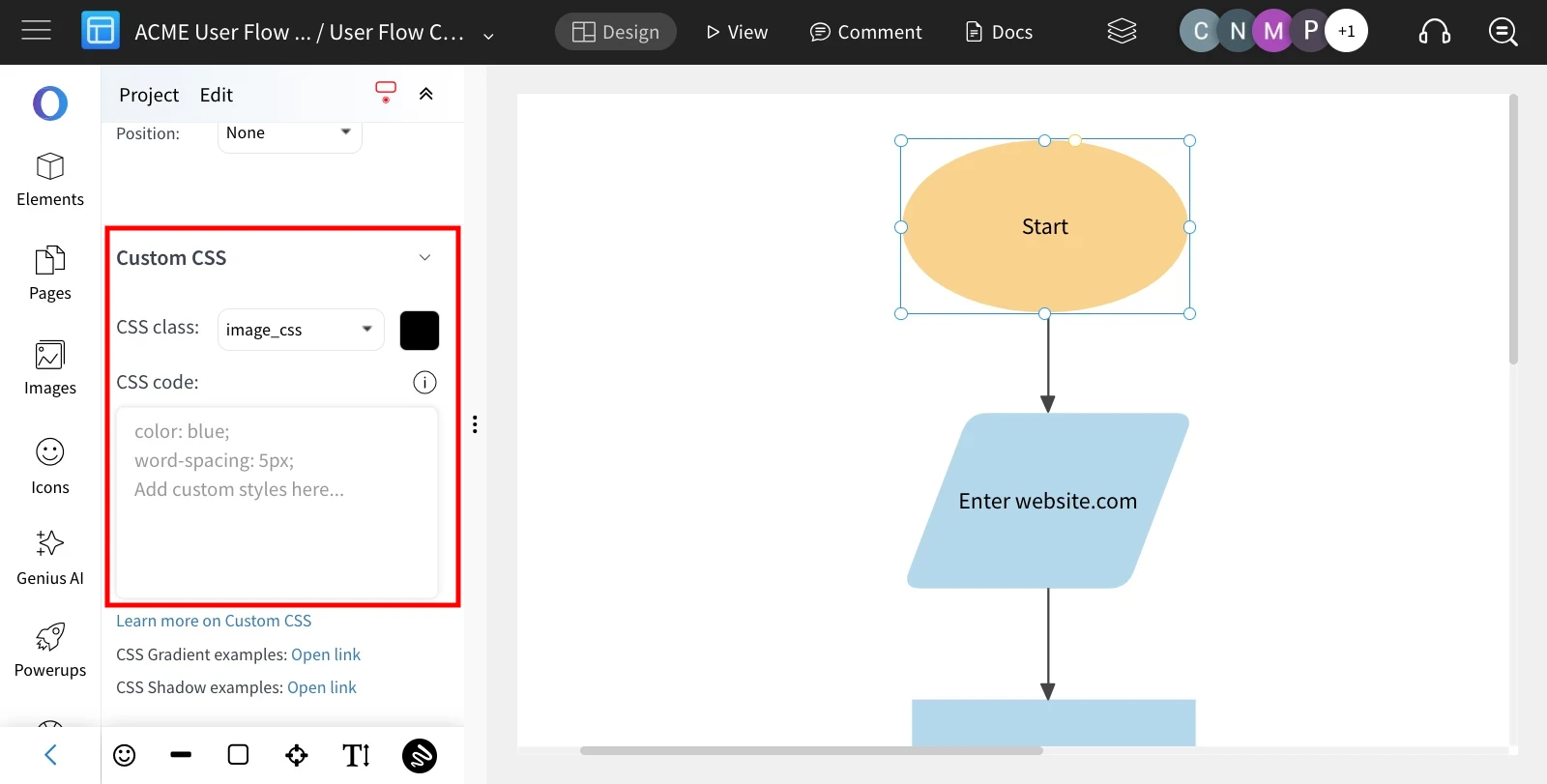
Shapes can be further customized by employing the custom CSS option.