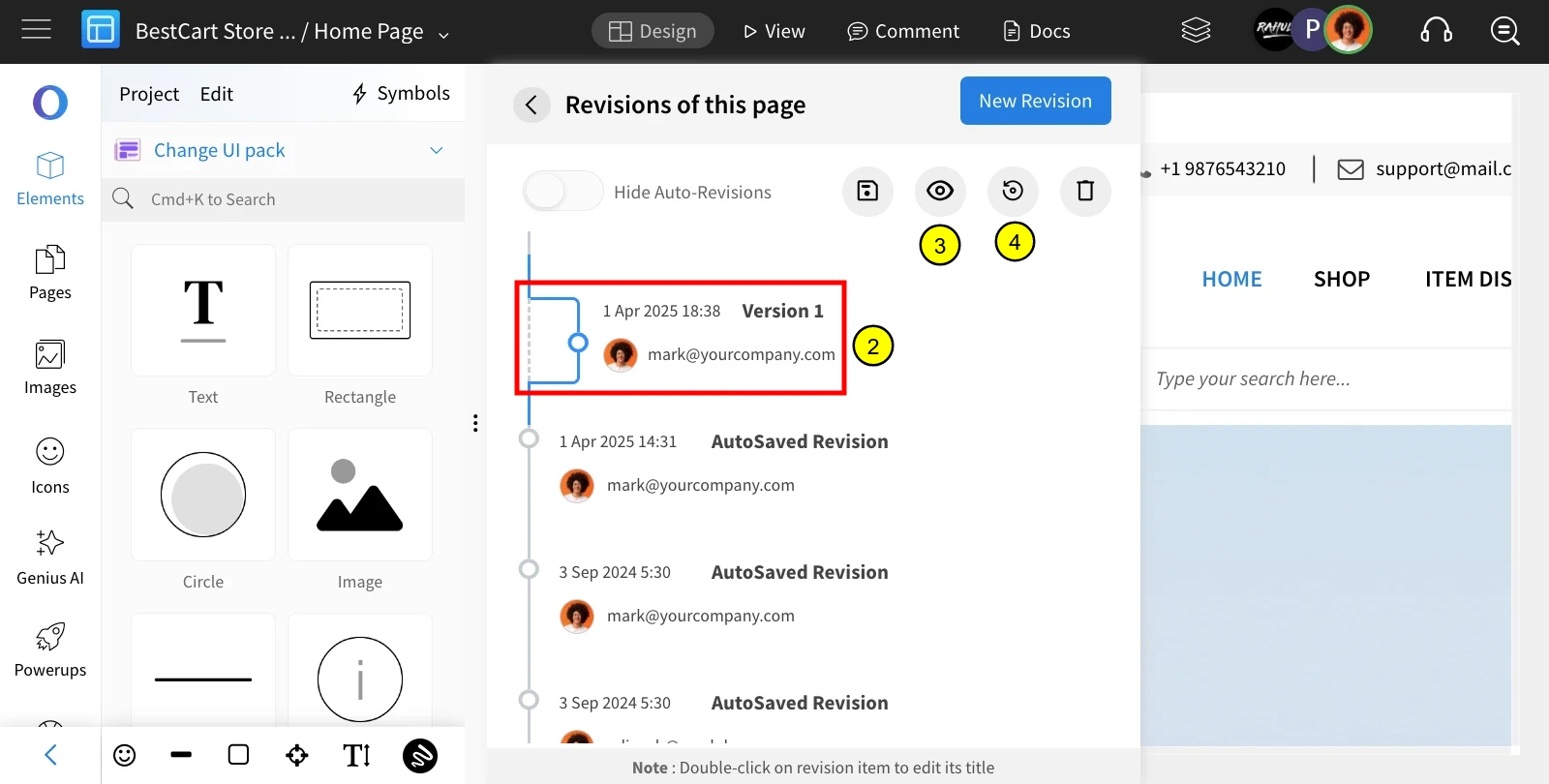
Lost Data? Read how-to recover lost wireframe changes
To save changes in MockFlow, the user needs to click the 'Save' button from the top menu or the 'Save Changes' button that...
To save changes in MockFlow, the user needs to click the 'Save' button from the top menu or the 'Save Changes' button that automatically appears in the top-right corner of the screen.
However, in the background, MockFlow automatically saves user changes by creating auto-revisions, so even when the user forgets/unable to 'save' the changes, the unsaved work can always be recovered by previewing and restoring auto-revisions from the 'Revision History' located in the top menu.
Open the page with lost changes, then navigate to the project menu and select 'Revision History.'
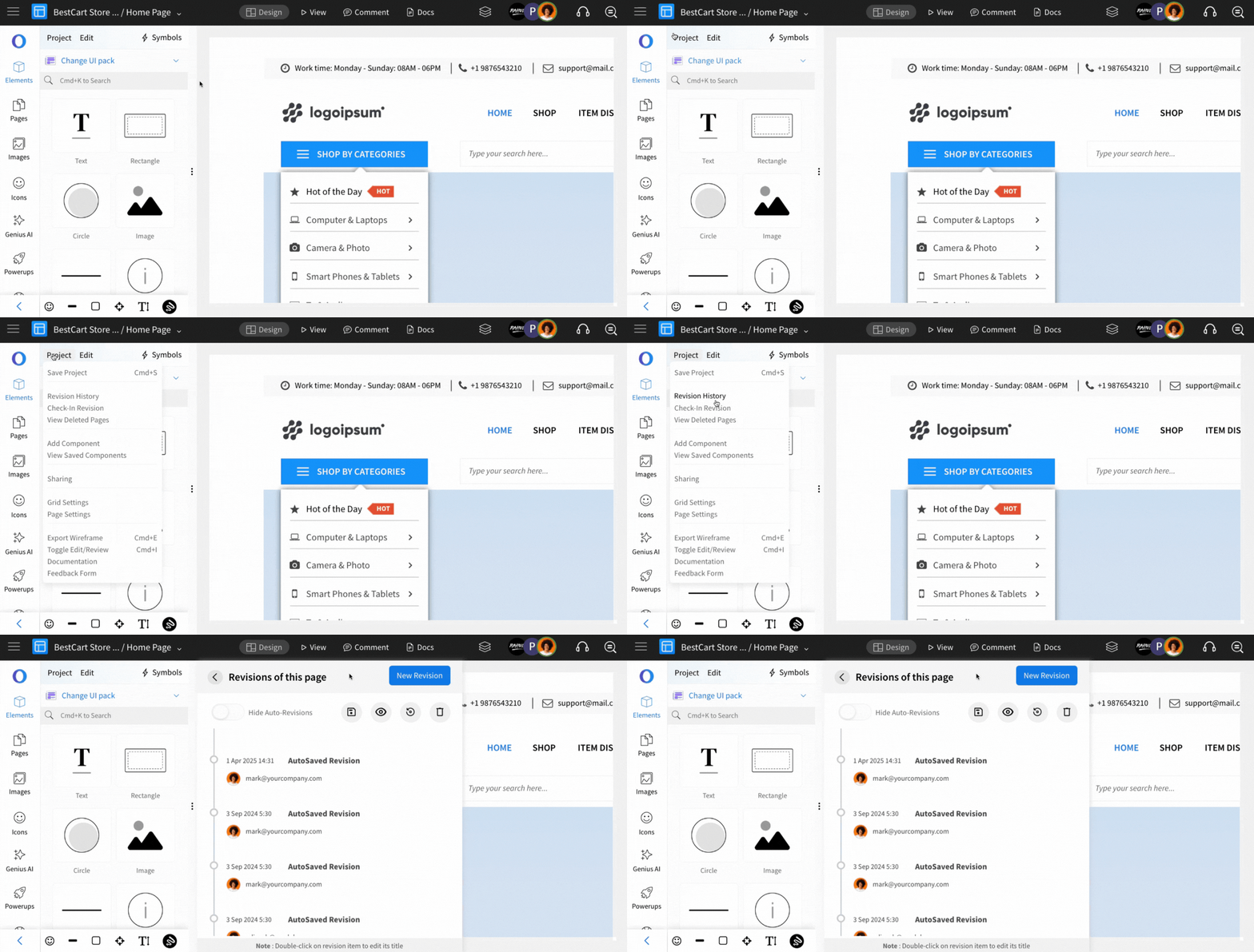
From the revision history, choose the desired revision.
To preview the changes, click on the eye icon.
If the revision looks correct, restore it by clicking the 'Restore.'