
How to add effects to interactions?
For every interaction, you can choose to add an effect to enhance the interactivity. Effects can be added to these four...
For every interaction, you can choose to add an effect to enhance the interactivity.
Effects can be added to these four actions: Show Component, Hide Component, Toggle Component Visibility and Replace components.
Refer to this article for instructions on adding interactions.
Open the interaction sidebar and click on the effects icon located at the right of the interaction.
In the screenshot below, there is 'Show component' action added on mouse click interaction. Clicking on the effects icon will show a dropdown, listing the options: Fade in, Rollin down, Slide in, Zoom in.
Note - The effects listed will differ for each actions.
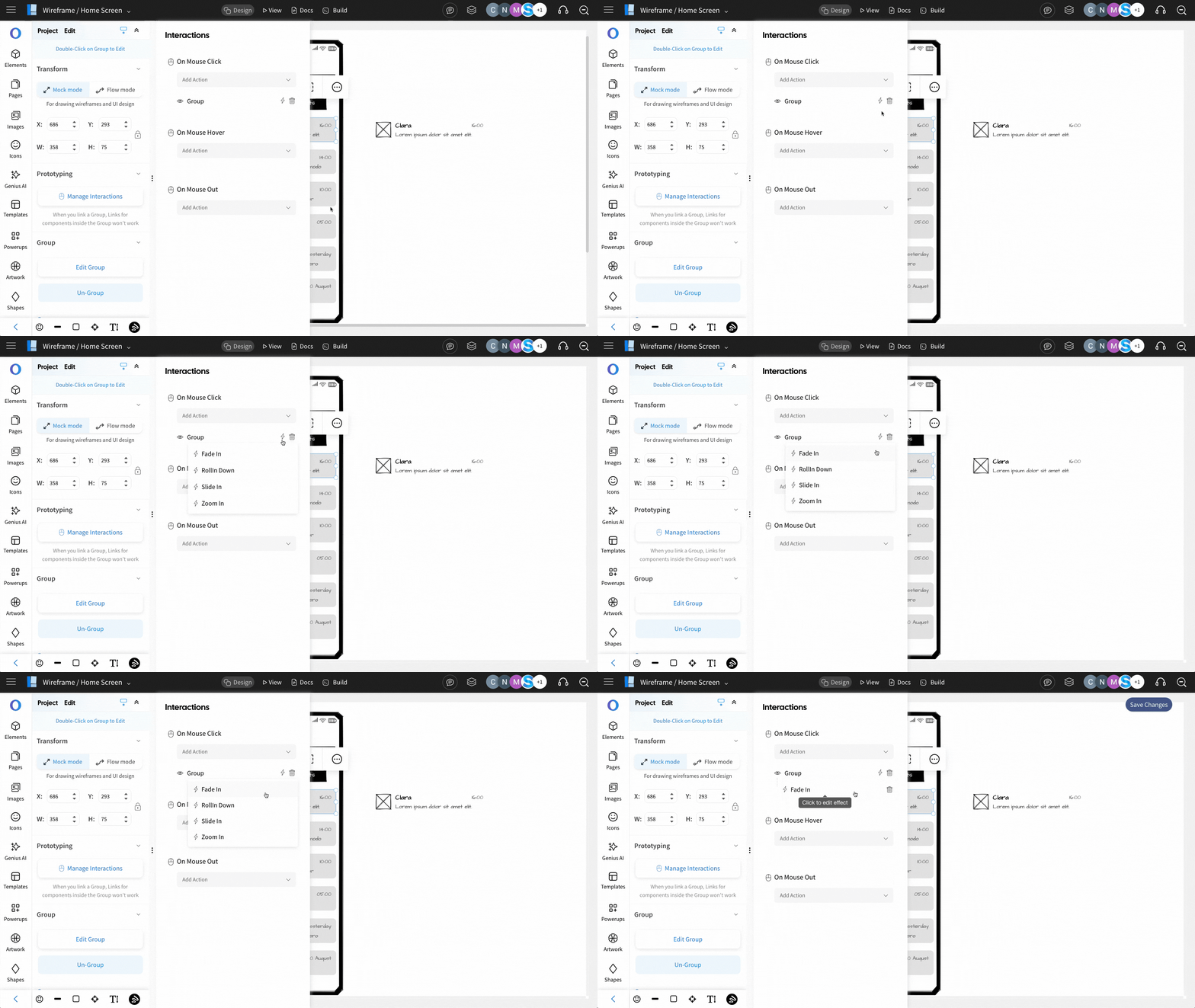
Click on the desired effect and the effect will be added under the desired action.
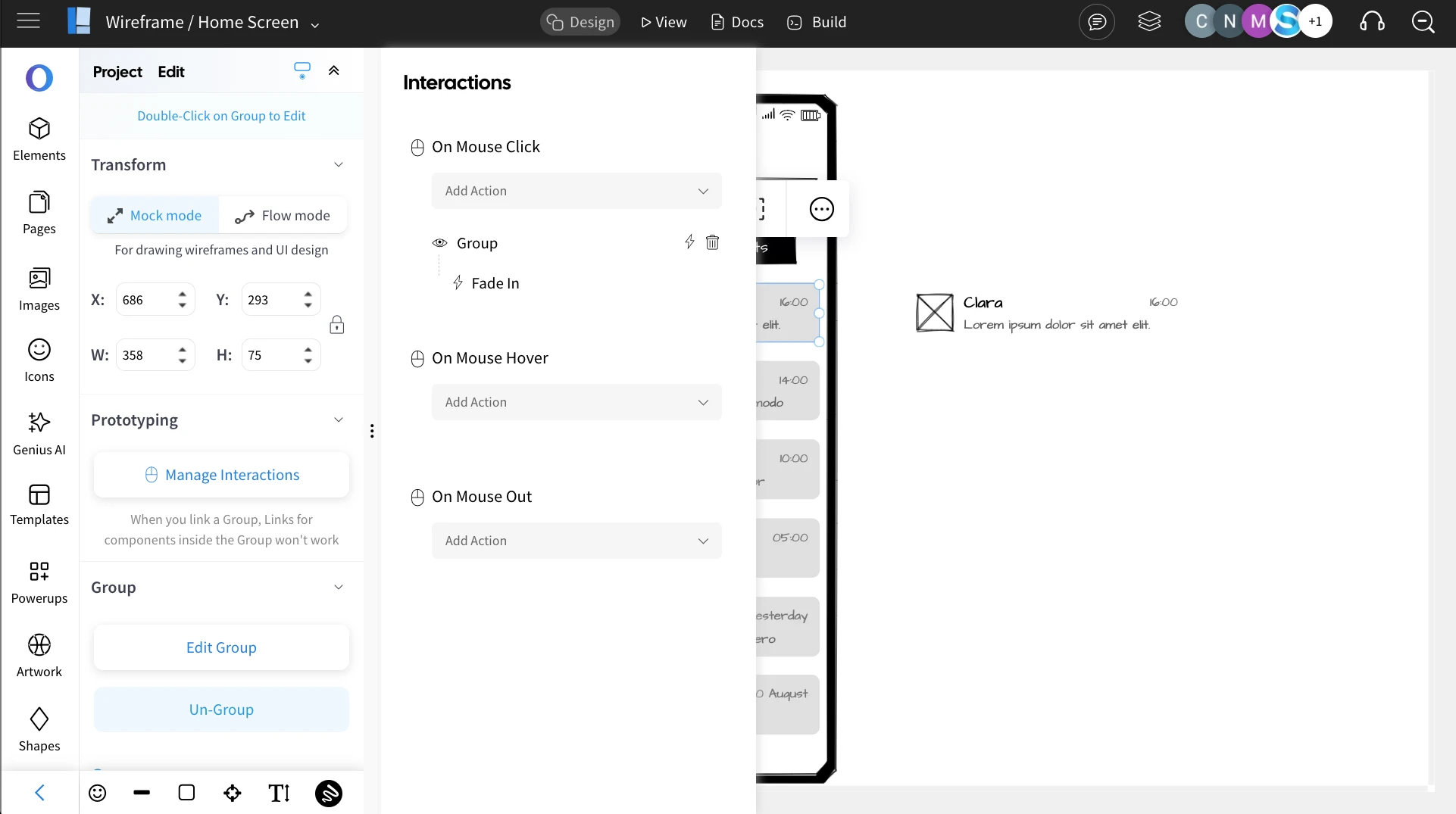
Customize Transition Effects
To customize an effect, click on the effect you want to modify. This will open the effect settings.
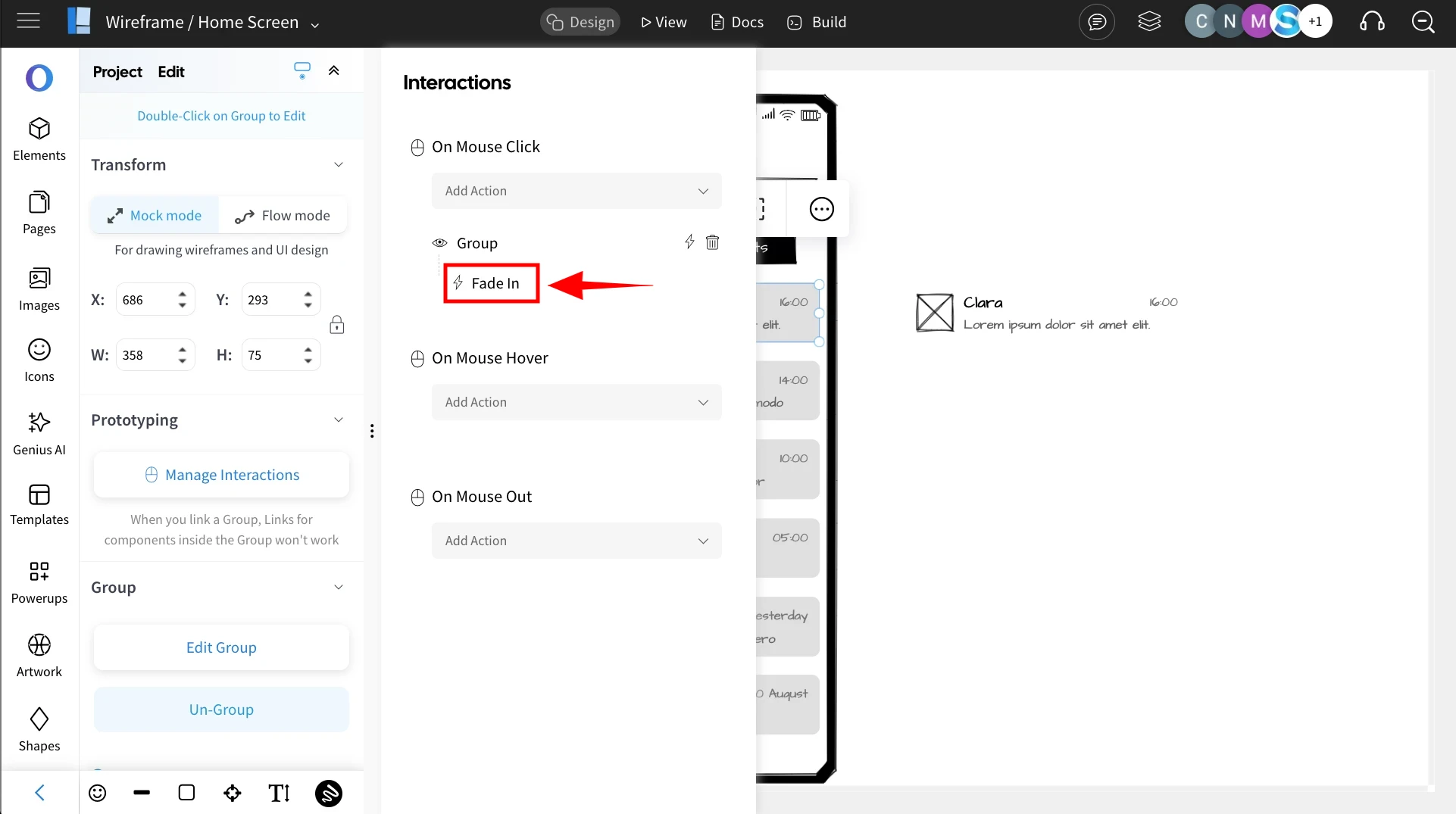
After adjusting the effect settings, click 'Save' to apply the changes.
Once you've added effects, switch to 'View' mode to preview the interactions. The effects will be visible during the transitions.