About team chat in MockFlow WireframePro
Project members can easily do group discussions inside the MockFlow WireframePro editor using the Team Chat feature. To chat,...
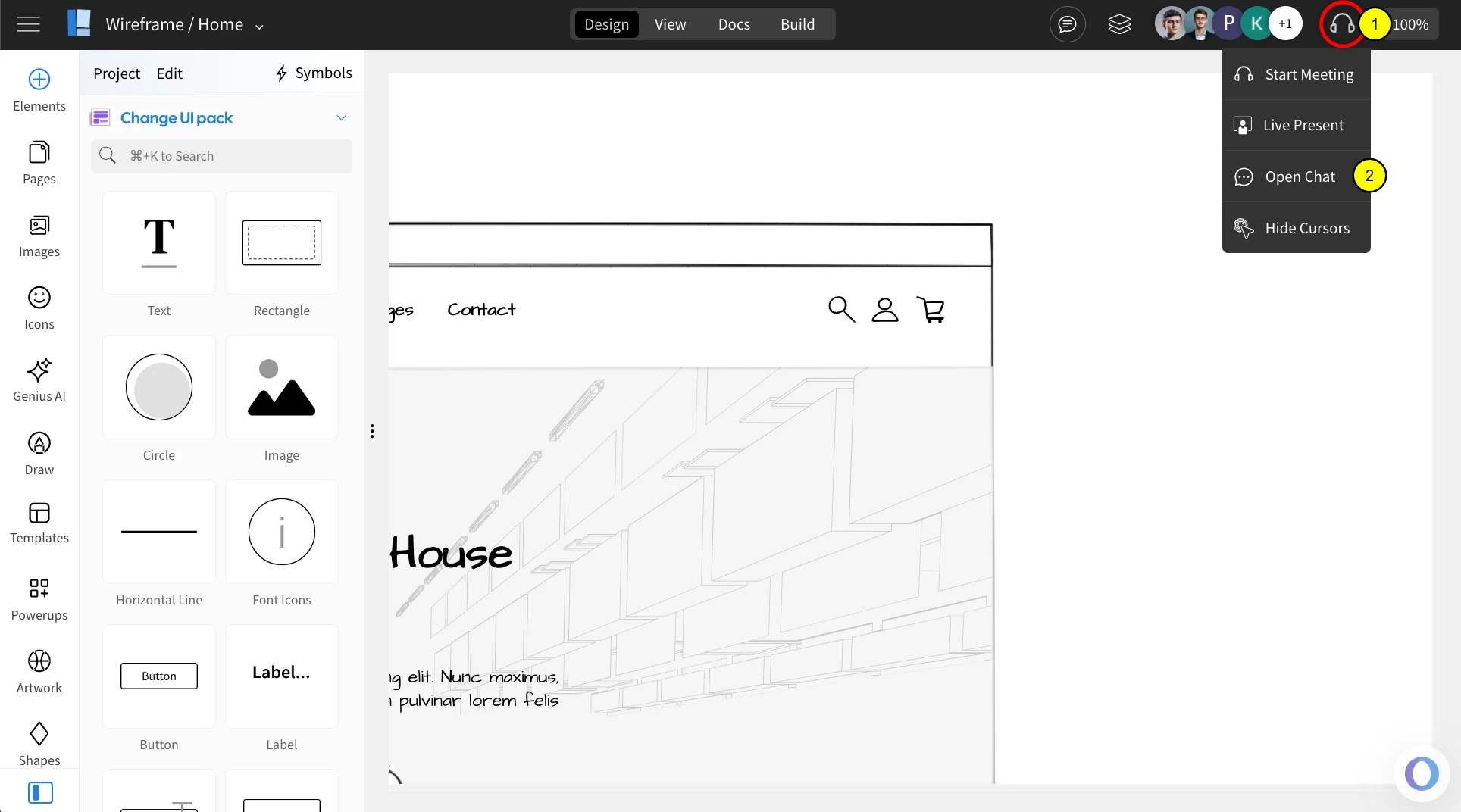
Project members can easily do group discussions inside the MockFlow WireframePro editor using the Team Chat feature. To chat, associated members can open the same project on their computer and click the 'OpenChat' icon located in the top right of the toolbar.
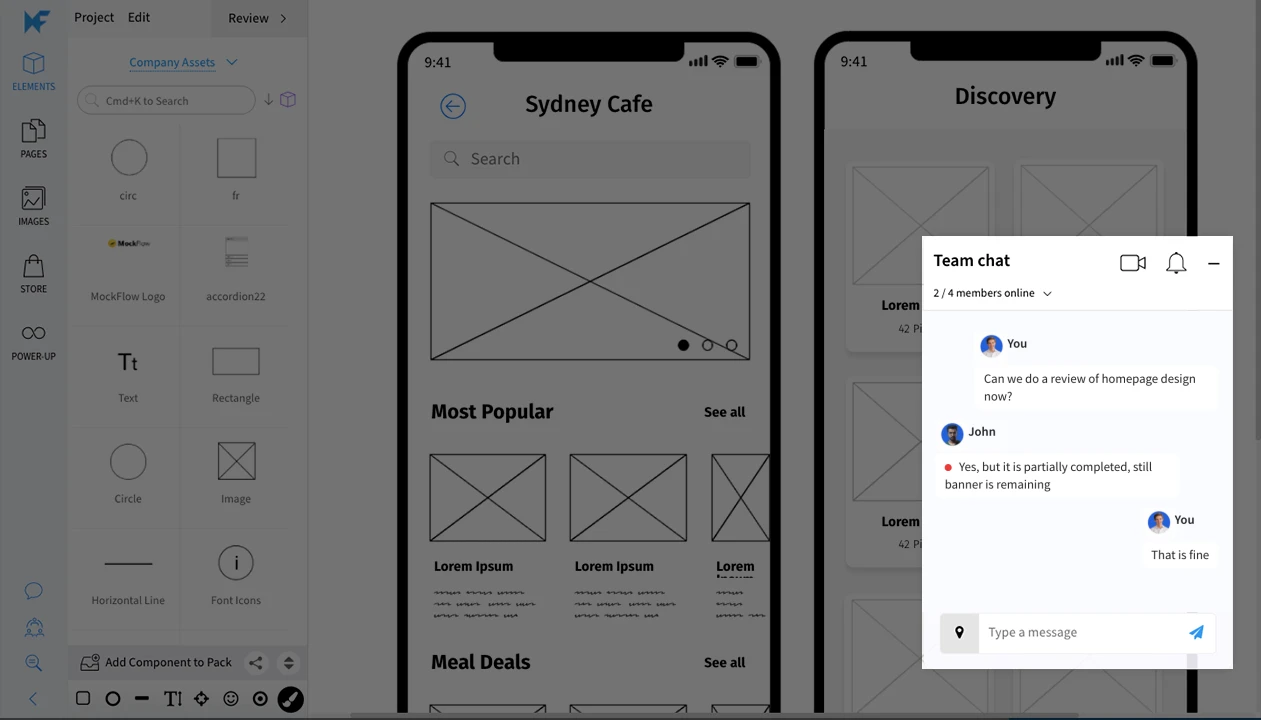
Team chat window inside the editor.
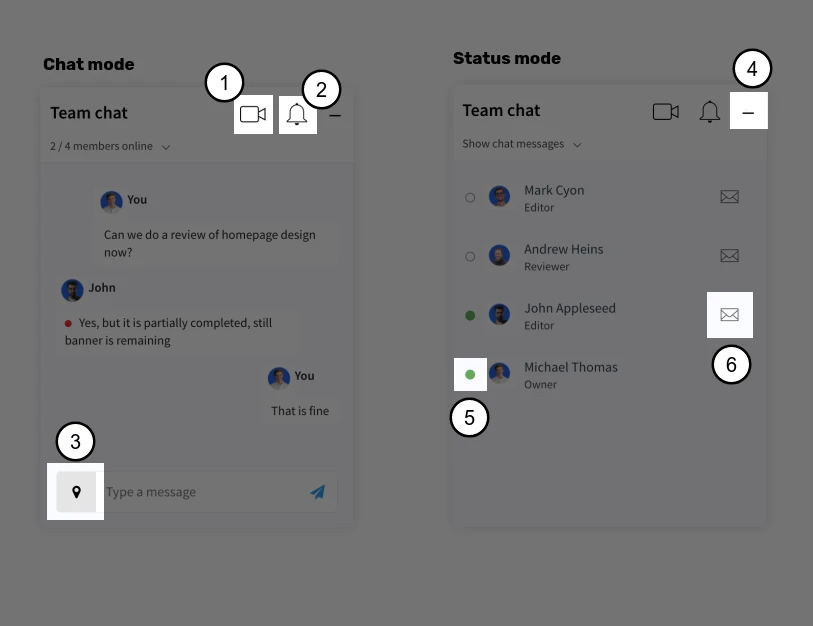
Team chat feature description
Start video meeting.
Do-not-Disturb switch.
Annotate the design with a marker.
Minimize the window.
Current online status.
Send chat invite.
To send annotated messages
Drag the design marker near the message input box, this will display an arrow pointer, now drag the pointer to the location to be highlighted inside the wireframe. Then type your message and click the send icon.
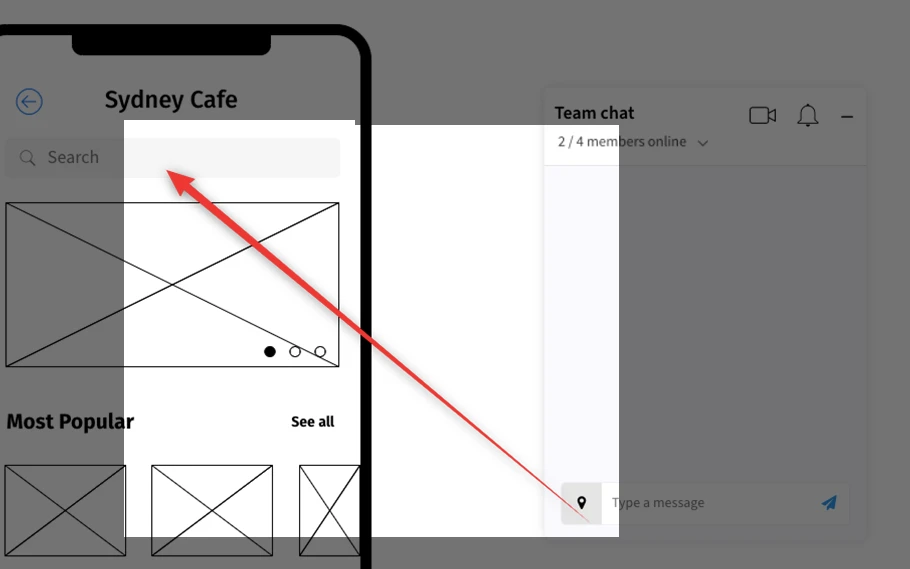
Annotated messages in chat display with a red circle icon. When the receiver clicks on such messages, it will show the arrow pointing to the highlighted area.
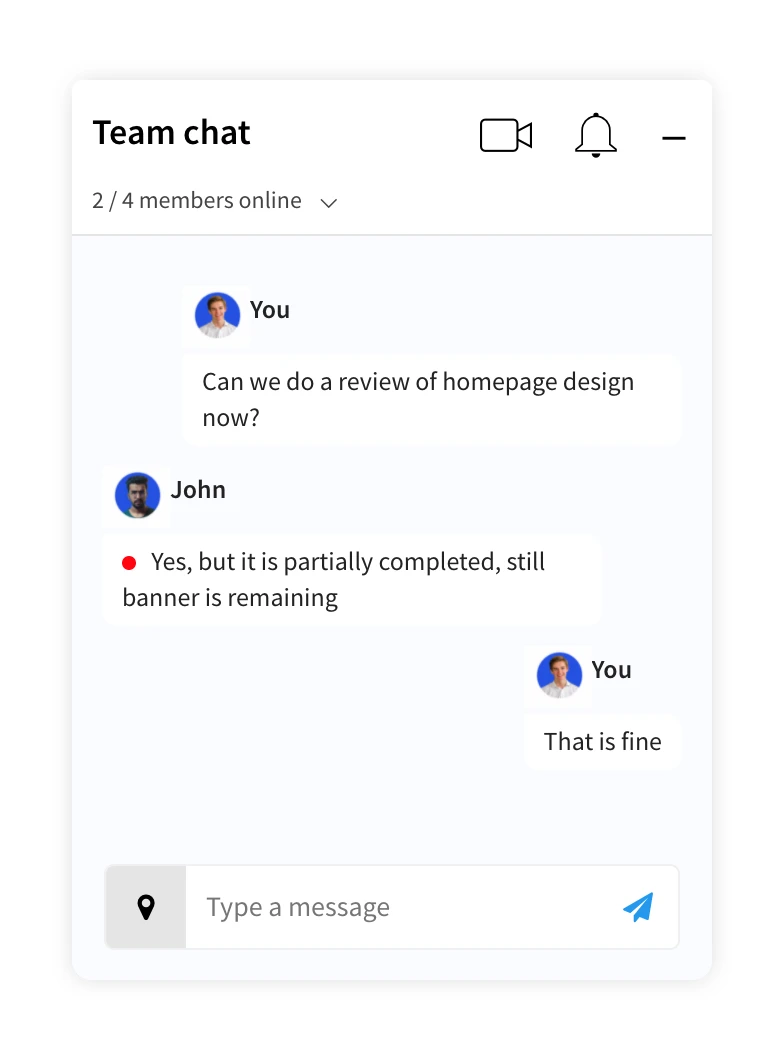
Annotated chat helps members to discuss visually by sending in-context messages.
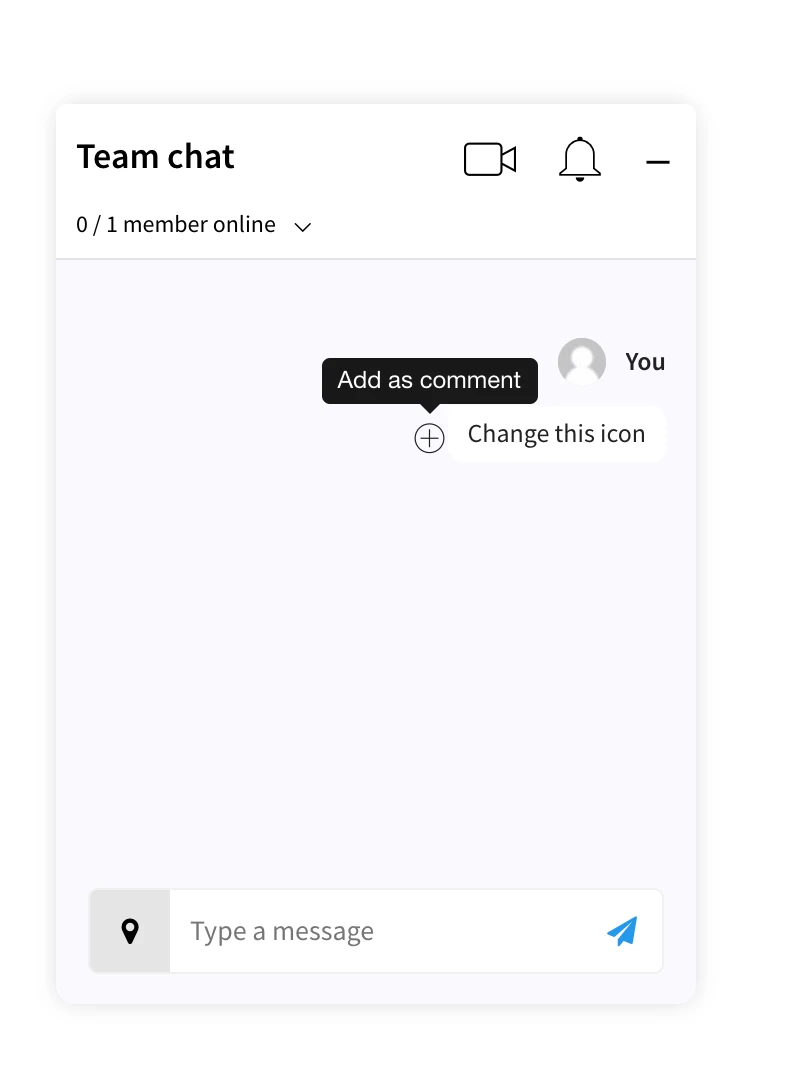
Save chat messages as comments
You can preserve your chat message along with annotation if present as a comment. To do this just hover on any chat message and click the + icon to add it as a comment. Your message will now display under the comments tab in project Review mode.