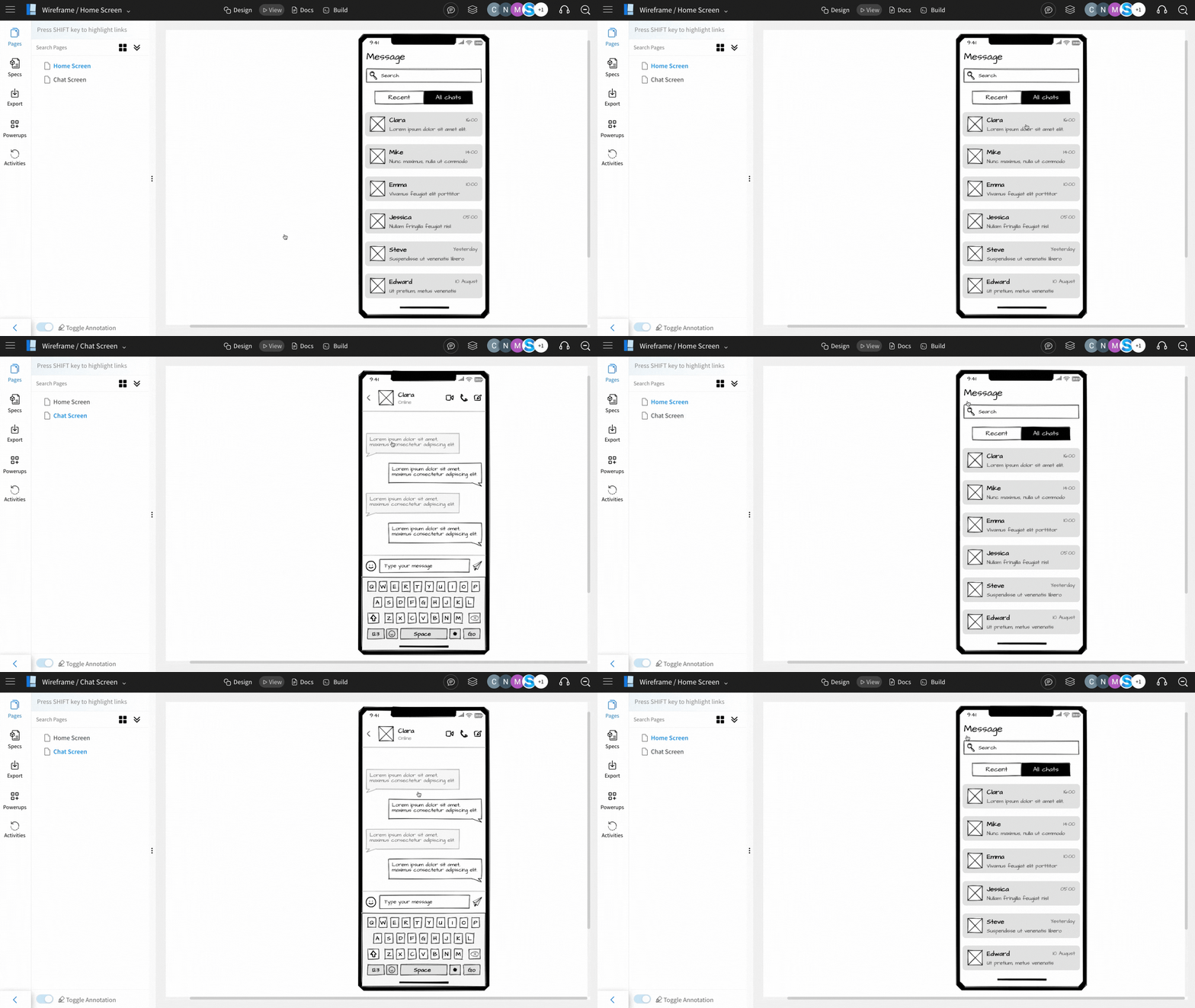
How to add page navigation using interactions?
Adding page navigation interactions transforms static wireframes into clickable prototypes, making it easier to simulate real...
Adding page navigation interactions transforms static wireframes into clickable prototypes, making it easier to simulate real user flows and speed up the prototyping process.
In this article, we’ll walk you through the steps to add page navigation using MockFlow’s Prototyping feature.
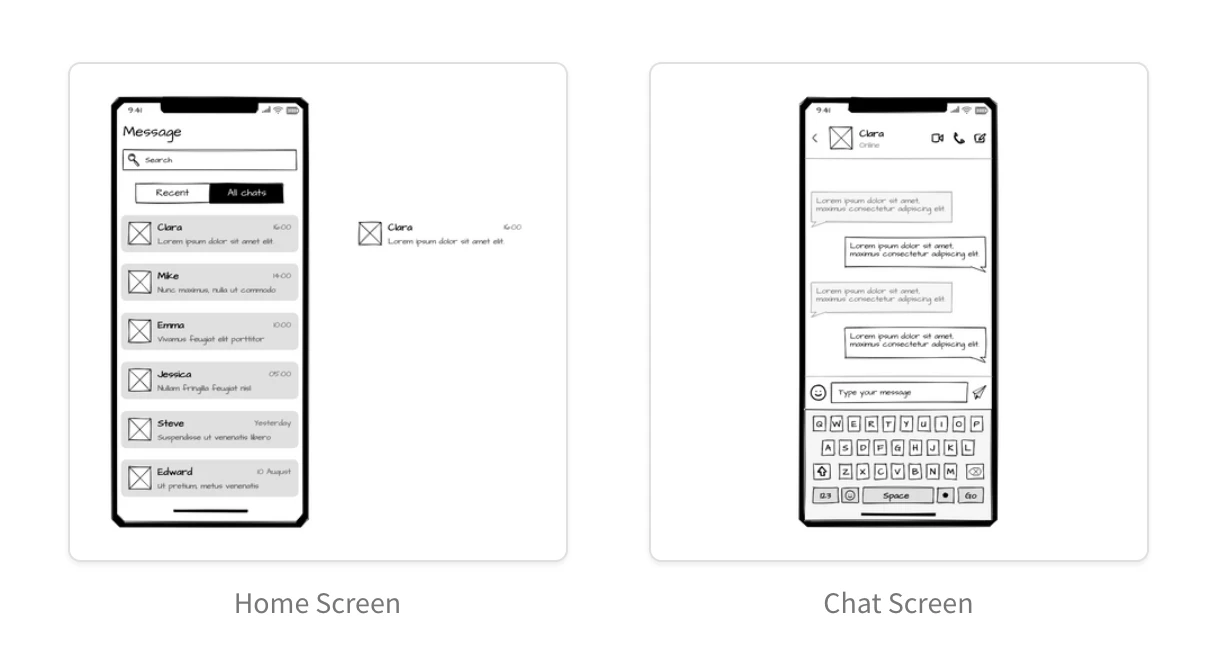
For demonstration, we’ve created two screens—a Home Screen and a Chat Screen—of a mobile messenger app to showcase how page transitions work in action.
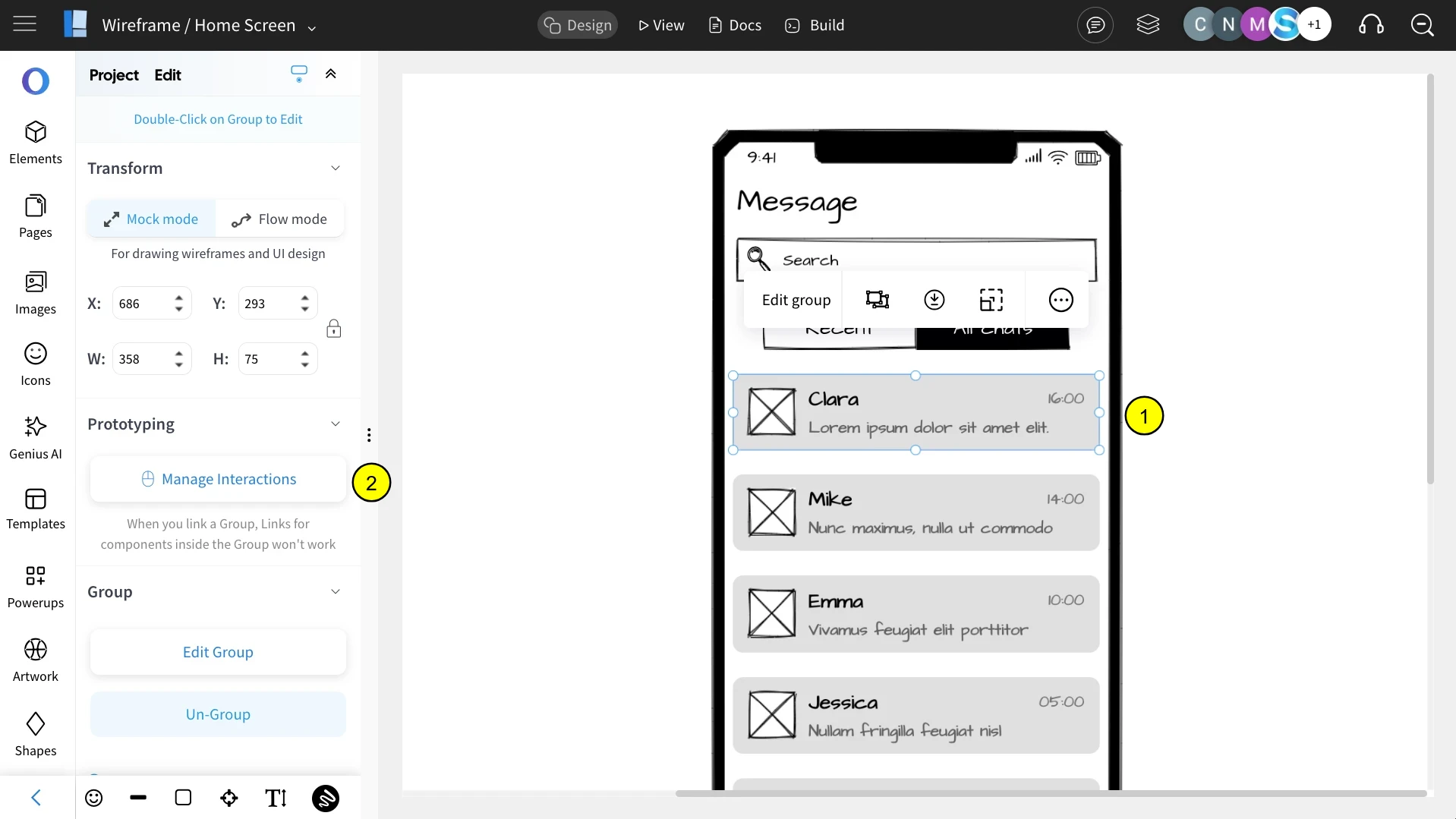
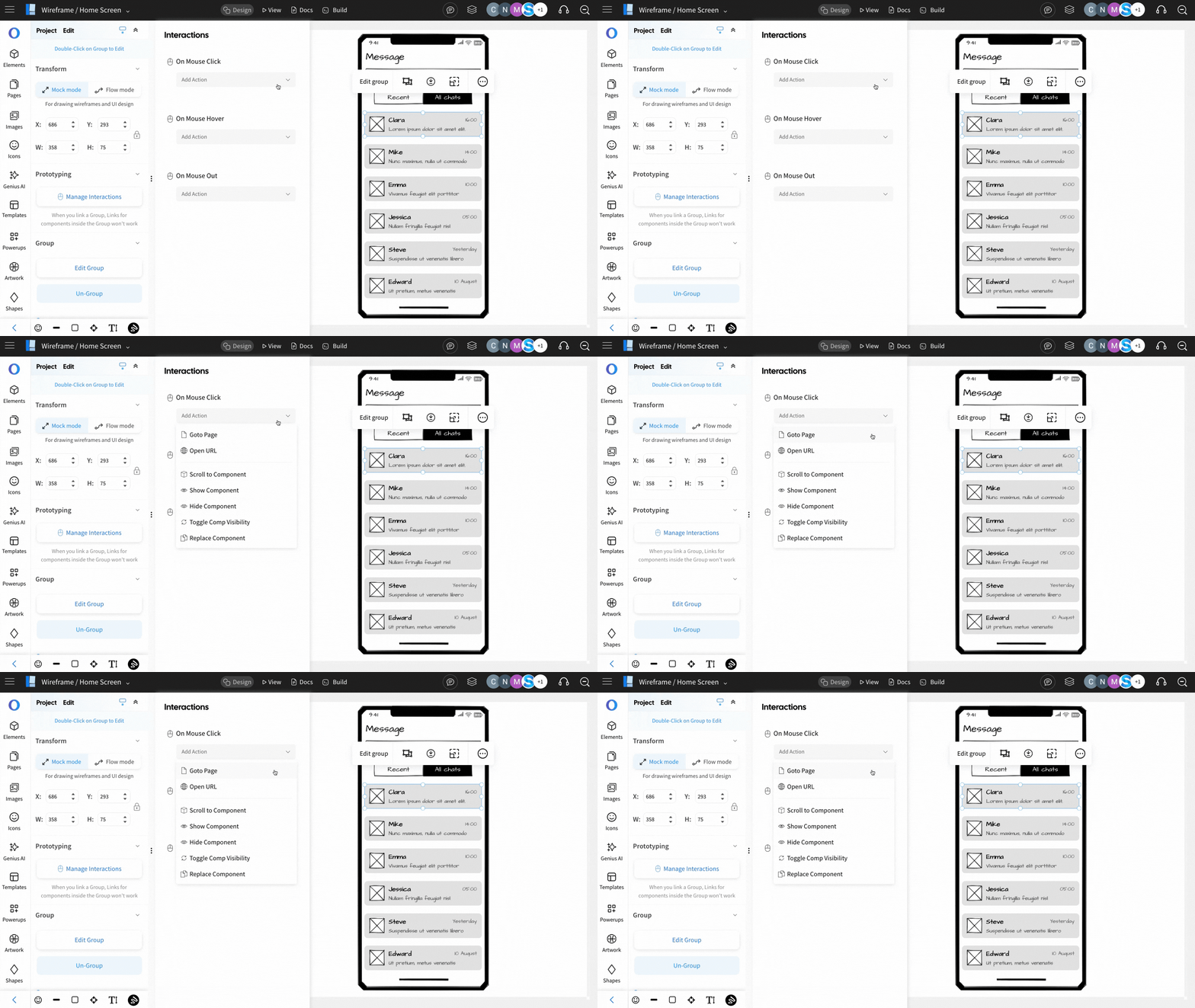
In the wireframing editor, select a component from your design and click on the 'Manage Interactions' option in the Prototyping section.
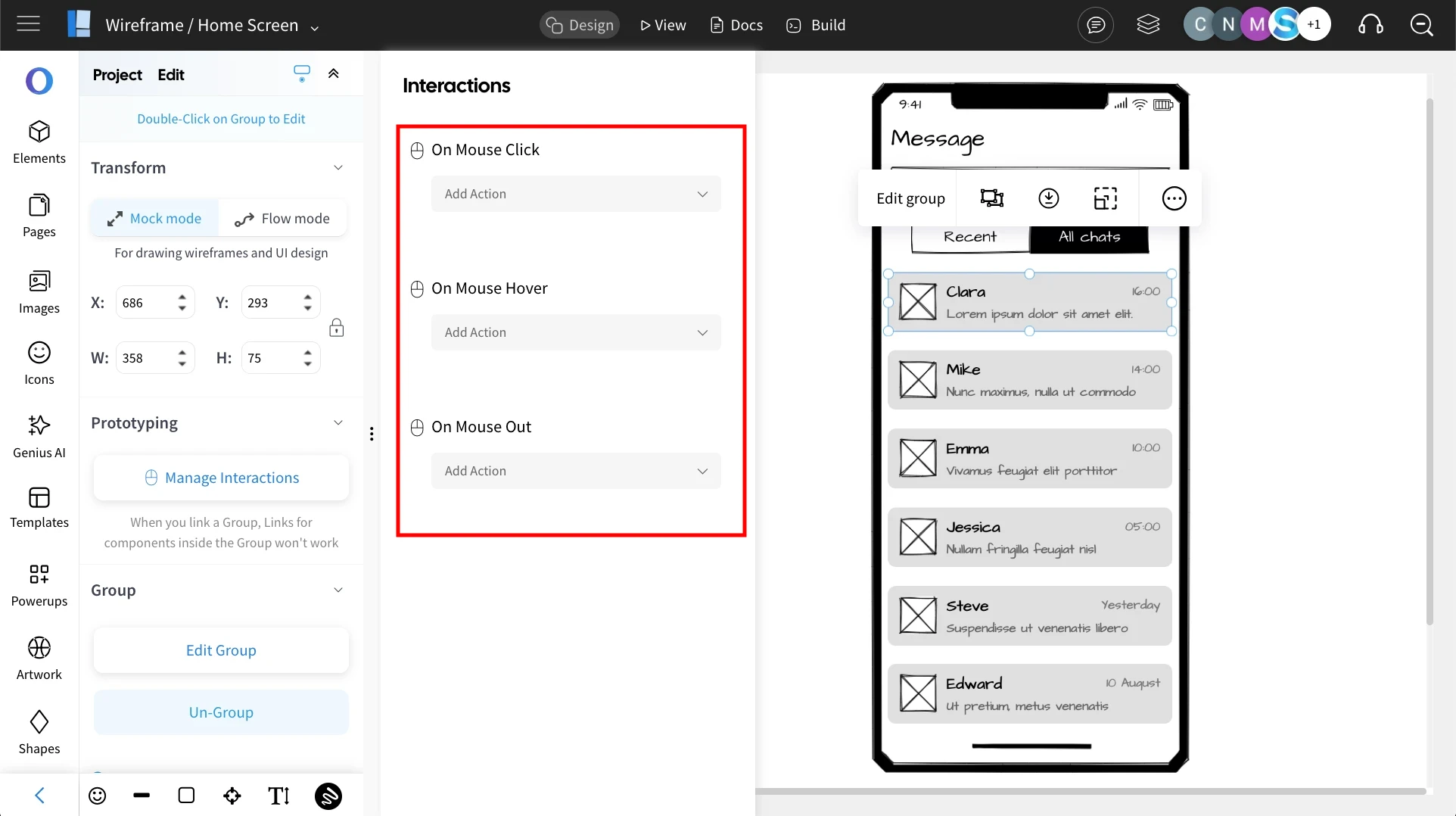
You’ll see three interaction options; select an interaction type and add an action to the component.
Choose the 'Go to Page' action from the list of options.
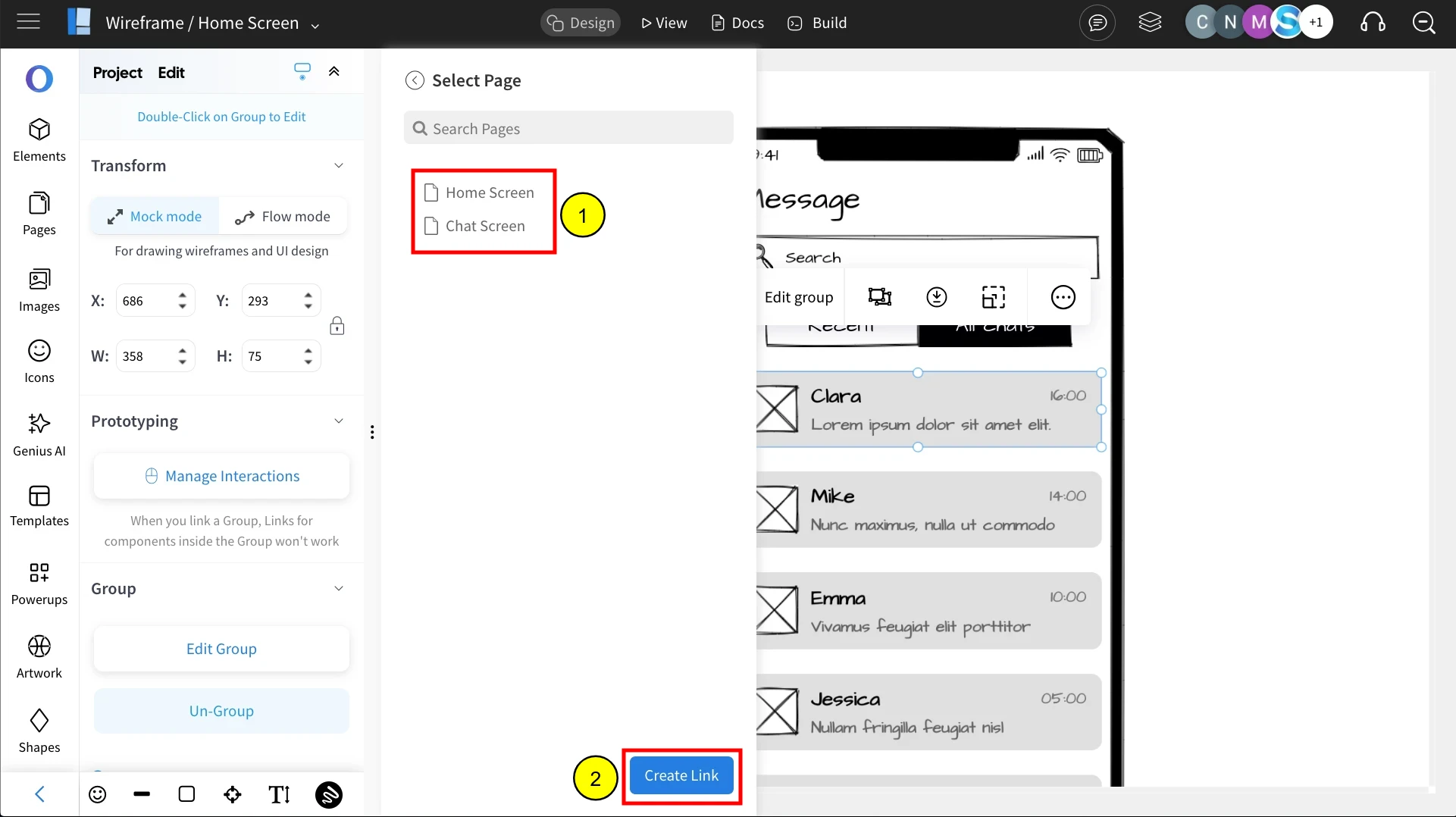
Select the desired page for the interaction and click Select.
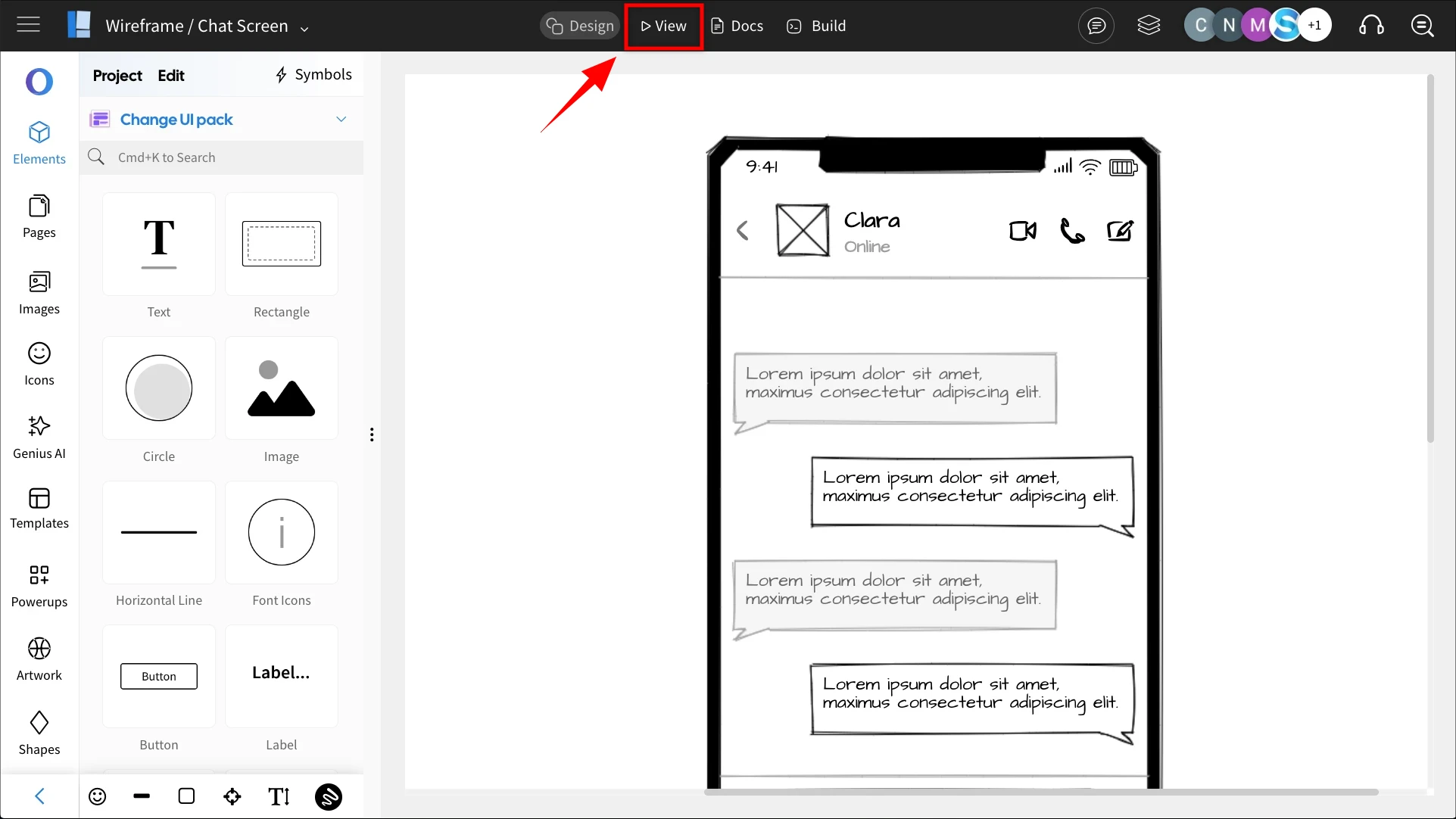
The chosen action will be added to the interactions. Click on 'View' to see it in action.
Clicking on the component will display the interactions between pages by linking.