
URL Component
Embed clickable web links as visual cards on your whiteboard canvas for better brainstorming and collaboration with MockFlow Board.
The URL Component in MockFlow Board lets you visually embed external links directly onto your whiteboard. Instead of plain text URLs, links appear as interactive cards with the website’s title, description, and preview image (when available). This makes your whiteboard richer, more informative, and visually organized.
What is the URL Component?
This component turns any web link into a clickable, formatted card that displays key Open Graph (OG) metadata - such as the title, thumbnail image, and link description. Once added, the card behaves like an interactive preview of the webpage. When clicked, it opens the link in a new browser tab, allowing you to quickly reference external resources without leaving your whiteboard.
How to add a URL Component?
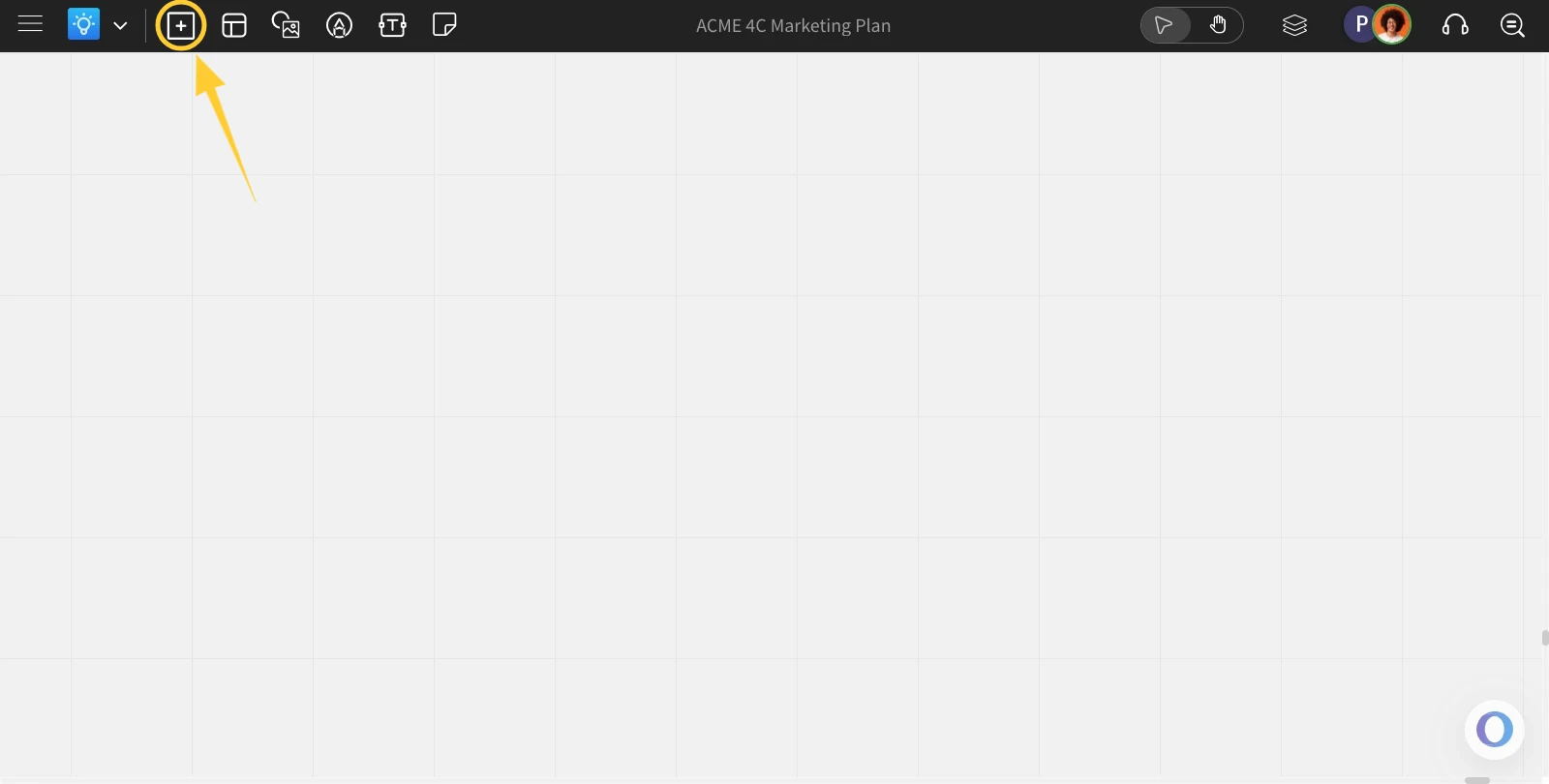
In the MockFlow Board editor, click on the 'Add' icon in the top left corner.
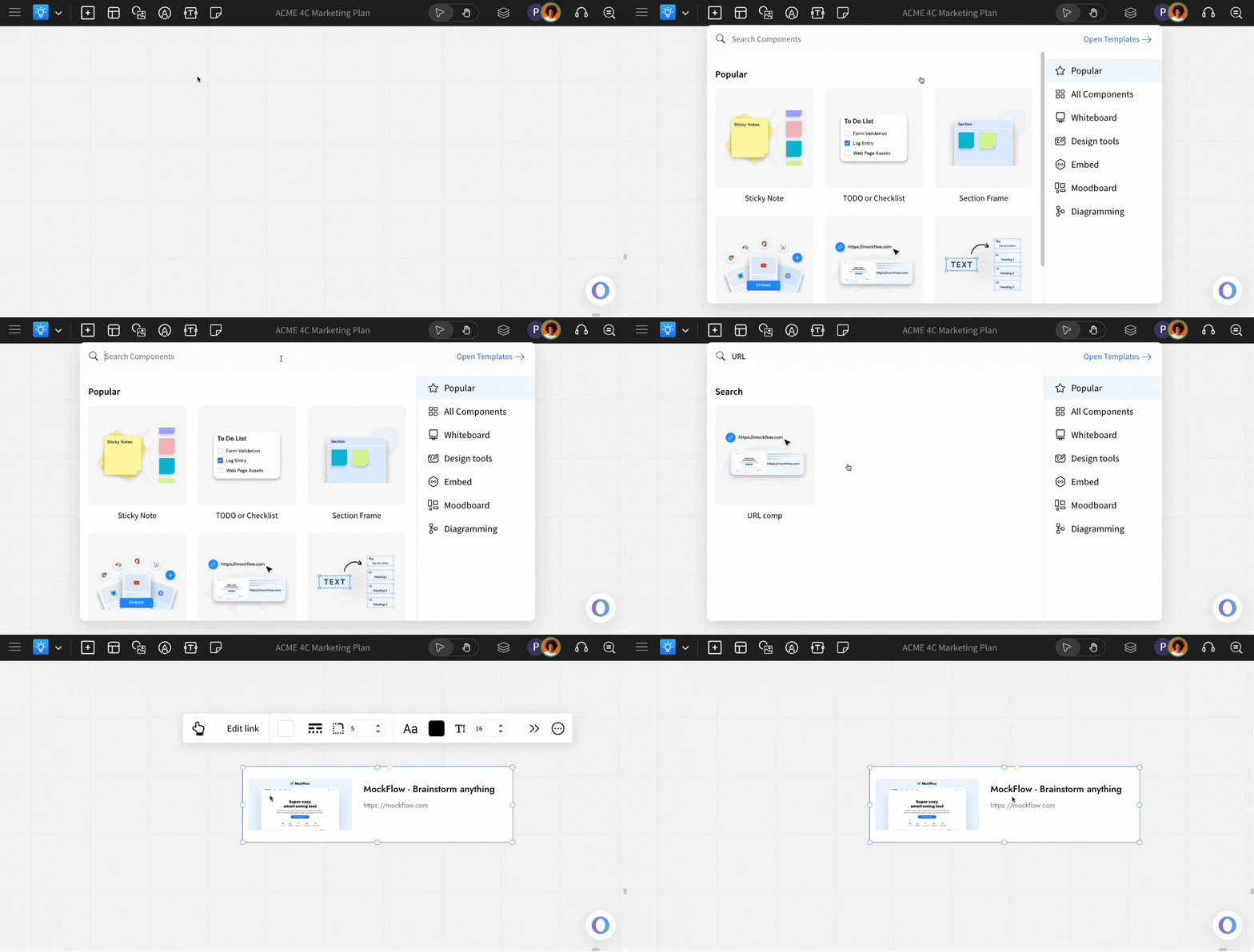
This will open the components modal. Look for the URL Component and add it to the canvas by dragging and dropping it.
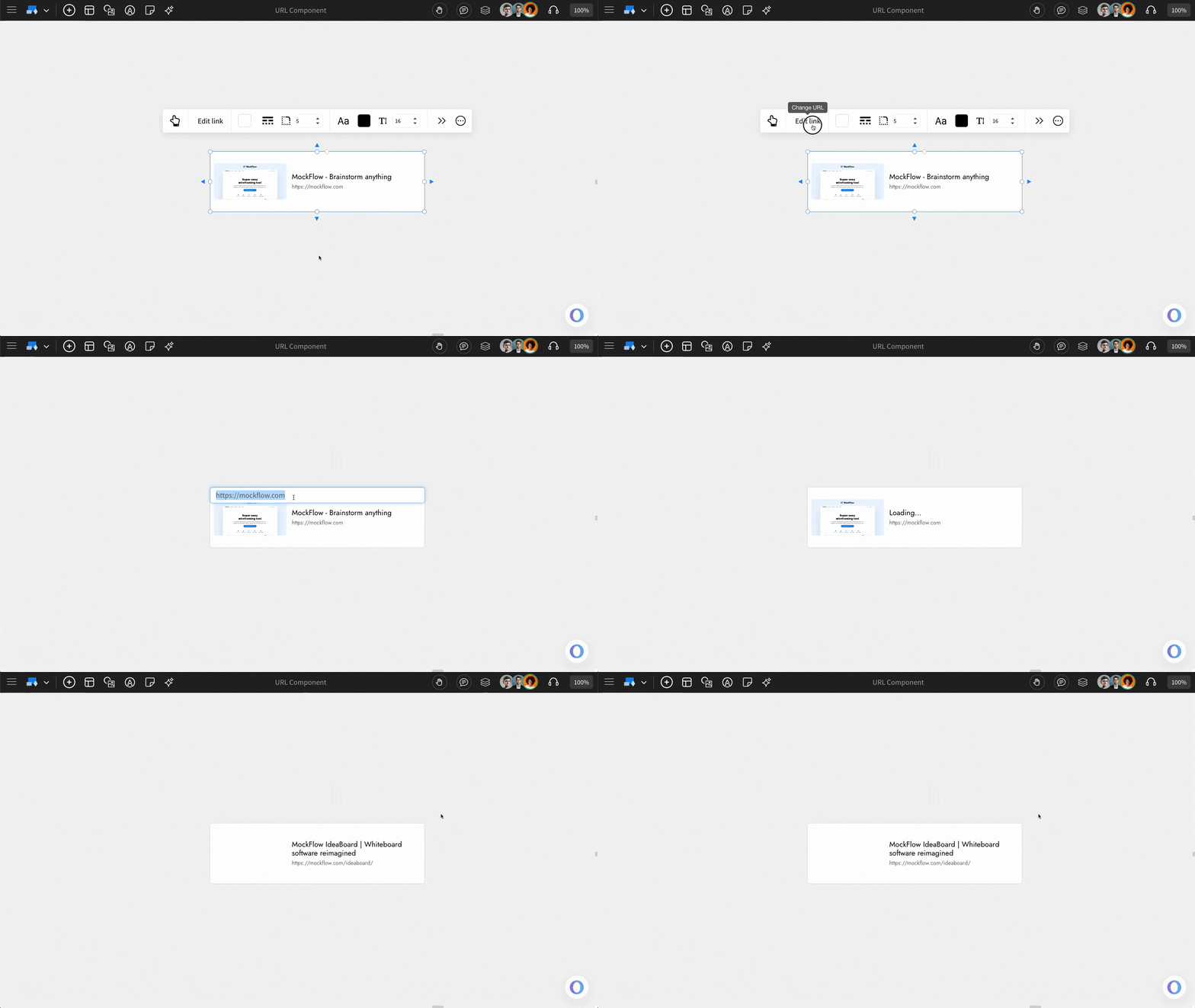
Entering the URL: The link can be added to the URL component by clicking on the 'Edit Link.' The component automatically fetches and displays the website’s OG title, image, and description in a clean card layout.
Customisation options
Background color: You can customize the background color of the URL component by using the 'Select Color' option.
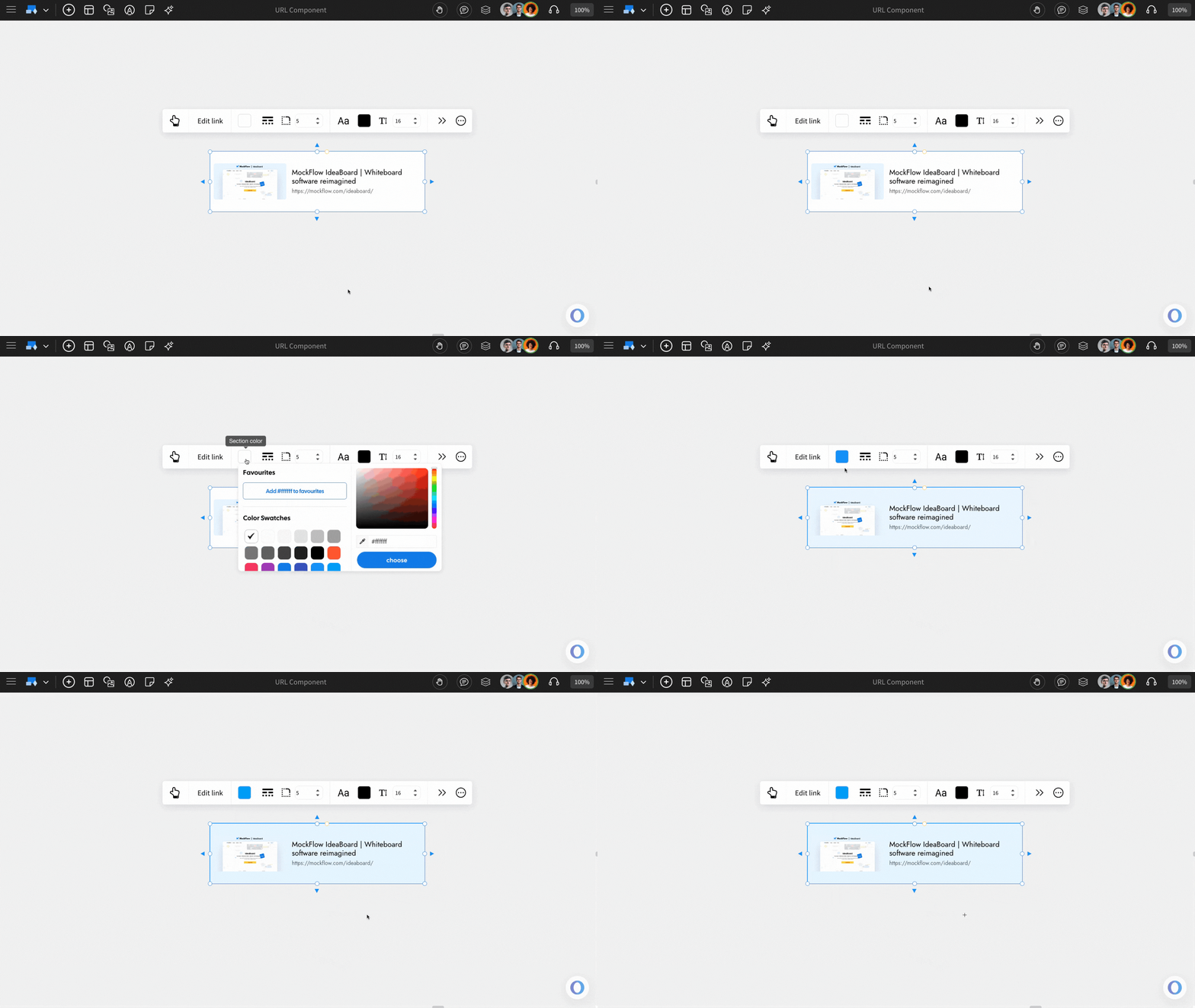
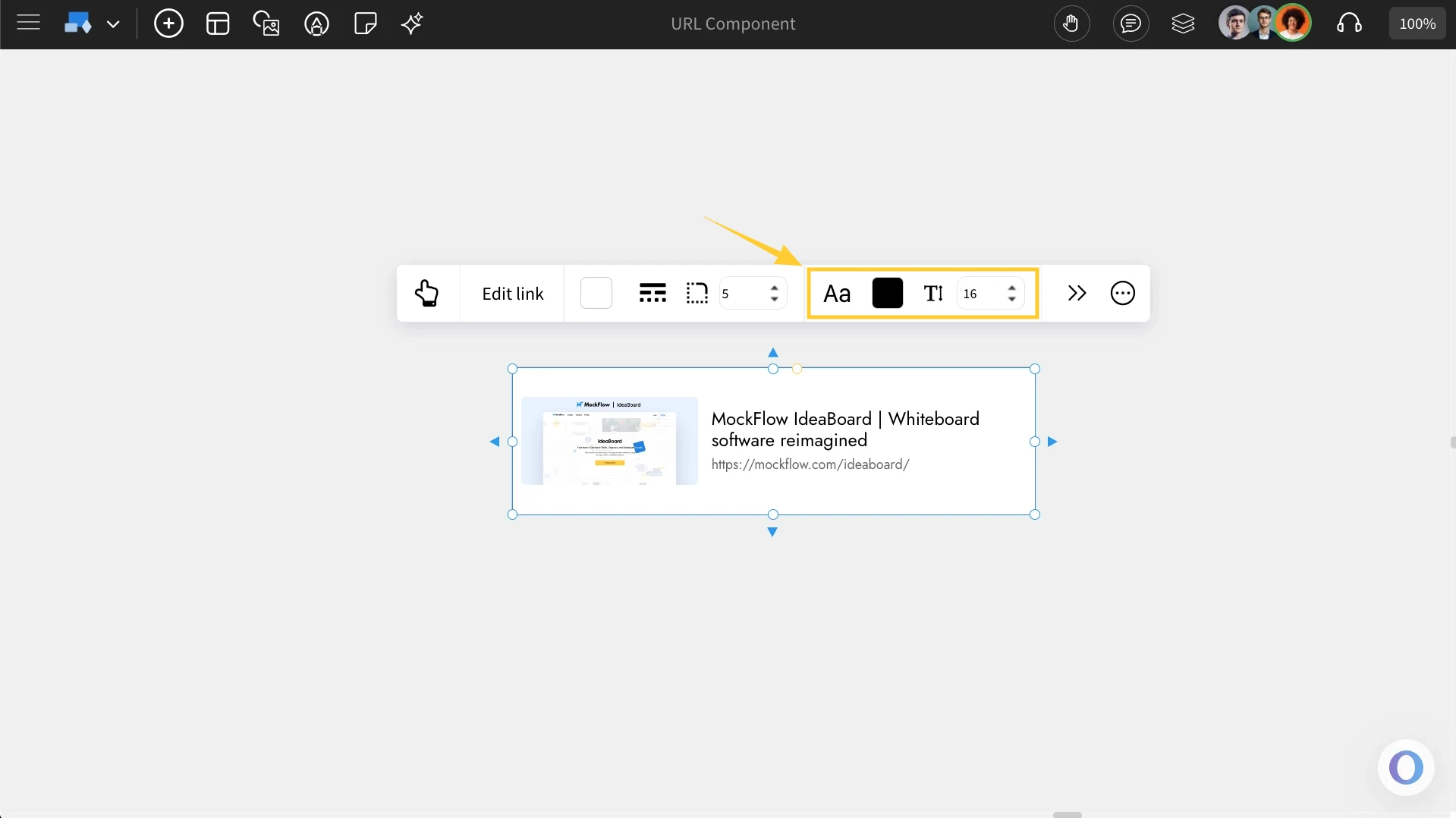
Font Settings: Font settings like Font style, font color, and font size can be updated using the options in the quick toolbar.
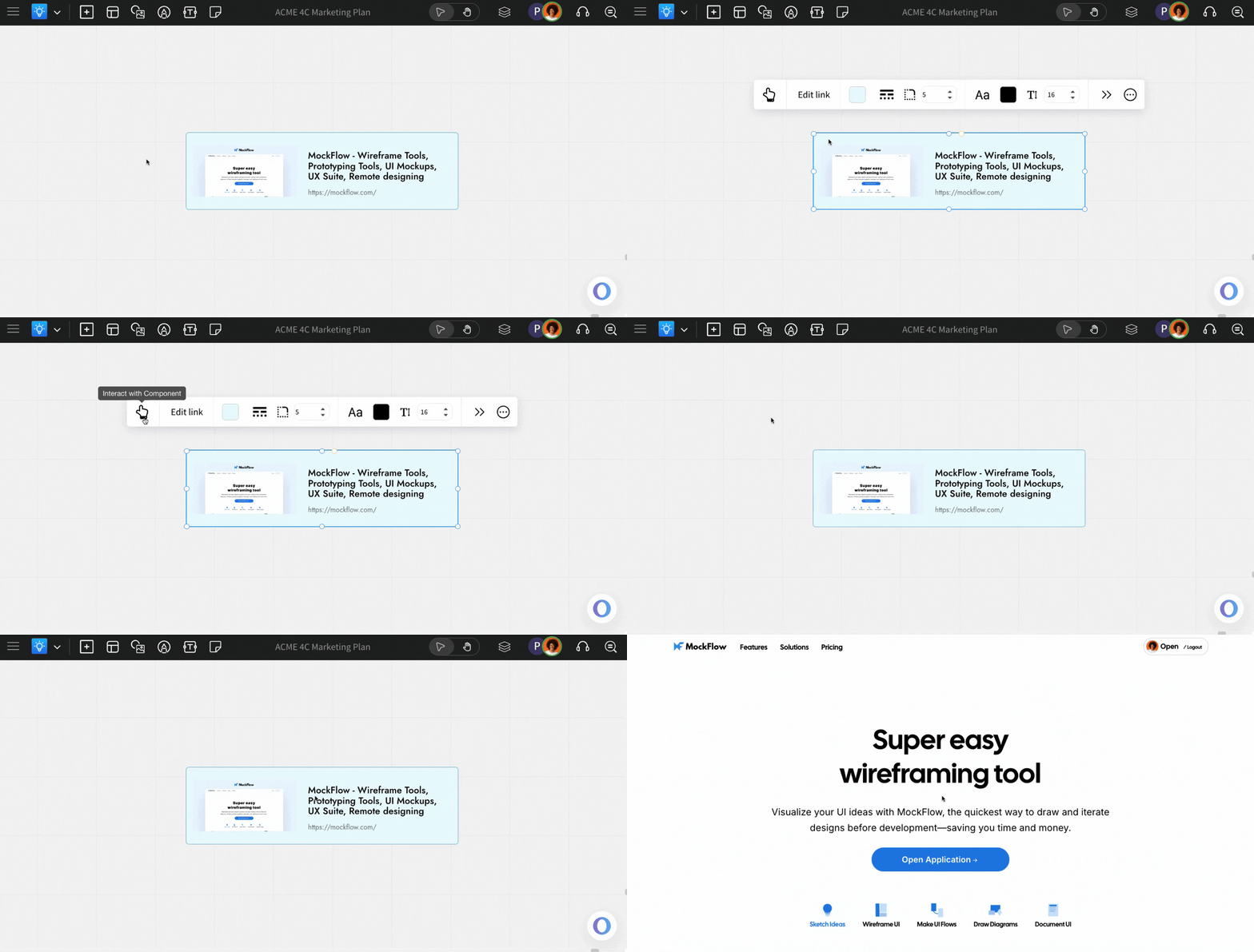
Interacting with the Component: You can use the 'Interact with Component' option to enable interaction with the URL Component. On clicking, you will be directed to the respective link, which is added to the URL component.
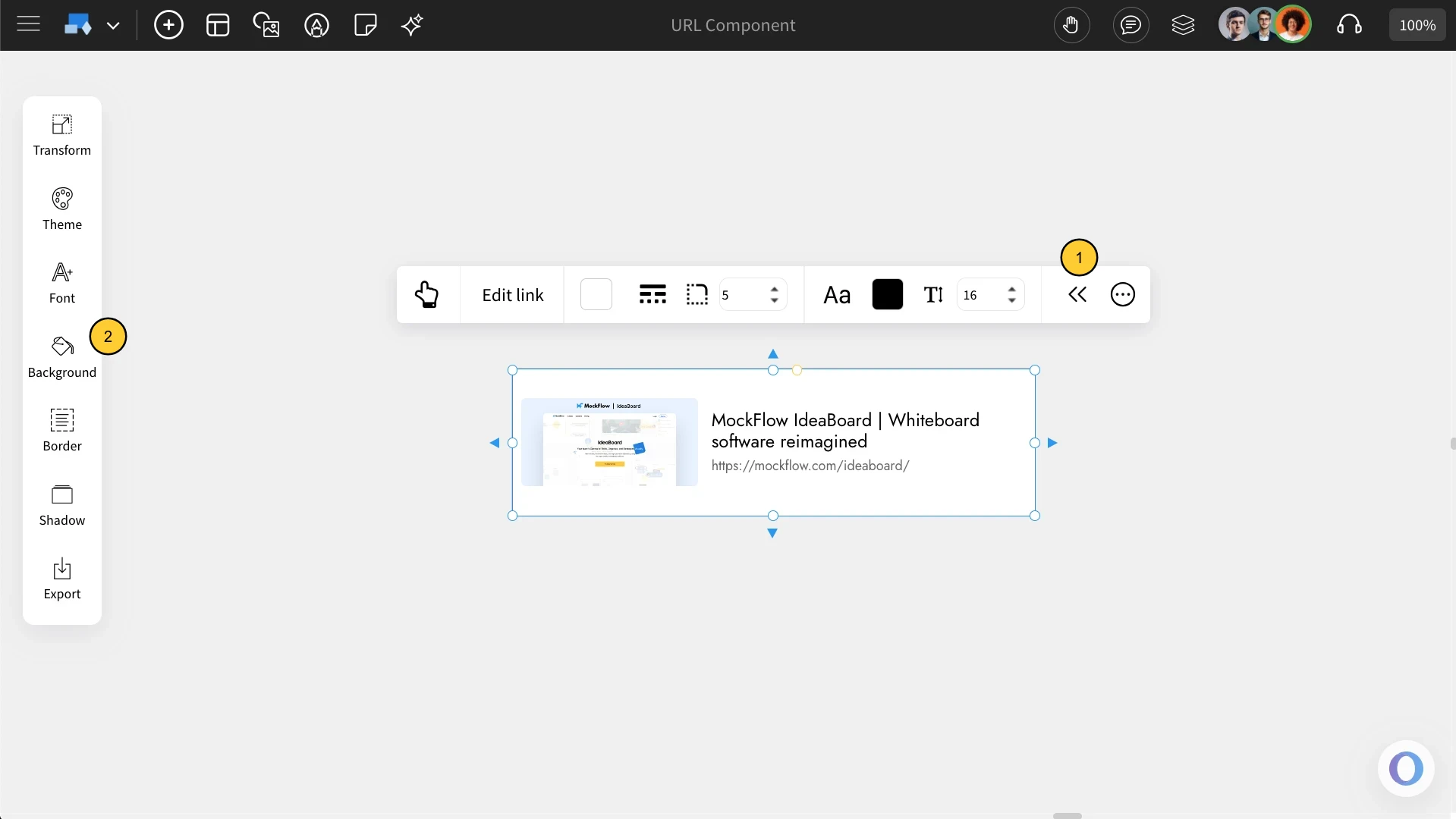
Accessing the Advanced Settings for URL: To access the advanced settings toolbar, click on the 'Toggle Advanced Settings' option from the quick toolbar. You can find advanced options like themes, shadow, and export.
Use Cases of the URL component
Design inspiration boards: Collect and visualize design references, landing pages, or ad examples.
Research boards: Organize industry links, articles, and resources for brainstorming sessions.
Project documentation: Link to external reports, project briefs, or task trackers alongside your visual notes.
Marketing planning: Pin campaign URLs, landing page prototypes, or published ads for quick access and discussion.