Text
Use the Text Component in MockFlow Board to add, edit, and style text on your canvas.
The Text Component in the MockFlow Board allows you to add, edit, and customize text content on the canvas, including adjusting the style, size, and alignment for headings, descriptions, labels, or any text-based information.
How to add the Text?
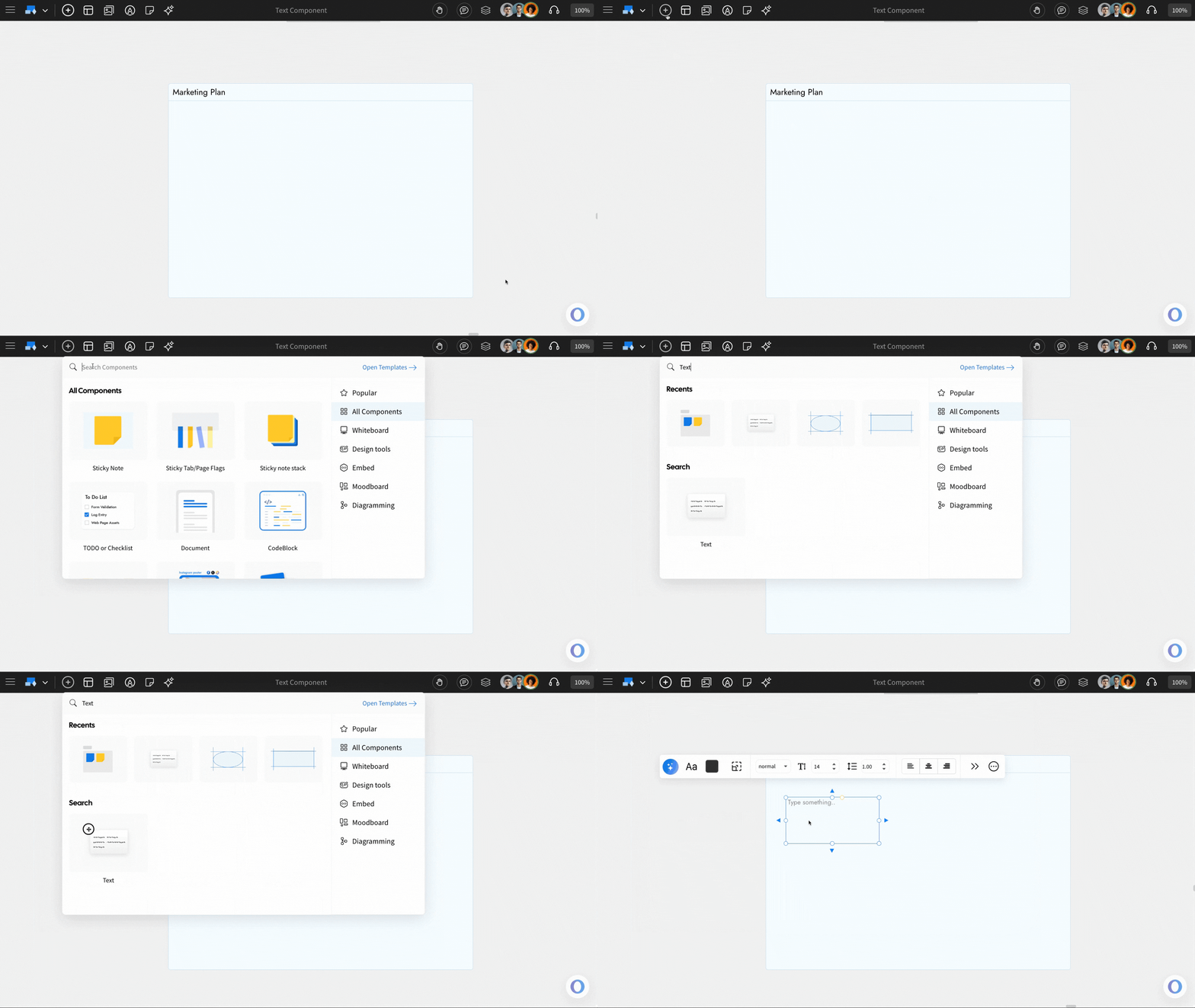
Inside the MockFlow Board editor, click on the 'Add' icon from the top left. Look for the Text Component and add it to the canvas by dragging and dropping it.
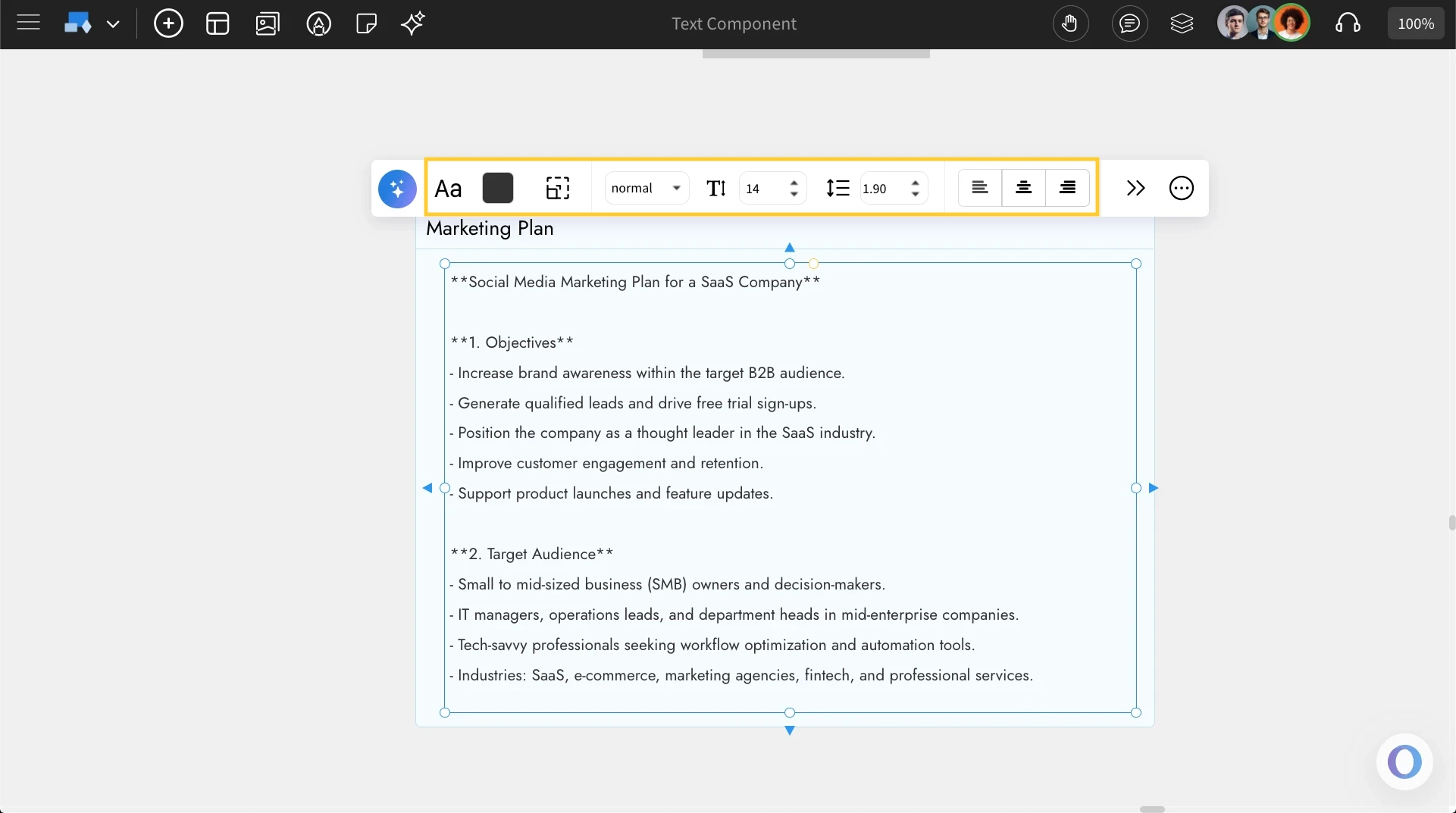
Customizing Text: You can use the quick toolbar to add and customize the font style, color, font family, font size, line height, and text alignment.
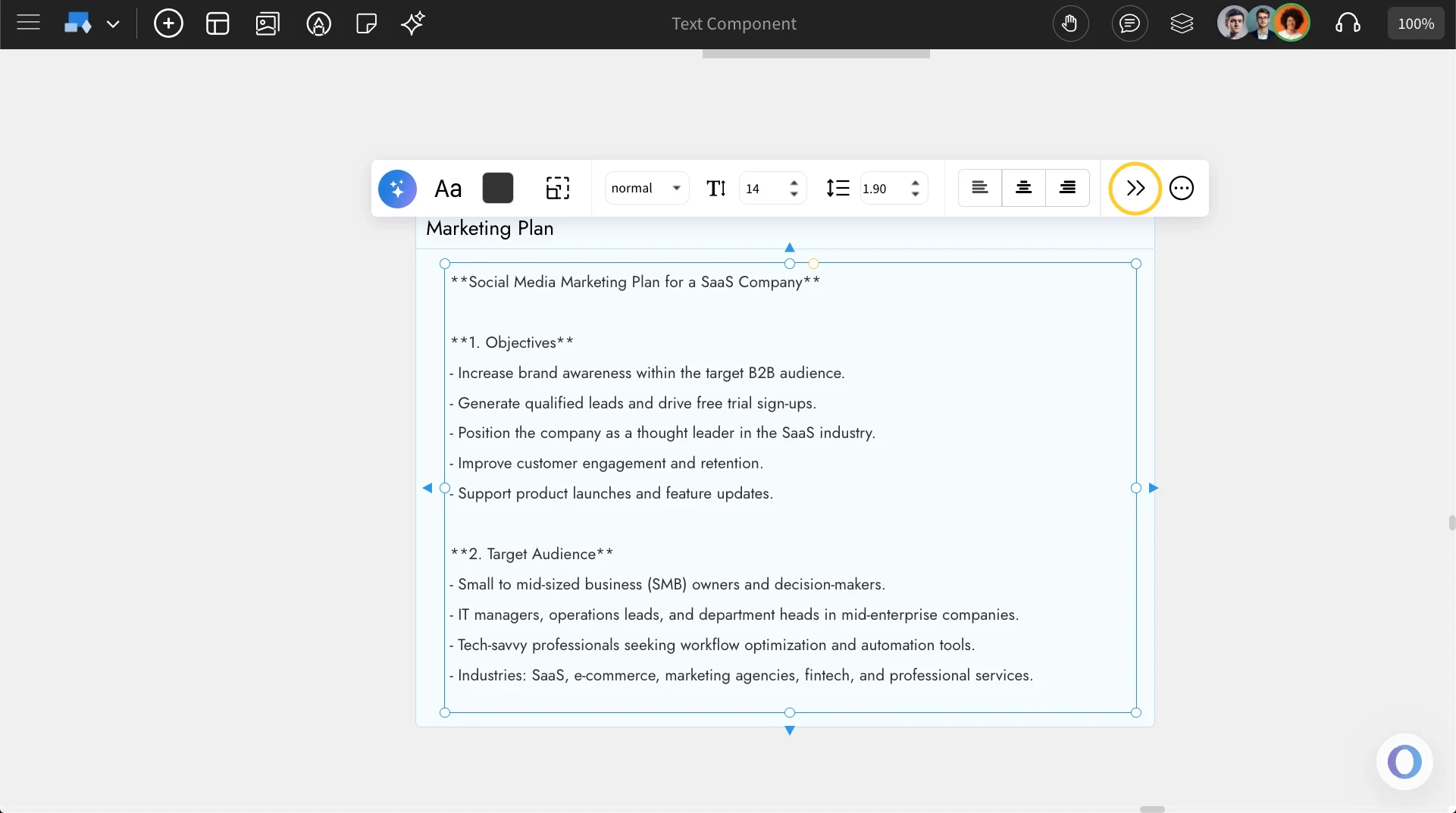
Enabling Advanced Settings: For advanced customization options, access the component settings from the Advanced Settings toolbar.
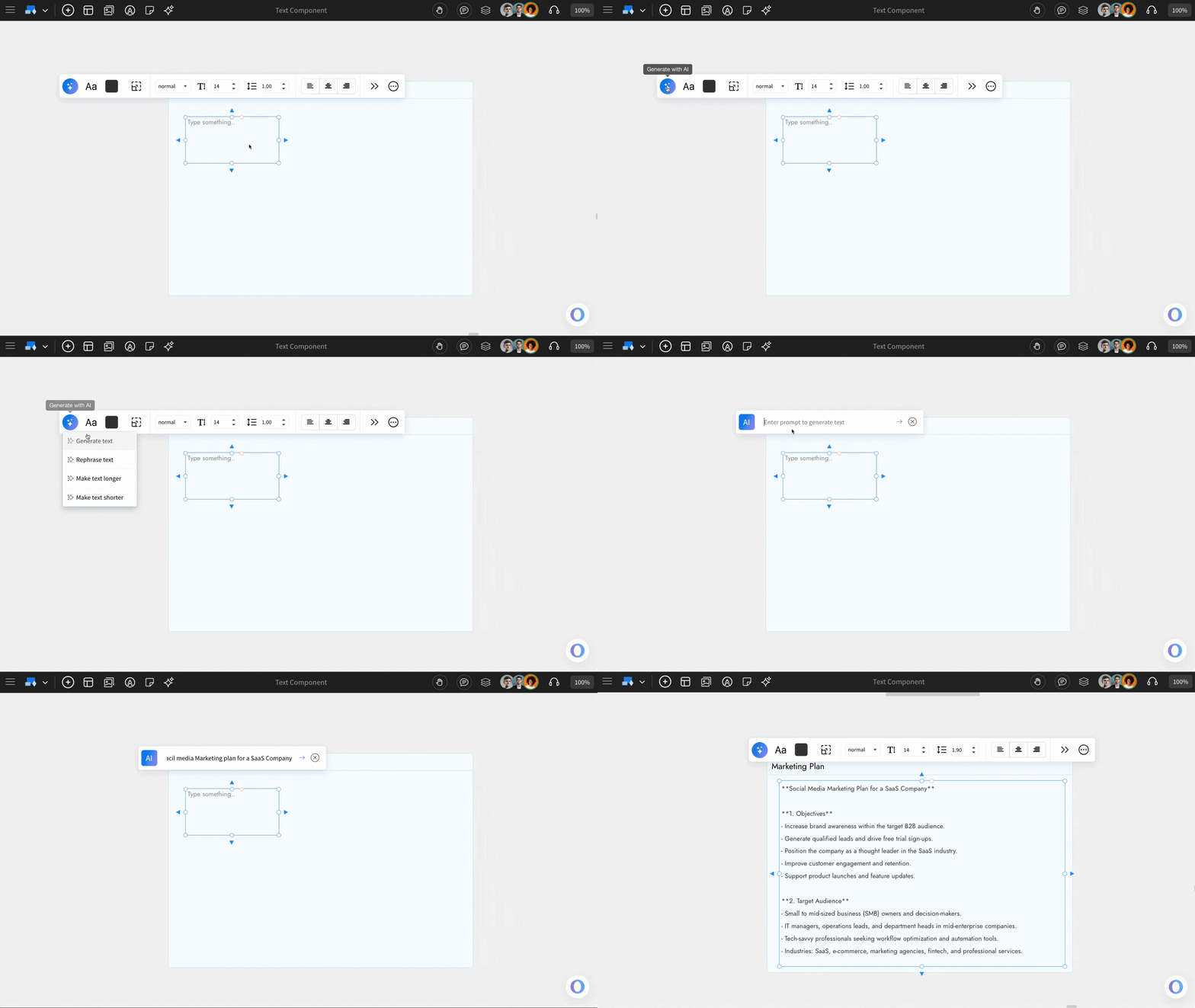
Generate text with AI: You can quickly add text by using the 'Generate with AI' option. In the quick toolbar, click the AI icon, select the type of text to generate, enter your prompt, and press Enter.
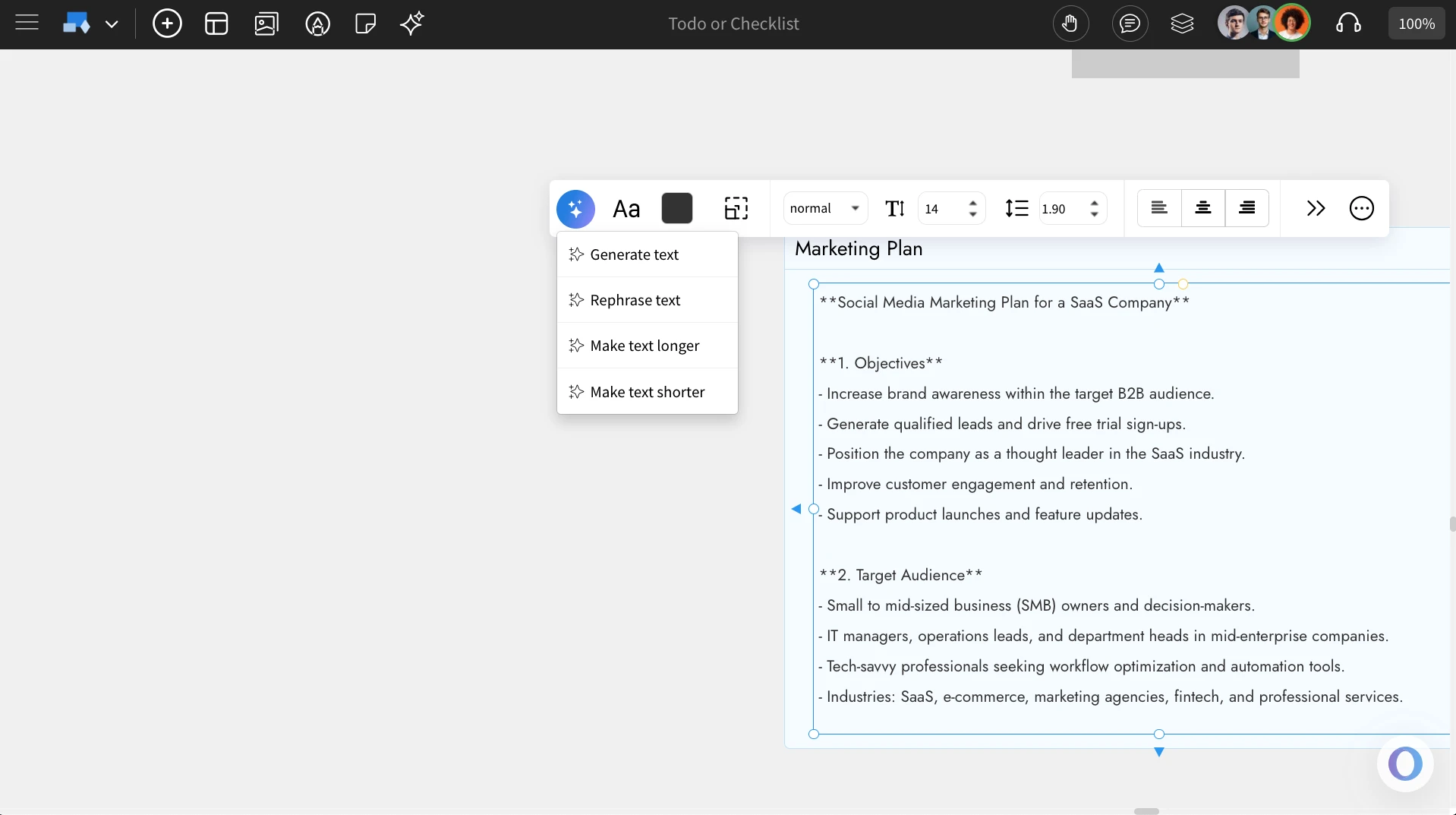
Further Customization with AI: The AI feature for the Text component provides advanced text customization options, such as rephrasing text, making it longer, or making it shorter.
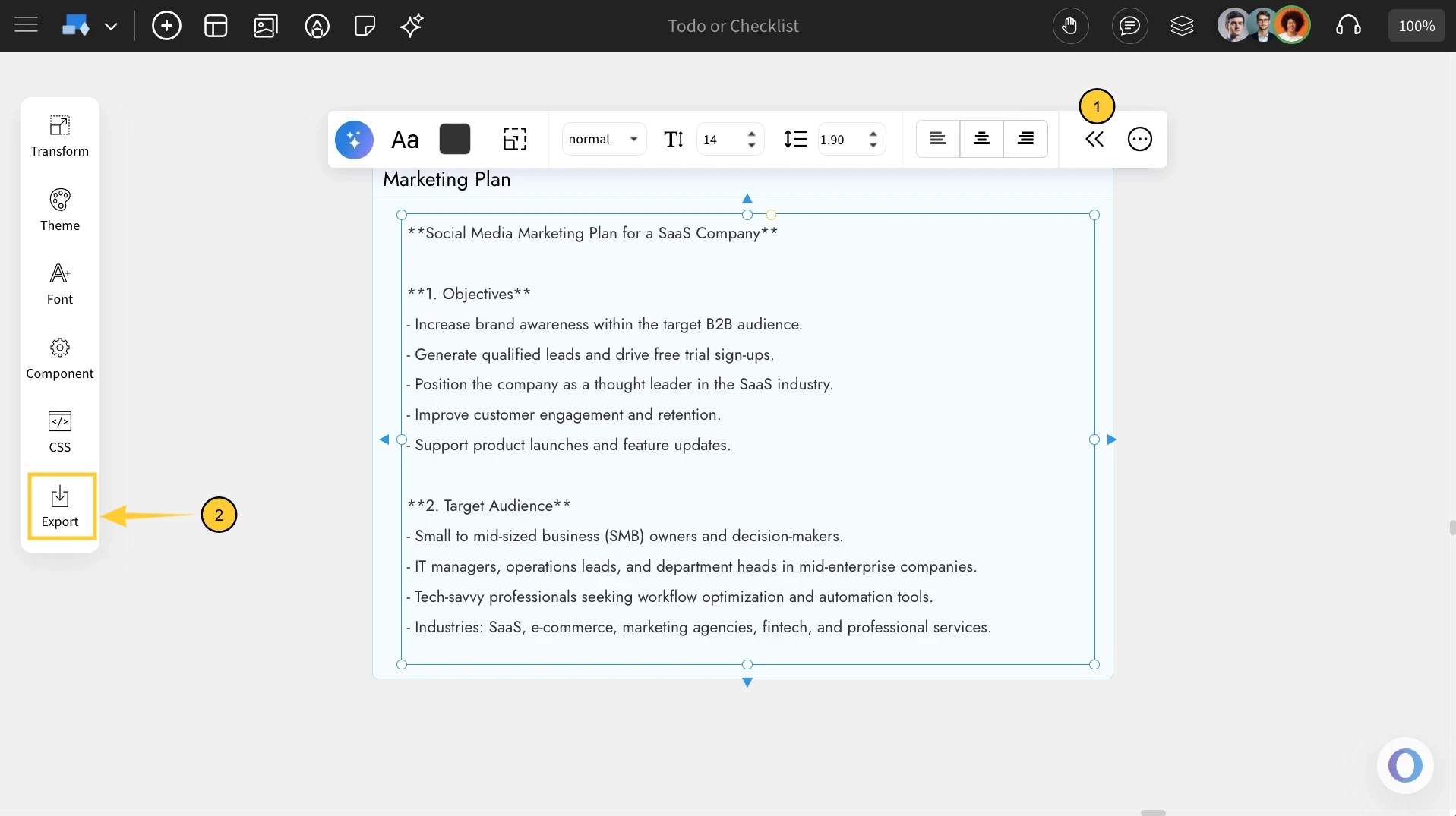
Exporting the Text: You can export the Text component as an image by clicking the 'Export' icon under Advanced Settings in the quick toolbar.