
Manage licenses in Team-Pack and Enterprise edition
If you have purchased more than one Editor license, then you can use the License Manager to manage/upgrade/downgrade the...
If you have purchased more than one Editor license, then you can use the License Manager to manage/upgrade/downgrade the licenses of your team members. The administrator who bought the license can even switch the licenses between different users at any point in time.
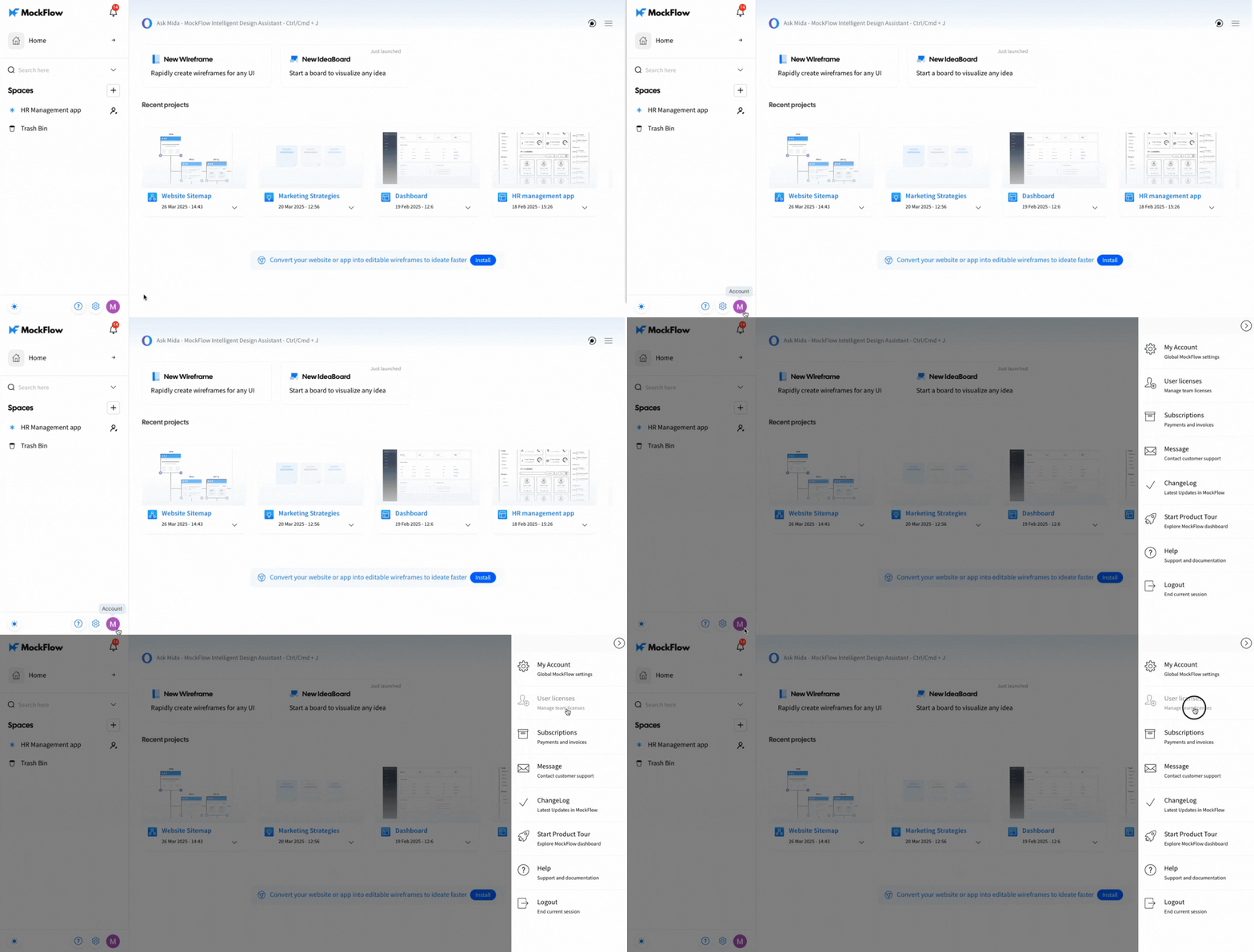
To manage the licenses, follow the steps below:
Open account details.
Click the "User Licenses" button in the account settings menu.
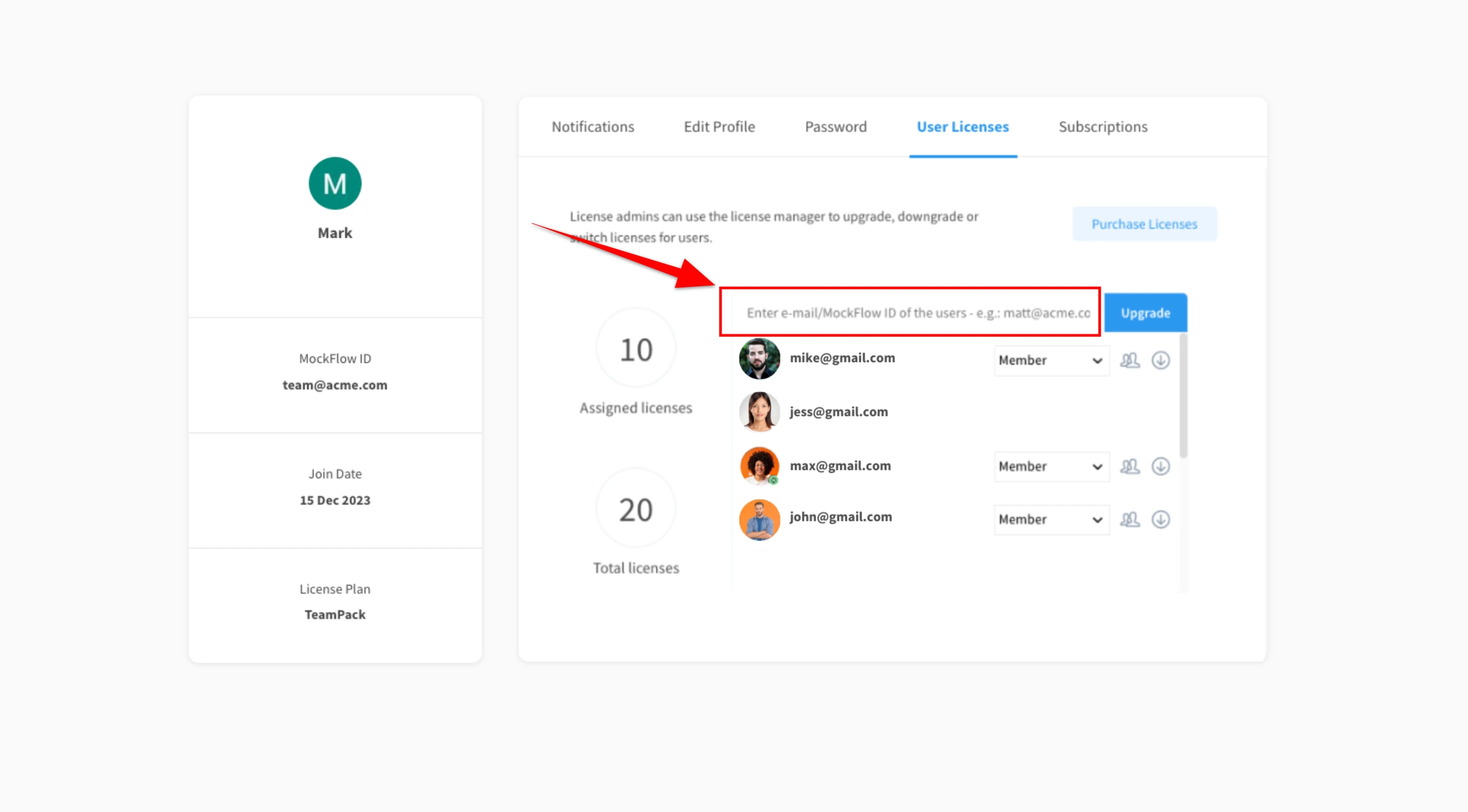
Now enter the email id of the team member here.
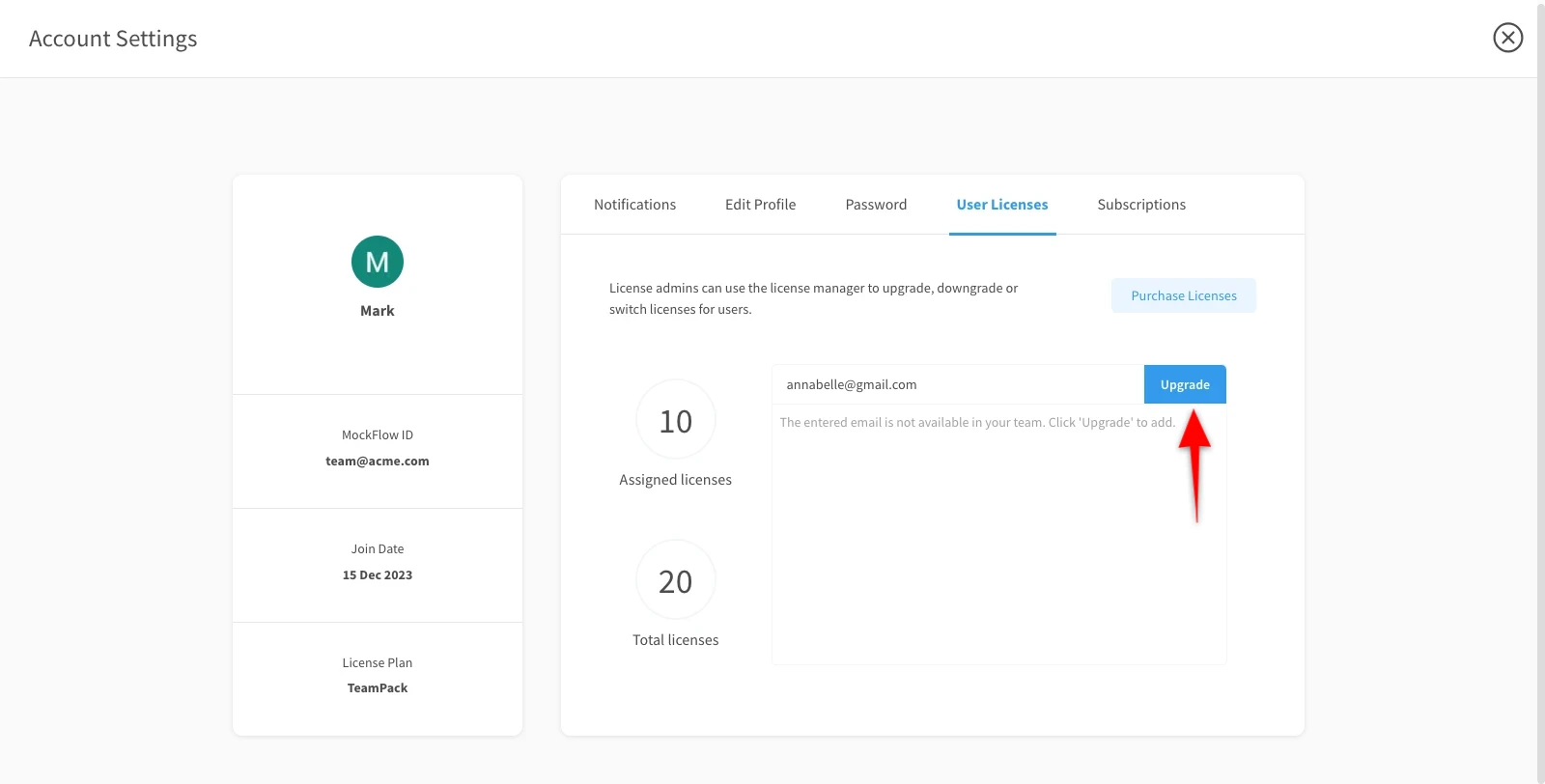
Then, click on the upgrade button.
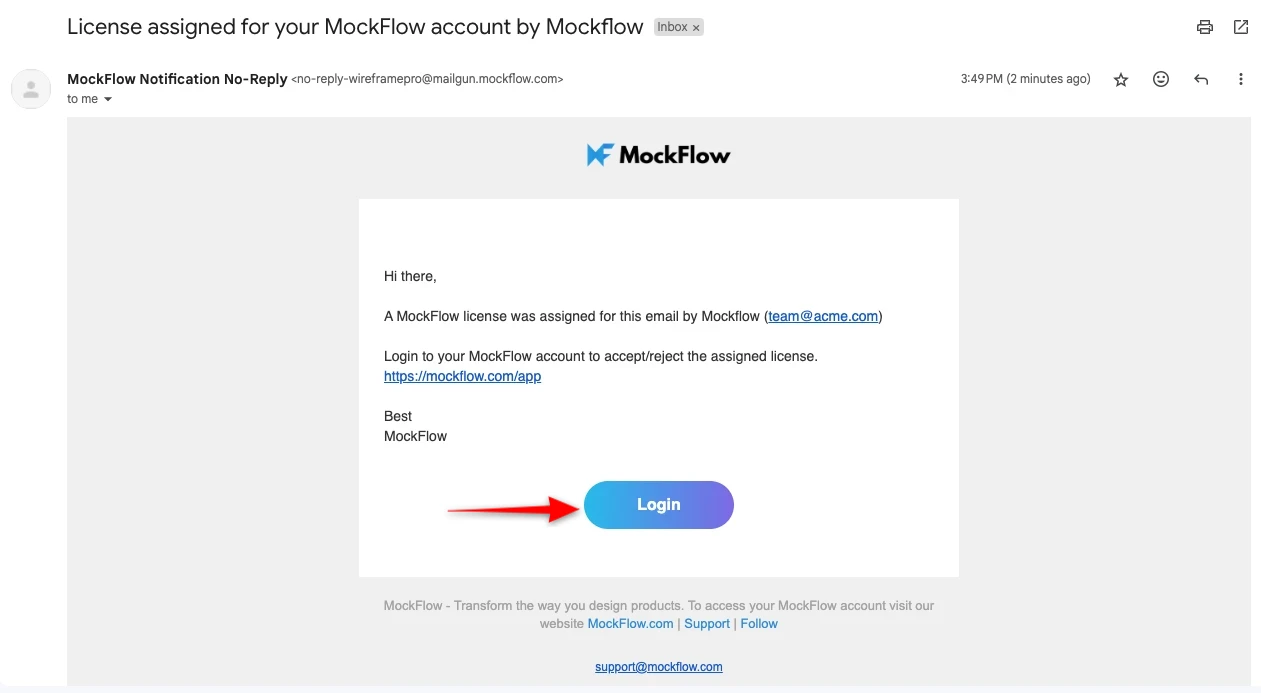
Note - The added member will receive an email for confirmation.
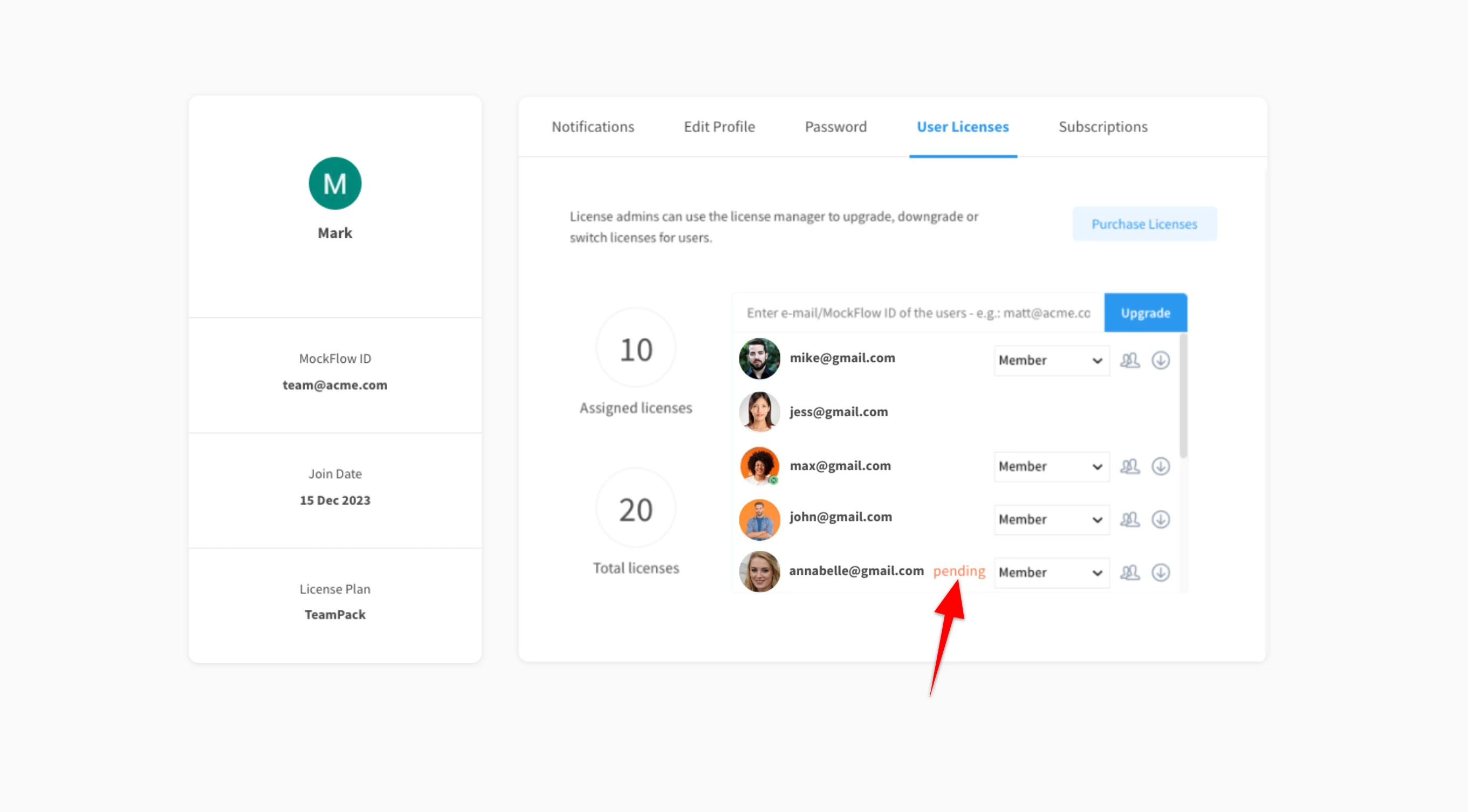
6 The member will be added and will be notified as 'Pending.'
7 Click 'Login' from the mail to open the added member's login account.
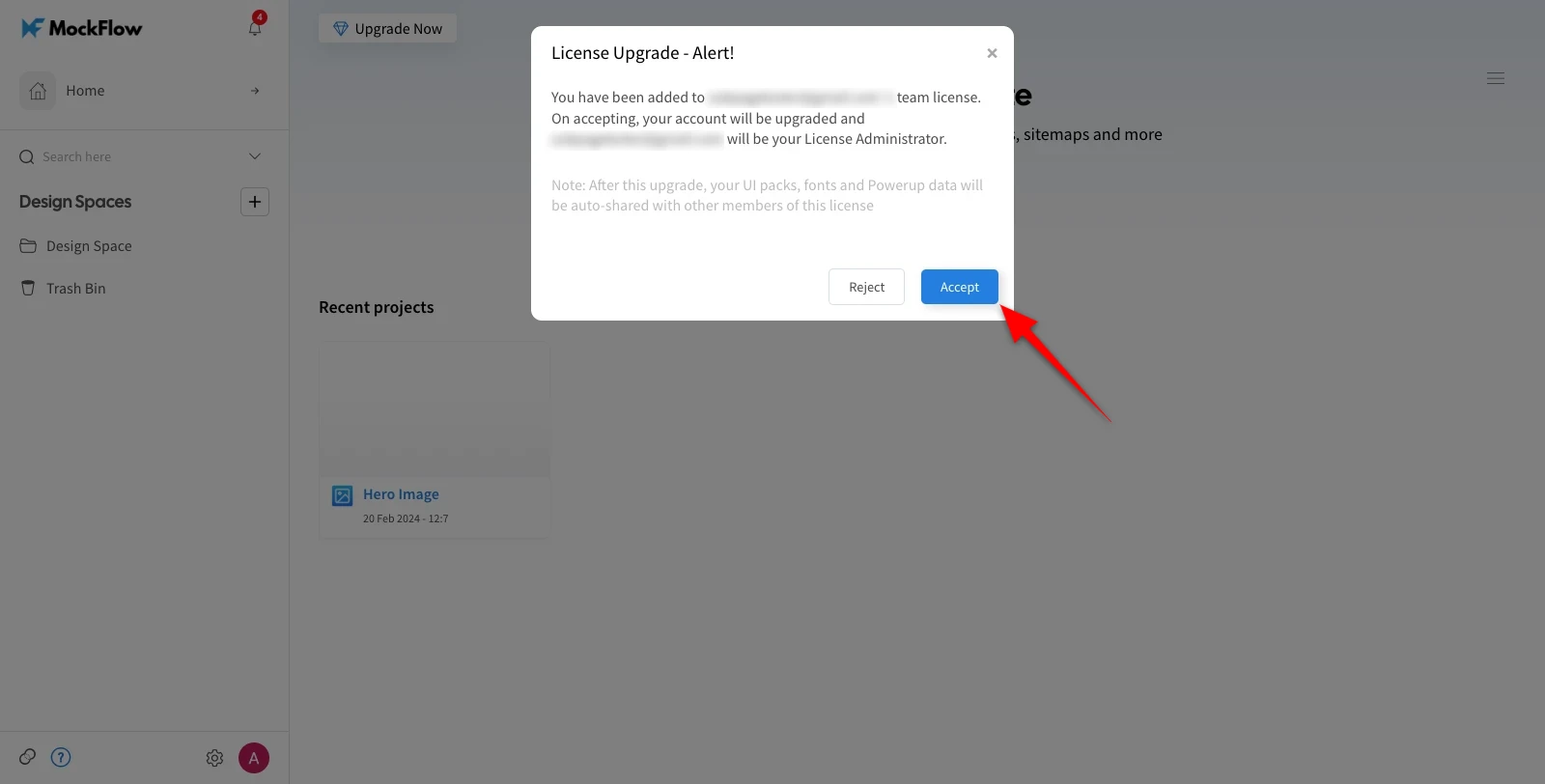
8 From the confirmation alert, click on 'Accept.'
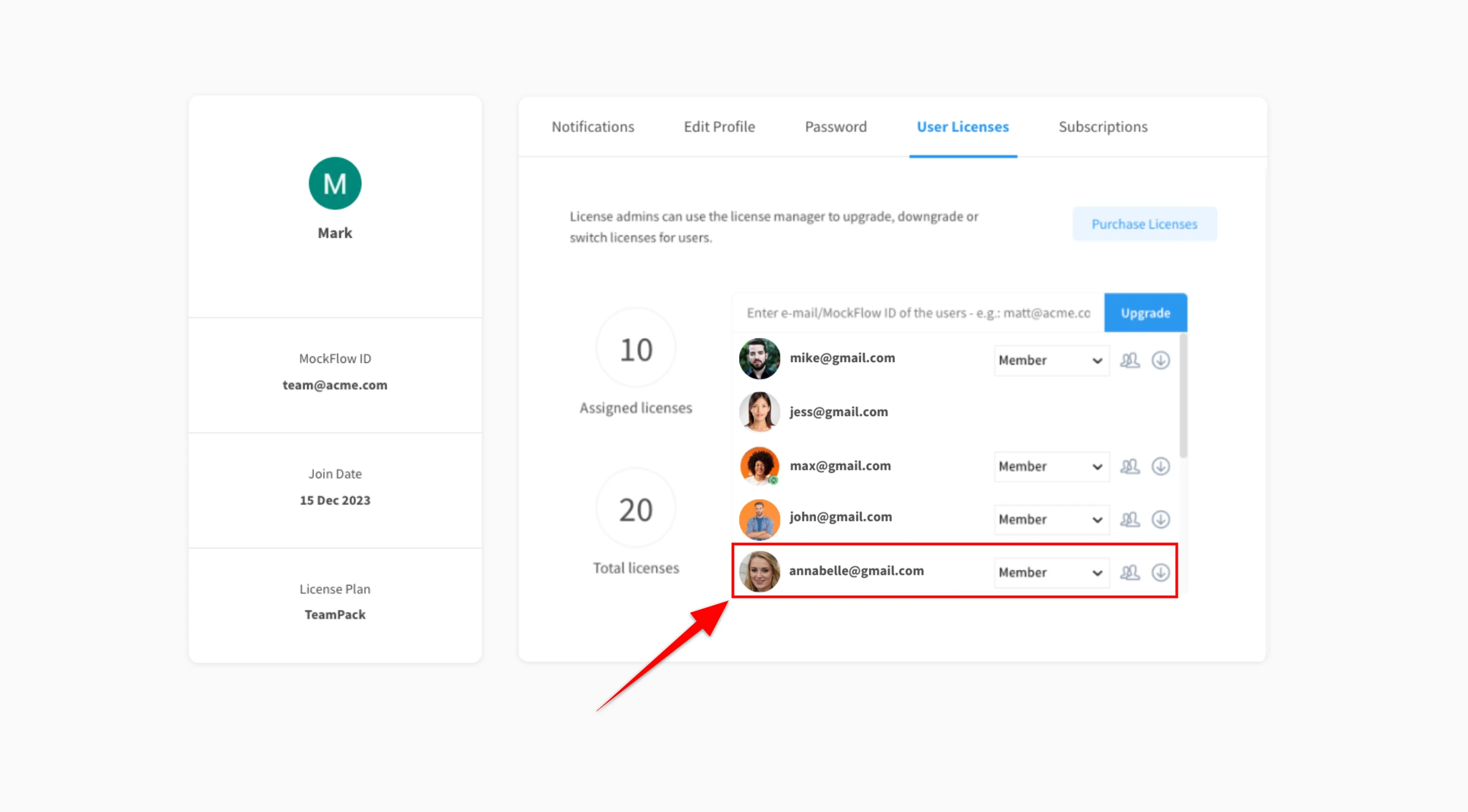
9 The member will be added to the team.
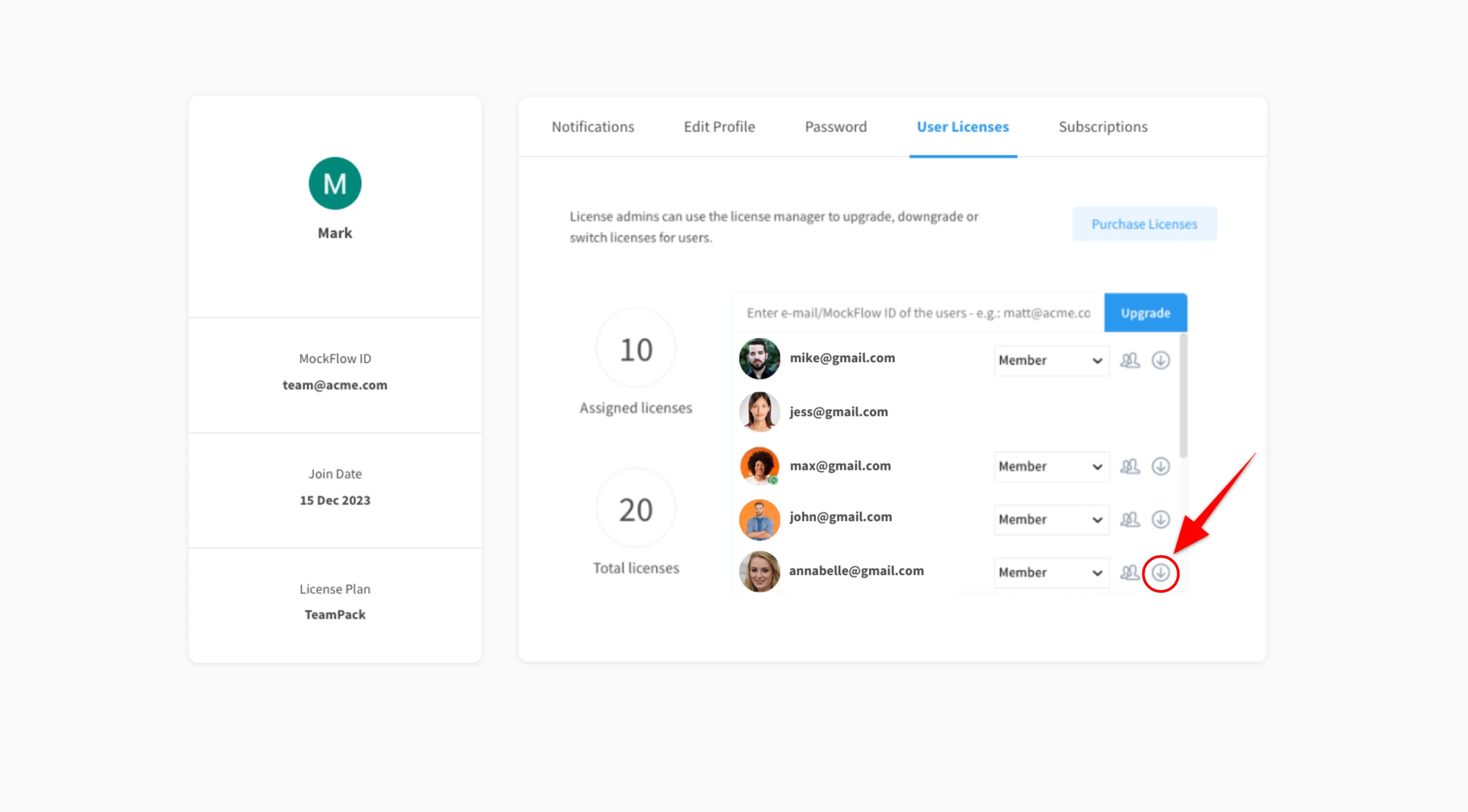
10 On clicking the 'Downgrade' icon, the member account can be downgraded and it will also be removed.
Note: The above steps will only set up licenses for your Team Members. In order to share projects, click here.