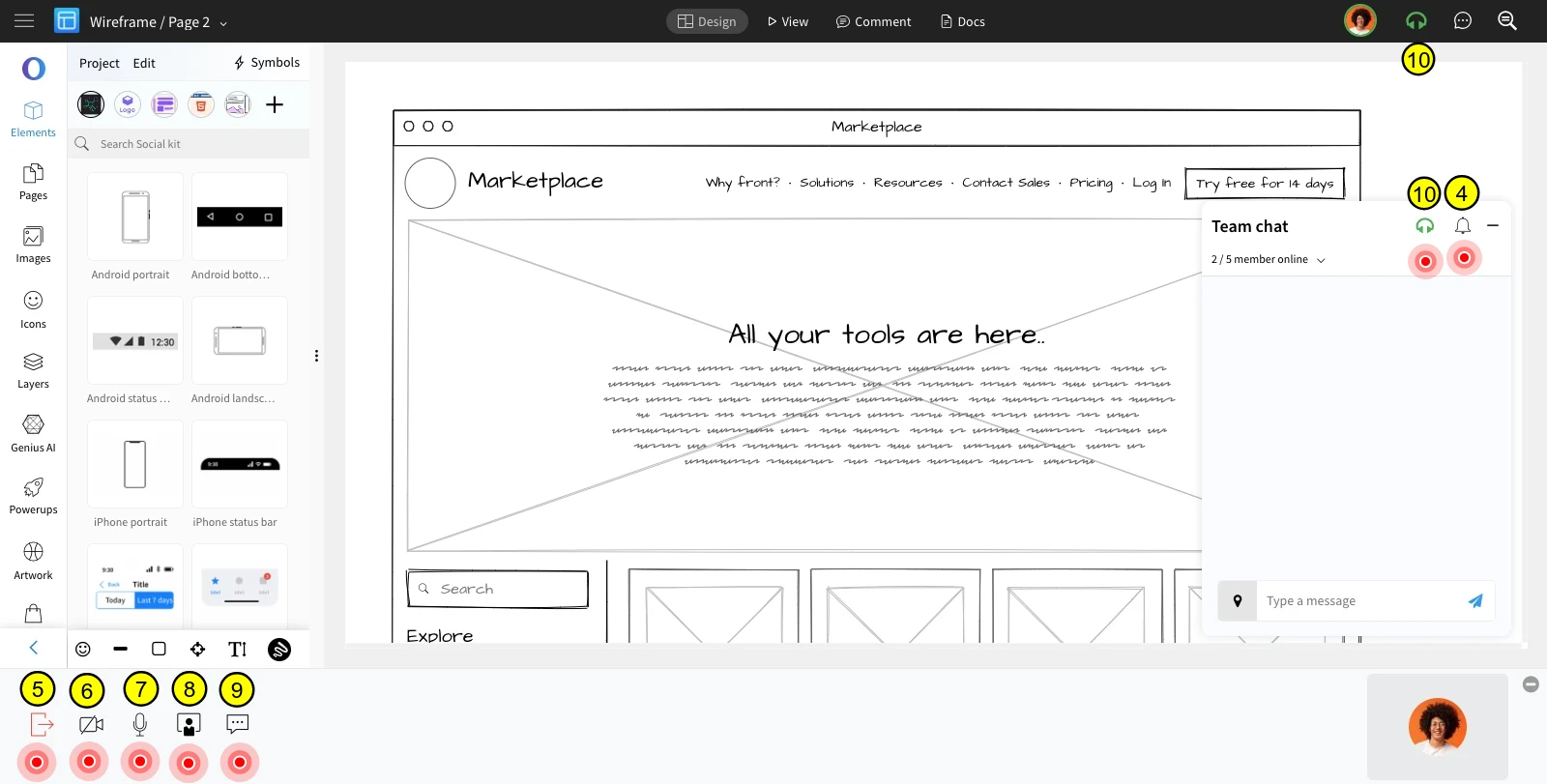
Video Conferencing
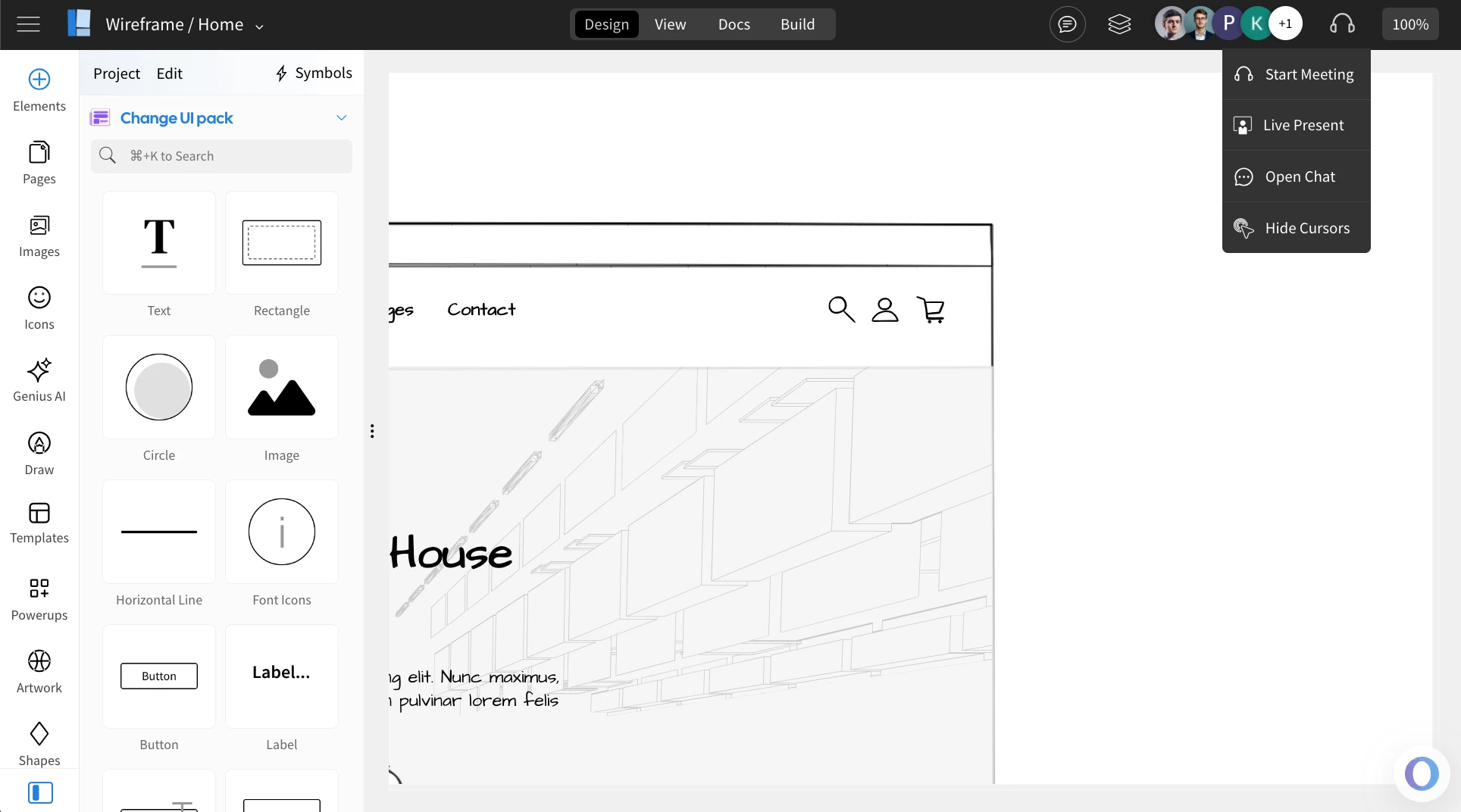
How to activate Video Conferencing? Click the 'Meeting' icon at the top, then select 'Start Meeting.' Then, click on 'Ok'...
How to activate Video Conferencing?
Click the 'Meeting' icon at the top, then select 'Start Meeting.'
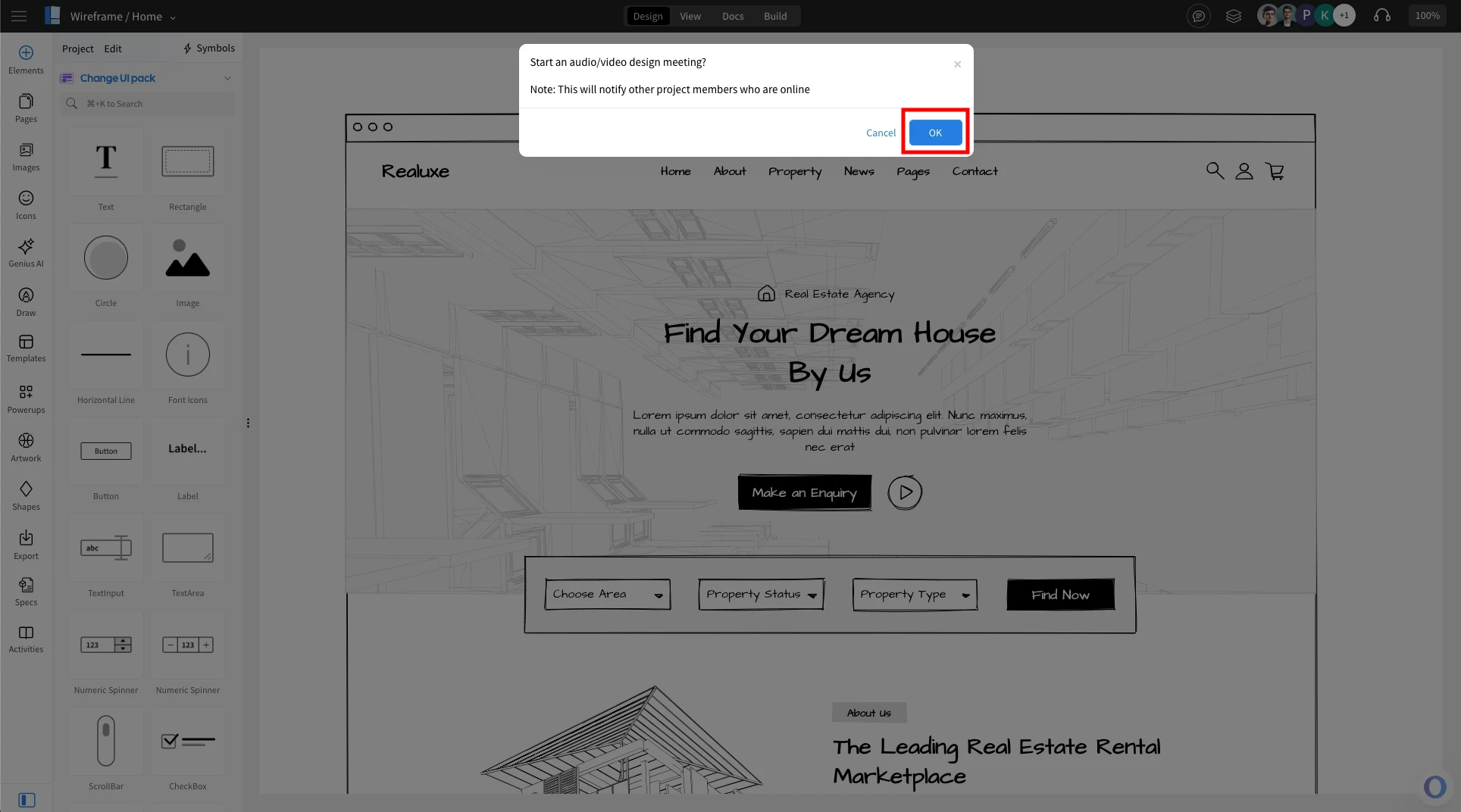
Then, click on 'Ok' for confirmation.
The team chat window, along with the presentation mode options, opens as an overlay on the editor. You can drag the chat window and position it anywhere within the editor.
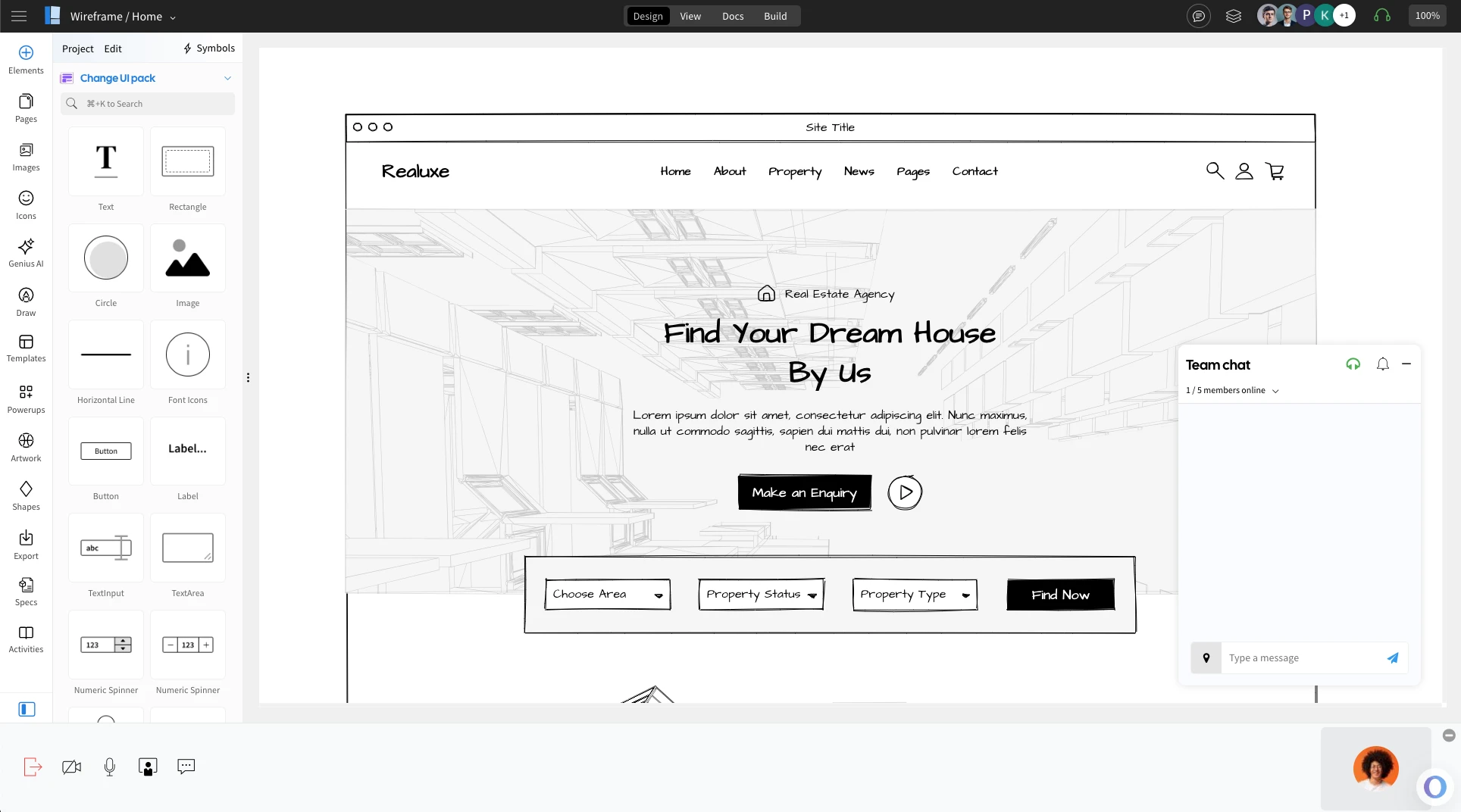
It also shows the online status of the team members.
When you send a message, a notification is sent to all the team members - the online members will see a red bubble near the team chat icon and the offline members receive an email with an invite to join the team chat.
Members who do not wish to keep receiving notifications for the team chat can turn off the notifications using the do not disturb icon in the team chat window.
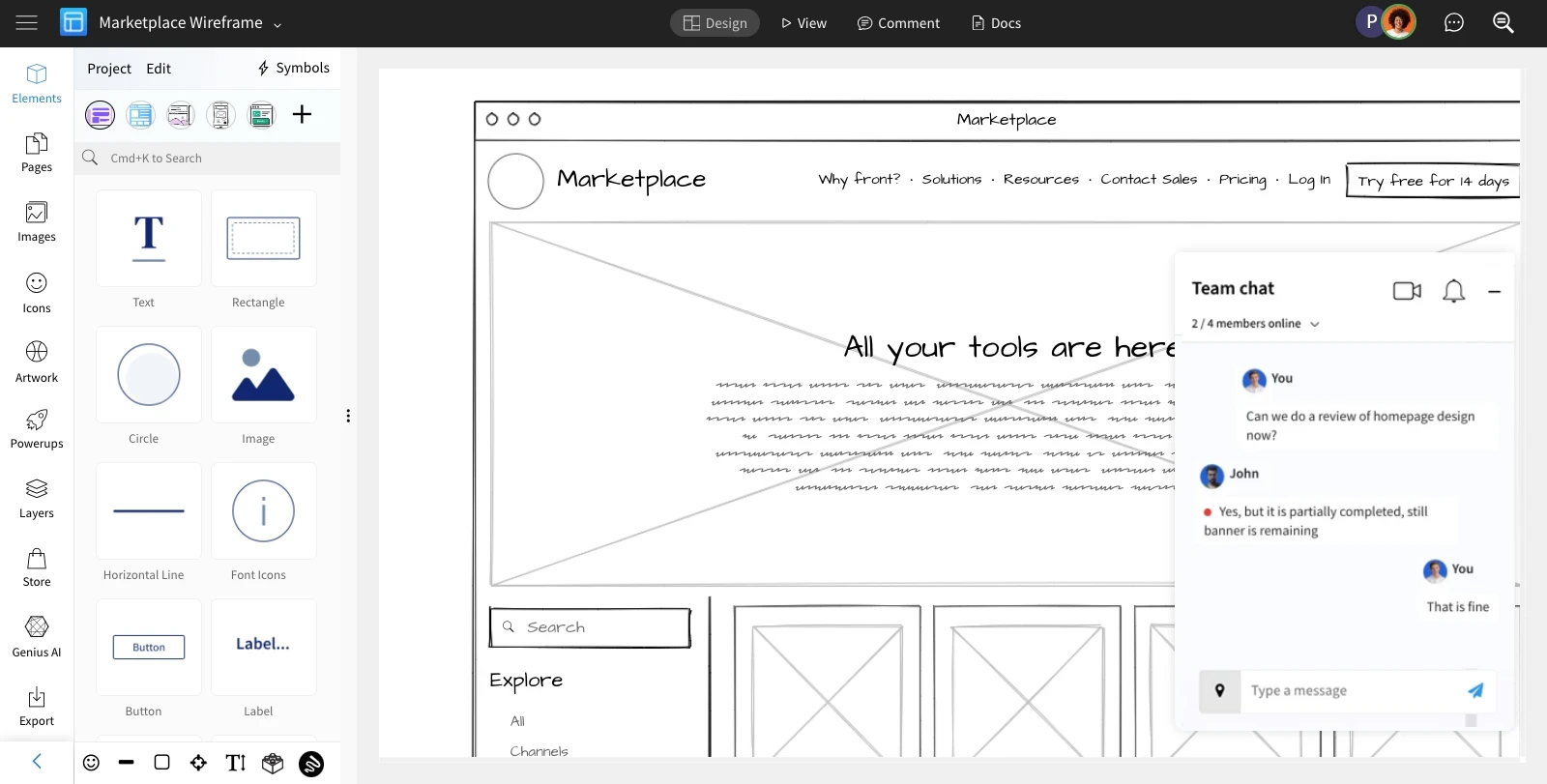
On clicking the video chat icon in the team chat window, the video conferencing bar opens at the bottom of the page.
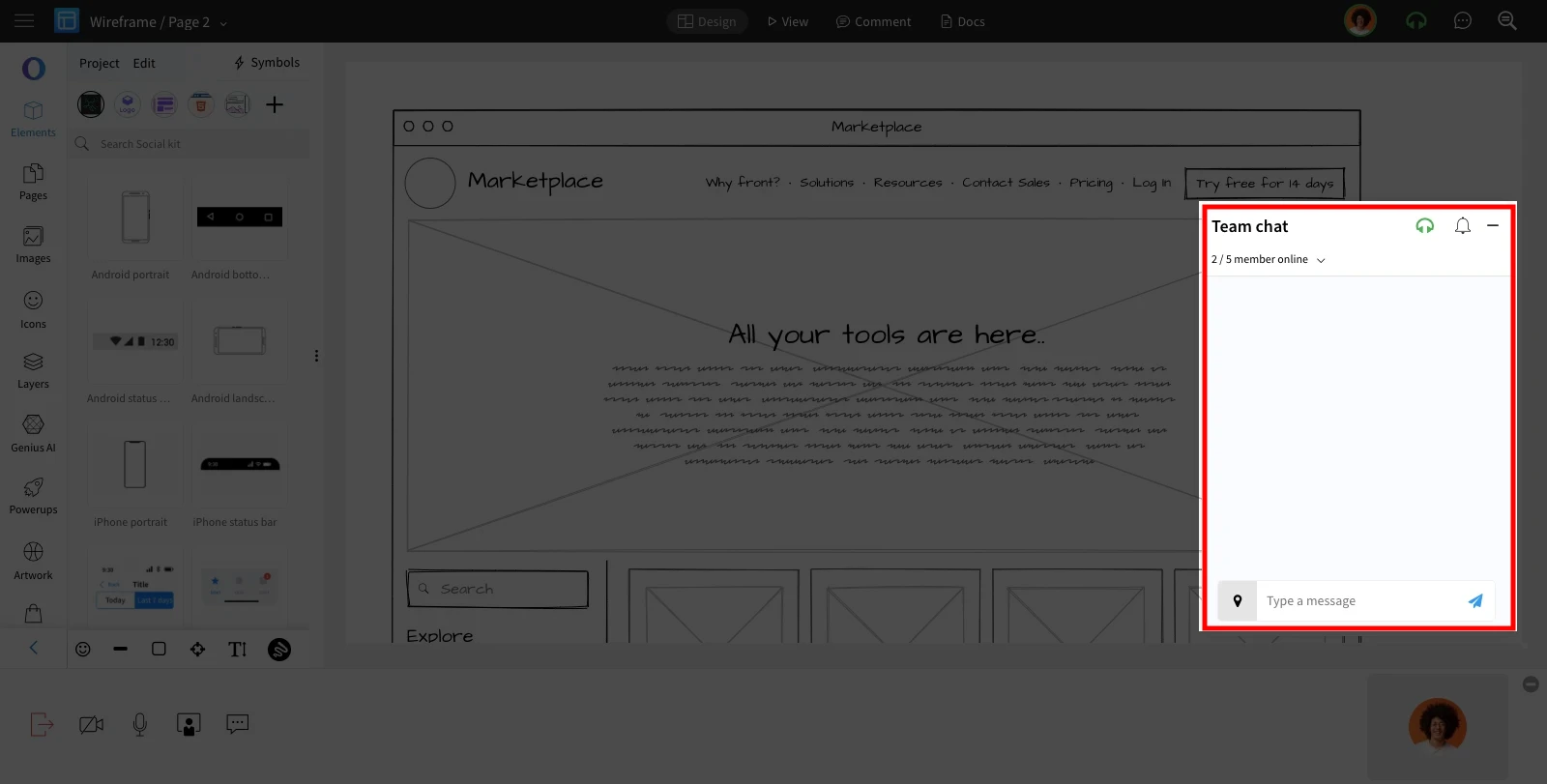
You can also turn off your video and audio using the respective icons.
Turn off the notifications using Do-not-Disturb mode.
Exit video chat.
Turn on/off your video.
Turn on/off your audio.
Turn on / off presentation mode.
Toggle team chat window.
Exit the meeting