How to create a new board in MockFlow Ideaboard?
Follow the steps below to create a MockFlow Board in MockFlow. Log in to your MockFlow account to access your dashboard. To...
Follow the steps below to create a MockFlow Board in MockFlow.
Log in to your MockFlow account to access your dashboard.
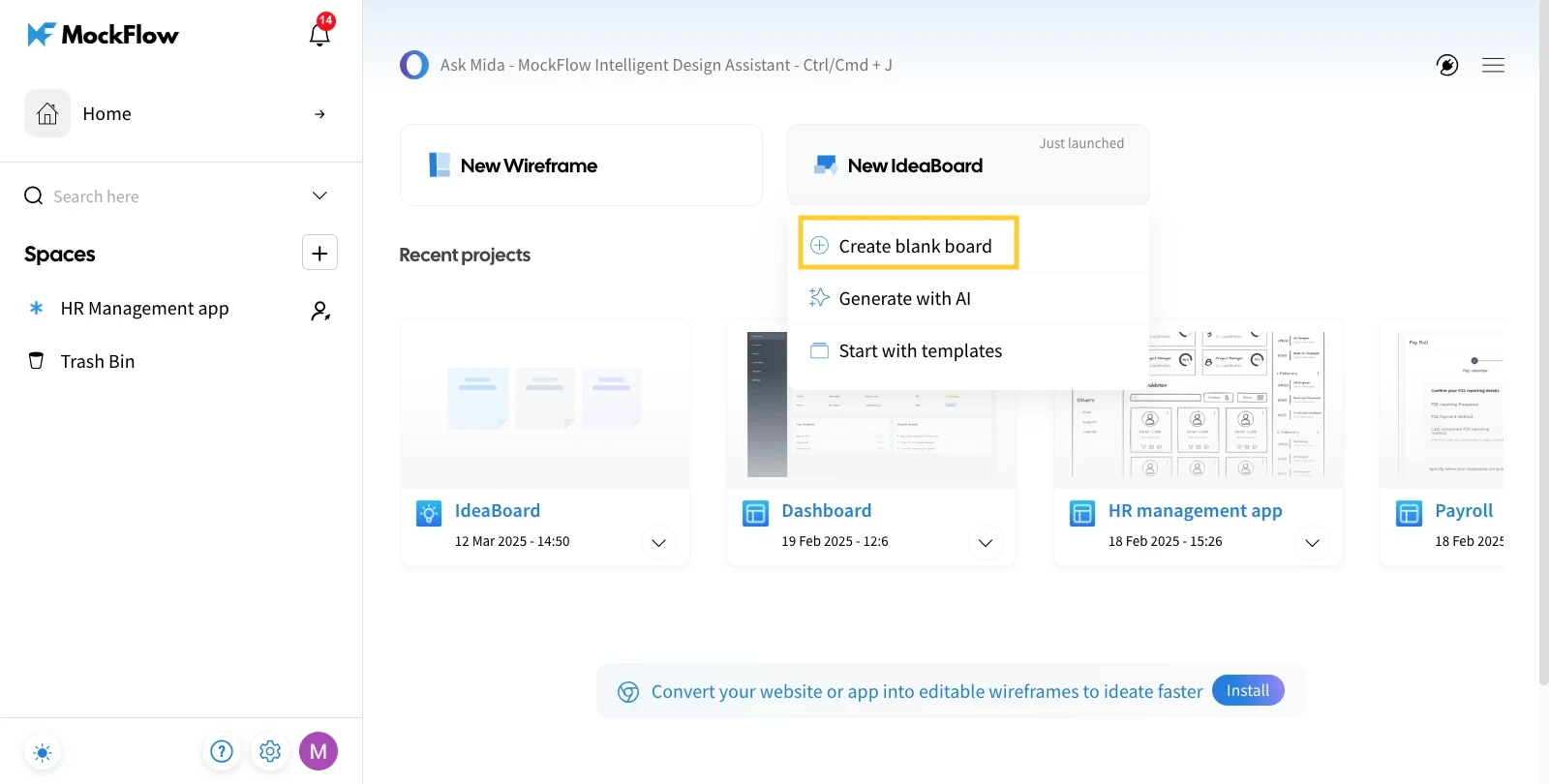
To create a new board in MockFlow Board, hover over 'New MockFlow Board' in the Design Space or from the dashboard.
A drop-down menu will appear with the following options:
Create Blank Board – Start a new MockFlow Board from scratch.
Generate with AI – Use AI to generate a template.
Start with a Template – Begin with a pre-designed template.
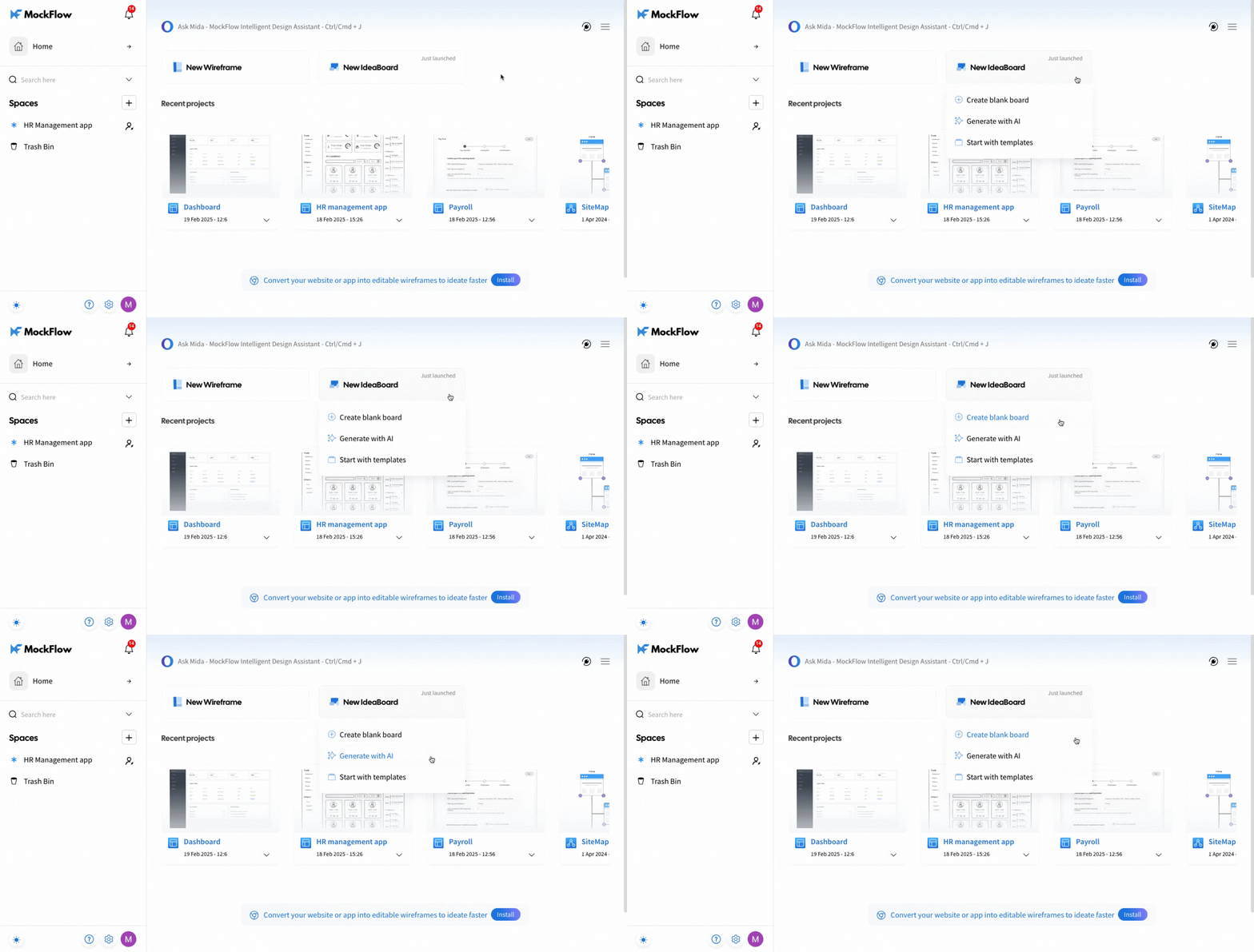
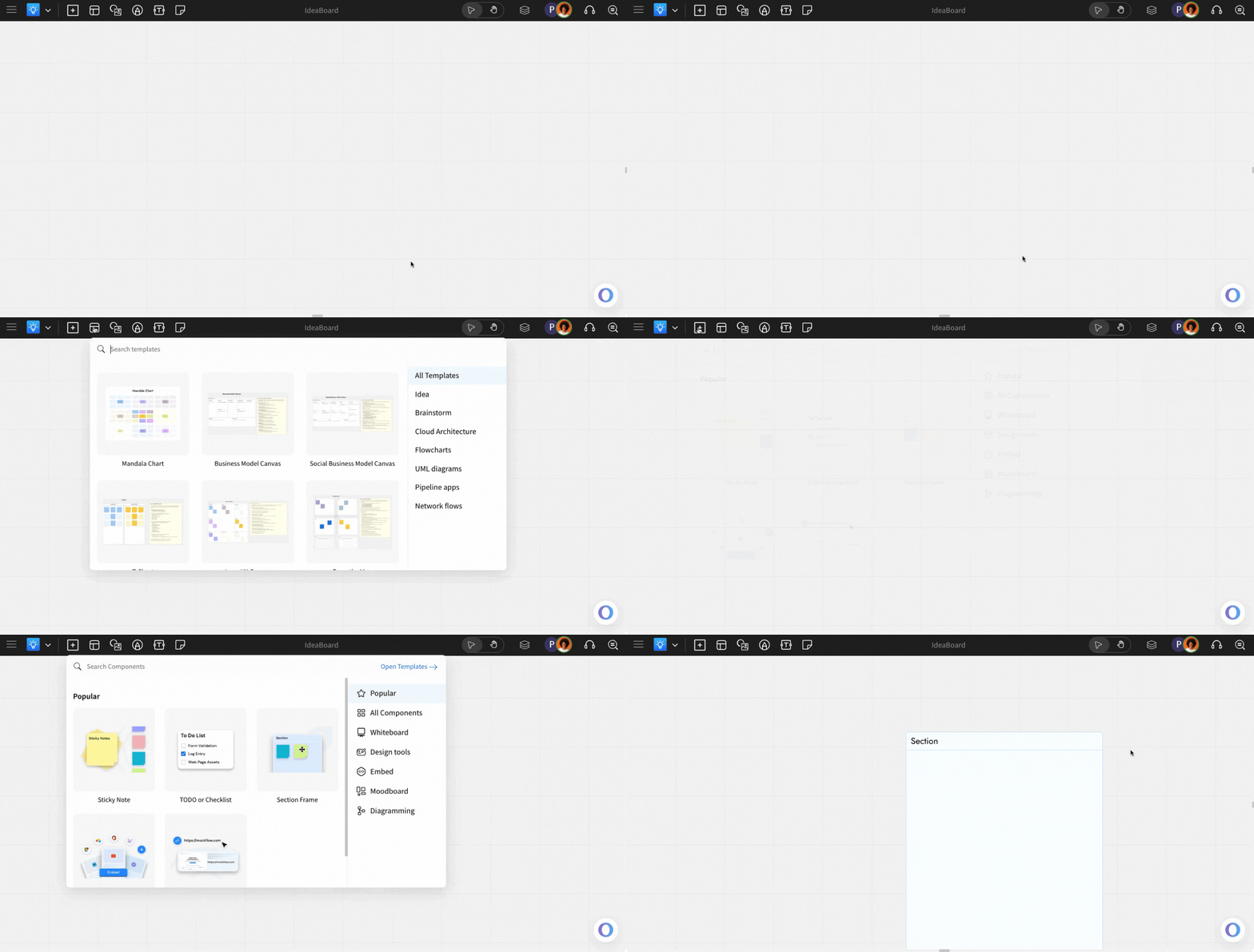
Select 'Create Blank Board' to start from scratch. Templates can be accessed from within the editor too.
The MockFlow Board editor will open, allowing you to drag and drop components to start creating.