
Enterprise SSO Login - Okta identity provider
Requirement MockFlow Enterprise license or annual TeamPack license is required for SSO Configuration steps in...
Requirement
MockFlow Enterprise license or annual TeamPack license is required for SSO
In addition to this guide, also refer to the steps mentioned in the guide link published by Okta for MockFlow - https://saml-doc.okta.com/SAML_Docs/How-to-Configure-SAML-2.0-for-MockFlow.html
Configuration steps in Okta
This section will explain the steps to add MockFlow to your organization's account in Okta.
If you have already included MockFlow as an application in your Okta account, you can skip to the next section.
Login to your organization's Okta account as an admin user.
From the dashboard, click on "Applications" in the dropdown menu.
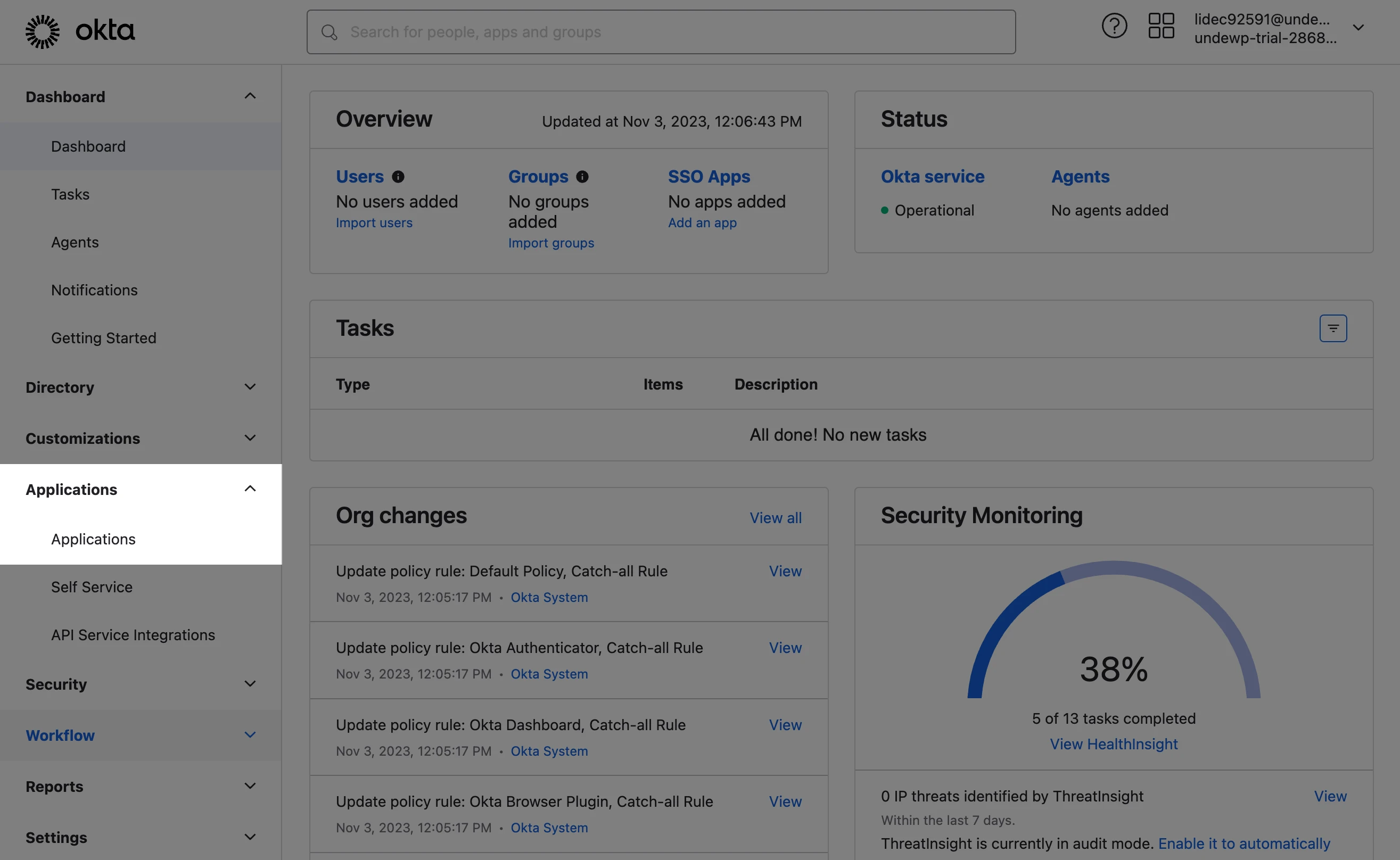
Proceed to "Browse App Catalog"
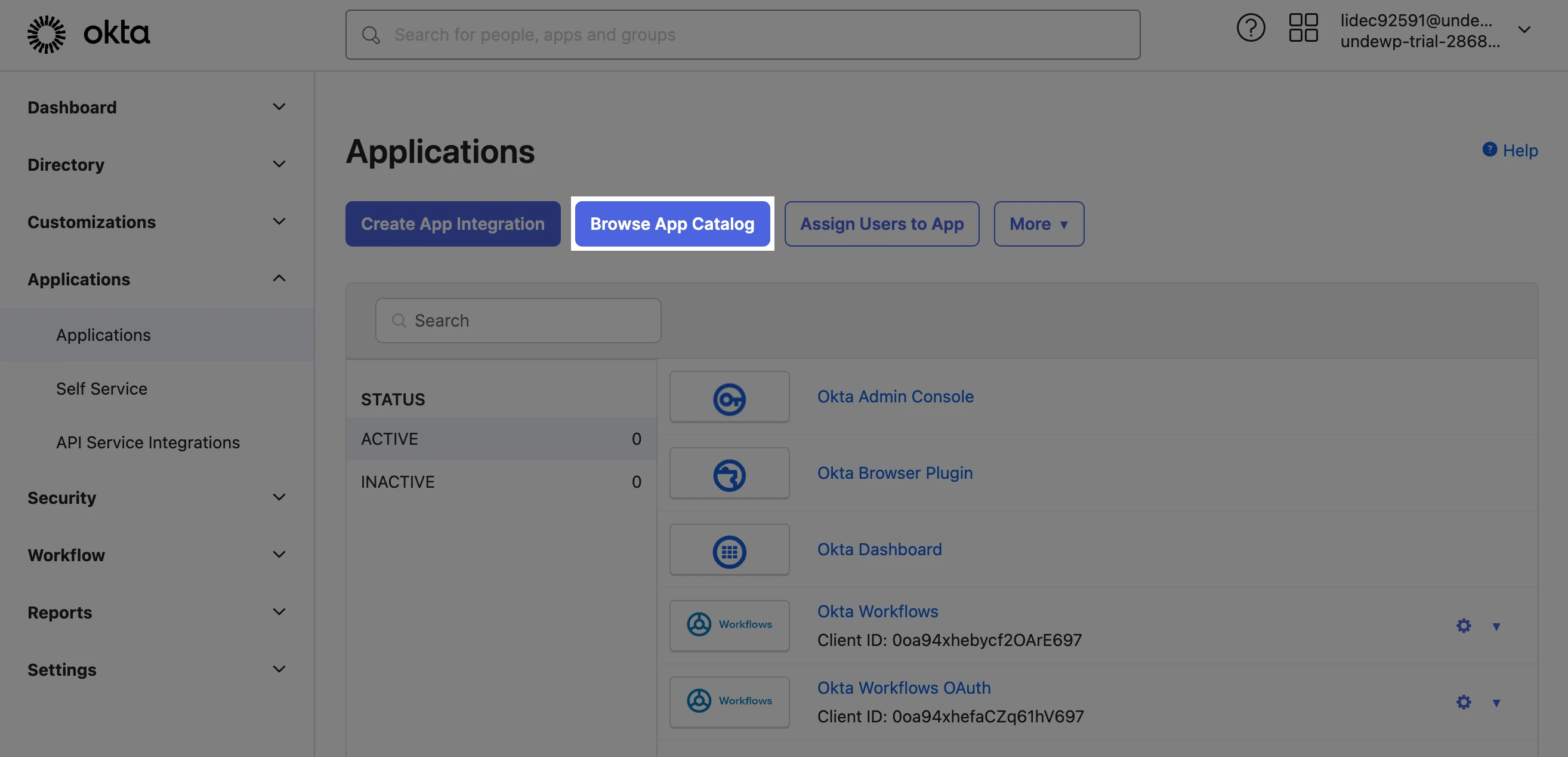
In the search application field, type "MockFlow" to list the application and then click the result.
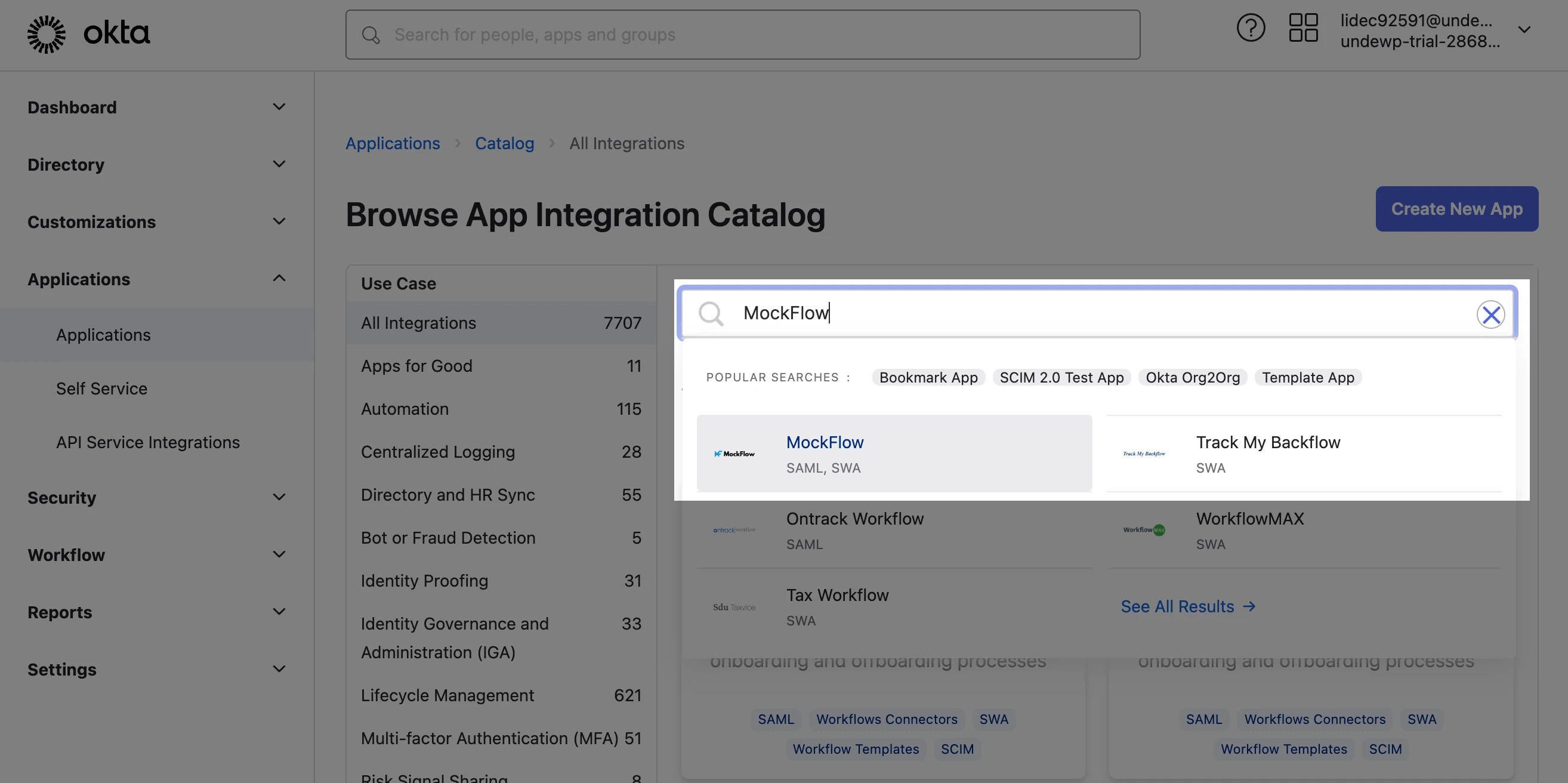
Click on "Add Integration" to add MockFlow into your Okta instance.
Click the "Next" button to continue.
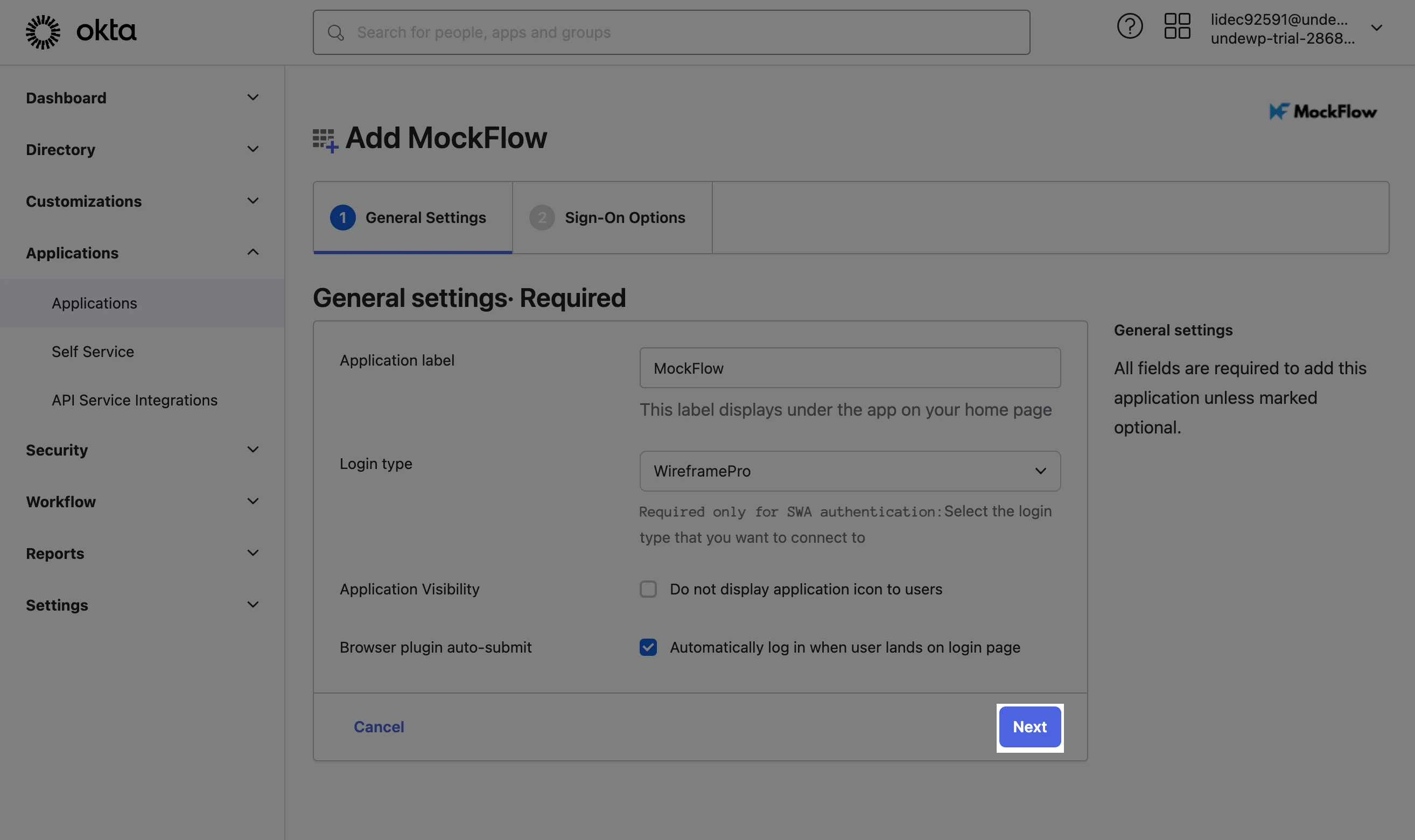
In the Sign-On options tab click on "View Setup Instructions", which will provide you the following details.
Sign-in URL
Issuer ID
X.509 Certificate
You will require these details to be entered in MockFlow's SSO configuration.
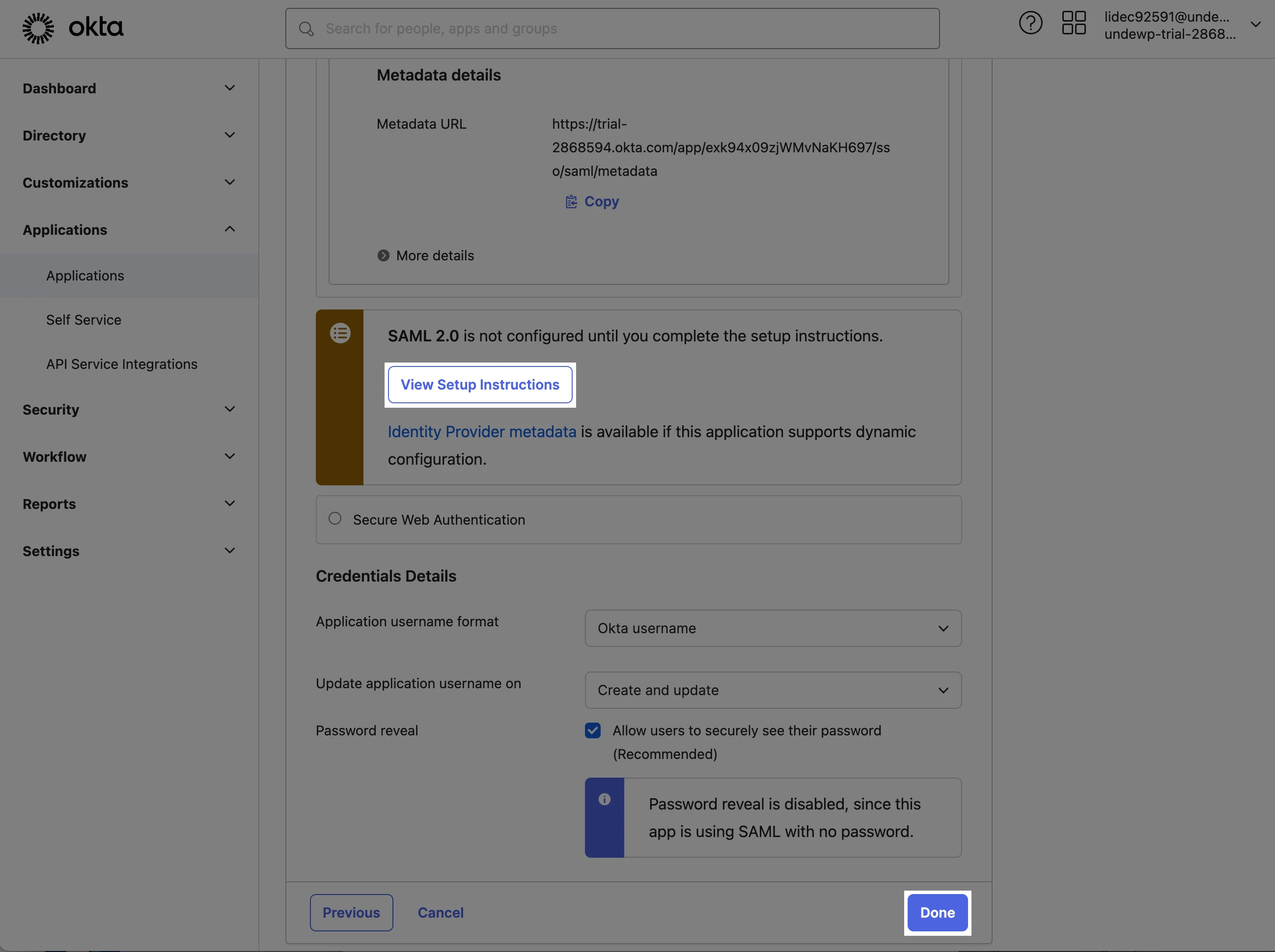
Click "Done" to complete.
Configuration steps in MockFlow
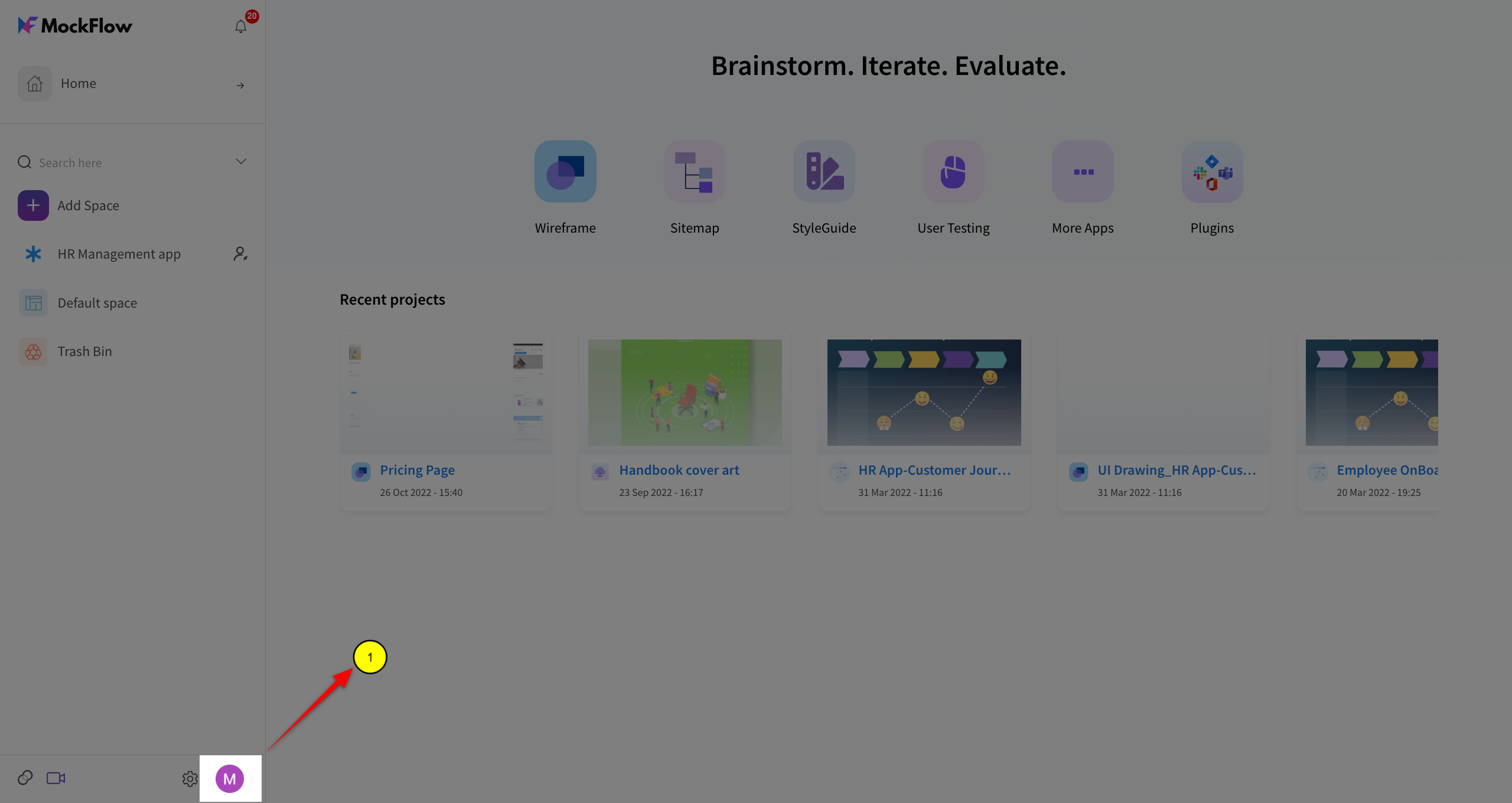
Login to MockFlow as an enterprise admin user, Click on the profile image for menu.
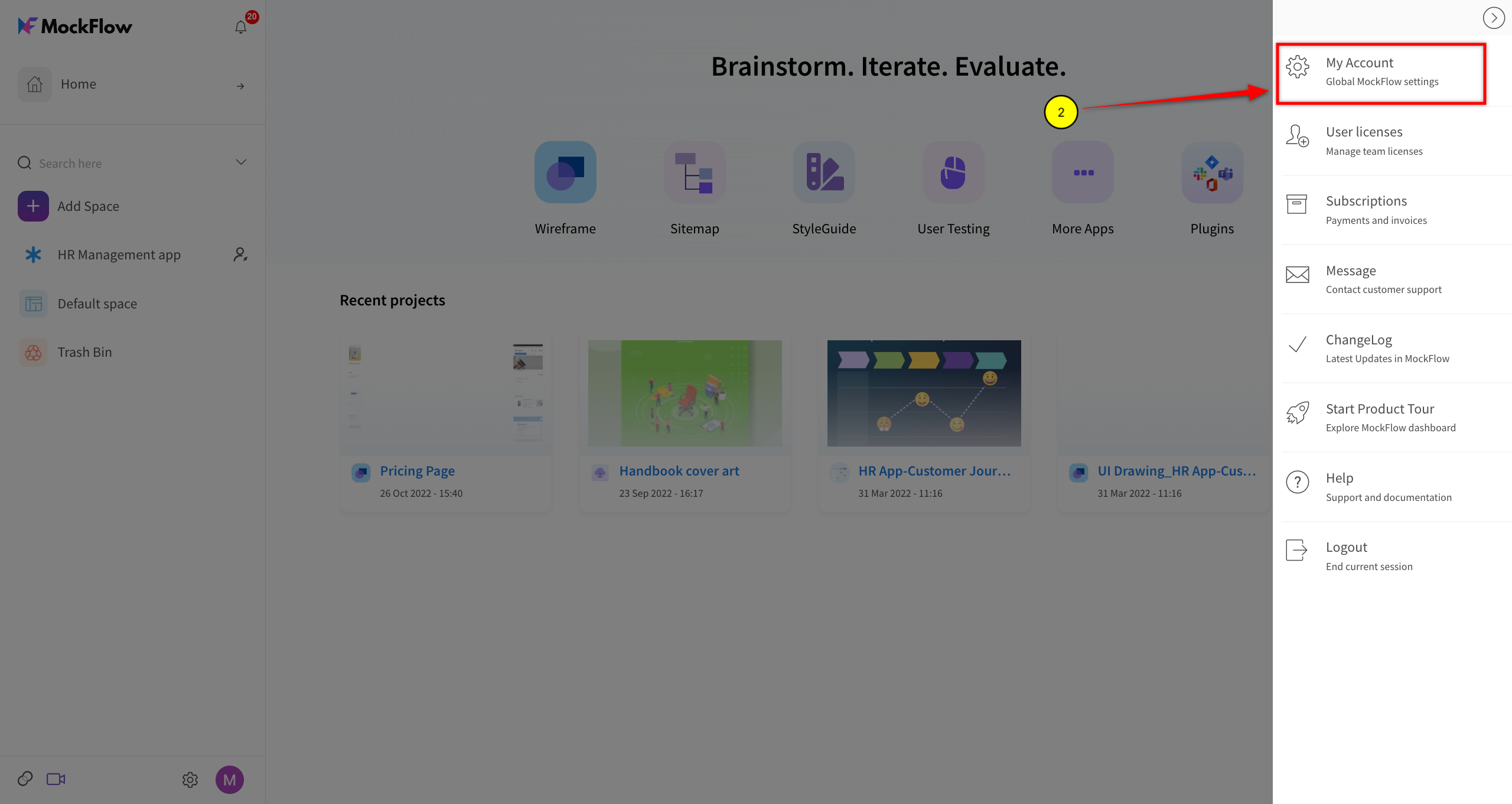
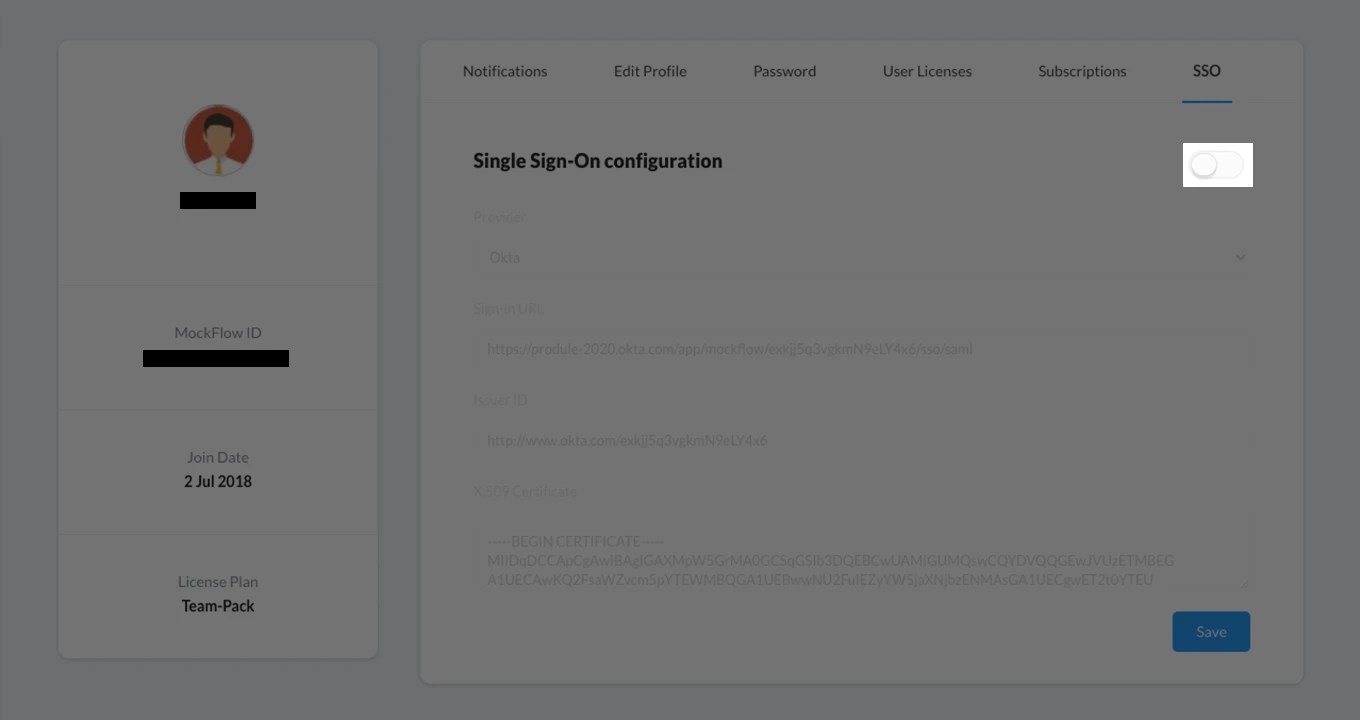
Under "My Accounts", select the tab "SSO."
Click the toggle button to enable SSO for your enterprise.
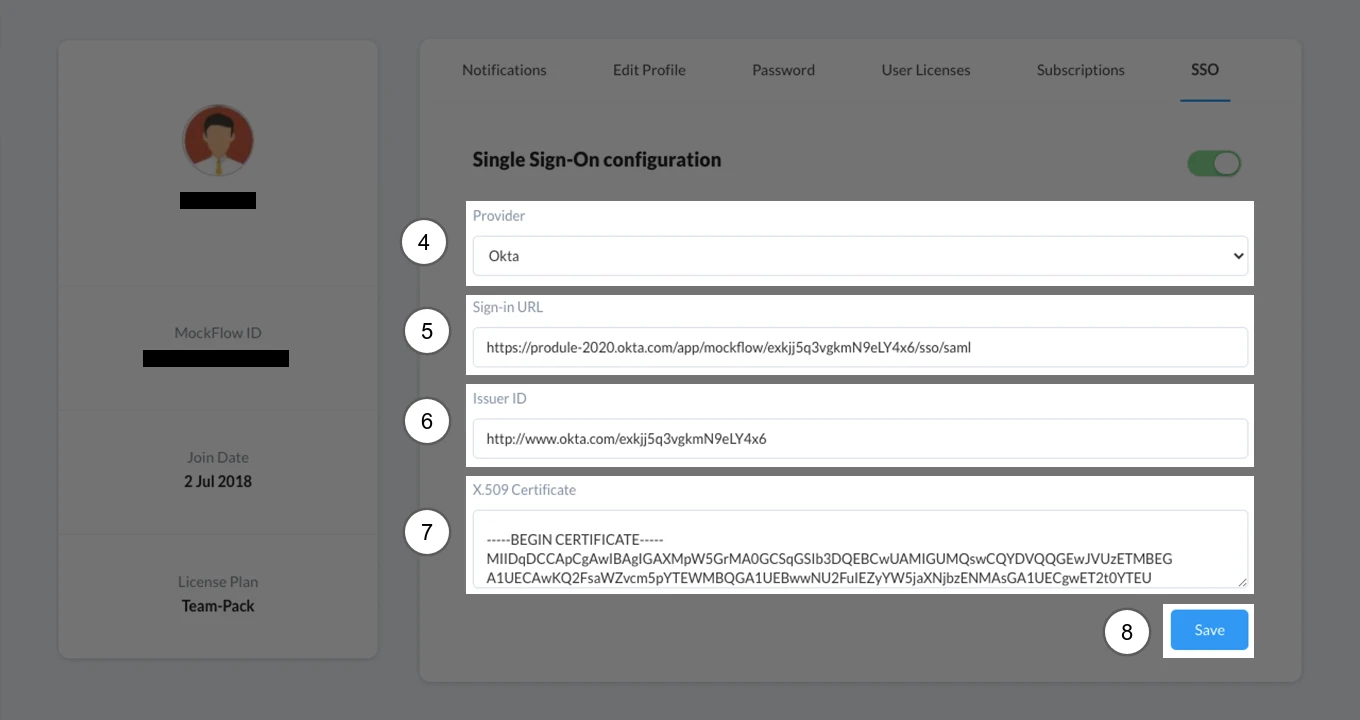
Select the provider as "Okta."
Sign-in URL: Copy and paste the following [Okta:Identity Provider Single Sign-On URL].
Issuer Id: Copy and paste the following [Okta:Identity Provider Issuer].
X.509 Certificate: Copy and paste the following: [Okta:X.509 Certificate].
Click "Save."
Adding users to MockFlow
You can add the list of users to allow access into MockFlow in the same "My Accounts" panel.
Under the tab "User Licenses", enter the email of the users to provide them access.
You can also revoke the license when required.
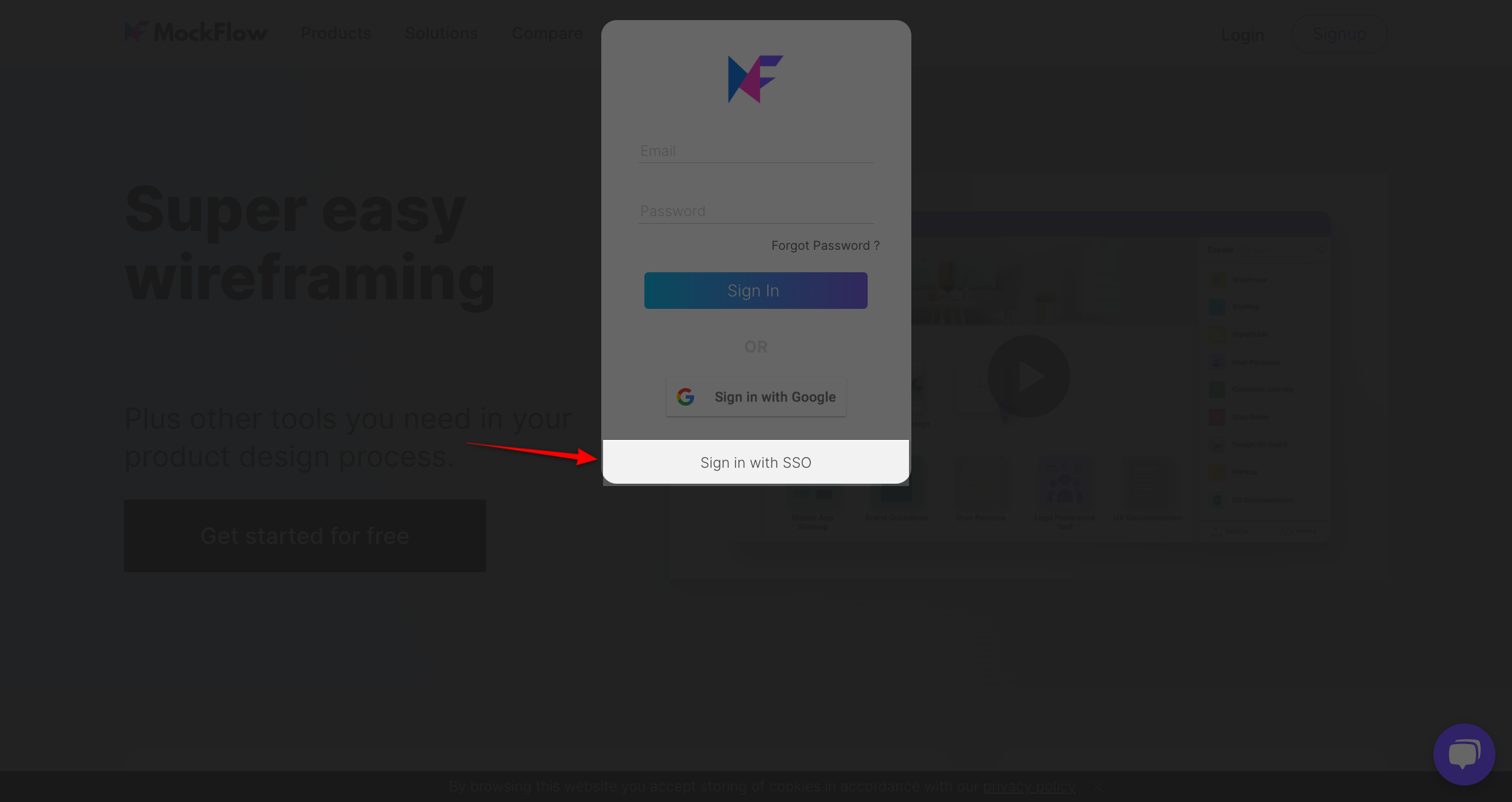
On how to log in with SSO in MockFlowAt https://mockflow.com, clicking the login button shows the login dialog with log in with SSO button as shown below
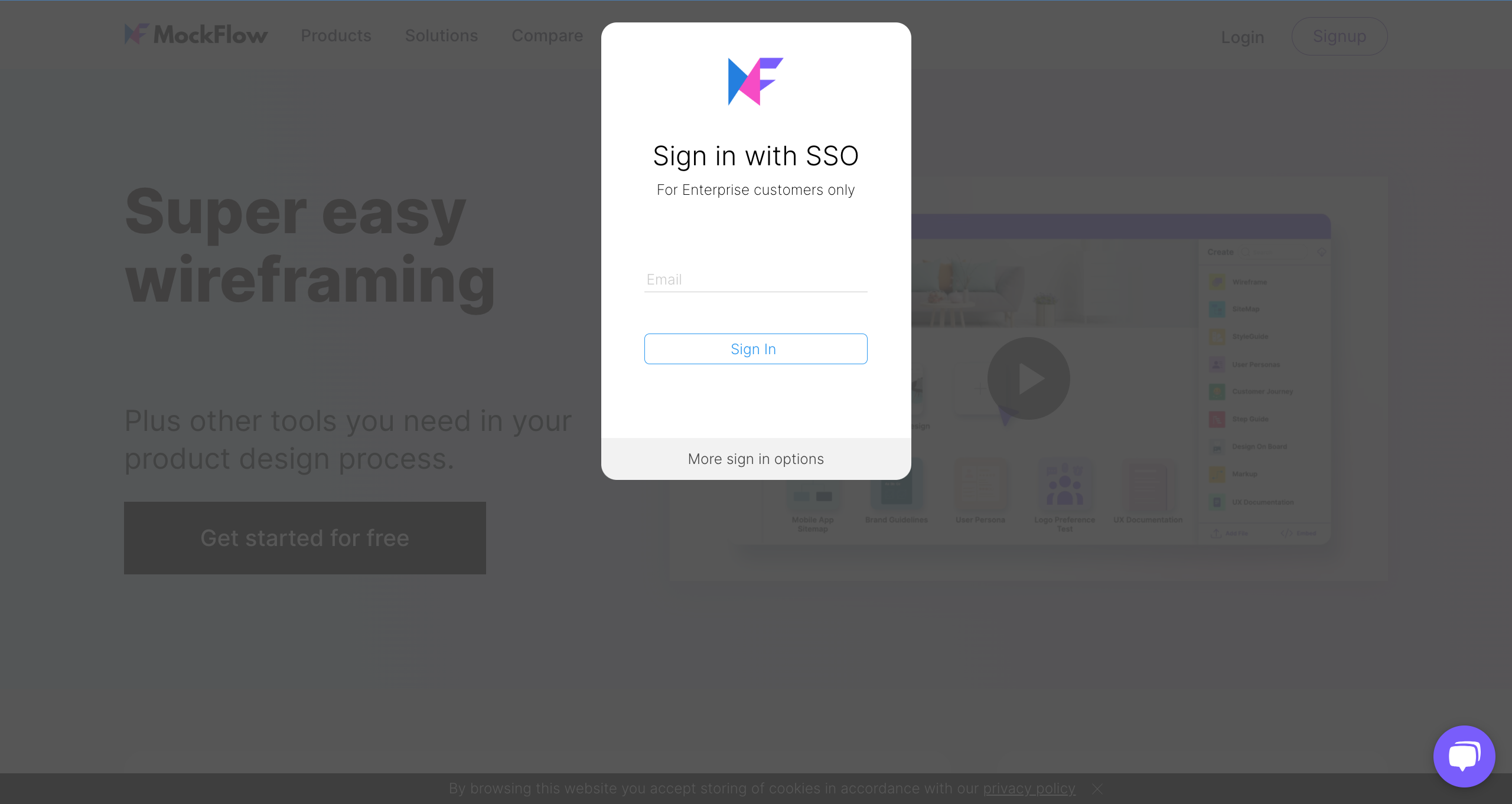
After sign in with SSO.
SCIM Provisioning
If you would like to enable SCIM User Provisioning, follow the steps in https://support.mockflow.com/article/MsOJBVv5Opb-How-to-enable-SCIM-Provisioning