
Internal
How to add background in your boards?
Give your MockFlow Board a fresh look by changing the background - choose colors, grids, or image backdrops that make your board more...
Give your MockFlow Board a fresh look by changing the background - choose colors, grids, or image backdrops that make your board more inspiring to work on.
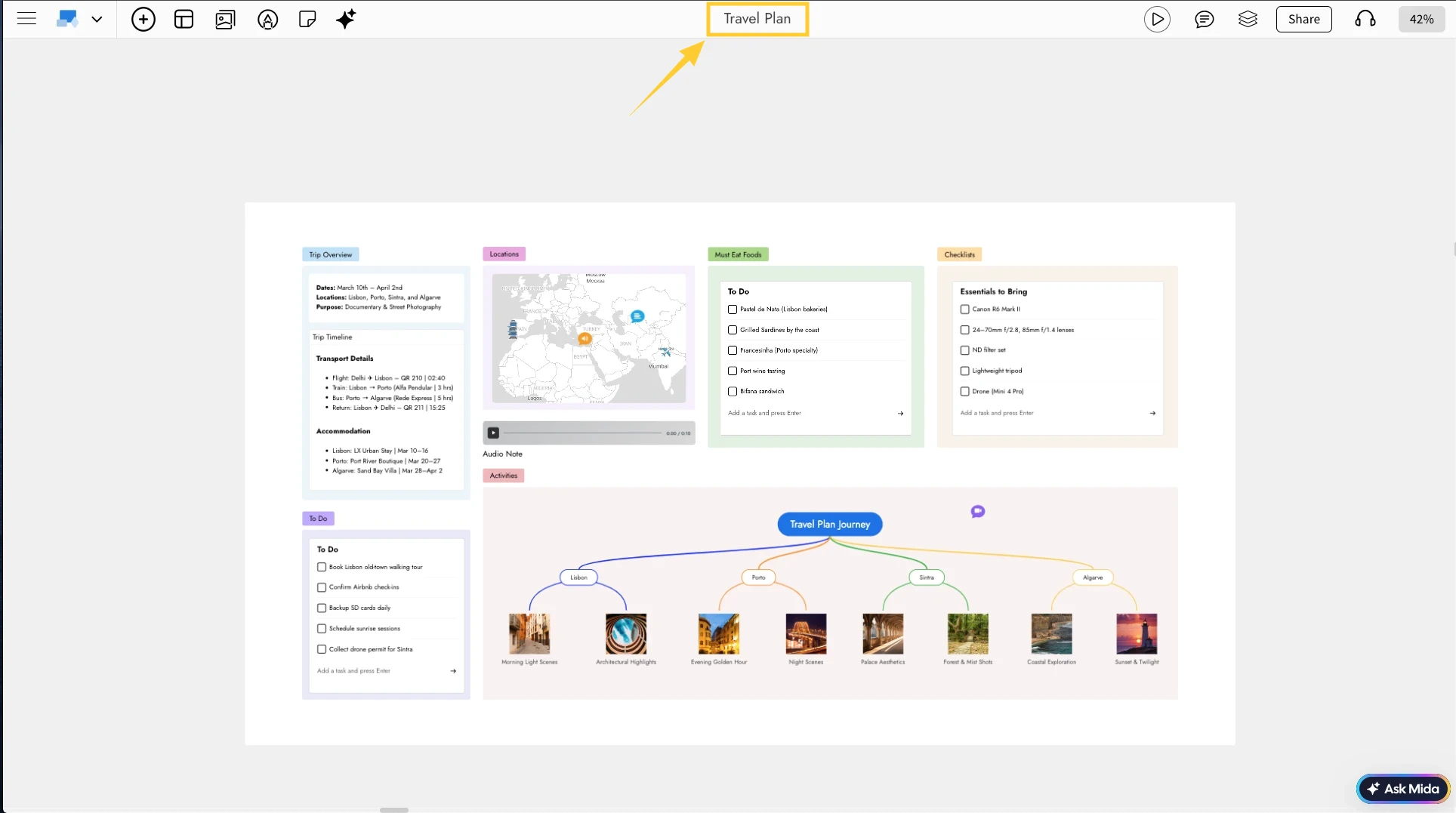
In the MockFlow Board editor, click the board name at the top.
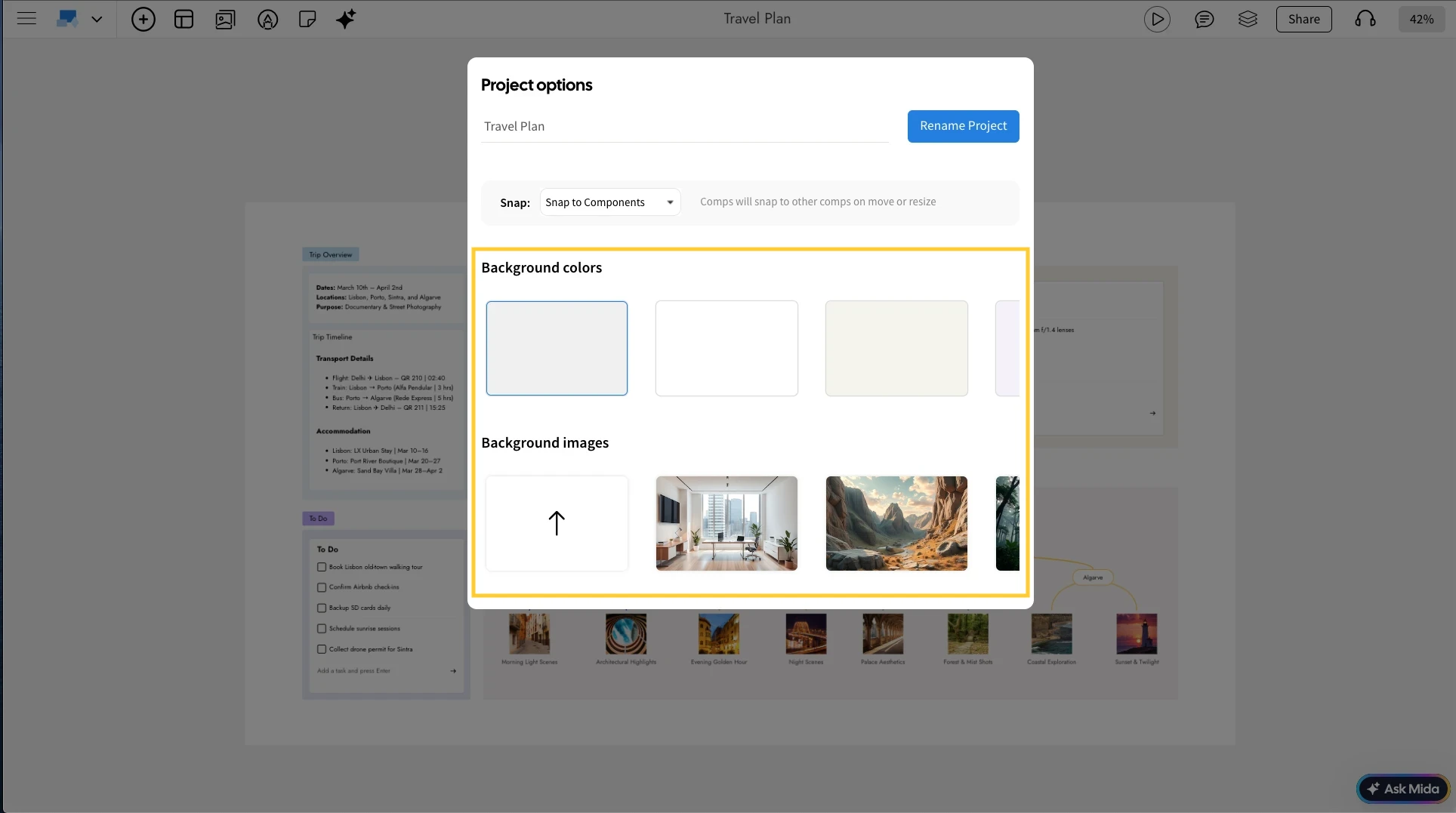
Choose a background using either an image or solid colors.
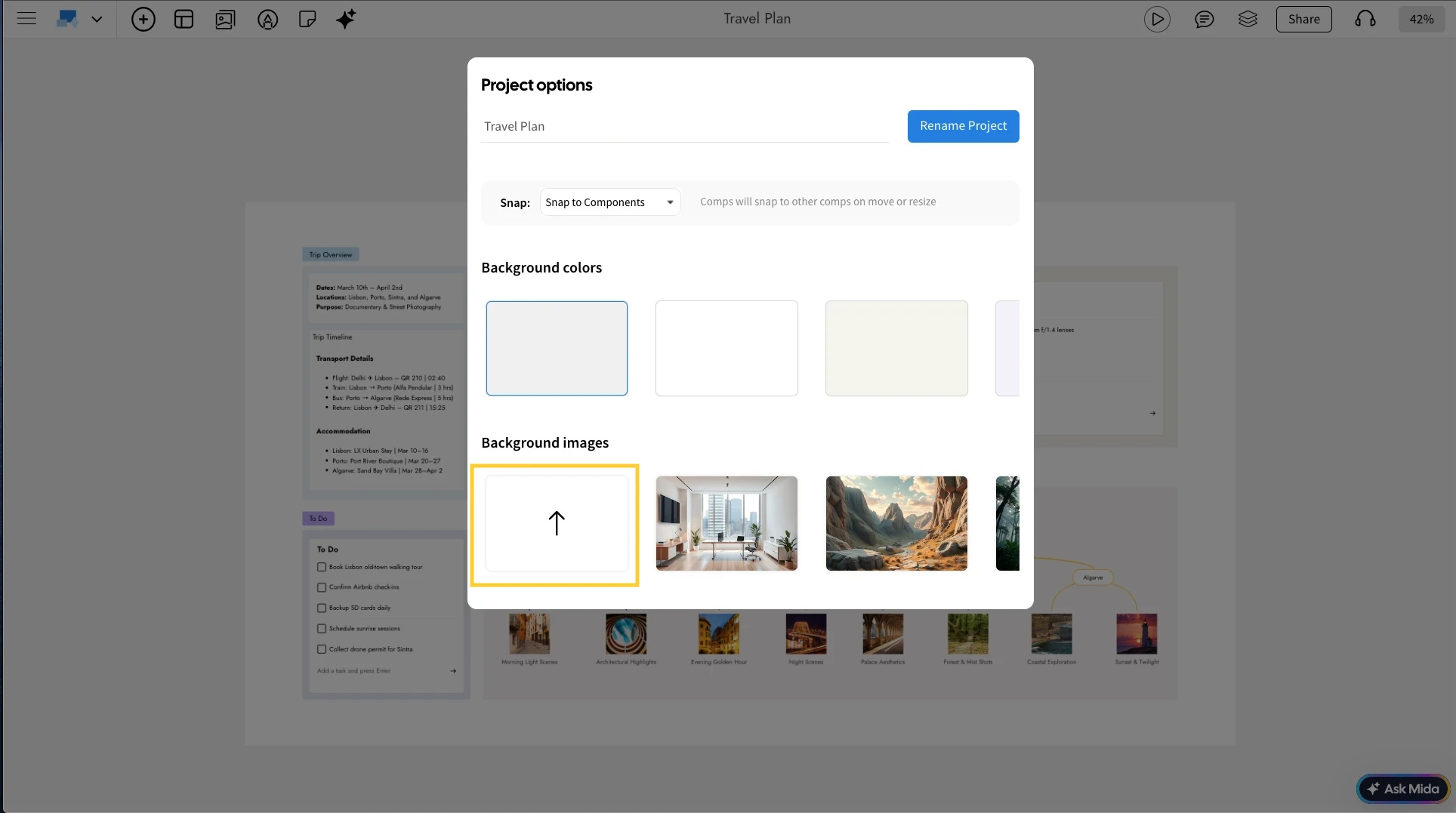
You can also upload custom images by opening the Image Library.
Once you click an image or color, it will be instantly applied as the background.
Was this page helpful?