Color swatch
Learn how to use Color Swatches to capture, organize, and document colors while creating moodboards and style guides. Include hex codes to ensure design consistency.
Color Swatches let you visually capture and organize colors on the board while building moodboards or style guides. Optionally show the hex code to define exact colors and keep design decisions consistent.
Click on the 'Add Anything' icon in the top left corner, select the component 'Color Code', drag and drag it onto the canvas.
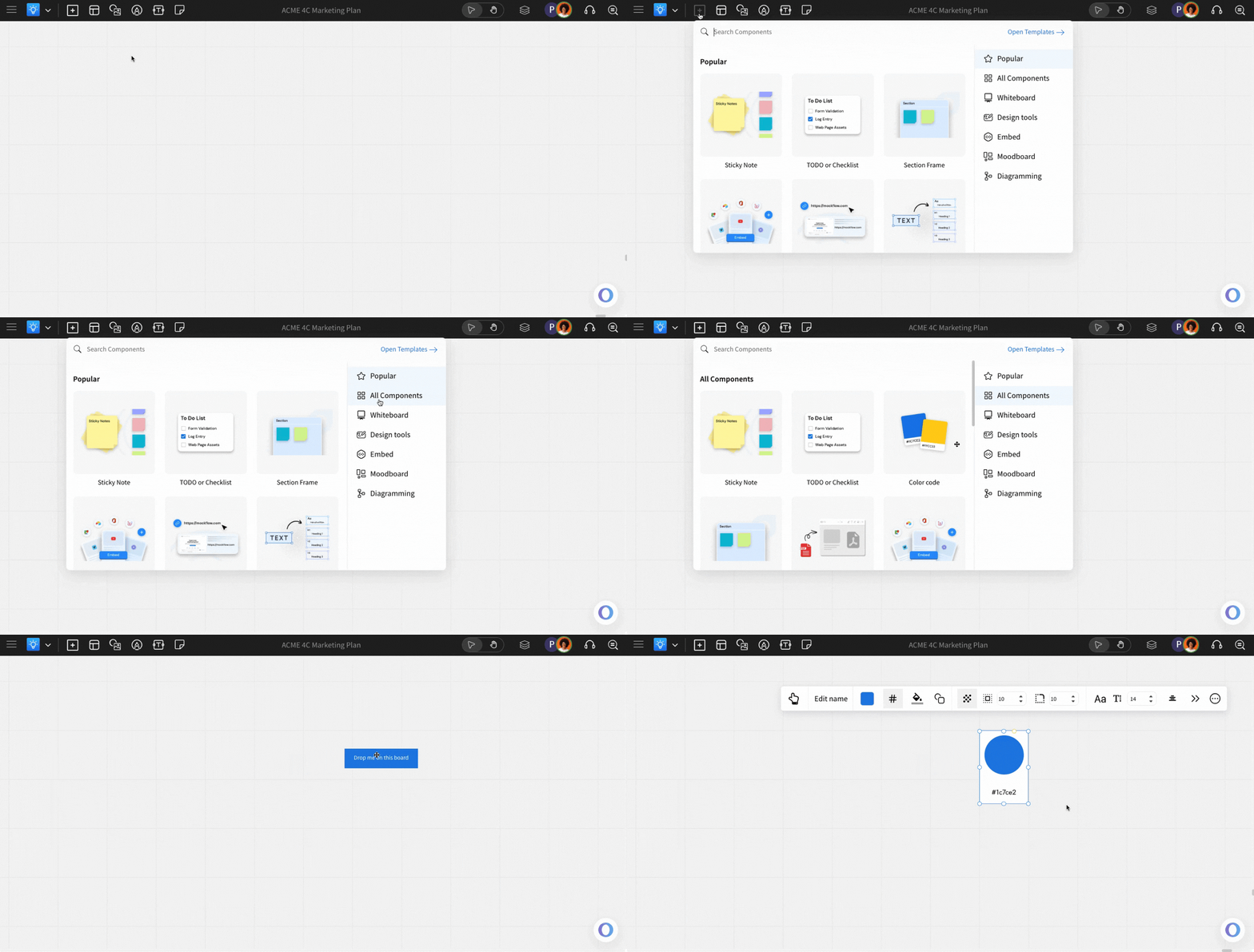
Choosing the color: The color can be chosen by using the 'Select Color' from the quick toolbar.
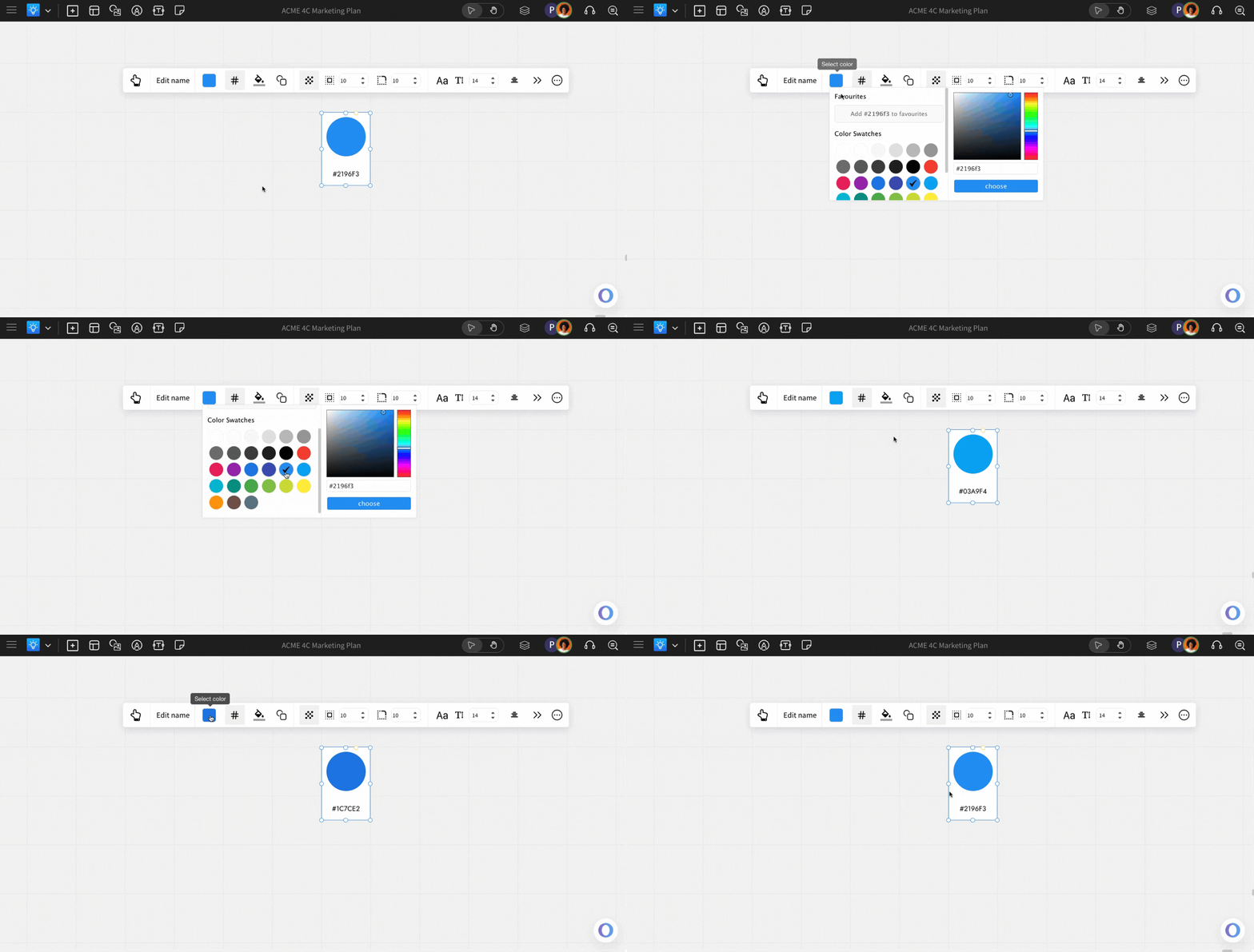
Other Formatting Options
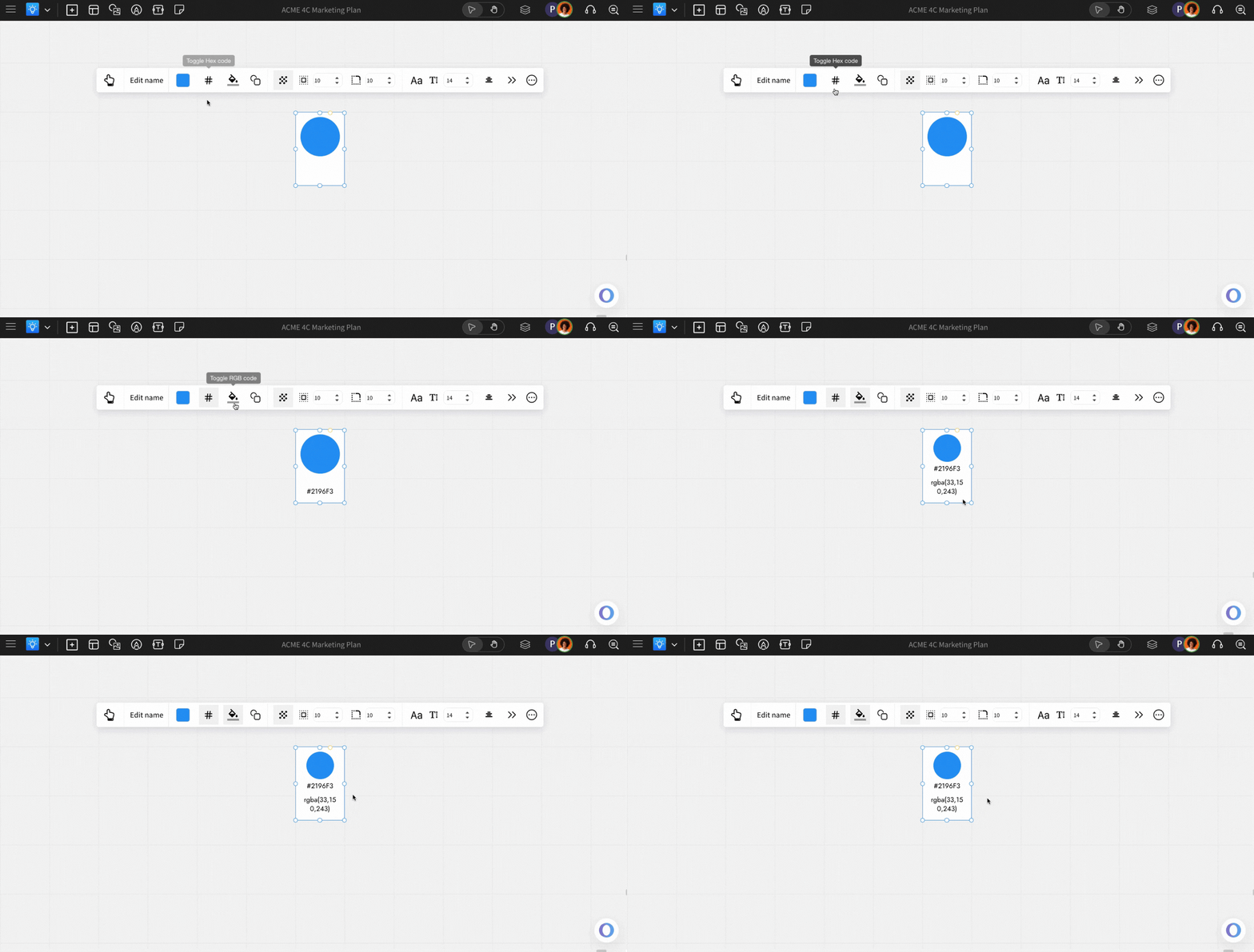
Show or hide HEX code: You can hide or show the HEX code and RGB code of a particular color using the 'Toggle HEX Code' and 'Toggle RGB Code' options from the quick toolbar.
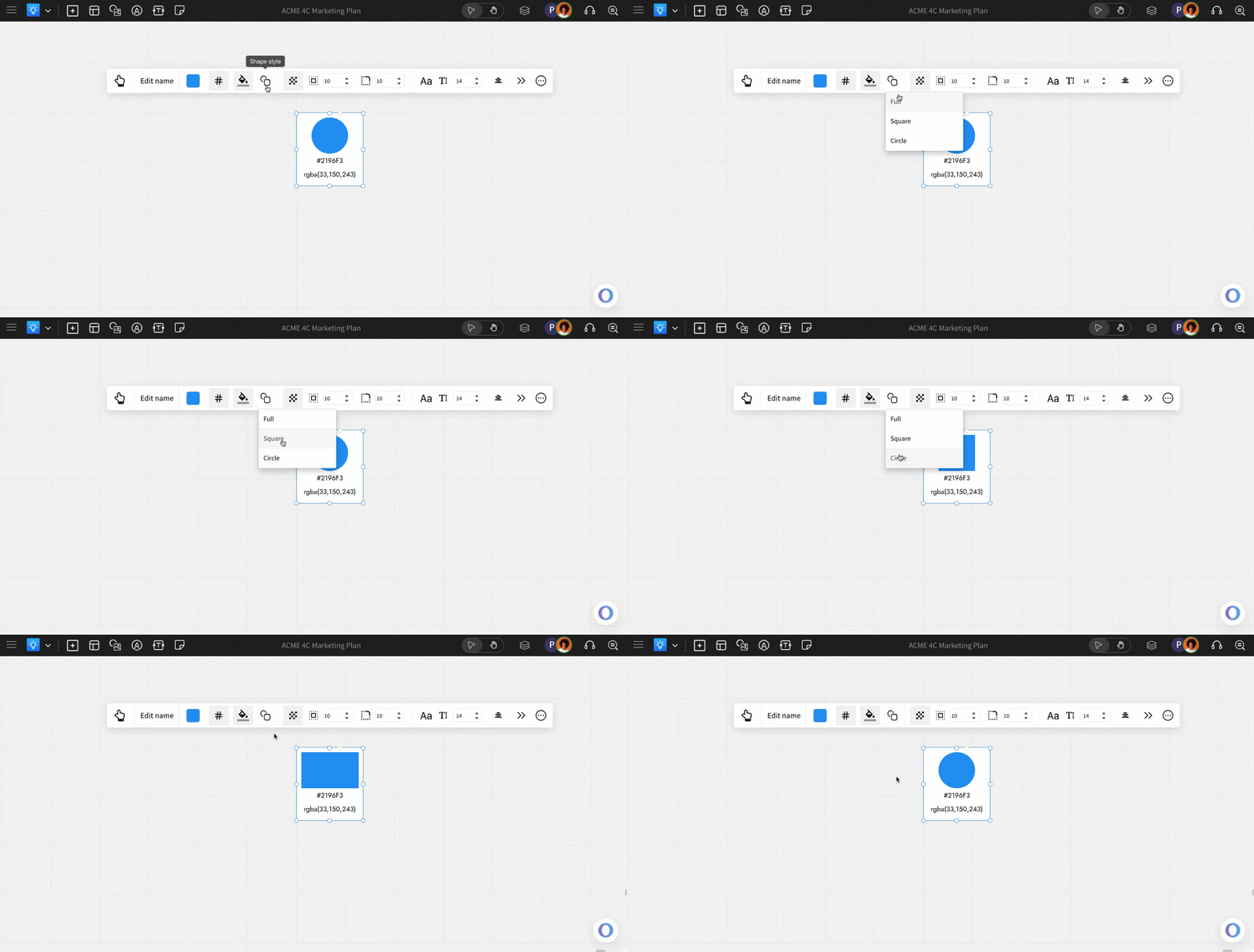
Customizing shape style: You can change the shape of the color swatch by using the 'Shape Styles' with the options - Full, square, and circle.
Change color code font styles: You can change the font family, font size, and text alignment from the quick toolbar itself.
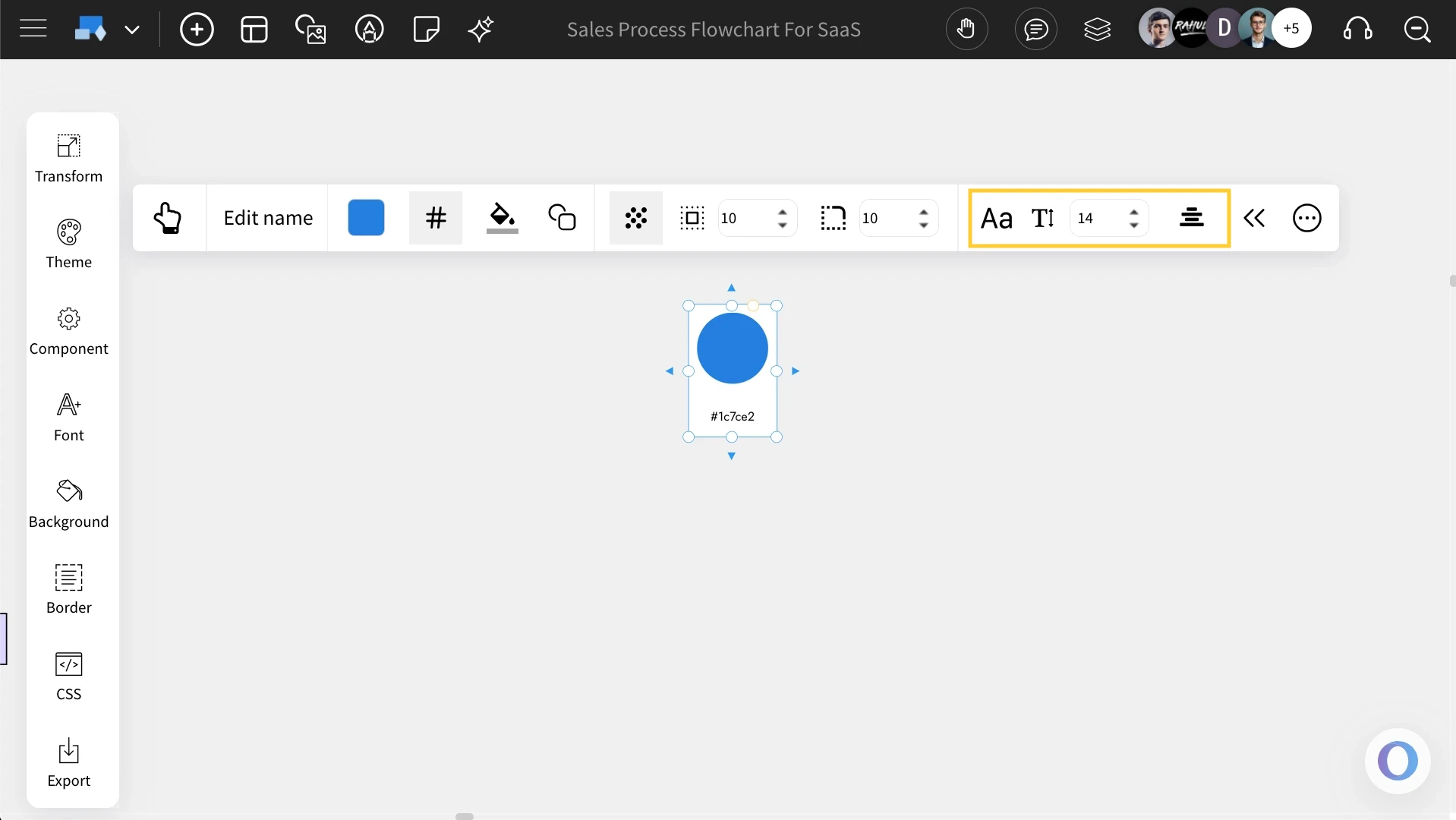
Interacting with the color code: The interact action for the color code component copies the hex code to your clipboard so that you can use it elsewhere.